ISP API Tuning SOP
REVISION HISTORY
| Revision No. | Description |
Date |
|---|---|---|
| 1.0 (API Ver. 1.0) | 12/20/2023 | |
| 1.1 (API Ver. 1.0) | 01/04/2024 | |
| 1.2 (API Ver. 1.0) | 01/04/2024 | |
| 1.3 (API Ver. 1.0) | 01/17/2024 | |
| 1.4 (API Ver. 1.0) | 02/05/2024 | |
| 1.5 (API Ver. 1.0) | 02/19/2024 | |
| 1.6 (API Ver. 1.0) | 05/14/2024 | |
| 1.7 (API Ver. 1.0) | 05/20/2024 | |
| 1.8 (API Ver. 1.0) | 05/31/2024 | |
| 1.9 (API Ver. 1.0) | 06/20/2024 | |
| 1.10 (API Ver. 1.0) | 06/21/2024 | |
| 1.11 (API Ver. 1.0) | 06/26/2024 | |
| 1.12 (API Ver. 1.0) | 07/19/2024 | |
| 1.13 (API Ver. 1.0) | 08/07/2024 | |
| 1.14 (API Ver. 1.0) | 08/16/2024 | |
| 1.15 (API Ver. 1.0) | 02/12/2025 | |
| 1.16 (API Ver. 1.0) | 09/10/2025 | |
| 1.17 (API Ver. 1.0) | 12/29/2025 |
OVERVIEW
Module Description
The ISP module aims to analyse and process data inputted from video source, set up associated video parameters, and perform camera tuning to realize various functions such as black level correction, lens correction, 3A and 2D/3D noise reduction, CCM, and Gamma.
Flow Chart

CONNECTING TO THE IQ TOOL INTERFACE
IQ Tool Interface Connection
-
To start the camera via Ethernet, there are three methods for starting Pure Linux on the public version. Since the third method does not include the required bin in the default SDK, it is recommended to use the first two methods:
a. Enable by using the
vif_demoparameterq, for example:./prog_vif_sensor_demo 0 index 3 iqbin /config/iqfile/imx681_3m_comake_1201_30fps.bin 3dnr 1 calidata /config/iqfile/3m_ne_cali.data qb. Taking
vif_demoas an example, addMI_IQSERVERto the demo program as follows:b.1 Add
LIBS += -lmi_iqserverto the last line ofsdk/verify/sample_code/source/iford/vif/sensor_demo/sensor_demo.mk.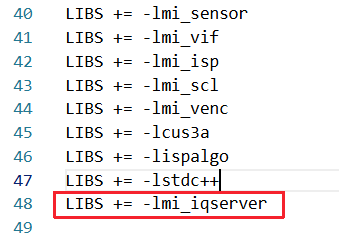
b.2 In
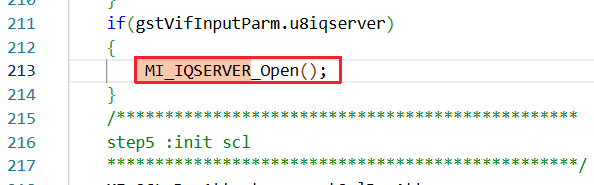
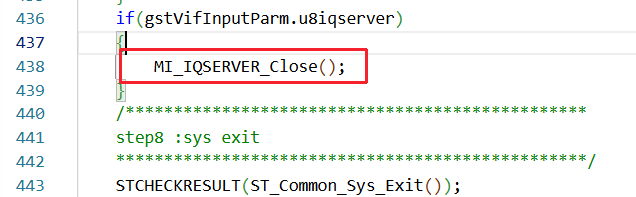
sdk/verify/sample_code/source/iford/vif/sensor_demo/st_sample_vif.c, add the IQ Server header file#include "mi_iqserver.h", and includeMI_IQSERVER_Open()in theSTUB_BaseModuleInit()function, andMI_IQSERVER_Close()in theSTUB_BaseModuleDeInitfunction, as shown in the figure below. For specific implementation, please refer tost_sample_vif.c.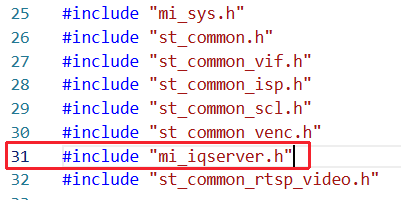
c. Start using the preview method:
# cd /customer/amigos/preview # ./preview -r xxx.json -
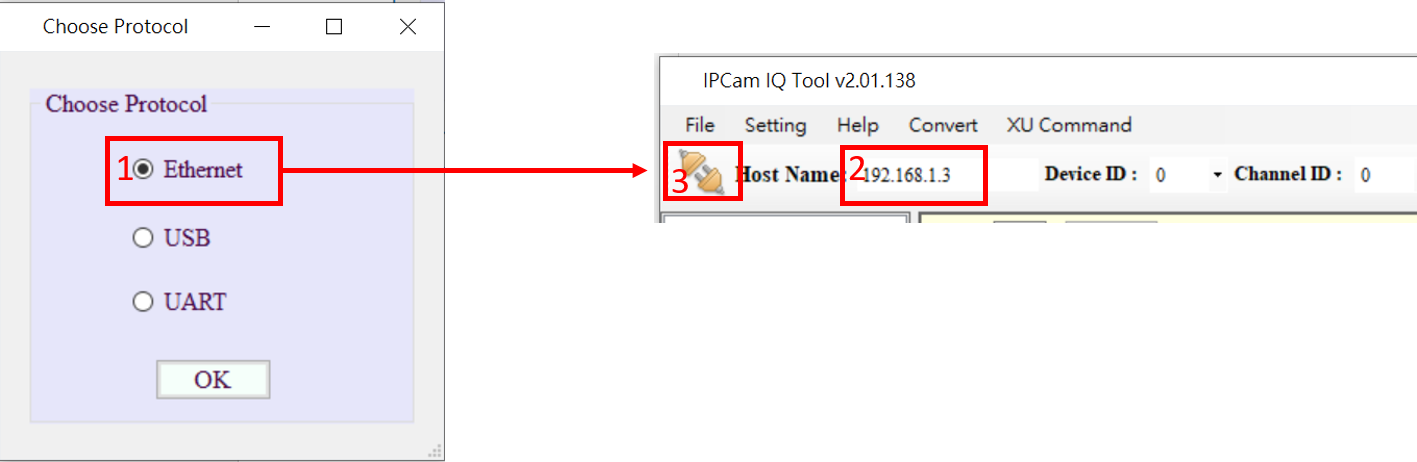
Input the IP address of the EVB.
-
Click the Connection icon (
 ) to establish the connection. If the icon is changed to (
  ), which means connection done successfully, then you can start using the tool to adjust image parameters. If you click the icon ( ) once again, it will change back to ( ), and the connection will be disconnected. An illustration of the setup steps is shown in Figure below.
IQ TOOL INTERFACE FUNCTION DESCRIPTION
IQ Tool Interface
As displayed in Figure 112, the functions encircled in red dotted line to the left of the IQ Tool interface compose a tree structure, each node being itself an API collection. Clicking on a node will generate the interface on the right. If you click the node AE, for example, the associated API — ManualExposure, in this case — will be automatically unfolded on the right. You can then adjust the API settings in real-time with this interface.

Parameter Tuning
Different APIs have different types of parameter setting methods, for example filling in values, selecting items in drop-down menu, reading values, creating tables, etc. Depending on the initial setting of the APIs, some grant read and write access, and others grant read-only access.
Parameter tuning:
-
Value: The value can be modified by the following three methods:
- Click the up/down arrows to adjust the value
- Fill in the value in the associated field
- Move the scroll bar leftward/rightward to adjust the value
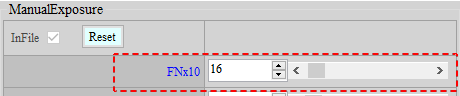
Value-type parameter tuning will have a prescribed range for adjustment, with min/max value set according to the API’s initial setting. Take ManualExposure as an example, the min. value of FNx10 is 10 and the max. 220. If the value filled in is smaller than 10, the tool will auto-correct it to 10; if the value filled in is greater than 220, the tool will auto-correct it to 220 (see the figure below).
-
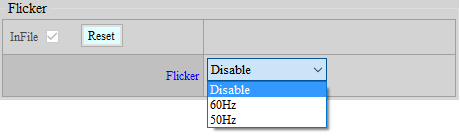
Drop-Down Menu: By clicking on the down arrow, you will see the drop-down menu with options for you to choose from. For example, in the API AE – Flicker shown in the figure below, you can select Disable, 60Hz, or 50Hz as the value for the Enable field.
-
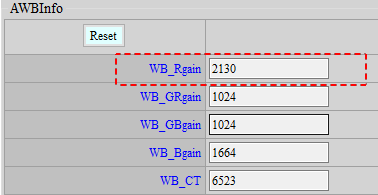
Reading Values: The value shown in this type of parameter setting is read-only and non-writable. Take API AWBInfo in the figure below as an example, the value of 2130 shown in the field of WB_Rgain can be read but not written.
-
Form: A button is provided on the API, for example the button of Edit Table shown in the figure below.

By clicking the button, you will see a form window (Pop-up Window in the figure below, with a Table inside the window. Click “Read” to read the value from the platform, and “Write” to write the value to the platform.
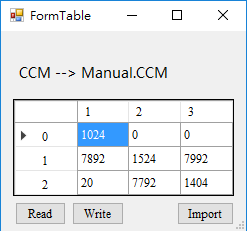
If the table is read-only, write to the platform will not be permitted by API, then only the Read button will be shown (see the figure below).

Read/Write Data
You can read/write data of the entire API collections, or all API data under the current page. Let’s take the case shown in the figure below, where the current API page is AE, as an example. If you click “Read Page” on the upper right, all data under the current AE page will be read out; if you click “Write Page” on the upper right, all data will be written into the current AE page. On the contrary, if you click “R ALL” button, all data of the entire API collections, not just those of the API AE, will be read out; if you click “W ALL” button, all data will be automatically written into the entire API collections, except those concerned with Gamma/Calibration. For Gamma, you must manually select “Write Page” to enable data to be written to the API. Table 1 shows details on the icons used for data read/write.
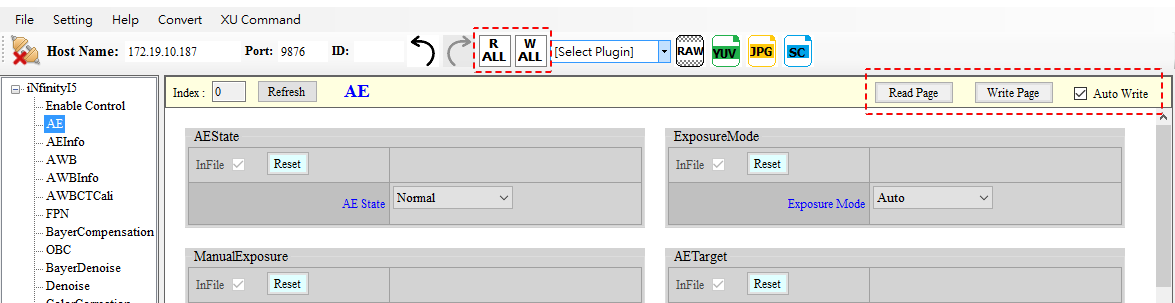
Table 1: Description of Read/Write Data Icon
| Icon | Function | Description |
|---|---|---|
 |
Read data from all API collections | Click R ALL will read data of all API collections |
 |
Write data to all API collections | Click W ALL will write data to all API collections (except Calibration) |
 |
Read data from current page | Click Read Page will read all API data under the current page. |
 |
Write data to current page | Click Write Page will write data to all API under the current page. |
 |
Write data from the current page to API in real-time | When checked, Auto Write function will become enabled. |
Saving Images in RAW/YUV/JPG Format
Once the platform is connected, you can click the buttons encircled in red dotted line to capture images in four formats.
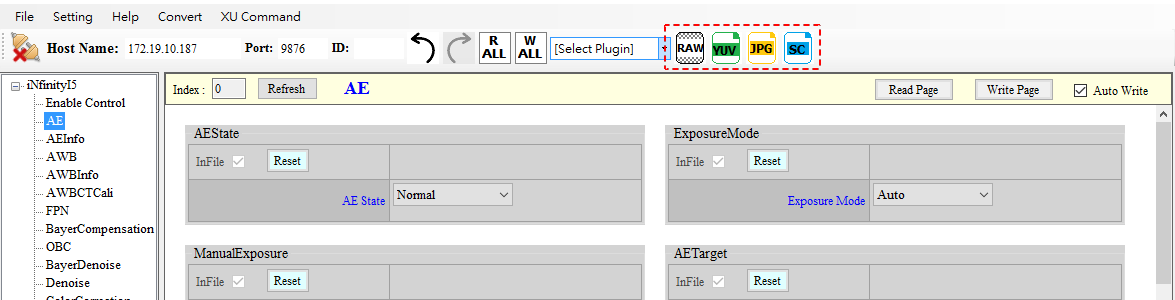
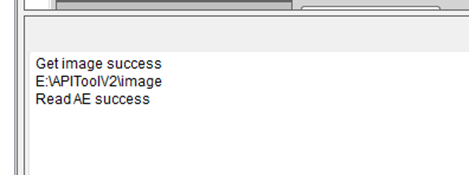
When the capture starts, a new window will pop up and display the progress. If the image is captured successfully, a success message will be shown, as illustrated in figure below, together with the directory where the image is saved. The default path is the “./Image” folder under the directory where the program exists.
Create, Save, and Load Parameters
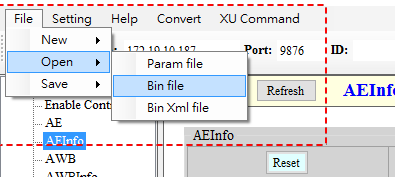
During the tuning process with IQ Tool, you can save the parameters of the current page to a specified directory or load any parameter files already saved at any time.

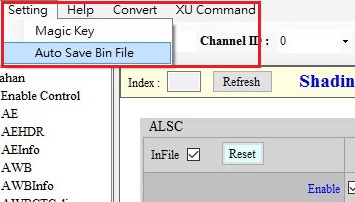
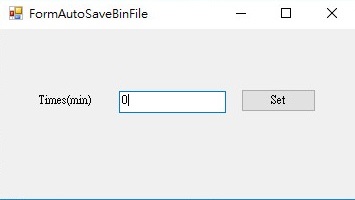
IQ Tool can save Bin File automatically. The unit of the parameter is minute, and 0 means no automatic saving. The Bin File will be saved in “CvtXml” folder. If saving is done manually, the seconds will be counted again.

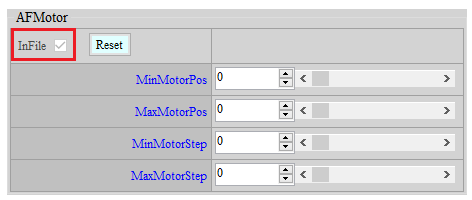
You may save API bin files without their respective API functions by simply unchecking the InFile box of the corresponding APIs, as shown in the following figure.
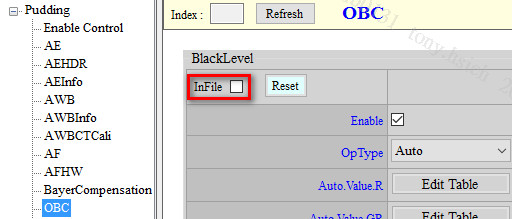
If the InFile box is locked and greyed out, and you need to save the modified API into the API Bin file, you may go to Api.xml and change the FileMode of that API to W.

-
Two formats are available for saving parameter files: XML and BIN
-
XML Format
XML is mainly used for saving GUI interface (including interface parameters) of the tool.
-
BIN Format
BIN is for saving API parameters only. You can call MI_ISP_API_CmdLoadBinFile (MI_U32 Channel, char* filepath, MI_U32 user_key) at the application layer to automatically load API parameters.
Magic Key: can be used to verify if the bin file matches the device. The Magic Key can be set up via the Setting page. Subsequent to the API parameters of the bin file, the Xml file of the corresponding serial port will be added to ensure Xml file matches the API parameters.
-
-
Three formats are available for loading parameters: XML, BIN and BIN XML.
-
XML Format
XML is used for loading GUI interface (including interface parameters) of the tool.
-
BIN Format
BIN is used for loading API parameters.
-
BIN XML
BIN XML is used for loading API parameters and adding the Xml of corresponding serial port.
-
Gamma Tuning
-
Select “Gamma” from the menu on the left-hand side, and you will find Gamma tuning interface generated on the right.
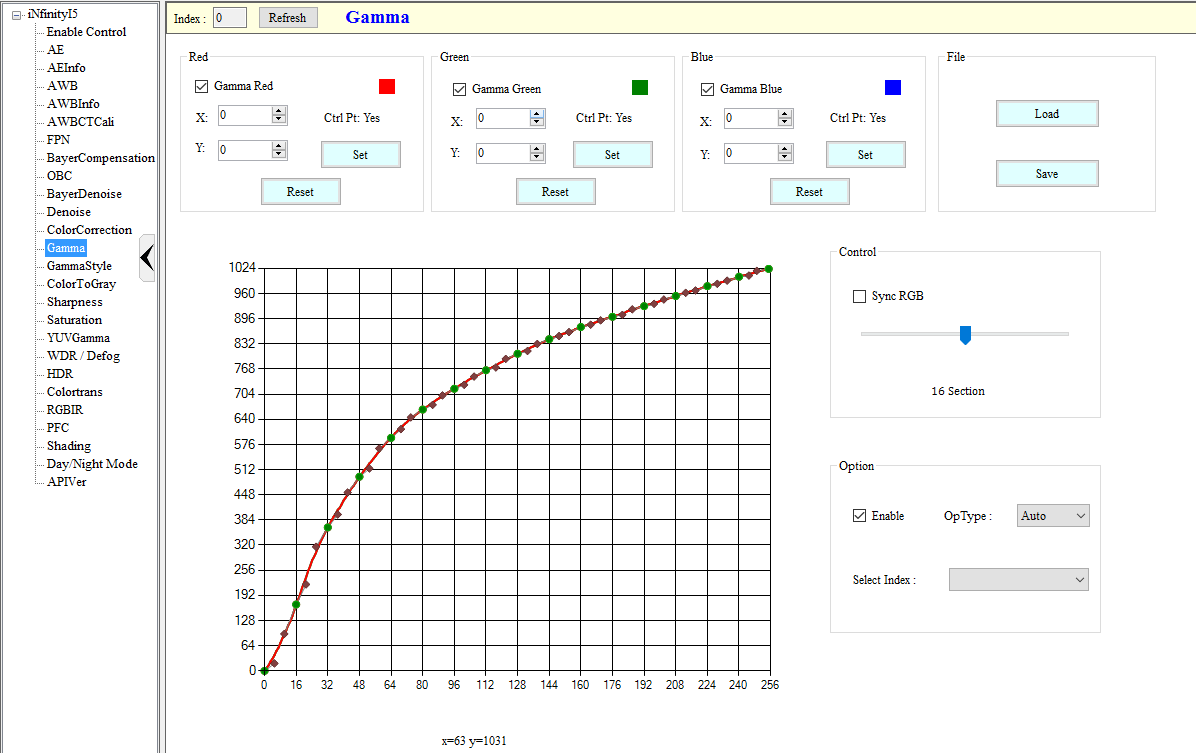
-
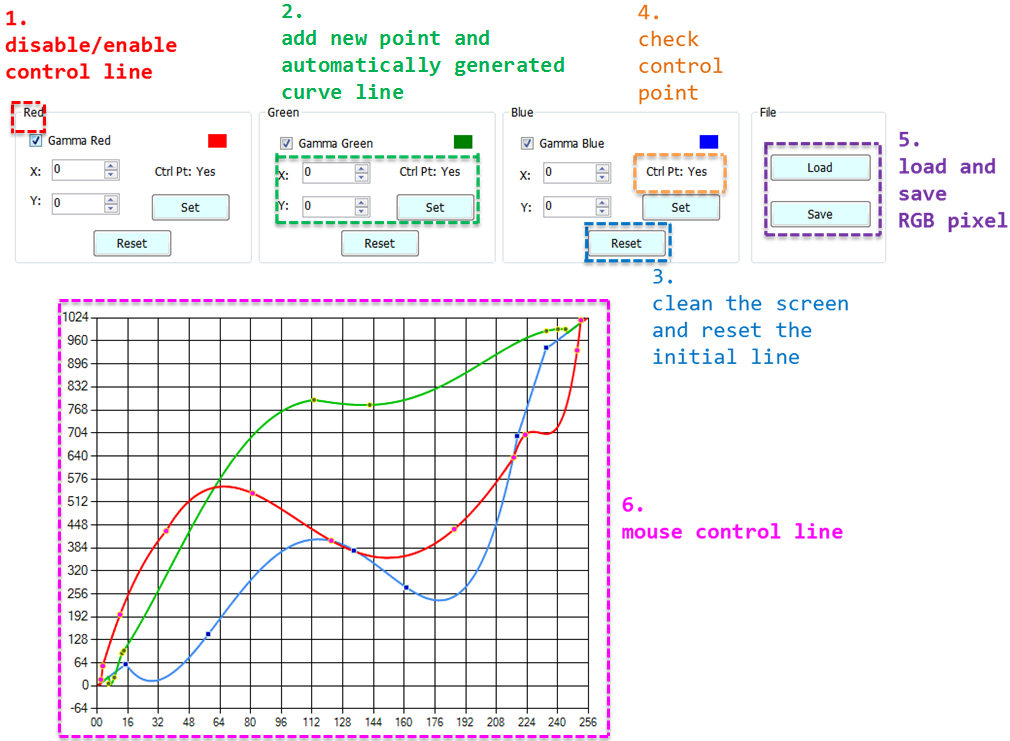
For a quick overview of functions in Gamma tuning interface, please refer to the following figure.
-
For a detailed description of Gamma tuning functions, please refer to Table 2.
Table 2: Detailed Descriptions of Gamma Tuning Function
Gamma Interface Function Icon Function Description 1 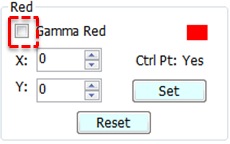
Disables/Enables control over R,G,B line - If Gamma Red is checked, the red line will be controllable by the mouse and is visible.
- If Gamma Red is not checked, the red line will not be controllable by the mouse and is not visible.
- The same applies to Gamma Green and Gamma Blue.2 
Creates new point and automatically generates curve line Move the up/down arrow to adjust the values on X-axis and Y-axis (or input the desired values in the fields), and click “Set”
- If there is no control point yet, new (x,y) control points will be added to the curve line and form a smooth curve based on new control points.
- If a control point already exists on the X-axis of the curve line, the new value on Y-axis will be taken as the control point and form a smooth curve.3 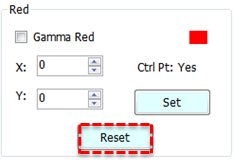
Resets the initial line Clear R, G or B lines, and restore the initial setting (bypass gamma). 4 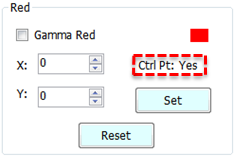
Checks the control point “Yes” if a control point has been successfully created, “No” otherwise. 5 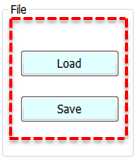
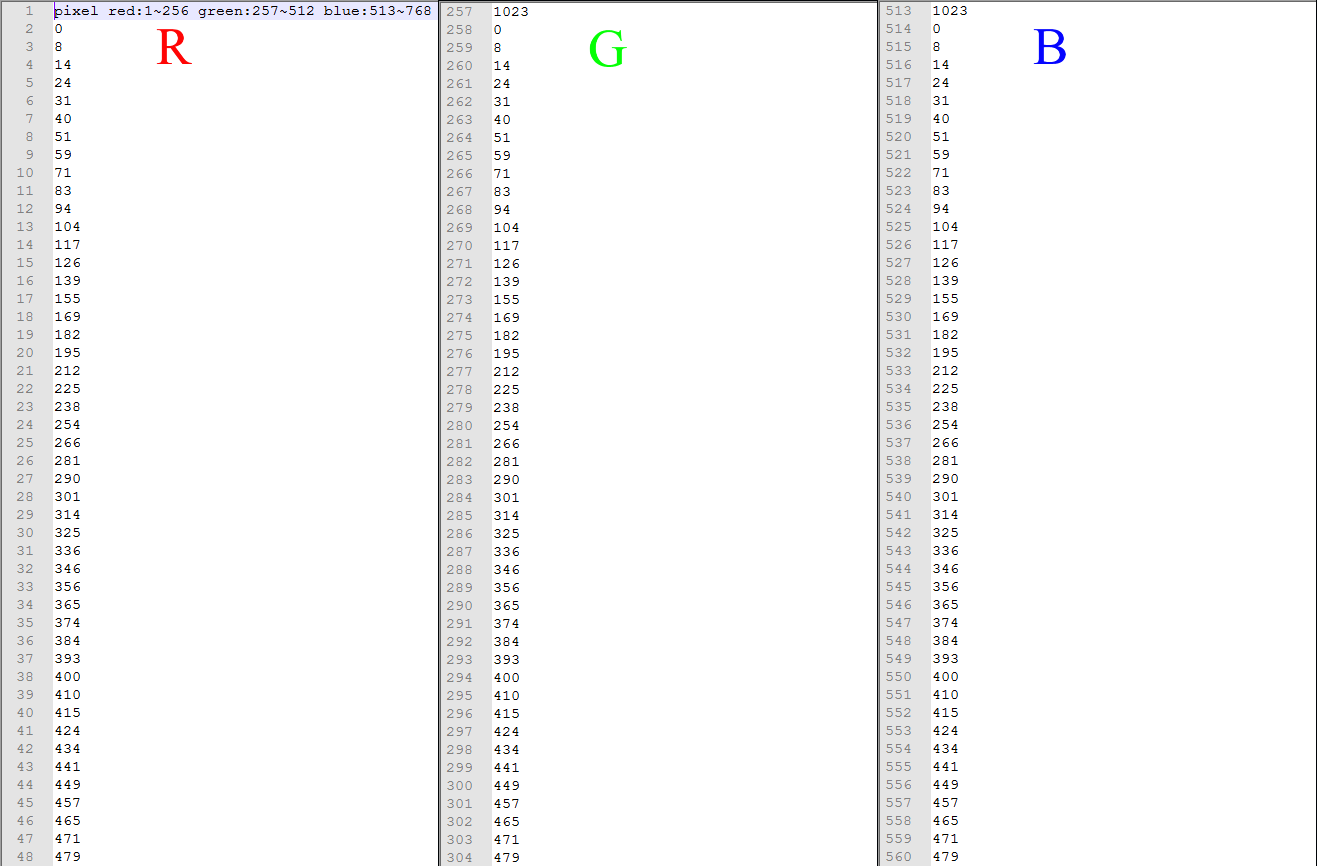
Loads and saves RGB pixel - Load: Load the txt file bearing RGB pixel values, and an RGB curve line will be generated automatically.
- Save: Save the RGB curve line pixel values as a txt file. See Figure 130.
- The file format is: R→G→B; Header: 0 (description); Pixel red: 1 ~ 256; Pixel green: 257 ~ 512; Pixel blue: 513 ~ 768.6 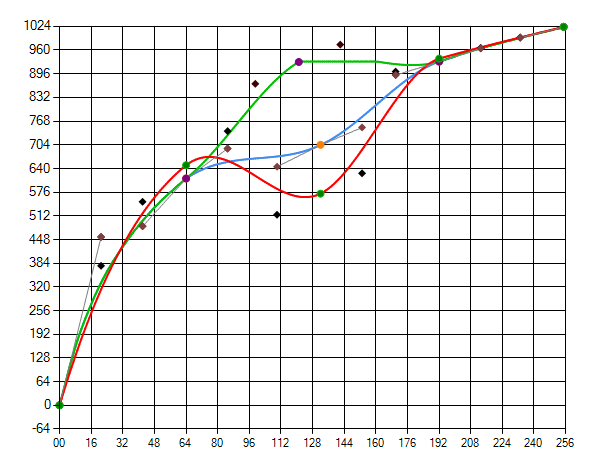
Mouse control page - Left click the curve to add a new control point. Move the control point and the auxiliary point to create a smooth curve.
- Right click the control point to delete it.7 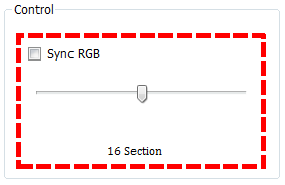
Control point option - If Sync RGB is checked, the R, G and B curve lines will merge into one gray line. Modifying this gray line will modify the R, G and B lines at the same time.
- Drag the Section Bar leftward/rightward to set the number of control points for the curve line. -
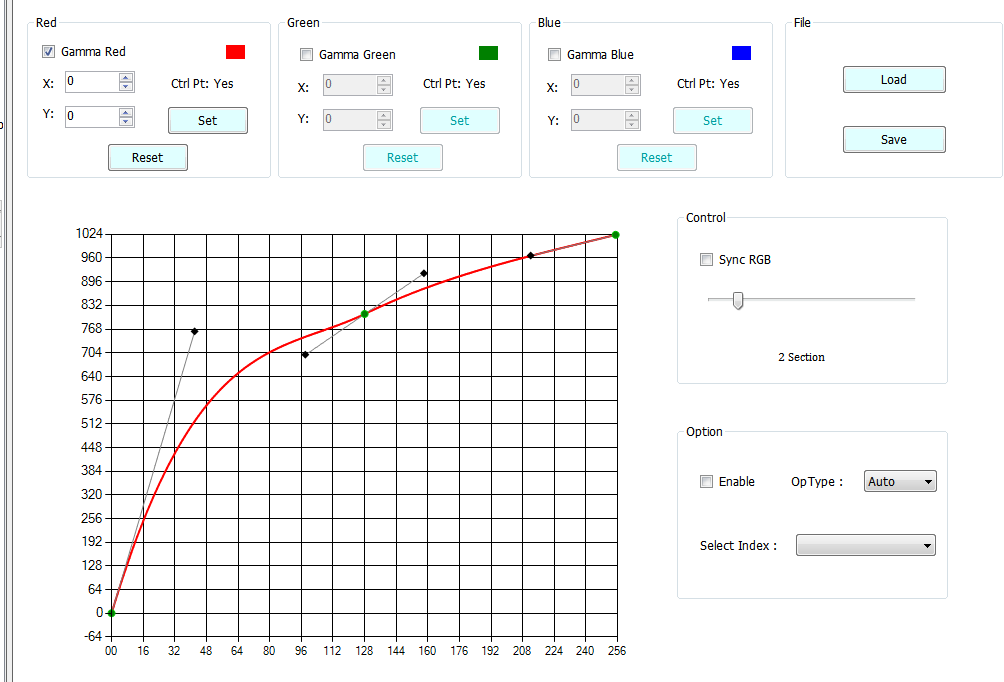
To adjust Gamma curve: The R, G and B curves are shown on the coordinates when initialized. By checking Gamma Red, Gamma Green and Gamma Blue, you can move the cross symbol to control the curves by mouse. If you happen to click the spot where the three curves overlap, the priority will be Red, Green and then Blue. Let’s take R curve as an example. You can left click the mouse to add a new control point and right click to delete it. Moving the control point can modify the curve. Two auxiliary points are provided along the control point, to help fine tune the Bezier curve. There are 256 pixel values each for R, G and B. See the following figure for details.
-
Read Page and Write Page of Gamma Curve:
-
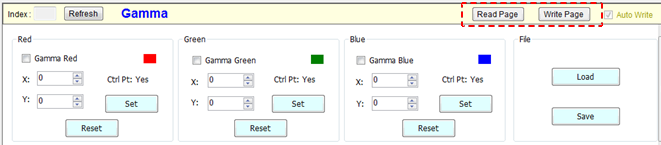
Read Page: This enables you to get API. Click “Read Page” and you will get the values from the curve that is currently effective.
-
Write Page: This enables you to set API and write the curve value from the current UI to the platform. In the case of Gamma, you must click “Write Page” manually to write data. For all other APIs, auto write is enabled. Please refer to the following figure for Read Page and Write Page buttons.
-
Shading
Adjustment Interface
Select “Shading” from the menu on the left-hand side to call out ALSC Interface.

Parameter Description
Enable: Enable ALSC API function. 0 means disable, and 1 enable. Parameter range: 0 ~ 1.
GridX: The size of shading table in the direction of X. The default size on this platform is 27. Parameter range: 1 ~ 27.
GridY: The size of shading table in the direction of Y. The default size on this platform is 27. Parameter range: 1 ~ 27.
CCTThr: Set the node of ambient color temperature. Up to three shading calibration tables are supported. Note: You should fill in the index from small to large by following the order from low to high color temperature. Parameter range: 1 ~ 3.
DeltaMode: There are 16 modes by default. The vertical axis represents each mode, while the horizontal axis represents the size of each grid in X/Y direction. On this platform, the preset spacing is 26-grid in X direction and 16-grid in Y direction. The greater the value in the preset mode, the smaller the grid. Parameter range: 0 ~ 15.
DeltaModeAdvEn: Enable advanced mode. 0 means disable, and 1 enable. Parameter range: 0 ~ 1. When GridX/Y is of a size other than the default 27×17 set for this platform, you must enter this mode to adjust non-uniform grid settings.
DeltaLutX: Spacing on the X-axis. Each index value represents a block size (index = block size / 16). The index value is limited to 1, 2, 4, 8, and 16. If no block is used, set it to 0. Up to 72 sets of blocks are supported. In this platform, the spacing is 26-grid.
DeltaLutY: Spacing on the Y-axis. Each index value represents a block size (index = block size / 16). The index value is limited to 1, 2, 4, 8, and 16. If no block is used, set it to 0. Up to 72 sets of blocks are supported. In this platform, the spacing is 16-grid.
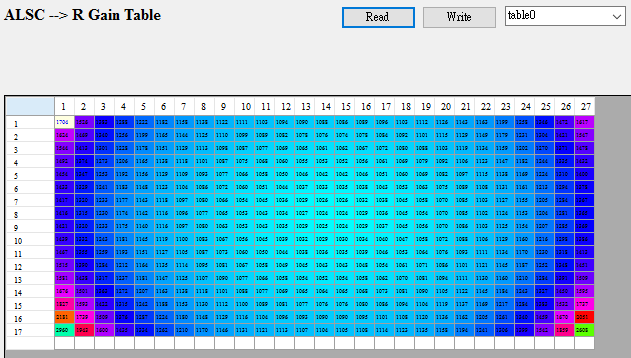
R/G/B Gain Table: Click any of the R/G/B Gain Table to generate a new interface, in which the screen will be divided into a 27x17 matrix. The value in each box represents the weight by which the R/G/B component at this position needs to be multiplied. Parameter range: 0 ~ 4095.
Auto ALSC Table Adjustment API
When two light sources share similar or close color temperatures, their wavelength spectrums may be different. In colorimetry, this phenomenon of matching colors with non matching spectrums is known as metamerism. Under two metameric light sources, certain camera modules may show different color shadings. For these camera modules, applying one single set of shading table is not sufficient to achieve an ideal result of compensation (as the following figure shows). To solve this problem, an adaptive algorithm is designed to automatically detect color shading and fine-tune the shading table from the current ALSC table to reduce shading. We suggest that you enable this function only after ALSC compensation of high/medium/low color temperatures have been completed, when compensation under metameric light sources is not satisfactory.

Adjustment Interface
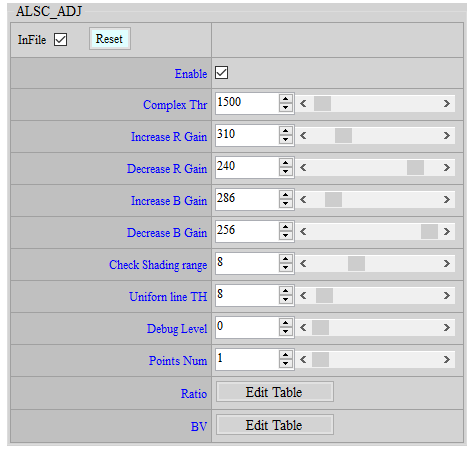
Auto ALSC Adjustment Parameter Description
Complex Thr: Parameter range: 0 ~ 65536. If the complexity of the area within the check range is smaller than Complex Thr, the area will be listed as the candidate for evaluation of color shading judgement.
Max Increase R Gain: Parameter range: 256 ~ 512. The maximum range allowed for the algorithm to increase R in the ALSC table. 256 = 1x.
Max Decrease R Gain: Parameter range: 128 ~ 256. The minimum range allowed for the algorithm to reduce R in the ALSC table. 256 = 1x.
Max Increase B Gain: Parameter range: 256 ~ 512. The maximum range allowed for the algorithm to increase B in the ALSC table. 256 = 1x.
Max Decrease B Gain: Parameter range: 128 ~ 256. The minimum range allowed for the algorithm to reduce B in ALSC table. 256 = 1x.
Note: We suggest that you carefully tune the above parameters to an appropriate value inside the light booth. Setting the value too large or too small is not recommended, otherwise color deviation may occur to the picture when algorithm misjudges.
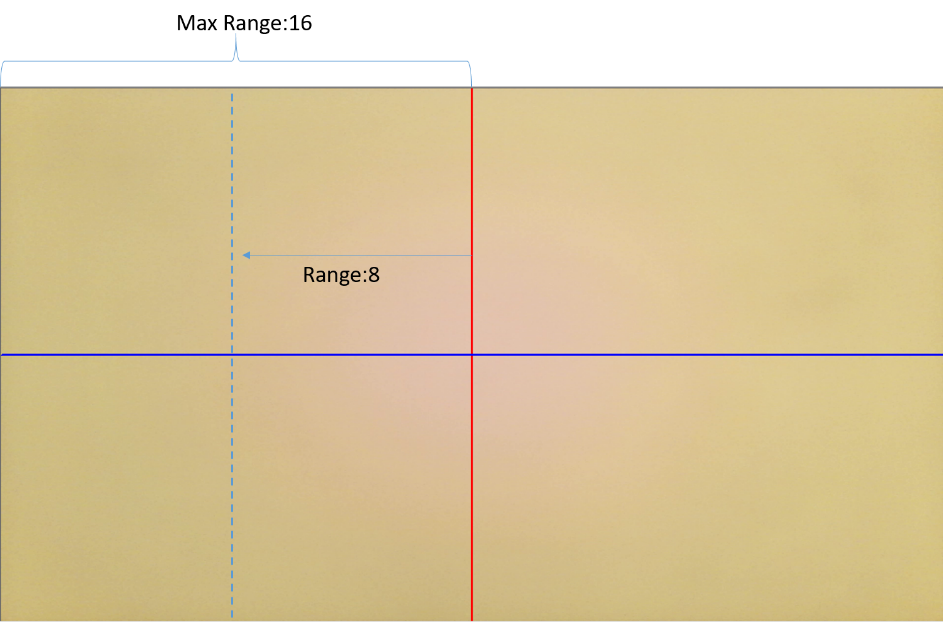
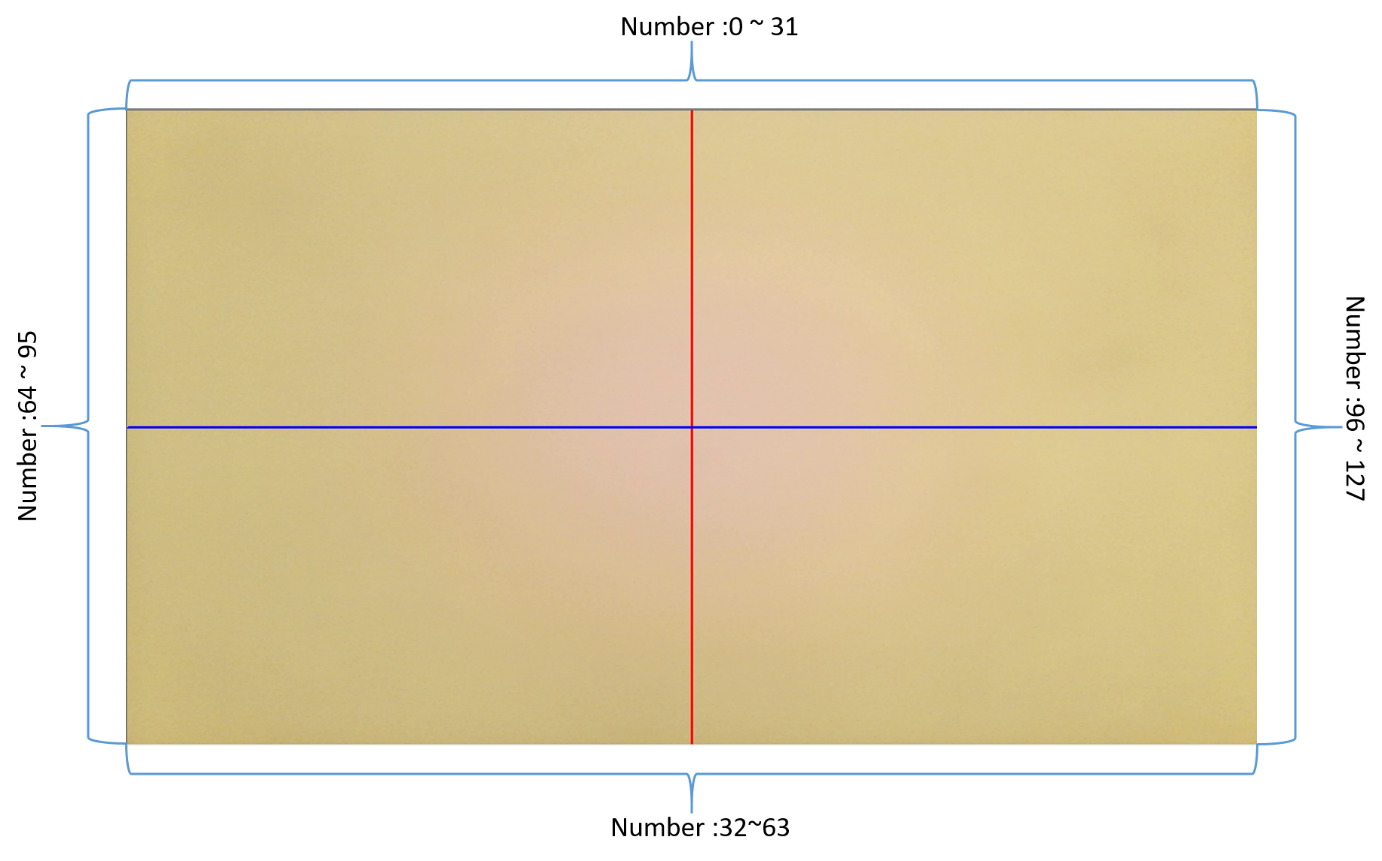
Check Shading Range: Parameter range: 8 ~ 16. The picture is divided into 32 regions both horizontally and vertically. The value represents the check range starting from the center of the picture. We suggest that you set the range within the region where apparent color shading occurs in the camera module. The self-adaptive algorithm determines compensation by the sum of shading within the check range. If the range is set too large, the algorithm may have to deal with too many areas with no apparent color shading, thus affecting the overall evaluation result.
Uniform line TH: Parameter range: 8 ~ 128. Perform the evaluation of shading in the picture only when the area listed as candidate (of which the complexity < Complex Thr) is larger than Uniform line count TH. If algorithm misjudgement frequently occurs in common scenes, you may increase the value of this parameter so that evaluation will be carried out only when there are enough of candidate areas.
Ratio By BV: Compensation can be reduced according to the value of brightness in scenes under relatively low light source. This parameter directly changes Increase/Decrease R/B Gain in the algorithm.
Auto ALSC Adjustment Flow
Perform ALSC calibration of two to three different color temperatures in the light booth. After calibration is finished, switch the light source to the mmetameric one, observe the area where color shading appears, and set the parameter of Check Shading Range (please refer to the following figure).
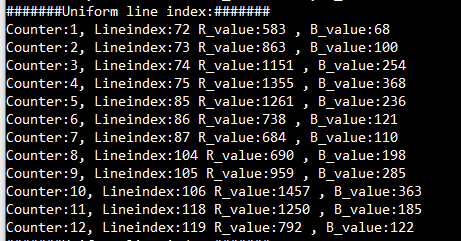
After shading range is confirmed, set Debug Level to 1. For ranges of which the complexity is smaller than Complex Thr in the picture, Uart will print out their number along with their R and B complexity values, as the figure illustrates. The following figure shows the way how each range number corresponds to a position in the picture. Now, you may gradually increase Complex Thr and make sure all the ranges with color shading in the light booth environment are incorporated into shading evaluation. A scene will be included in the calculation only when the printed counter number exceeds complex scene counter number.
After Complex Thr is determined, set Debug Level to 2, and Uart will print out the result of shading judgement for the whole picture along with the compensation of R and B gains. If the picture shows red in the center and green on the side, it means that R_ratio is smaller than 256. At this point, you should gradually increase Max Increase Rgain, allowing the algorithm to increase the R component. Adjustment to Max Increase Rgain should continue until R_ratio reaches 256. The same procedure applies to the B component. If the picture shows green in the center and red on the side, you should perform the procedure in reverse order. The following figure shows the log of actual compensation.
Fine-tune Max Increase RGain, Max Decrease RGain, Max Increase BGain, and Max Decrease Bgain, according to different conditions of color temperature. You should fine-tune these parameters to an appropriate gain. Setting the value too large or too small is not recommended, otherwise color deviation may occur to the picture when algorithm misjudges shading.
To save computational power, setting Debug Level = 2 will also show the current algorithm status, as described below:
SHADING_CHK: Check current picture and determine whether the conditions of shading compensation can be met, perform shading detection and adjustment.
NO_IMPROVE_PAUSE: After several rounds of compensation, both R_ratio and B_ratio still fail to reach 256, the algorithm will then stop checking and keep the current amount of compensation. This status indicates that either the algorithm fails to increase the ratios to 256 after adjusting ALSC table, or the compensation gain has achieved the maximum.
COMPLEX_PAUSE: The current picture does not meet the conditions of compensation (uniform line counter > Uniform line count TH), so compensation stops.
STABLE_PAUSE: After several rounds of compensation, both R_ratio and B_ratio have reached 256. The algorithm will pause calculation and keep the current amount of compensation.

Plugin
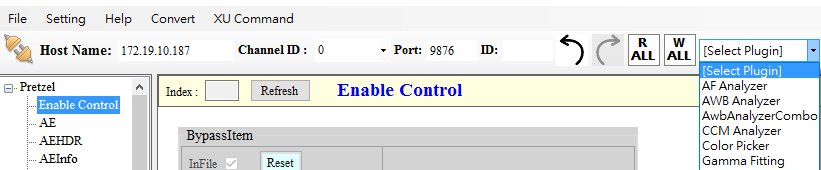
The IQ Tool provides AF, AWB, CCM, GAMMA and ALSC plugins to assist IQ tuning, as illustrated in the following figure.
AF Analyzer
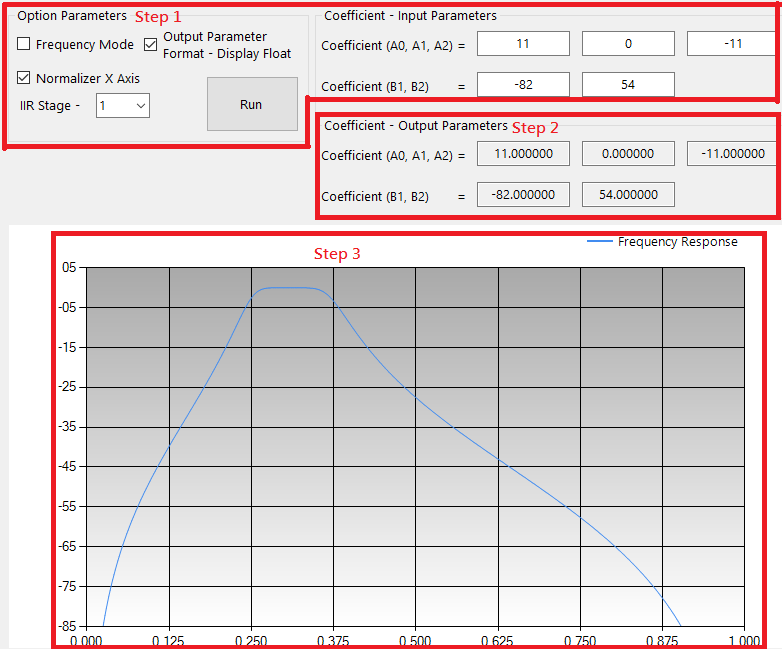
The AF Analyzer plugin aims to analyze auto focus calibration by using frequency response values to convert filter coefficients.
Adjustment Interface

Parameter Description
-
Step
-
Input AF parameter
Frequency Mode: Input the cut-off frequency to generate frequency response.
NonFrequency Mode: Input the AF Fliter coefficient to generate frequency response.
-
Output the AF Filter coefficient.
- Output the AF frequency response curve.
-
-
Input parameters
- Bands lower: The minimum value of low frequency response. Parameter range: 0.001 ~ 1.000.
- Bands higher: The maximum value of high frequency response. Parameter range: 0.001 ~ 1.000.
-
Display float:
enable → display AF coefficient;
disable → display AF coefficient (in 2’s complement).
-
Normalizer X:
enable → normalize the value range of X-axis;
disable → the value range of X-axis is unnormalized.
-
Run Button: Calculate coefficients A0, A1, A2, B1, B2 and draw AF frequency response curve.
- Frequency Mode Option: Select Frequency Mode for input.
- Coefficient: Input AF Filter coefficients of various stages in NonFrequency Mode.
-
IIR Stage: Select the stage of AF Filter.
Frequency Mode: Input cut-off frequency.
NonFrequency Mode: Input AF Fliter coefficient according to the selected stage. For example, select 1 to input the AF Filter coefficient of Stage 1, and select 2 to input the coefficient of Stage 2 AF Filter, and so forth.
-
Output parameters
- AF Filter Coefficient: A0, A1, A2, B1, B2
-
Frequency response curve
- X-axis: The number of sampling points.
- Y-axis: The value of frequency (db).
AWB Analyzer Combo
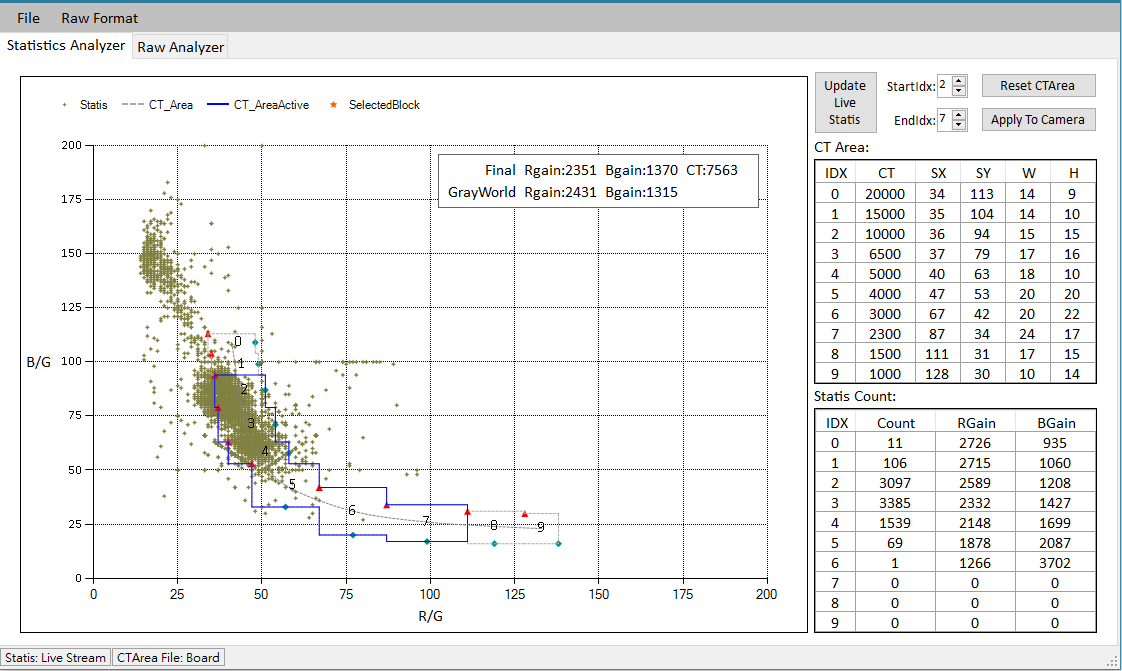
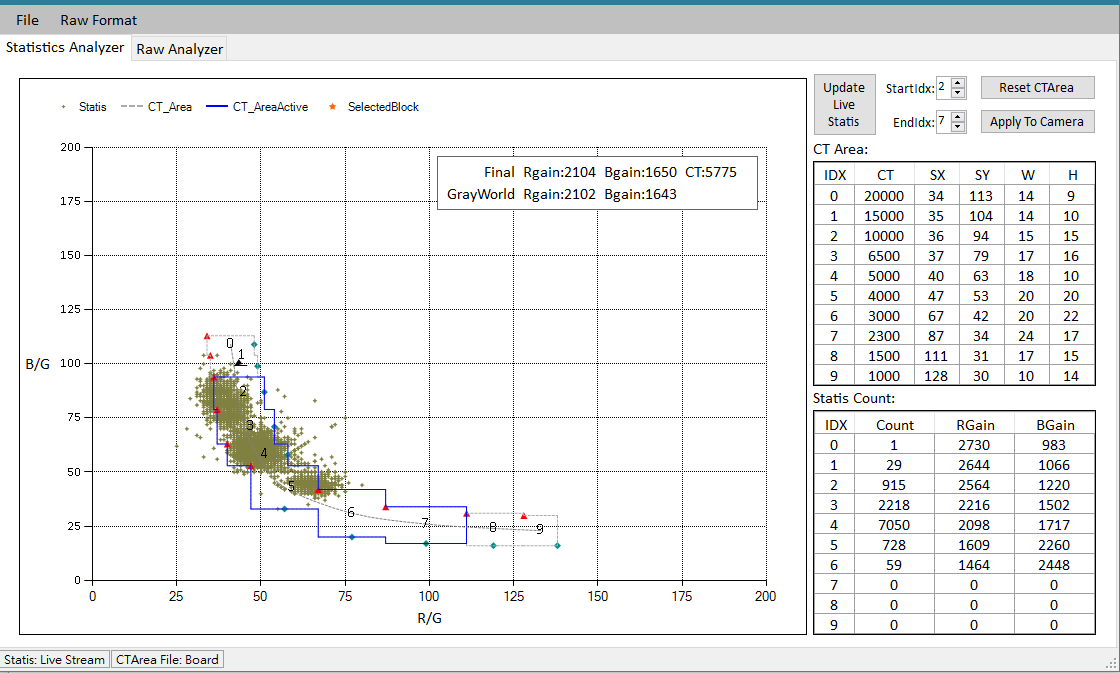
The Awb Analyzer Combo plugin aims to analyze auto white balance calibration and consists of two parts —Statistics Analyzer and Raw Analyzer. Statistics Analyzer allows users to adjust the range of color temperature, while Raw Analyzer shows users the coordinates of AWB statistical value in the screen.
Adjustment Interface
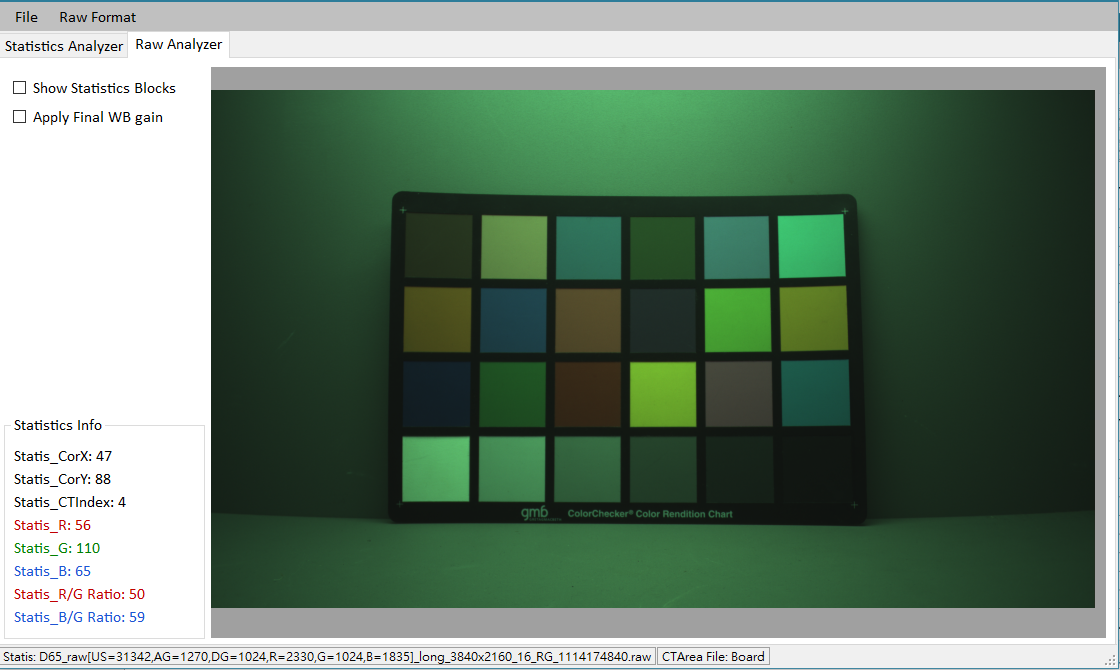
Usage and Parameter Description
-
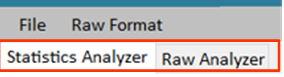
Select function:
Click the function tab in the interface to switch between the two functions.
-
Select the source of statistics:
Click “File” on the top of the interface, and then select “Load Statistics” to find three different sources.
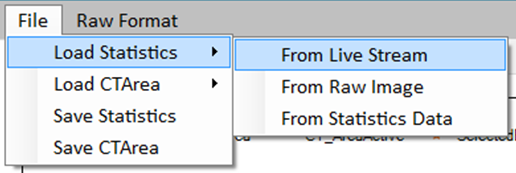
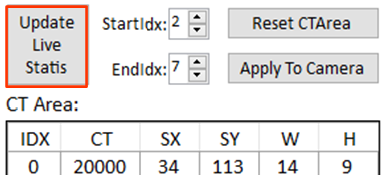
From Live Stream: Get statistical values from live streaming. Only when IQ Tool is connected to the camera will this function be available. Click “Update Live Statis” to update the statistics.
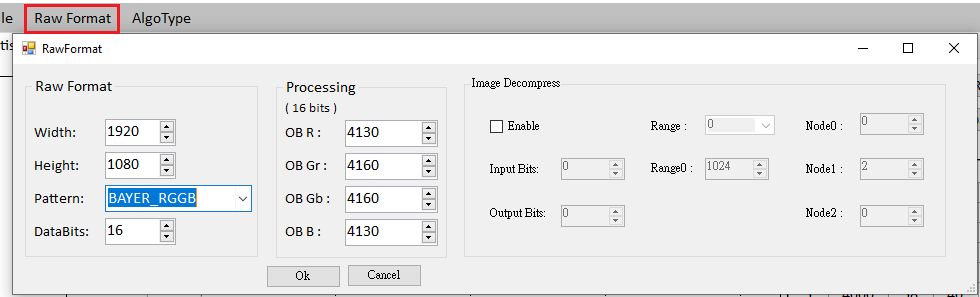
From Raw Image: Get statistical values from RAW image. Please set up the format of RAW image by clicking “Raw Format” tab on the top of the interface before using this function. (Please refer to Raw Setting Parameter Description for Image Decompression setting).
From Statistics Data: Get statistical values from the statistics file you saved.
-
Select the source of color temperature range:
Click “File” on the top of the interface, and then select “Load CTArea” to find two different sources.
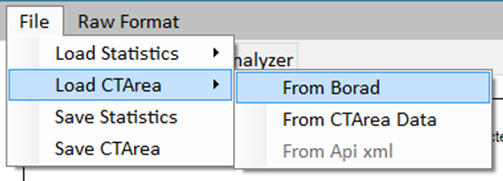
From Board: Get color temperature range from the connected camera. Only when IQ Tool is connected to the camera will this function be available.
From CTArea Data: Get color temperature range from the CTArea file you saved.
-
Save statistics: Click “File” and then select “Save Statistics” to save statistics.
-
Save color temperature range: Click “File” and then select “Save CTArea” to save color temperature range.
-
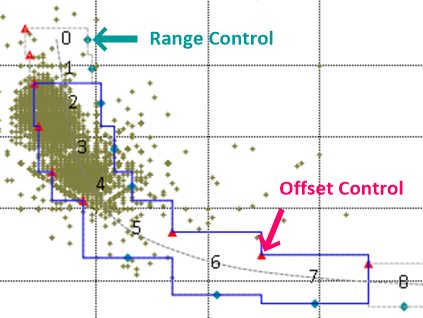
Adjust the range of color temperature area: Directly drag the offset control point (triangle) and range control point (diamond) by mouse.
-
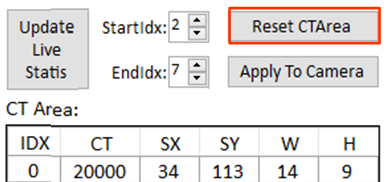
Reset the range of color temperature area: Click “Reset CTArea” on the upper right.
-
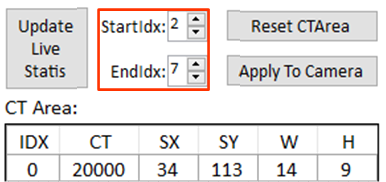
Active color temperature range index: Set by StartIdx and EndIdx. Only the statistical data located in this color temperature area will be used for calculation.
-
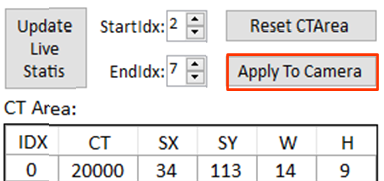
Apply color temperature range: Click “Apply To Camera” on the upper right.
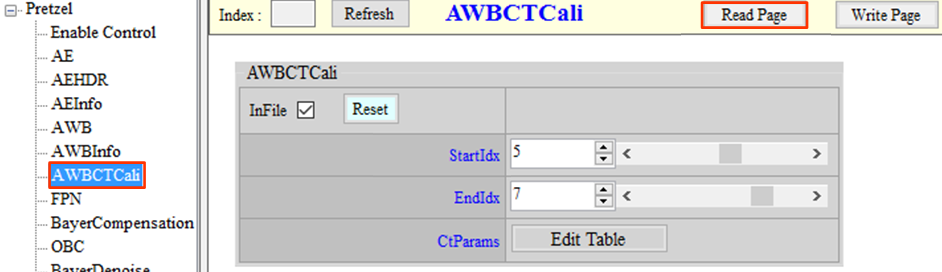
After applying CTArea to camera, be sure to select “AWBCTCali” from the menu on the left-hand side of IQ Tool interface and click “Read Page” (never click “Write Page” before “Read Page”). Only by doing this can you save the adjusted color temperature range when saving API bin file.
-
Move & scale RAW image: Click and hold the left mouse button to drag the image. Scroll up or down the mouse wheel to zoom in or out.
-
Show statistics blocks: Check the box of “Show Statistics Blocks” to find statistic blocks on screen.
-
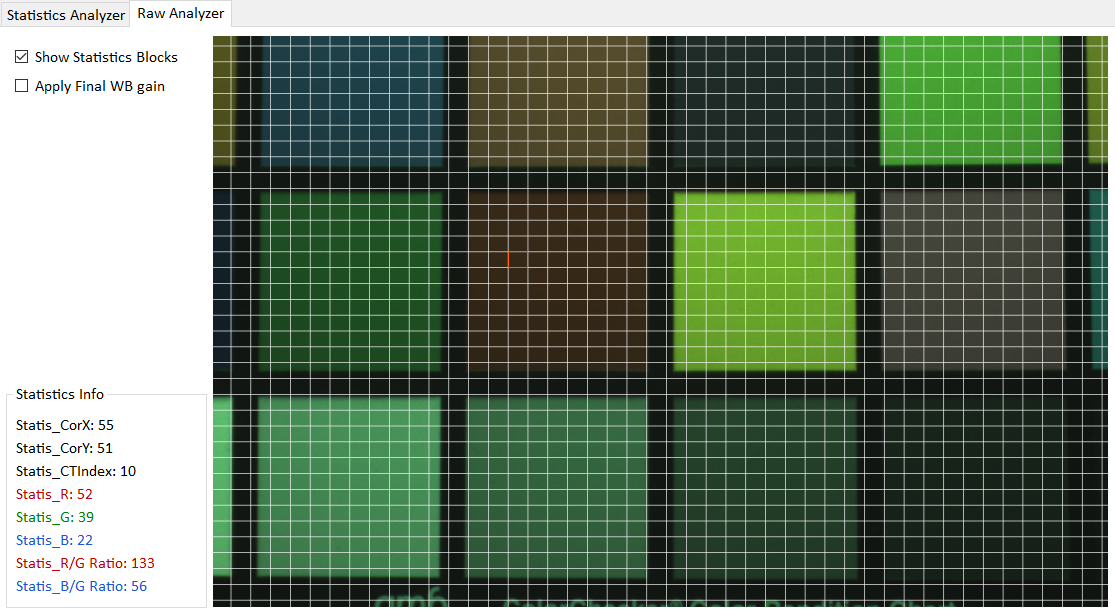
Select statistics block: Double click the left mouse button to select statistics block. The statistic information will be shown in the “statistics info” box on the left. The coordinate of the block (Star) will also be shown on the R/G - B/G coordinate plane. Click the right mouse button to cancel the selection.
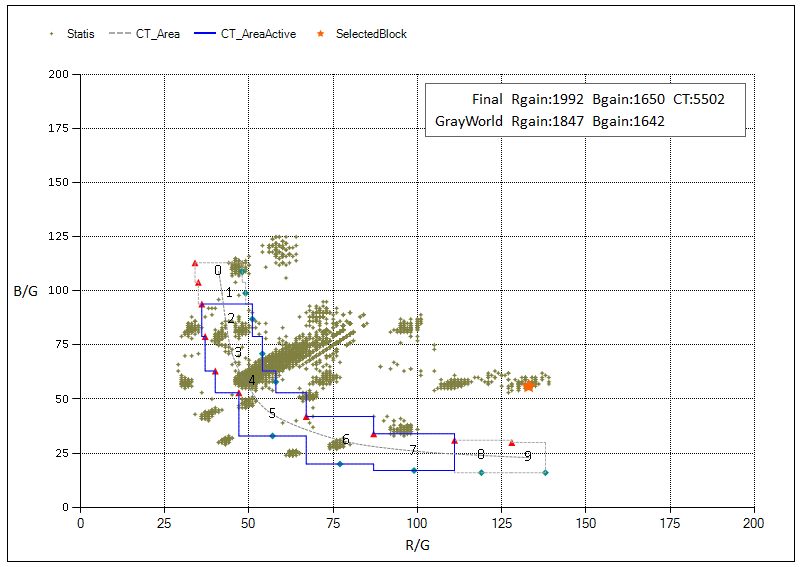
-
Show the image as being applied with the final RBgain: Check the box of “Apply Final WB gain”.
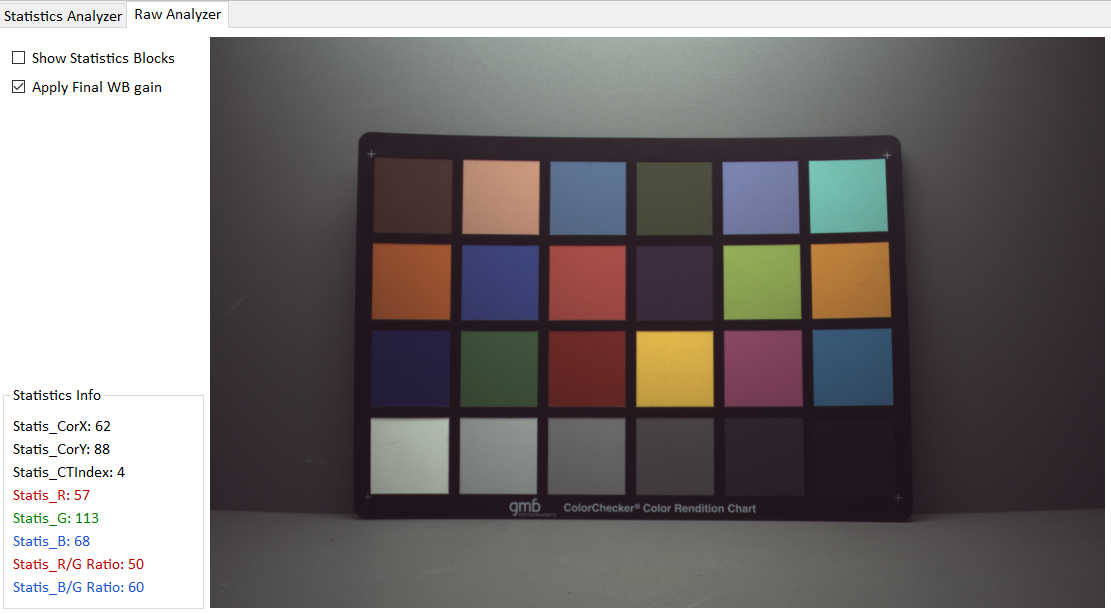
CCM Analyzer
The CCM Analyzer plugin is used for color calibration.
Adjustment Interface
Calculate CCM page is used for CCM calibration. It reads reference values from the camera when activated; hence, offline tuning is not supported. The other page, FineTuneMatrix, is for fine-tuning, as shown in the following figure.
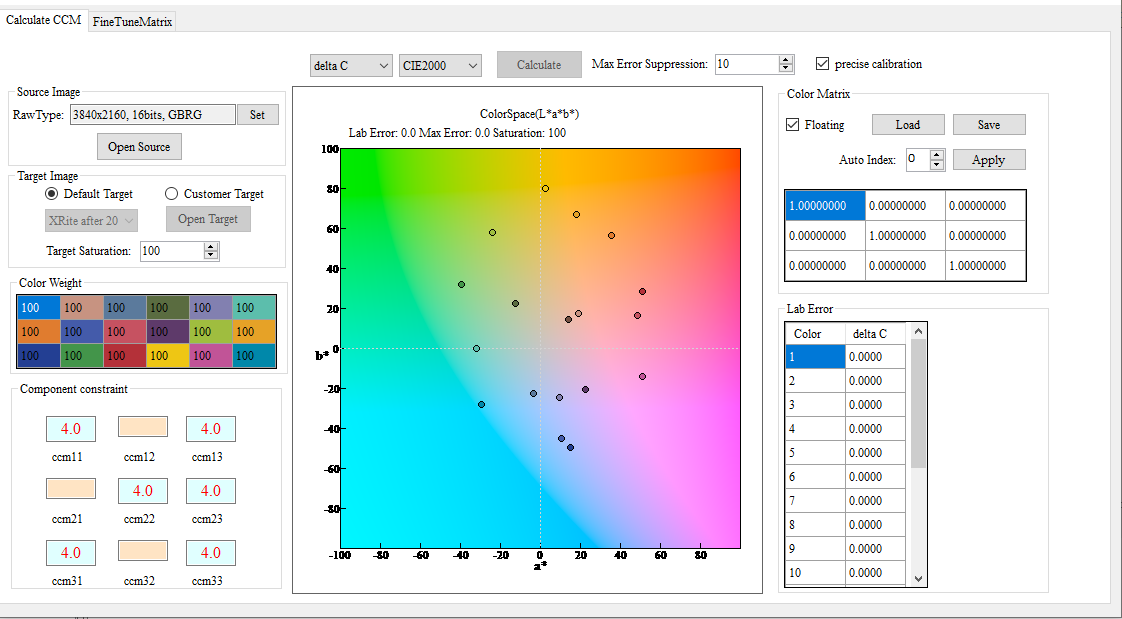
Method of Usage & Parameter Description
-
Method of Usage
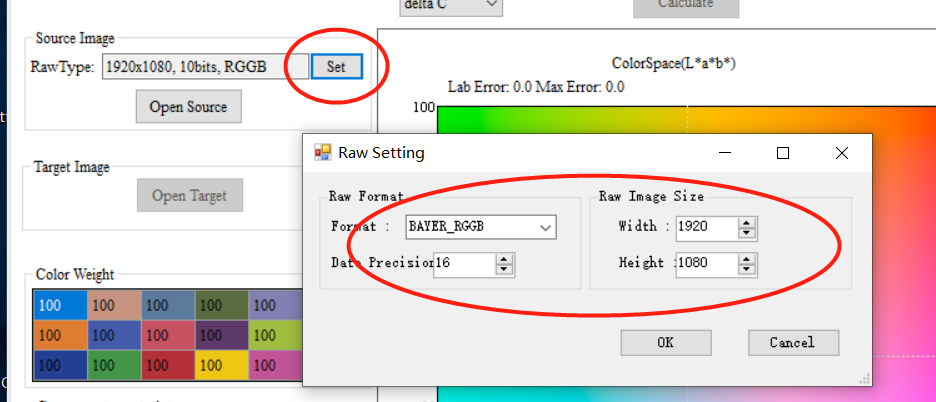
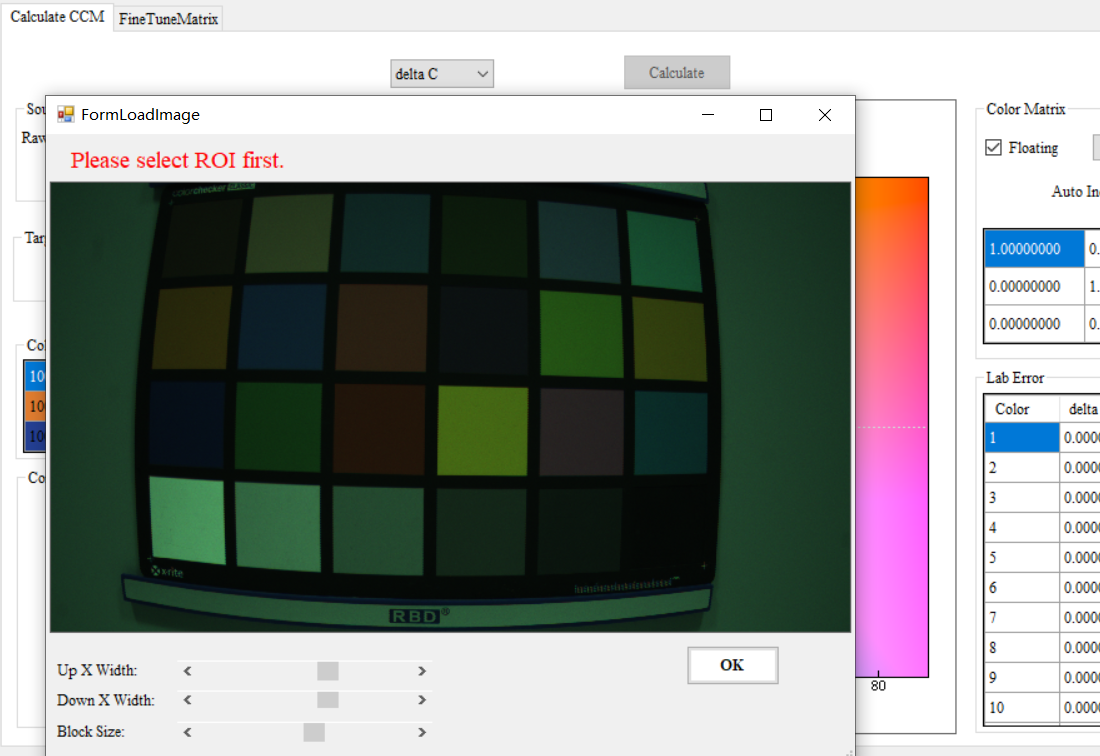
Click the “Set” button inside the Source Image box on the upper left side of Calculate CCM page to set RAW data type (Please refer to Raw Setting Parameter Descriptionfor Image Decompression setting), and click “Open Source” to load the saved RAW image. When the selected source is opened, a window with the RAW image will pop up. Drag your mouse directly on the screen to ensure that all color blocks have been checked, then click OK. Click the “Open Target” button from Target Image to open the standard color checker image and select color checker in the same way mentioned above.
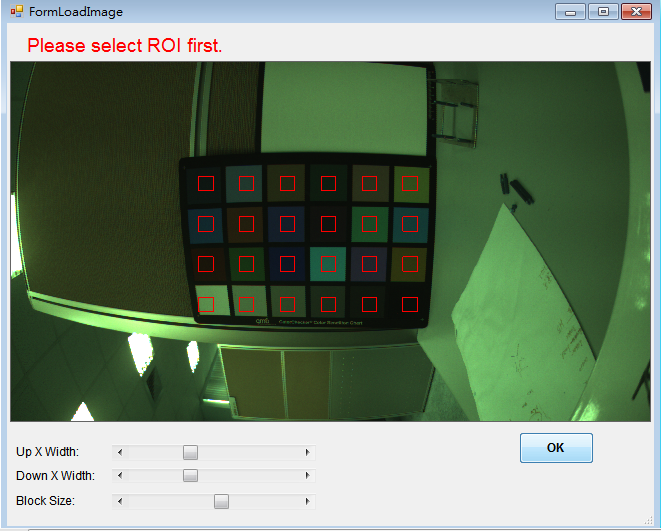
-
Parameter Description
-
Target Image
Several options are available to be selected for Default Target, including SkypeCertification / Xrite after 2014 / Xrite before 2014 / BabelColor Avg.
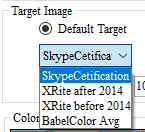
Target may also be customized by importing bmp or txt files.
Target Saturation enables the final setting of saturation for calibration. The default value is 100 (modification is not suggested).

-
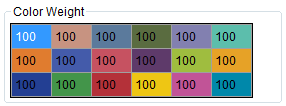
Color Weight
Adjust the weight of each color block. Color blocks with greater weight will achieve more accurate fitting result. Default value is 100.
-
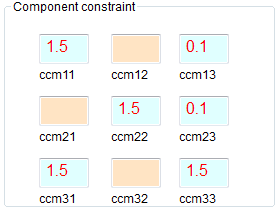
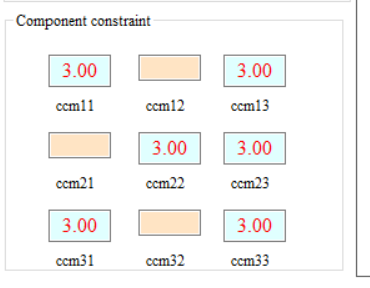
Component Constraint
Impose limit upon a component, where necessary; for example, if you set a constraint of 0.5 to a component, then the fitting result of that component will be limited to the range from -0.5 to 0.5.
-
Delta C/Delta E
Delta E is the root-mean-square deviation of LAB, whereas Delta C only takes the root-mean-square deviation of AB into account regardless of brightness.
-
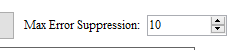
Max Error Suppression
Max Error Suppression can be set according to user’s requirement. Parameter range: 0 ~ 100. The larger the value, the greater effect of Max Error Suppression, but the more likely Avg Error will increase. Setting the value under 50 is suggested.
-
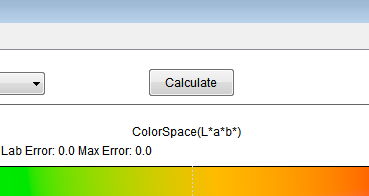
Once finish setting, click the “Calculate” button and the final fitting result will be shown on the right side of the interface.
-
Repeat the foregoing step to generate the color matrix of the remaining color temperatures.
-
Gamma Fitting Analyzer
This plugin tool is used for Gamma fitting calibration.
Adjustment Interface
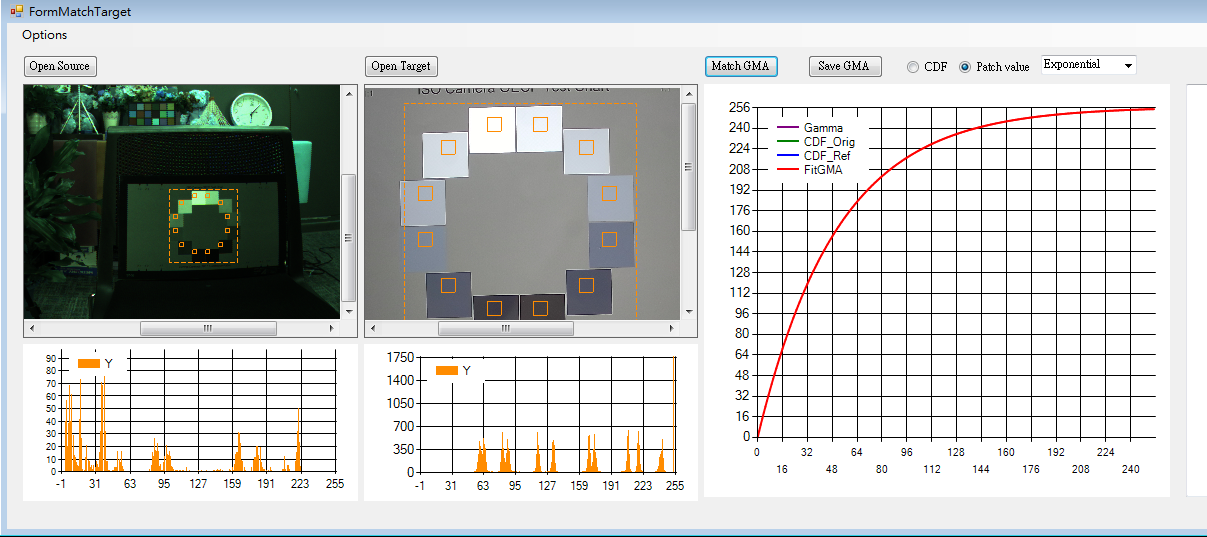
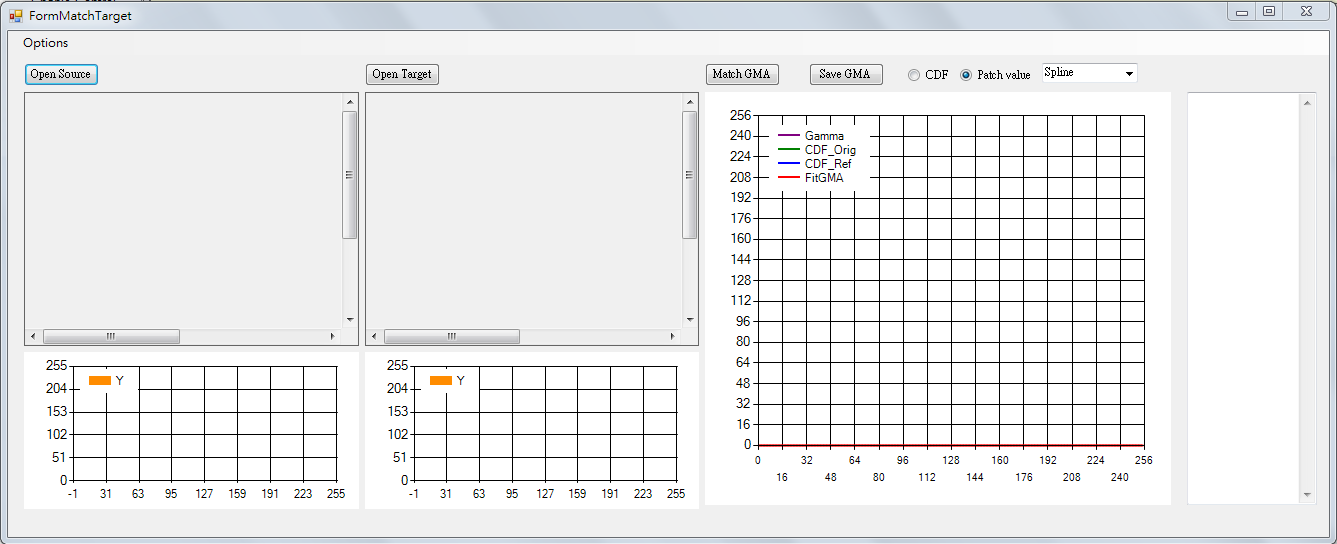
CDF_Orig: The CDF curve from Open Source
CDF_Ref: The CDF curve from Open Target
FitGMA: Fitting Gamma curve
Method of Usage & Parameter Description
-
Method of Usage
-
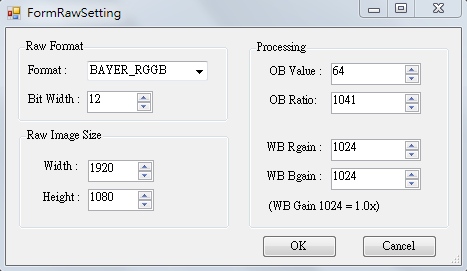
To read the Gamma curve of an image, click Options and select Raw Setting (Please refer to Raw Setting Parameter Description for Image Decompression setting).
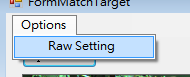
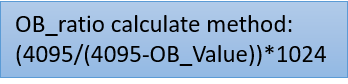
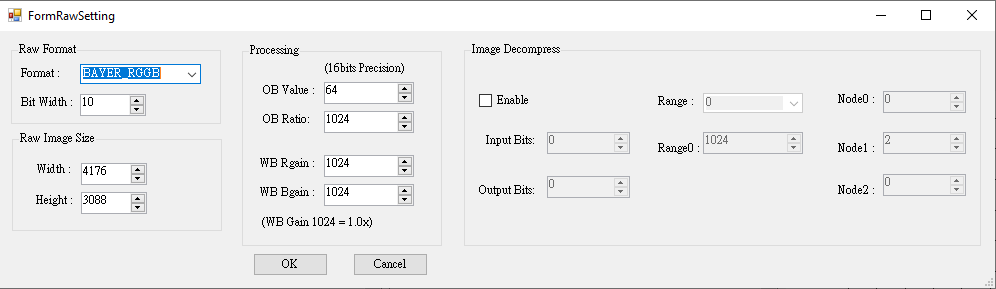
Figure 149: Raw Setting Interface
-
Click “Open Source” to load saved RAW image.
- Click “Open Target” to load a standard OECF Chart image.
- Left-click to select the ROI, and the corresponding histogram will be generated automatically.
-
Select Gamma curve type. There are two types of curve calculation. We suggest that you select Exponential.
- Spline curve
- Exponential curve
-
Click “Match GMA” to generate Gamma curve.
- Finally, click “Save GMA” to save the final Gamma parameters.
-
SStarCalibration Tool
The SStarCalibration plugin aims to perform shading and black level calibration. The functions are identical with those available from the calibration tool.
CalibrationALSC Adjustment Interface
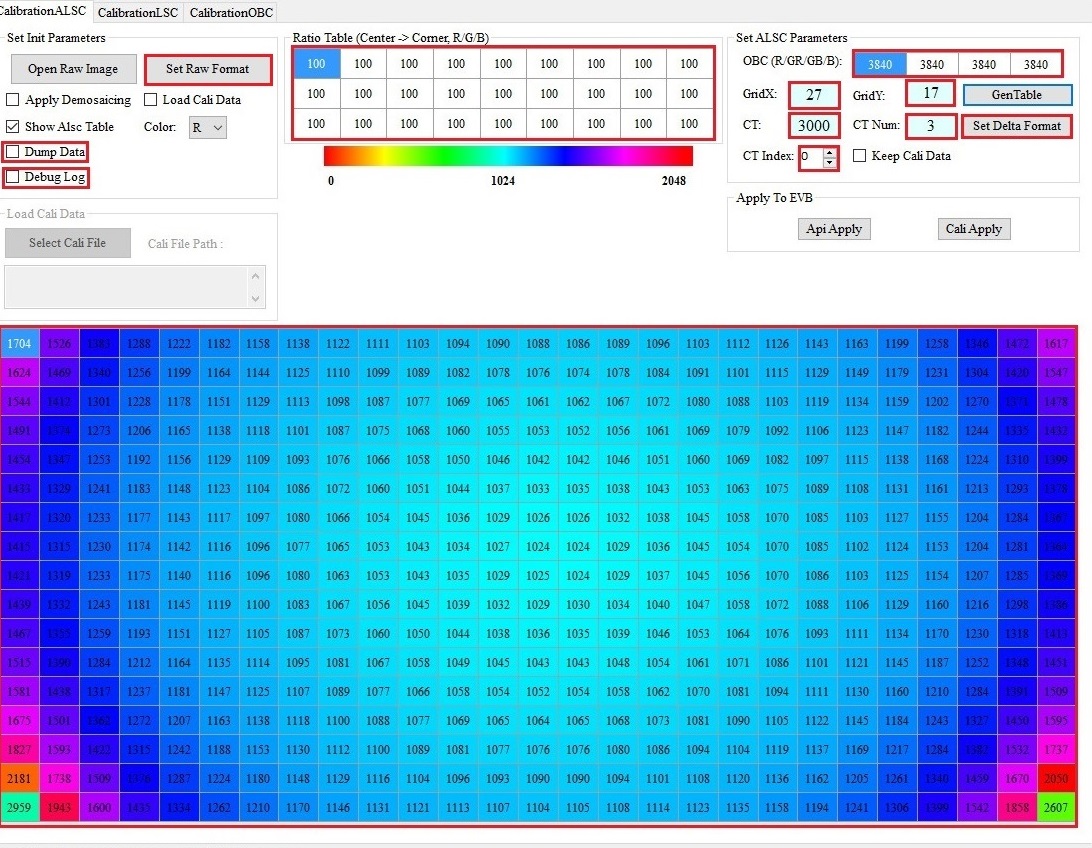
CalibrationALSC Parameter Description
-
Parameter setting
-
Ratio Table: The ratio of calibration intensity from the center of the picture to the corners. Parameter range: 0 ~ 255. This parameter enables the user to adjust the weight of each color block, the higher the weight, the more accurate the fitting result. Default value is 100.
-
OBC: OB value of the current sensor in 16-bit. Parameter range: 0 ~ 65535.
-
GridX, GridY: The size of shading table.
-
Set Delta Format: Non-uniform grid setting.
- 16 modes are provided by default. Parameter range: 0 ~ 15. For details on the setting method, see Distribution of 16 Default Modes of Delta_LUT_X and Distribution of 16 Default Modes of Delta_LUT_Y.
- Delta Mode Advance Enable: Switch to enable advanced mode. 0 means disable, 1 enable. Parameter range: 0 ~ 1. When GridX/Y is of a size other than the default set for this platform, you must enter this mode to adjust non-uniform grid settings.
- Delta X Lut: The spacing of X-axis. The actual number of pixels is the value multiplied by 16. Only 1, 2, 4, 8, and 16 are valid values. For unused grids, set it to 0.
- Delta Y Lut: The spacing of Y-axis. The actual number of pixels is the value multiplied by 16. Only 1, 2, 4, 8, and 16 are valid values. For unused grids, set it to 0.
- CT: Color temperature. Parameter range: 1 ~ 20000.
- CT Num: Choose the number of sets of color temperate table data to be corrected, the default is to correct 3 sets of color temperature table. Parameter range: 1 ~ 3.
- CT Index: Selects the group of tables to be calibrated now. Up to 3 groups are supported. The calibration sequence does not have to follow the order from 0 to 2. However, it is necessary to ensure that the environmental color temperatures from 0 to 2 go from low to high and the temperature should not be the same.
- Open Raw Image: Select the filepath of RAW image.
- Set Raw Format: Set parameters related to the RAW image.
- Apply Demosaicing: Perform simple Demosaic on RAW image.
- Show Alsc Table: Show shading table.
- Color: Show the R/G/B gain of shading table.
- GenTable: Generate shading table according to the input parameters.
- ApiApply: Only the shading table of the current CT index will be downloaded to the API.
- CaliApply: Transfers all parameters to the EVB at one time according to the current size of CTNum.
- Debug Log: Show debug log during GenTable and Apply processes.
- Keep Cali Data: Load the generated .data file so that the previous calibration results can be retained and continue to be corrected.
- Dump Data: Generate a .txt file of calibration results.
- Load Cali Data: Load the generated .data file so that calibration result can be applied to it by using CaliApply.
- Select Cali File: Select .data file to be applied to the EVB board. Clickable only when “Load Cali Data” is checked.
-
-
Method of Usage
There are two routes depending on whether “Load Cali Data” is checked:
(a) Checked
-
After checking “Load Cali Data”, click “Select Cali Data” and select the .data file to be applied.
-
After the .data file to be applied is selected, “CaliApply” will become the only option available. At this time, the calibration parameters being applied will not be shown on our SStarCalibration Tool.
(b) Unchecked
-
Click “Set Raw Format” to set the RAW image information, and click “Open Raw Image” to open the RAW image. You can check “Apply Demosaicing”, which is a simple demosaic function rather than an actual demosaic process, and take a look of the RGB image. Whenever “Load Cali Data” becomes unchecked, you need to click “Open Raw Image” to open the RAW image again.
-
Set the parameters for generating shading table, including Ratio Table, OBC, GridX, GridY, Set Delta Format, and then click “GenTable” to generate shading table, which can be viewed by checking “Show Alsc Table”. Check “Keep Cali Data” if you want to keep the results and continue calibration after finishing with the first set of parameters. Note: If CT Num has been modified during the calibration of the second set of parameters, “Keep Cali Data” function will become ineffective.
-
Set the parameters to be applied to the board, including CT and CT Index, and click “ApiApply” or “CaliApply” to put them into effect. Be sure to go to the ALSC interface and click “Read” to see the same parameters shared by CalibrationALSC. Upon the completion of each application, the buttons of “GenTable”, “CaliApply” and “ApiApply” will be grayed out. At this point, any change to the settings in the red frame as shown in the screengrab above will enable recalibration.
-
CalibrationLSCAdjustment Interface
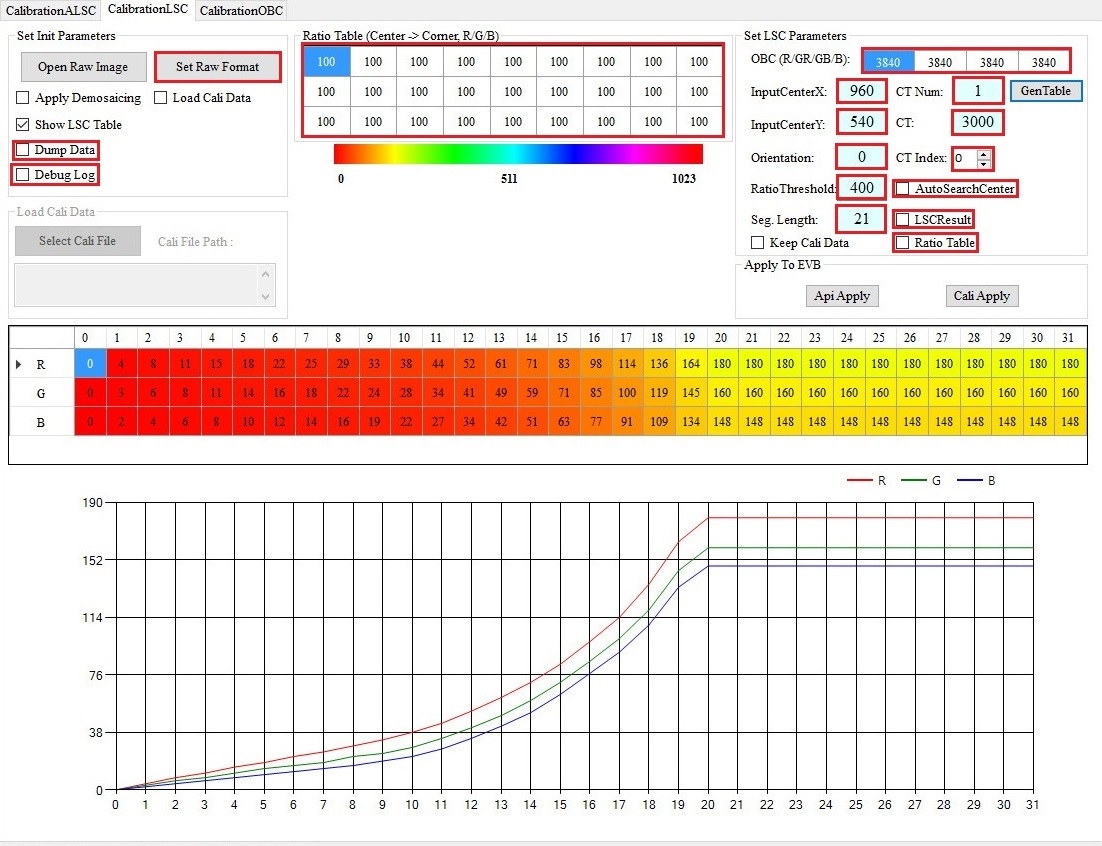
CalibrationLSC Parameter Description
-
Parameter setting
- Ratio Table: The ratio of calibration intensity from the center of the picture to the corners. Parameter range: 0 ~ 255. This parameter enables the user to adjust the weight of each color block, the higher the weight, the more accurate the fitting result. Default value is 100.
- OBC: OB value of the current sensor in 16-bit. Parameter range: 0 ~ 65535.
- InputCenterX, InputCenterY: Set the position of the brightest center point in the picture. Parameter range: 0 ~ 4095.
- CT: Color temperature. Parameter range: 1 ~ 20000.
- CT Num: Choose which set of color temperate table is be corrected in the current session, and calibration of up to 3 sets are supported. The calibration sequence does not have to follow the order from 0 to 2. However, it is necessary to ensure that the environmental color temperatures from 0 to 2 go from low to high and the temperature should not be the same.
- CT Index: Up to 3 sets of color temperature are supported. Parameter range: 0 ~ 2. This parameter is associated with the size of CTNum.
- Open Raw Image: Select the filepath of RAW image.
- Set Raw Format: Set parameters related to the RAW image.
- Apply Demosaicing: Perform simple Demosaic on RAW image.
- Show LSC Table: Show shading table.
- GenTable: Generate shading table according to the input parameters.
- ApiApply: Only the shading table of the current CT index will be downloaded to the API.
- CaliApply: Transfers all parameters to the EVB at one time according to the current size of CTNum.
- Debug: Log: Show debug log during GenTable and Apply processes.
- Keep Cali Data: Load the generated .data file so that the previous calibration results can be retained and continue to be corrected.
- Dump Data: Generate a .txt file of calibration results.
- Load Cali Data: Load the generated .data file so that calibration result can be applied to it by using CaliApply.
- Select Cali File: Select .data file to be applied to the EVB board. Clickable only when “Load Cali Data” is checked.
- Orientation: Set the direction of the sampling point, from the brightest center point of the image to the corner point. 0: upper-left; 1: upper-right; 2: lower-right; 3: lower-left.
- Seg. Length: Cut down the length of distance of the sampling point.
- AutoSearchCenter: Select automatic detection of the brightest center position of the input image. Parameter range: 0 ~ 1. It is recommended that you set this parameter to 1.
- LSCResult: Dump LSC result.
- Ratio Table: Whether to use the compensation value of the Ratio Table to correct. The Ratio Table can only be modified when this item is checked.
- RatioThreshold: This parameter is used to prevent over-compensation of vignetting. The greater the value, the more compensation of vignetting, and vice versa. More compensation of vignetting causes the normal data close to the corner to be over compensated. When the threshold is smaller, the compensation value will be found based on the current maximum index value and then set as the maximum value. The index value after the maximum index value will maintain as the maximum compensation value (without increasing the value); the larger the threshold, the larger the compensation value. Ratio Base: 100. Parameter range: 0 ~ 25600.
-
Method of Usage
There are two routes depending on whether “Load Cali Data” is checked:
(a) Checked
- After checking “Load Cali Data”, click “Select Cali Data” and select the .data file to be applied.
- After the .data file to be applied is selected, “CaliApply” will become the only option available. At this time, the calibration parameters being applied will not be shown on our SStarCalibration Tool.
(b) Unchecked
- Click “Set Raw Format” to set the RAW image information, and click “Open Raw Image” to open the RAW image. You can check “Apply Demosaicing”, which is a simple demosaic function rather than an actual demosaic process, and take a look of the RGB image. Whenever “Load Cali Data” becomes unchecked, you need to click “Open Raw Image” to open the RAW image again.
- Set the parameters for generating shading table, including Ratio Table, OBC, InputCenterX and InputCenterY, and then click “GenTable” to generate shading table, which can be viewed by checking “Show Alsc Table”. Check “Keep Cali Data” if you want to keep the results and continue calibration after finishing with the first set of parameters. Note: If CT Num has been modified during the calibration of the second set of parameters, “Keep Cali Data” function will become ineffective.
- Set the parameters to be applied to the board, including CT and CT Index, and click “ApiApply” or “CaliApply” to put them into effect. Be sure to go to the LSC interface and click “Read” to see the same parameters shared by CalibrationLSC. Upon the completion of each application, the buttons of “GenTable”, “CaliApply” and “ApiApply” will be grayed out. At this point, any change to the settings in the red frame as shown in the screengrab above will enable recalibration.
CalibrationOBC Adjustment Interface
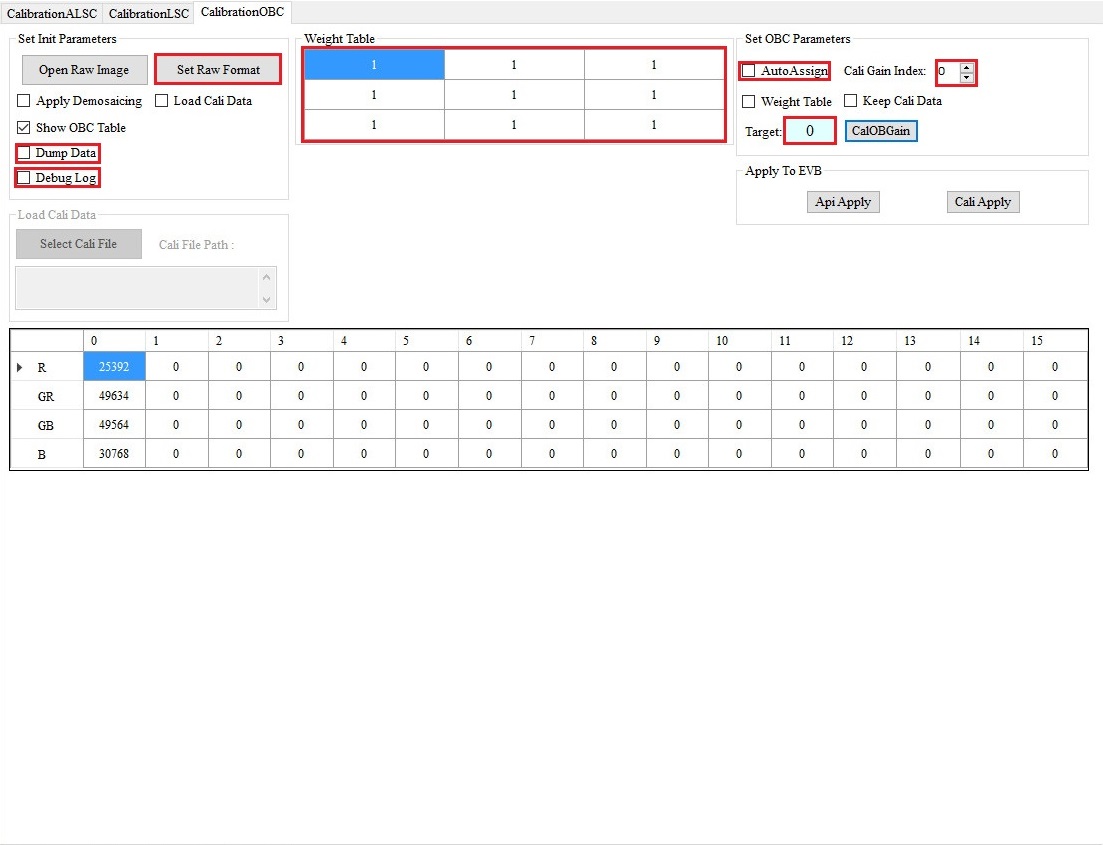
CalibrationOBC Parameter Description
-
Parameter setting
- Open Raw Image: Select the filepath of RAW image.
- Set Raw Format: Set parameters related to the RAW image.
- Apply Demosaicing: Perform simple Demosaic on RAW image.
- Show OBC Table: Show the table corrected after OBC.
- CalOBGain: Generate the value of the corrected black current according to the input parameters.
- ApiApply: Apply the calibration result to the board.
- CaliApply: Apply the calibration result to the board.
- Debug: Log: Show debug log during CalOBGain and Apply processes.
- Keep Cali Data: Load the generated .data file so that the previous calibration results can be retained and continue to be corrected.
- Dump Data: Generate a .txt file of calibration results.
- Load Cali Data: Load the generated .data file so that calibration result can be applied to it by using CaliApply.
- Select Cali File: Select .data file to be applied to the EVB board. Clickable only when “Load Cali Data” is checked.
- Weight Table: Divide the picture into 3×3 blocks and set the weight of each block from 0 to 16 during OB calculation. It is recommended that you set the weight of all blocks to 1.
- AutoAssign: Assign OB value to all Gains. Parameter range: 0 ~1. It is recommended that you set the value to 1.
- Cali Gain Index: Select which set of OB values is to be calibrated. Parameter range: 0 ~ 15.
- SetOBCParameters-Weight Table: Show weight table.
- Target: The preferred remaining value after calibration in 16-bit. Parameter range: 0 ~ 65535. It is recommended that you set it to 0.
-
Method of Usage
There are two routes depending on whether “Load Cali Data” is checked:
(a) Checked
- After checking “Load Cali Data”, click “Select Cali Data” and select the .data file to be applied.
- After the .data file to be applied is selected, “CaliApply” will become the only option available. At this time, the calibration parameters being applied will not be shown on our SStarCalibration Tool.
(b) Unchecked
- Click “Set Raw Format” to set the RAW image information, and click “Open Raw Image” to open the RAW image. You can check “Apply Demosaicing”, which is a simple demosaic function rather than an actual demosaic process, and take a look of the RGB image. Whenever “Load Cali Data” becomes unchecked, you need to click “Open Raw Image” to open the RAW image again.
- Set the parameters for generating shading table, including Weight Table, AutoAssign, Cali Gain Index and Target, and then click “CalOBGain” to generate shading table, which can be viewed by checking “Show OBC Table”. Check “Keep Cali Data” if you want to keep the results and continue calibration after finishing with the first set of parameters.
- Set the parameters to be applied to the board, and click “ApiApply” or “CaliApply” to put them into effect. Be sure to go to the OBC interface and click “Read” to see the same parameters shared by CalibrationOBC. Upon the completion of each application, the buttons of ###“CalOBGain”, “CaliApply” and “ApiApply” will be grayed out. At this point, any change to the settings in the red frame as shown in the screengrab above will enable recalibration.
Raw Setting Interface

Raw Setting Parameter Description
-
Raw Format
- Format: The RGB format of RAW image.
- Bit Width (Input): The bit width of RAW image input.
-
Raw Image Size
- Width: The width of RAW image.
- Height: The height of RAW image.
-
Clip Image Size
- Width: The width of RAW image after Clip.
- Height: The height of RAW image after Clip.
- X: The width from which RAW image is to be clipped. Note that the starting position plus the size of the clip you want cannot exceed the size of RAW image.
- Y: The height from which RAW image is to be clipped. Note that the starting position plus the size of the clip you want cannot exceed the size of RAW image.
-
Image Decompress
- Enable: Whether to turn on the function of decompression (Corresponding to Parameter Description [DECOMP_INFO] decomp_enable).
- Input Bits: Compressed bits (Corresponding to Parameter Description [DECOMP_INFO] decomp_input_bits).
- Output Bits: Decompressed bits (Corresponding to Parameter Description [DECOMP_INFO] decomp_output_bits).
- Range: There are four intervals to be set.
- Range0: Set the first interval, 0 ~ Range0 (Corresponding to Parameter Description [DECOMP_INFO] decomp_range0).
- Range1: Set the second interval, Range0 ~ Range1 (Corresponding to Parameter Description [DECOMP_INFO] decomp_range1).
- Range2: Set the third interval, Range1 ~ Range2 (Corresponding to Parameter Description [DECOMP_INFO] decomp_range2).
- Range3: No need to set the fourth interval, Range2 ~ ∞。
- Node0: Offset of the corresponding interval (Corresponding to Parameter Description [DECOMP_INFO] decomp_rangeX_f0).
- Node1: Shift of the corresponding interval (Corresponding to Parameter Description [DECOMP_INFO] decomp_rangeX_f1).
- Node2: Base of the corresponding interval (Corresponding to Parameter Description [DECOMP_INFO] decomp_rangeX_f2).
CALIBRATION
OBC
The Basic Principle of OBC
During the process of data collection by CMOS sensor, the precision of ADC chip might not be high enough to convert the extremely weaker part of the signal. On account of this, a fixed amount of offset should be added before ADC input so that details in darker areas can be properly retained, despite the fact that details in bright areas may be partially lost. The OBC module aims to establish a specific amount of offset through calibration.
Requirements for Grabbing RAW Images
If the sensor does not come with optical black parameters, or more precise parameters are required, the client will need to perform black level correction. The work flow of grabbing RAW images for the correcting purpose is set out as follows:
A. Cover the lens completely with lens cap and make sure that there is no light leak. If the lens comes with a variable aperture, the aperture should be completely closed to ensure that no light will leak into the chamber.
B. Grab RAW images at 1X gain and at the maximum gain by following the steps below (Note: If the results vary greatly, you will need to grab multiple sets of RAW images). First, set AE to M_Mode, and then set SensorGain/ISPGain/US in ManualExposure; after that, go to the AEInfo module and check if AE is written correctly.
C. Grab RAW file by using API TOOL.

OB Correction Steps
-
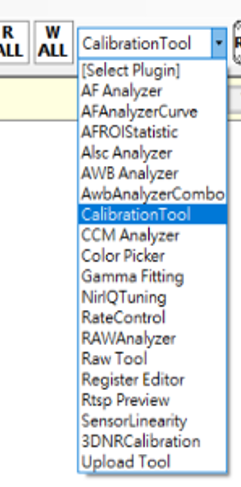
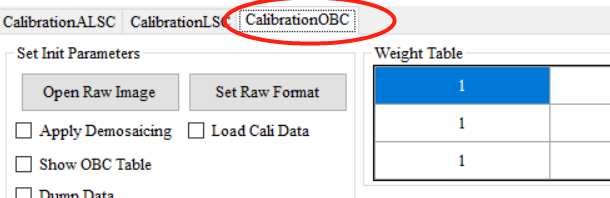
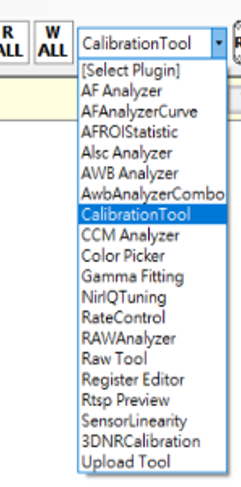
Select “SStarCalibrationTool” from the Plugin menu, and then click the tab “CalibrationOBC”.
-
Click “Set Raw Format” and set corresponding information according to the RAW file.

-
Click “Open Raw Image” (Note: no Chinese character is allowed in the name of file folder), check “Show OBC Table,” and then click “CalOBGain” on the right.

Analysis of the Correction Result

Column 0 represents the calibration result, which is ready to be filled into the OB module. If the difference between calibration results under each gain is smaller than 50, calibrating one set of RAW images will do.
ALSC
The Basic Principle of ALSC
There are two kinds of shading in general: lens shading and color shading. A brief description of the difference between the two is set out below:
Lens Shading:
A. Due to the optical characteristics of lens, the intensity of light received by the sensor on the margin is weaker than that in the center, resulting in uneven brightness in the center and around the corners (also known as the dark corner) in the picture.
B. The chief ray angle (CRA) of the lens is not compatible with the sensor, resulting in insufficient exposure received by the sensor in marginal region.
Color Shading:
A. The incident angle on the margin of the lens is not big enough, which causes color deviation (chromatic dispersion). This phenomenon is often manifested by the inconsistency of color between the center and the margin.
B. Due to the different frequency spectrum of diverse light sources or color temperatures, and aggravated by the impact of IR-cut, colors often appear to be uneven.
On account of these issues, shading calibration should be performed upon such lenses with severe shading problems (including both lens shading and color shading issues) before proceeding to AWB calibration.
Requirements for Grabbing RAW Images
- Aim the lens at the screen of a DNP standard color viewer lightbox and make sure that illumination is even. If DNP standard color viewer is not available, you may also cover the lens with a piece of frosted glass and aim the lens at the light source of a standard lightbox.
- Set the brightness of lightbox, or you may also adjust AE target. The brightness in the center of the picture should be around 70 percent of the maximum brightness. You may inquire the brightness by using imageJ to select the center of the RAW image.
- Grab the RAW file.
Calibration Flow for ALSC
-
Select “SStarCalibrationTool” from the Plugin menu, and then click the tab “CalibrationALSC”.

-
Click “Set Raw Format” and set corresponding information according to the RAW file.
-
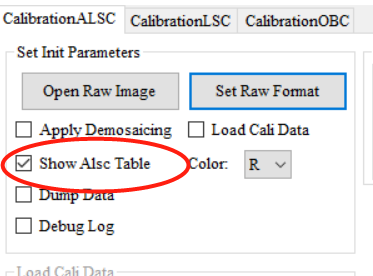
Click “Open Raw Image” (Note: no Chinese character is allowed in the name of file folder), check “Show ALSC Table”.
-
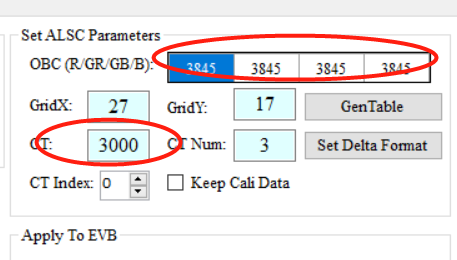
Set corresponding OBC parameters, as well as the color temperature parameters.
-
Click “GenTable” to start calibration.
Analysis of the Correction Result

The figure above shows an example of the calibration result. Now, select the corresponding color temperature (CT) and CT Num, click “API Apply” to apply the data to the connected EVB. After that, go to the ALSC module and click “read page” to load calibration parameters so as to save them in the tool.
Note
After clicking “API Apply”, make sure you go to the ALSC page and click “read page” so that calibration parameters are properly saved in the tool.
AWB
The Basic Principle of AWB
AWB calibration aims to calculate the R/G and B/G gains in real-life scenarios based on the characteristics of white spots presented by the sensor under various standard light sources.
Calibration Flow for AWB
- Aim the lens at the grey card inside a standard lightbox, and the grey card should fully occupy the picture.
- Set the color temperature that needs to be calibrated (including standard light sources such as D65/D50/TL84/CWF/U30/A, depending on the lightbox).
- Make sure that OBC and its setting has been done.
- Set AE to Auto, and adjust AE Target to prevent the picture from being overexposed.
-
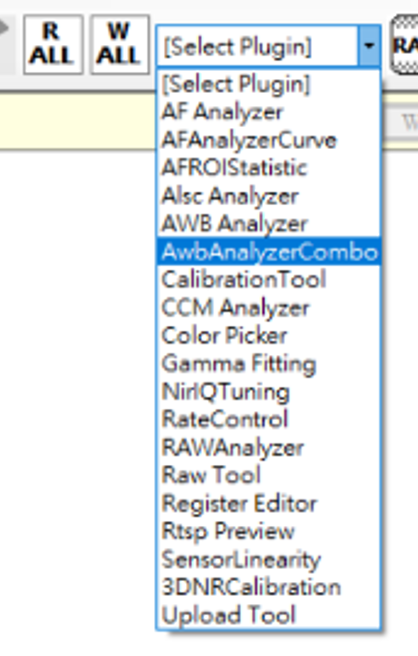
Select “AwbAnalyzerCombo” from the Plugin Menu.
-
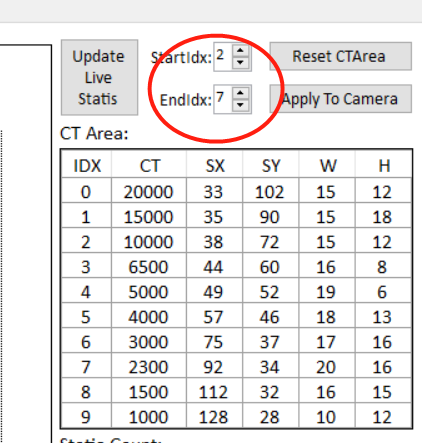
Select the range of color temperature to be calibrated. We recommend setting the range from 2300K to 10000K.
-
Drag and move the red triangle markers or the blue lines so that all statistics are able to fall into their corresponding ranges, making the curve line as smooth as possible.
-
Adjust multiple color temperatures. When all adjustments are made, click “Apply To Camera” to apply the changes to the board and check the effects.
- Go to the AWBCTCali module and read page, and save the parameters.
Note
After calibration is finished, you should test the AWB effect under various scenarios, calibrate the size of the adjustment frame accordingly, and make sure the AWB remains stable in every scenario.
CCM
The Basic Principle of CCM
The calibration principle of CCM is to obtain a 3x3 color correction matrix by calculation, which is based on the actual data of colors in a standard color checker (of 24 colored squares) as photographed by the sensor under different color temperatures, along with the data of target color. The ultimate goal is to calibrate the output colors of camera to meet our expectation. You must determine gamma before starting CCM calibration. To calibrate the gamma closer to that of the reference model, please refer to Gamma Fitting. For a detailed user guide, please refer to CCM Analyzer plugin.
Requirements for Grabbing RAW Images
- Place the colorchecker inside the standard lightbox, aim the lens at the chart and make sure the chart is situated in the center of the picture and occupying 50 to 80 percent of the entire picture.
- Set color temperature of the lightbox. Normally, we would set it to the temperature of D65/TL84/A.
- Adjust the brightness of light or fine-tune AE target so that the 19th grid of the RAW image is not overexposed.
- Grab RAW data by using API Tool.
Calibration Flow for CCM
-
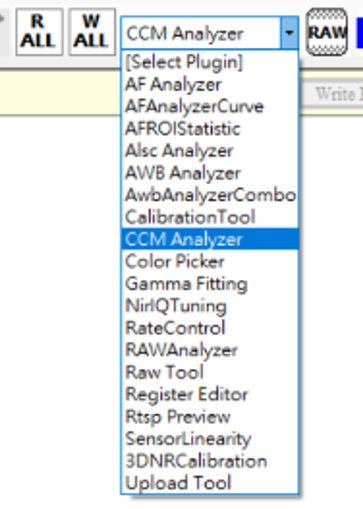
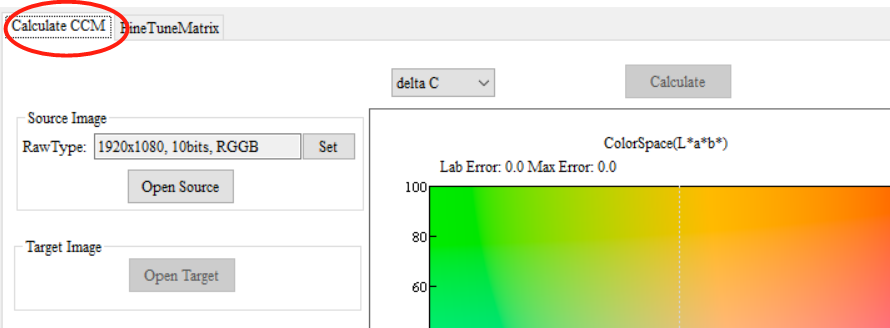
Select “CCM Analyzer” from the Plugin menu, and then click the tab “Calculate CCM”.
-
Set corresponding information according to the RAW file.
-
Click "Open Source" to open the corresponding image source to be calibrated. Currently, RAW and BMP formats are supported.
-
RAW: If the opened file format is .raw, OB value (automatically obtained from "Manual" in BlackLevel) will be deducted before calibration, and then multiplied by the correct WB gain (calculated from the 6 gray patches below). During the subsequent calibration process, Gamma Curve will be applied (the curve will be automatically obtained from the Manual Gamma curve in Gamma).
-
BMP: If the opened file format is .bmp, Gamma Curve will only be applied during the calibration process. Therefore, if .bmp format is used as the source of calibration, make sure that modules before CCM (excluding CCM) have been enabled and those after the CCM (including CCM) have been disabled. Colortrans should also be aligned with the player. Raw setting parameters can be ignored if you are using .bmp file.
After opening the image source, click the left button and drag the frame to select the color checker to be calibrated.
-
-
Open Target allows you to designate the target color for the calibration of each color checker. There are a few sets of Default Target available for selection; you may also define target color checker by yourself.
Default Target — Target colors available for selection are set out as follows:
-
SkypeCertification: calibration target color checker from Microsoft Skype video specification, please refer to https://learn.microsoft.com/en-us/SkypeForBusiness/certification/test-spec?redirectedfrom=MSDN (Default)
-
XRite after 2014: calibration target color checker prepared by XRite based on data after November 2014.
-
XRite before 2014: calibration target color checker prepared by XRite based on data before November 2014, please refer to https://www.xrite.com/service-support/new_color_specifications_for_colorchecker_sg_and_classic_charts
-
BabelColor Avg: calibration target color checker prepared by BabelColor based on the average of 30 color checkers, please refer to https://babelcolor.com/tutorials.htm
Customer Target: Target color checker to be defined to meet user’s need. Default color checker (the same as SkypeCertification) can be found in apitool => taget_image.
Target Saturation: You may set the percentage of Target color checker saturation to be calibrated. The suggested range of adjustment is 80% ~ 120%.

-
-
Adjust component constraint.
-
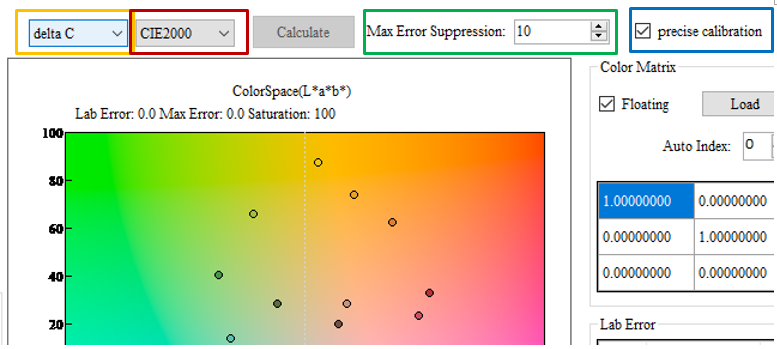
Set calibration parameters and target function, as the following figure illustrates.
-
Frame in yellow: Set target function to be delta C or delta E. Delta C considers only color gamut error, while delta E takes brightness error also into consideration.
-
Frame in red: Set color difference (defined by CIE 76 or CIE 2000) to be used by the target function.
-
Frame in green: Parameter of Max Error Suppression. The default value is 10, and the range of adjustment is 0 ~ 100. You may trade off Avg Error and Max Error after adjustment, but greater value will compromise Avg Error, so we suggest setting this value under 50.
-
Frame in blue: Select calibration algorithm. If “precise calibration” is checked, precise but slower algorithm will be selected. Uncheck this box to use relatively unprecise but faster algorithm.
-
-
Click “Calculate” and start calibration calculation.

-
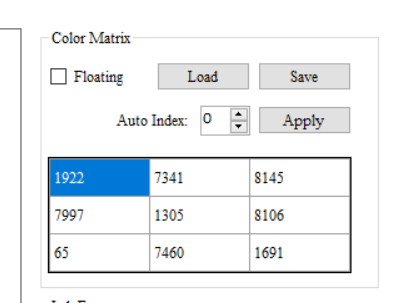
Uncheck the box of “Floating”, select the group of interpolation, and apply the calibration result to the device.
Analysis of the Correction Result
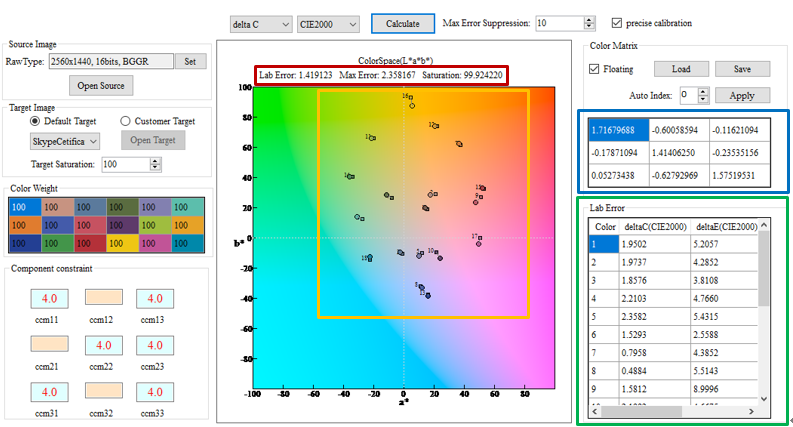
The analysis interface of CCM Calibration Result are shown in the figure above.
-
Frame in red: Shows current calibration result, and the target function corresponds to the parameters set earlier.
-
Frame in yellow: Shows the falling points of both target color checker and color after calibration in lab color space. The round points represent the falling points of target color checker, while the square points represent the falling points of color after calibration. This design helps you visualize the extent of color deviation.
-
Frame in blue: Shows the CCM matrix of calibration result.
-
Frame in green: Shows the color deviation value of each color. The smaller the value, the smaller the difference from standard color checker. It may be used to query the current calibration result and the result of various combinations of target function. The combinations are as follows: CIE2000 deltaC, CIE2000 deltaE, CIE76 delta C, and CIE 76 delta E.
Note
In case that calibration result is not satisfactory, you may manually adjust CCM parameters to achieve the desired effects. Due to different lens and sensor characteristics, high precision and complete calibration accuracy might be very difficult to achieve in certain modules by CCM alone. In this case, you may resort to HSV to fine-tune certain color presentations.
AE Exposure Table Setup
Different sensors and lens have different characteristics and capabilities, so the default AE exposure table is not necessarily suitable for the module currently in use. Here, we suggest that you check AE exposure table and modify the setting, where necessary, to fit the current module.
Adjustment Interface
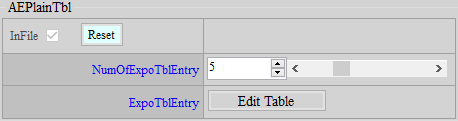
Select AE from the menu on the left-hand side, then click “ExpoTblEntry”. An adjustment interface will pop up for editing AE exposure table.
Parameter Description
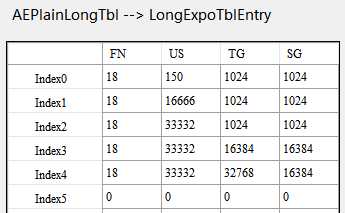
NumOfExpoTblEntry: The number of AE exposure table. Let’s take AE Adjustment Interface as an example, as the number of AE exposure tables is set to 5, you should fill out 5 sets of AE exposure table correspondingly.
First Column (FN): Lens aperture value (Fn) x 10. For example, if aperture is 1.6, the value will be 16.
Second Column (US): Shutter (usec)
Third Column (TG): Total gain (1024 = x1 gain), i.e. sensor gain x ISP gain
Fourth Column (SG): Sensor gain (1024 = x1 gain)
Setting Items
- Check the lens aperture value, multiply by 10 (lens aperture value x 10) and fill in the result in the first column.
- Verify the maximum gain with customer, and fill the value in the third column of the last row.
- If ISP gain is not used, copy the value in the third column to the fourth column.
3DNR
Basic Principle of 3DNR
3DNR calibration is used to evaluate the noise level of sensor at different brightness levels against various sensor gains. Before performing linear mode calibration, make sure that the OBC has been calibrated and applied. Before performing HDR mode calibration, on the other hand, make sure that both OBC and AWB color temperature ranges have been calibrated and applied.
RAW Image Capture Requirements
The calibration can be carried out using a Dynamic Range Chart in a light box or using a common laboratory darkroom as the calibration scene. (The scene for calibration should be as complicated as possible so that various colors and brightnesses can be observed).
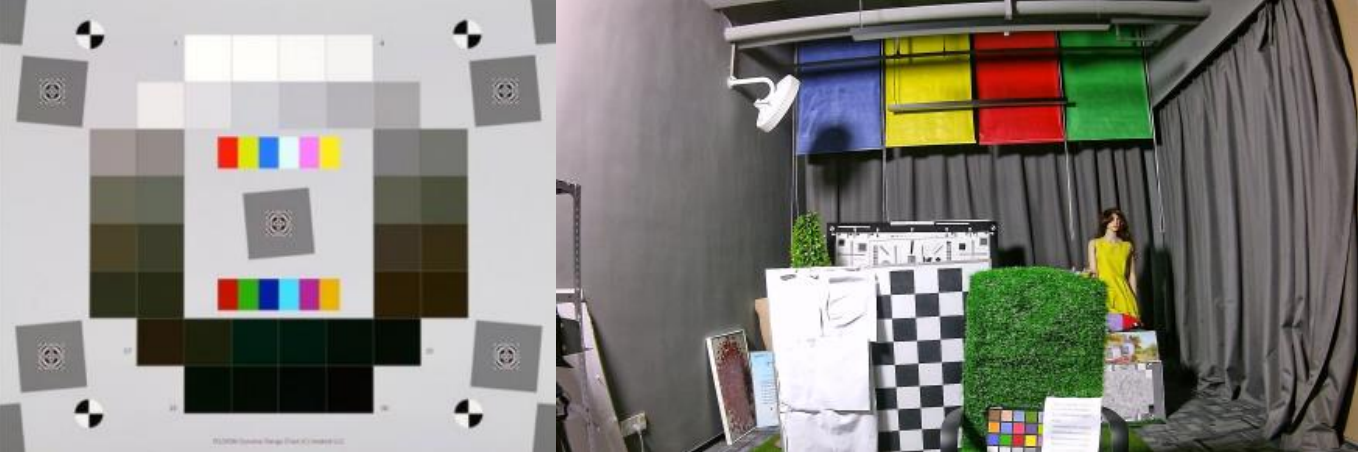
3DNR calibration should be based on sensor gain and carried out to the maximum sensor gain to be used. The corresponding relation of index follows the rule: index 0 represents 1024, index1 represents 2048, index2 represents 4096, and so on.
-
Before shooting raw images for calibration, you must first set the index to be calibrated. Use Manual AE to set ISPGain to 1024, and set SensorGain to the gain you want to calibrate. Adjust lighting and Shutter to make sure that the picture will not be over-exposed or suffering from other abnormal exposure conditions.
-
After picture exposure adjustment is finished, you can take 2 raw photos to check whether the calibration conditions meet the standards. The requirement can be found in Making Sure Calibration Data Meets the Standard.
-
Grab 60 raw images of the same scene to serve as calibration data. When capturing Raw images, the environment should remain unchanged (no moving objects, no brightness changes), and the raw images should be placed in the folder according to the gain index, such as index0, index1... (self-defined name).
-
We suggest that you start calibration from index0 (SensorGain = 1024), and reduce the Shutter or light source by half every time when SensorGain is doubled. For example: when index0 (SensorGain = 1024) has finished calibration and the calibration of US = 14000 has met the standard, you should adjust US to 7000 or reduce the intensity of light source by half to calibrate index1 (SensorGain = 2048). By doing so, you can ensure that the calibration remains up to standard.
Calibration Settings and Steps
Calibration Tool
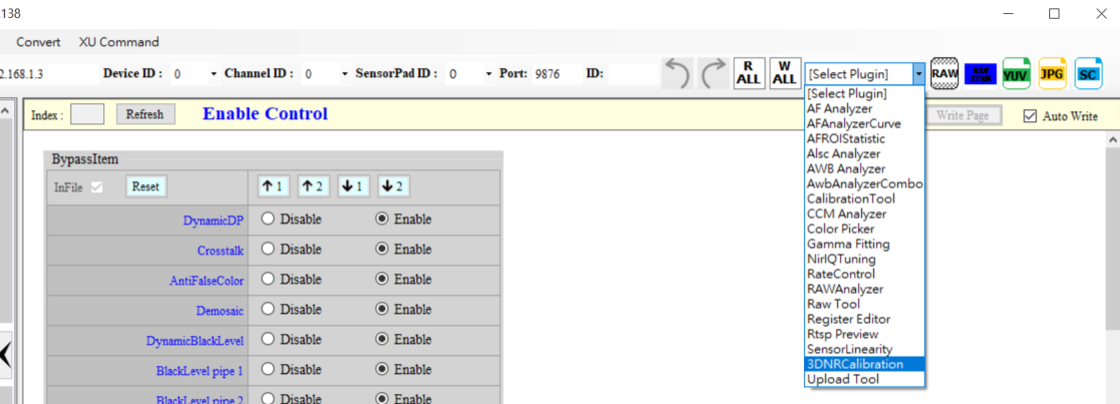
IQTool v2.0.124 or above with the plug-in SStar3DNRCalibration is required.
Calibration Interface Setting Instructions 
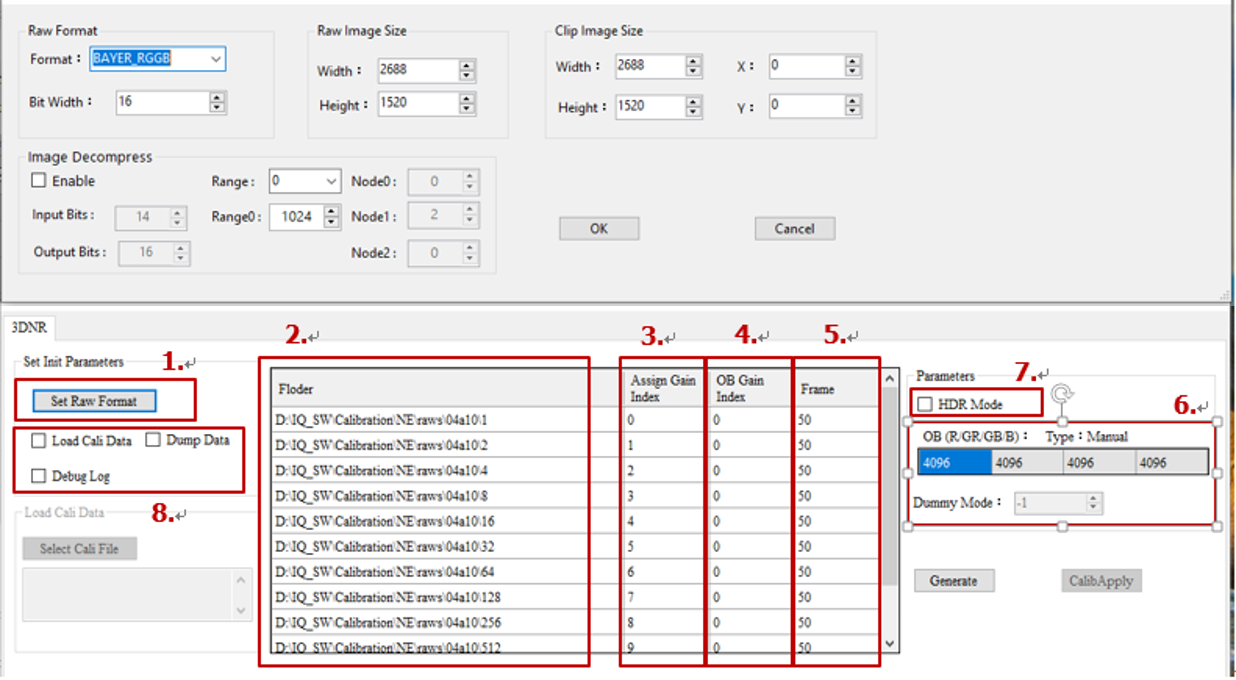
-
Set Raw Format: Set resolution, width, height, Bayer pattern and other information of RAW files
-
Folder: Enter the folder path for RAW files. RAW files in the same folder should share the same Gain Index.
-
Assign Gain Index: The Gain Index to be calibrated should be filled from 0. If there is a Gain Index interval to be calibrated to the same value, it can be connected with a dash. For example, if Gain index 0 to 6 needs to be calibrated to the same value, it can be written as 0-6. Finally, fill in the gain index 15.
-
OB Gain Index: The OB level to be calibrated. OBC parameters of the corresponding level will be read from the OBC module.
-
Frame: The number of raw to be calibrated; 60 frames are recommended.
-
OB/Dummy Mode: Read only OBC and dummyEx dummy3 parameters.
-
HDR Mode: After checking this box, HDR long exposure calibration will be supported. The WB Gain of each level will appear in the column to be filled in.
-
Check Dump Data to generate a corresponding calibration txt file, which can be used to examine whether the calibration result is normal. Check Debug Log to enable a pop up reminder.
Calibration Step
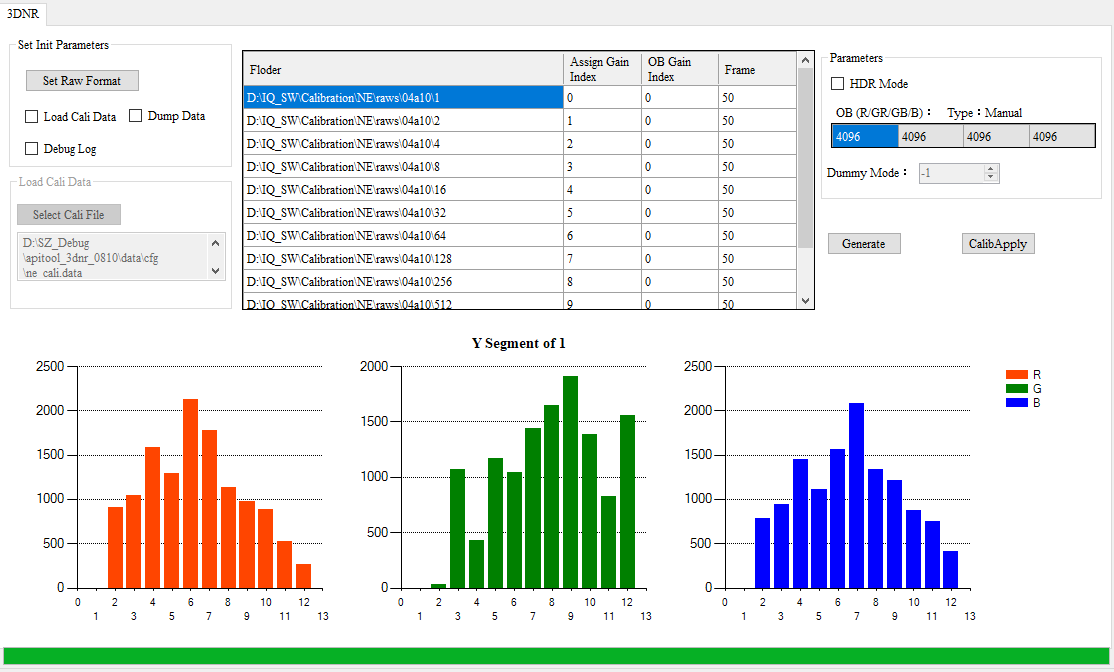
Step 1. Before calibration, collect calibration raw files according to the instruction set out in preceeding section, and divide folders based on Gain index. For Linear mode, make sure that BlackLevel has been correctly calibrated and applied, and that Dummy3 in Dummy_EX has also been correctly set. For HDR mode, make sure that BlackLevel_P1 has been correctly calibrated and applied.
Step 2. Set Raw information and the calibration information of each level according to the instruction set out in Calibration Interface Setting Instructions, and click Generate. Wait for the progress bar below to complete the calibration.
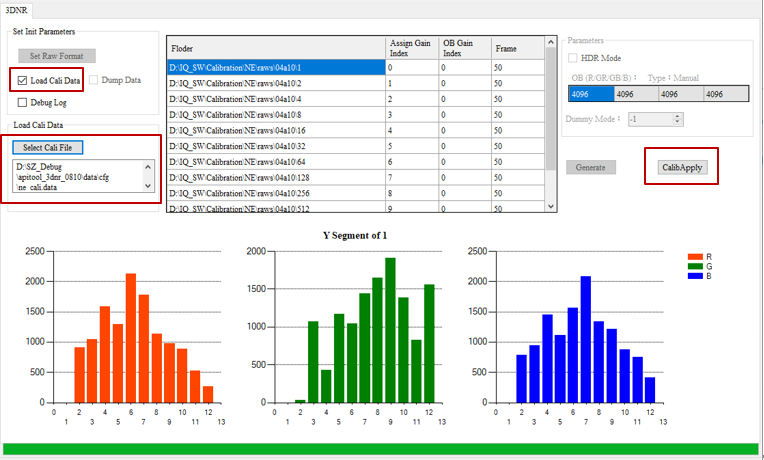
Step 3. After calibration completed, the interface will be shown as follows. Click the histogram below the column of folder to display the histogram of the calibration data of each color channel and brightness interval. ne_cali.data will be generated under data/cfg of IQ Tool, which can be loaded to the board. If “Dump Data” is checked, dump_ne_data_WIDTHxHEIGHT_gain0#.txt will be generated. gain00 represents index0, gain01 represents index1, and so on.
Make Sure Calibration Data Meets the Standard
Example of Normal Calibration Data
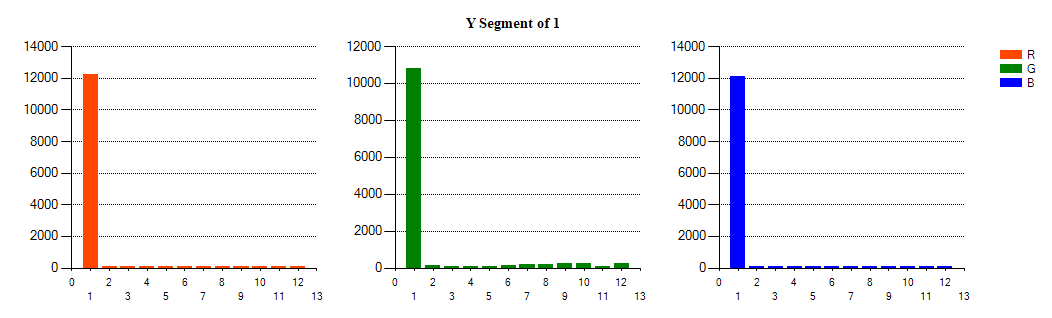
The horizontal axis from left to right represents brightness from dark to bright. The darker the scene, the more dots should be on the left. Make sure that the three channels of RGB have corresponding counts for each brightness. (Except the first two brightness levels, of which the counts can be relatively low. Try to make sure that other brightness counts are greater than 50)
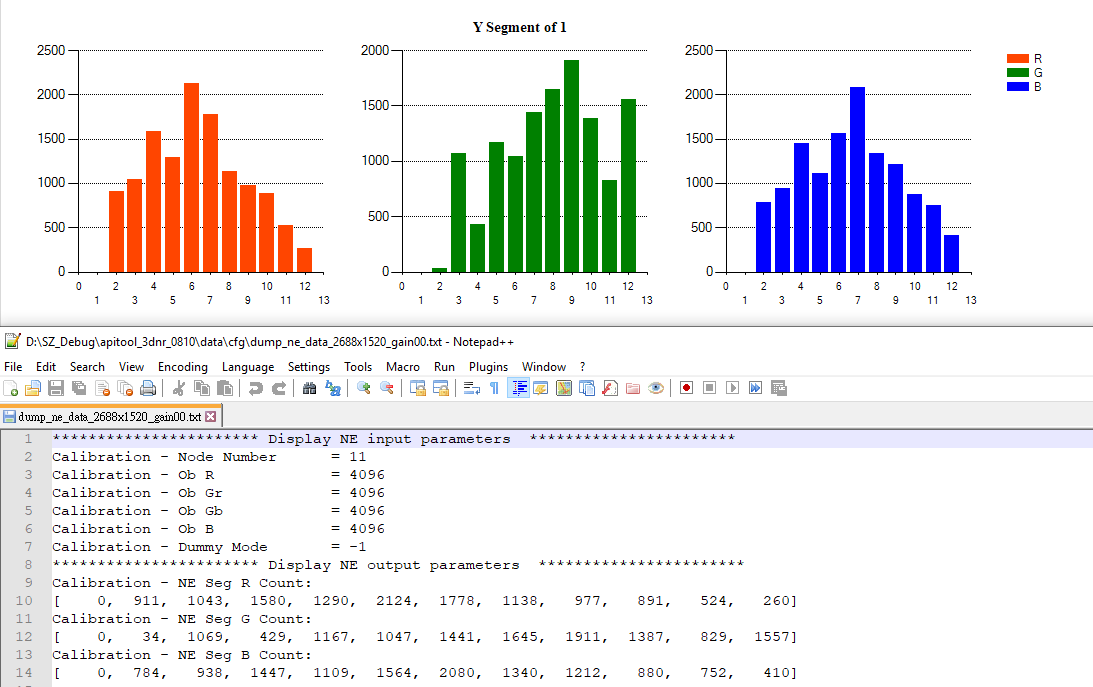
Example of Unacceptable Calibration Data
The figure below shows that the dots are almost concentrated in the dark part, and there are almost no dots in the bright part, meaning that the calibration data is unqualified. If this happens, please check (following this order) the calibration mode (HDR/Linear Dummy Mode), OB settings, and the exposure condition of Raw scene.
Applying Calibration Results
Temporary Application
After calibration completed, you may apply the calibration data by using the tool of the interface to verify the result. First, check “Load Cali Data”, click “Select Cali” to select the ne_cali.data generated by calibration, and then click “CalibApply” to apply. By adopting this method, however, the effect will become ineffective after reboot.
Applying the Effect after Booting
If calibration data should take effect when booting, you need to put the ne_cali.data file into the board, and call MI_ISP_CmdLoadCaliData to apply ne_cali.data.
Checking the Effect of Calibration Data Application
After clicking “Apply” or calling MI_ISP_API_CmdLoadCaliData, the serial port will generate Log file as the following figure shows, indicating that the calibration data has been successfully applied.

Parameters to be re-adjusted after 3DNR Calibration
After 3DNR calibration is applied, all parameters must be adjusted back to their default values. Only md.thd/md.gain need to be adjusted, and their default values are 64/400. Other parameters are suggested to be adjusted as follows:
-
md.thdByY/md.GainByY should all be adjusted back to 64. They can be fine-tuned if necessary.
-
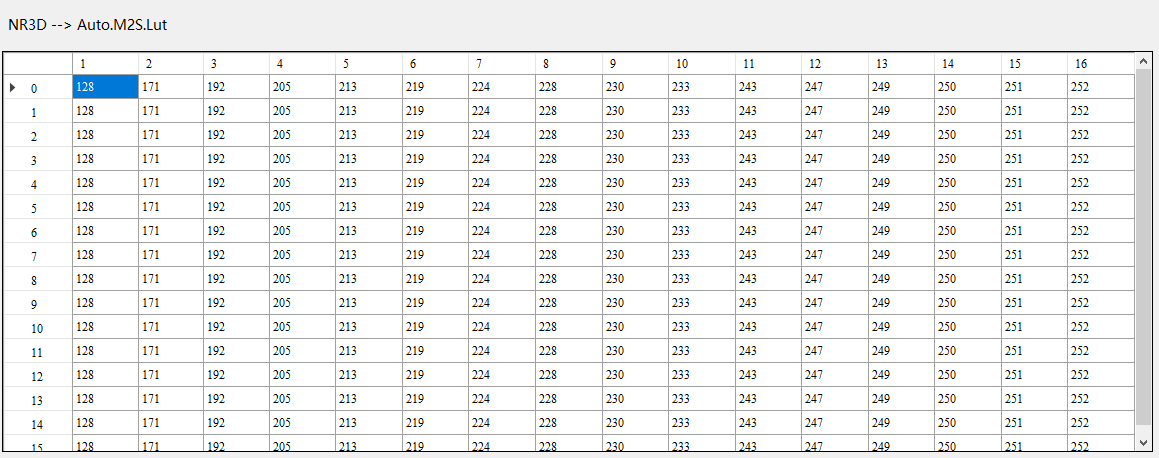
M2S.Lut will be restored to the default value, and adjustment is not recommended.
-
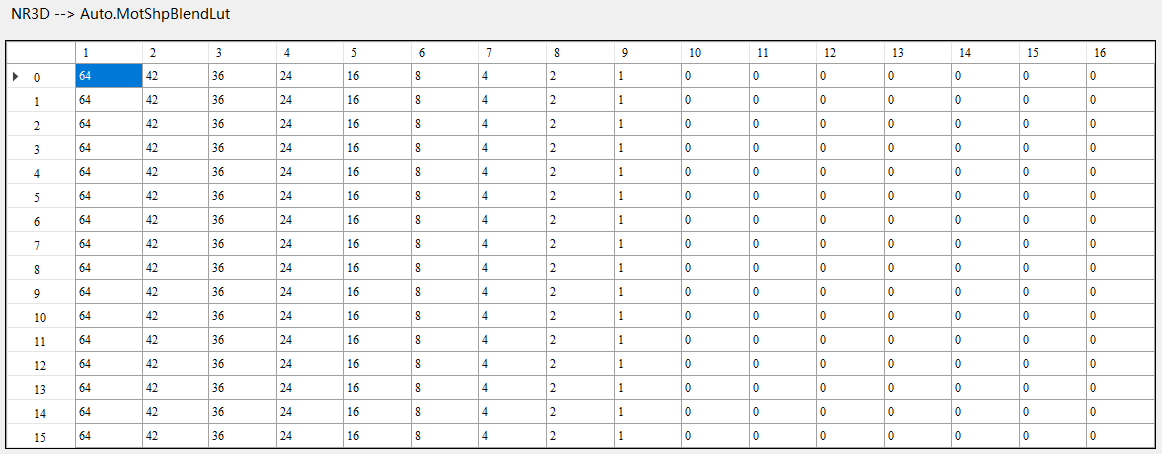
MotshpBlendLut will be restored to the default value, which can be adjusted if necessary.
-
TF.lut will be restored to the default value, and adjustment is not recommended.
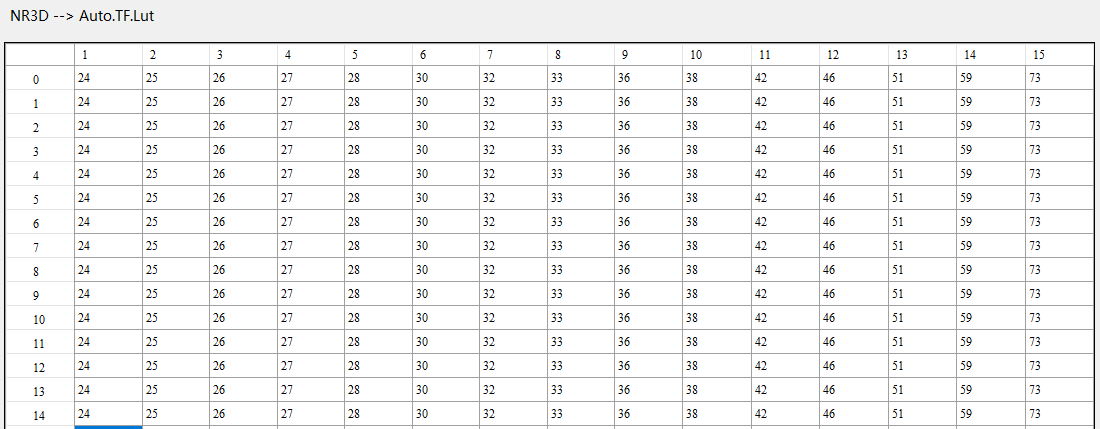
-
MotHistDelayByDiff will be restored to the default value, and adjustment is not recommended.

-
Dummy.dummy2 will all be changed to 64.
Verification of Calibration Effect
After 3DNR calibration has been correctly applied, the Debug motion map will appear more homogeneous in the static scene than it was before calibration.
-
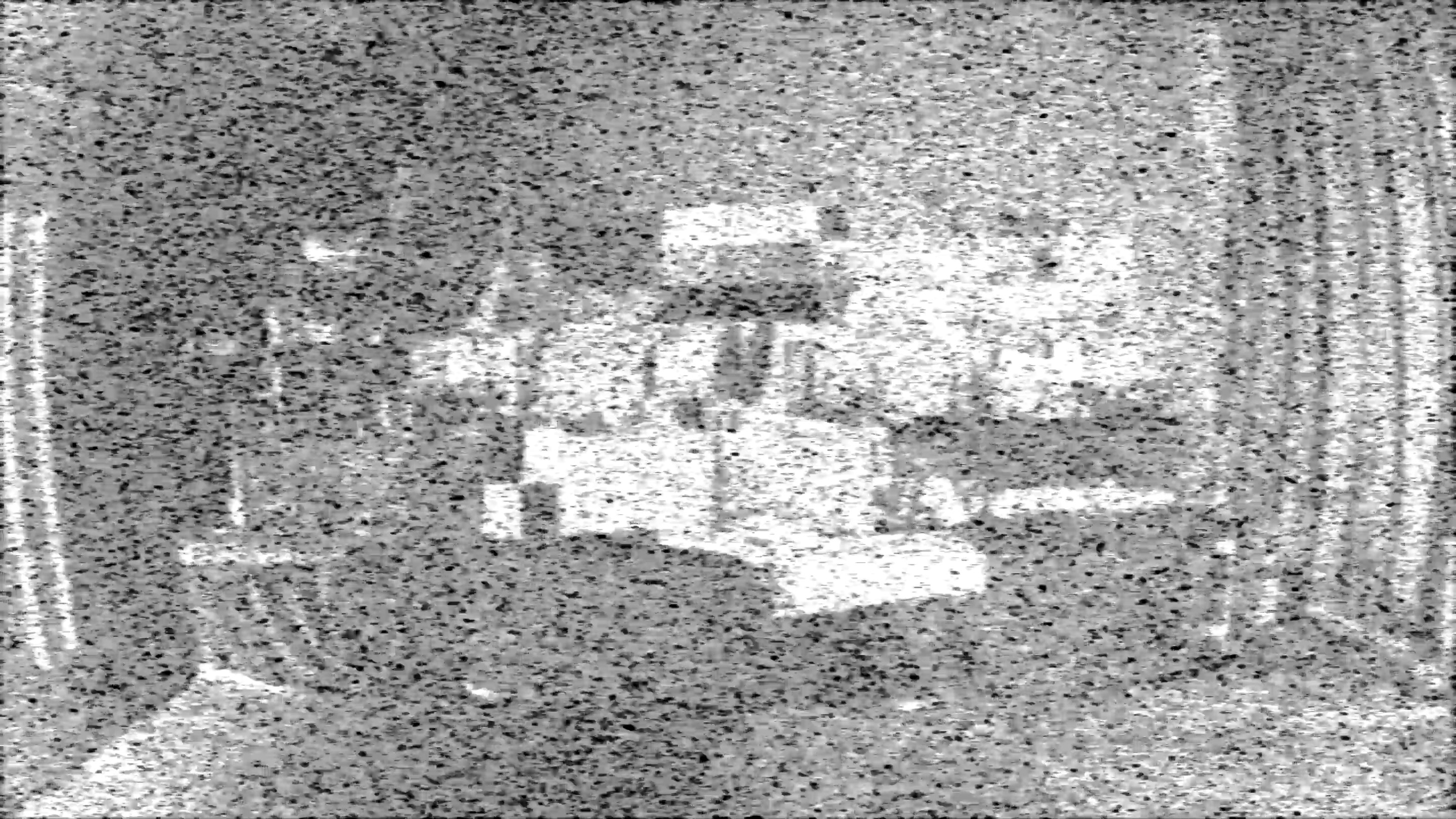
If md.thdByY/md.GainByY have not been adjusted before calibration, the debug motion map will show uneven motion and static judgements of various brightness, as the following figure shows.
-
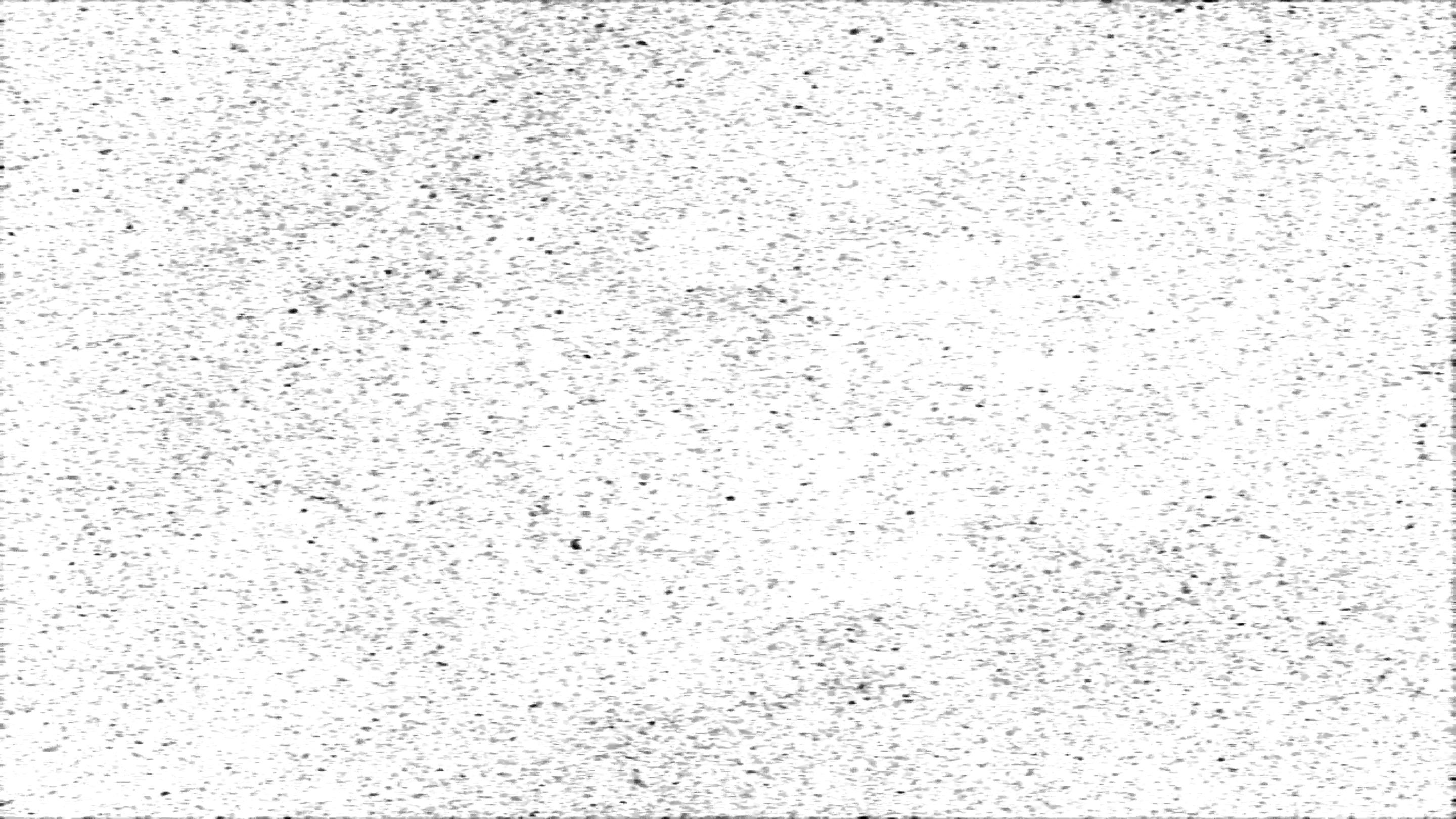
Even if md.thdByY/md.GainByY have not been greatly adjusted after calibration, the debug motion map will show consistent dynamic and static judgements of various brightness, as the following figure shows.
Precautions
-
The brightness distribution in a scene should be uniform, without overexposure or obvious underexposure.
-
If there is any change in OBC or Dummy_EX dummy3, you will need to restart the SStar 3DNR Calibration Tool to allow the calibration to take effect.
-
The storage path of Raw should be stored in different folders according to ISO levels, as the tool will read the folder path.
Linear mode:
-
Dummy Mode needs to be set in Dummy3 in Dummy_EX, and the 3DNR calibration tool will get it from the parameters.

-
The calibration values of OBC will be obtained from BlackLevel.
- When OpType in OBC is set to auto, the 3DNR calibration tool will load the corresponding OB value according to the OB Gain Index in the field.
- When OpType in OBC is set to manual, the 3DNR calibration tool will directly load the OB parameters in the manual.
HDR mode:
-
The 3DNR calibration in HDR mode only supports long exposure calibration. You will need to adjust md.thdByY/md.GainByY of the bright area based on the blending situation of HDR.
-
During the calibration, you only need to check “HDR mode” and then fill in WB R/B Gain. The other steps are the same as the Linear mode.
-
During the calibration, BlackLevel_P1 (long exposure OB) will be used.
-
As color temperature range needs to be correctly calibrated during the calibration, the 3DNR of HDR mode will need to be re-calibrated (as the situation requires) if color color temperature range is modified.
GAMMA FITTING & COLOR CORRECTION
Different gamma and colors have different impacts on noise. Besides, denoise adjustment will be much easier if you apply gamma and color settings beforehand. Therefore, gamma and color corrections are normally done first even when their place come after denoise in the pipeline.
Gamma Fitting
Color fitting result is susceptible to differences in brightness, and such difference mainly comes from AE and gamma. As such, it is imperative that gamma fitting should be done before color fitting. This step aims to fit the gamma of the calibration model closer to that of the reference model. Before calibration, make sure the dynamic range is set to full range by checking whether the histogram has reached the maximum/minimum.
Calibration Environment
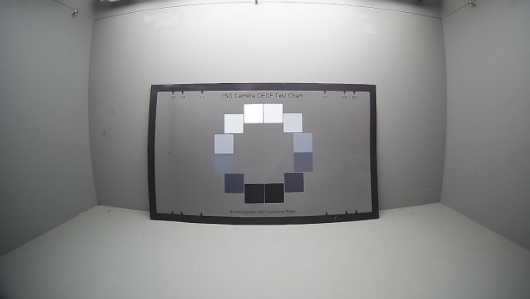
Prepare an OECF chart and have light illuminated evenly on the chart. Place the chart in middle of the screen when shooting; do not occupy the whole screen with the chart, otherwise the result might be affected by shading.
Calibration Interface
Click “Select Plugin” on the top of API, and select “Gamma Fitting” to open the calibration interface.
Calibration Flow
-
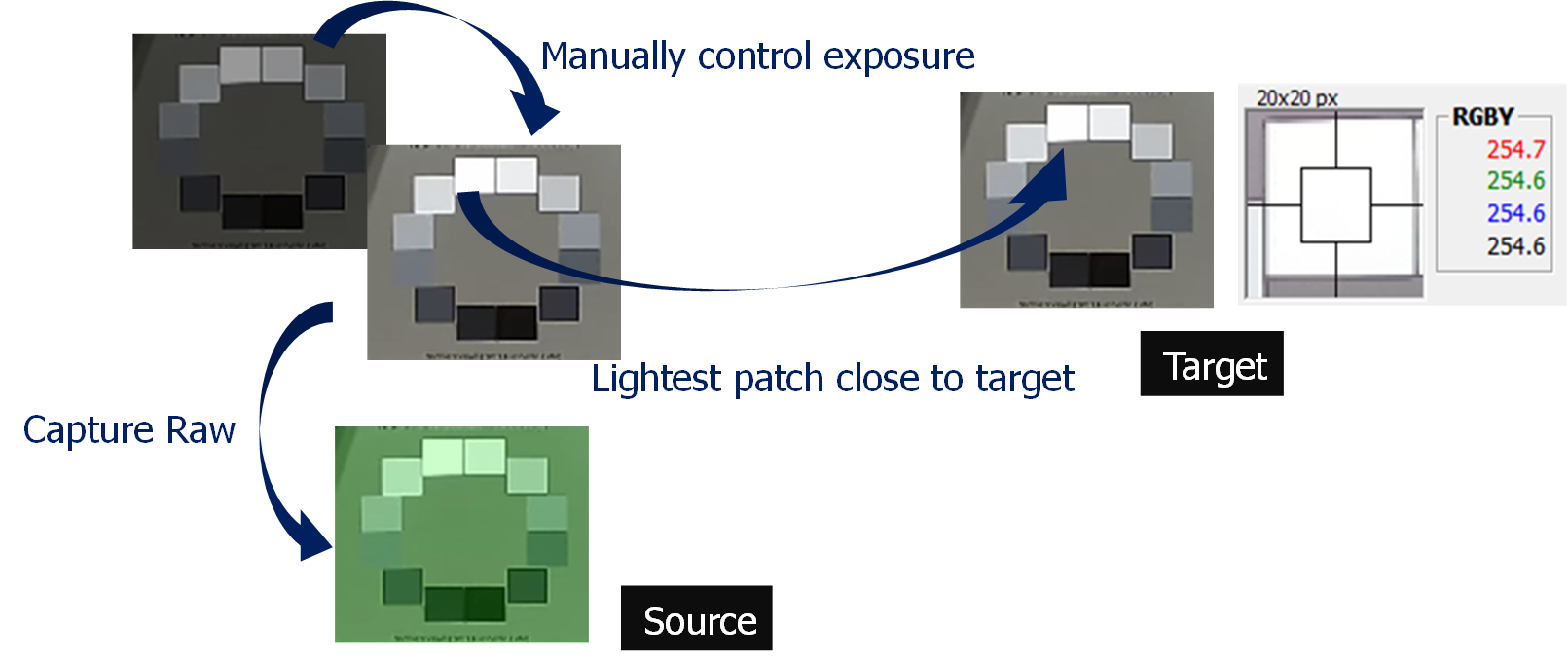
Set up the environment, and shoot images required for fitting between calibration model and reference model. Since exposure may affect brightness, the gamma fitting should be performed based on the same exposure setting. The easiest way to obtain the closest exposure is to set the brightest patch of the OECF chart as close as possible (but not equal) to 255 when capturing images (RAW for calibration model and JPG for reference model). The logic is that, while we do not know about the gamma of reference model, the brightest patch usually remains unchanged, which makes it a suitable candidate as the base for fitting.
-
Read the OECF patch value of source RAW data: Select “Options” from the menu of the interface tool, fill in the correct RAW information and OB (WB not required), and click OK.
Note: The OB Value in the current version is in 12-bit, with the maximum of 255. The unit will be revised to 16-bit, with the maximum of 65535, in future revision.
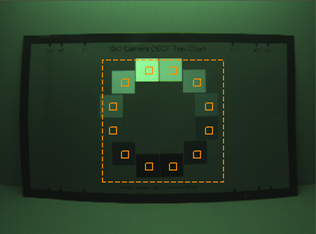
Drag-select OECF patch with your mouse. Be sure each patch is correctly located within the patch location.
-
Read the OECF patch value of target image:
The same as the preceding step; the only difference in this step is that the target reads the image file without setting RAW information.
-
Set parameters related to fitting. We suggest setting “Patch values” as the method of getting value, and “Exponential” as the fitting method.

-
After setup, click “Match GMA” to start gamma fitting. If nothing abnormal is found with the curve generated by fitting, click “Save GMA” to save the gamma curve. Finally, check to see whether the start and end of the saved gamma curve fall at 0 and 1023, respectively. If not, modify them manually.

Color Correction
The main purpose of this step is to bring the color of the calibration model close to that of the reference model. Color correction involves two parts: the first (and also the most important) part is the fitting of color matrix; the second part is HSV fine-tuning, which allows you to adjust local color saturation and hue according to your preference. Color matrix and HSV each support up to 16 sets of color temperatures. Index0 through Index15 represent color temperatures from low to high. Be sure to follow this rule when filling in the parameters.
CCM Adjustment
After finishing calibration of light sources of various color temperatures with the tool, be sure to fill in the results manually in the corresponding fields of color correction matrix (CCM).
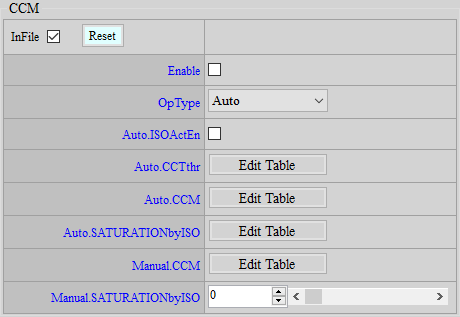
Adjustment Interface
Parameter Description
ISOActEn: Enables/Disables the function to automatically set CCM as the unit matrix in Night mode. If enabled, CCM will be automatically switched to the unit matrix when IQMode is Night.
CCTthr: Color temperature node setting. The color temperature value obtained at the time of CCM calibration needs to be filled in. CCM and HSV will refer to this CCTthr to determine which node setting to apply. Index should be filled from small to large and follows the sequence of low-to-high color temperature. 16 sets of nodes at most are supported. For nodes not used, set them to 0.
CCM: Color matrix setting of each color temperature. Corresponding color matrix should be filled in according to color temperature. Index should be filled from small to large and follows the sequence of low-to-high color temperature. The sum of each row is newly added in this version: SUM0 / SUM1 / SUM2 represent the sum of the first / second / third row, respectively, and they will be automatically updated by read. A problem is implied if the sum being displayed is not 1024, modify the CCM manually in that case.
SATURATIONbyISO: Adjust the saturation of color matrix. The program will perform an interpolation based on this setting between user-defined matrix and unit matrix. Parameter range: 0 ~ 100. 0 means using unit matrix, and 100 means using user-defined CCM. This parameter is switched by the gain value.
HSV Adjustment
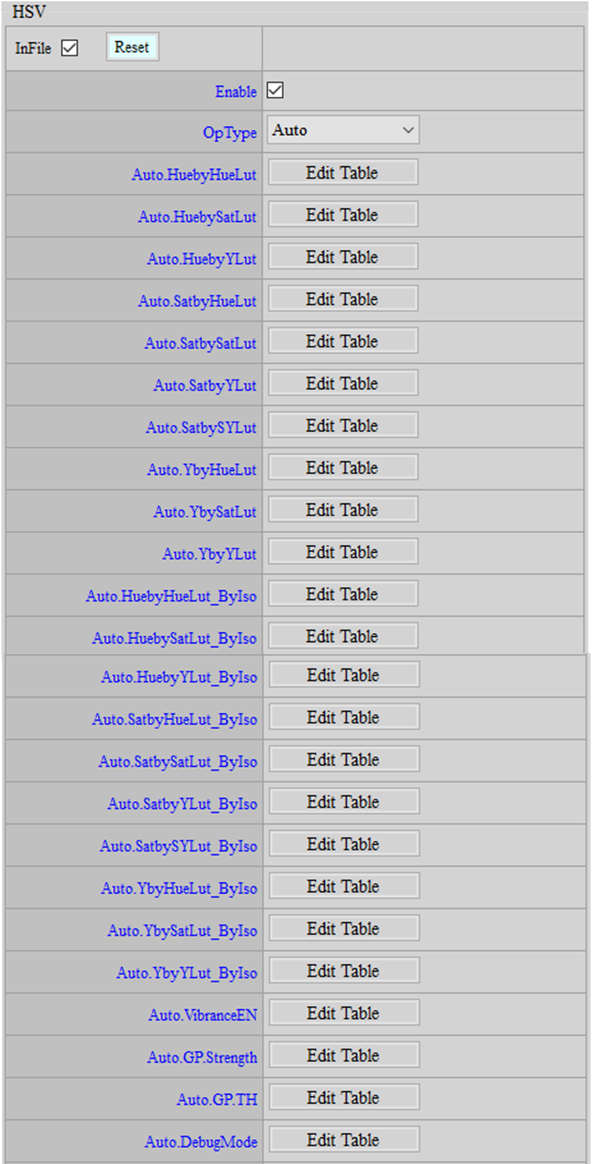
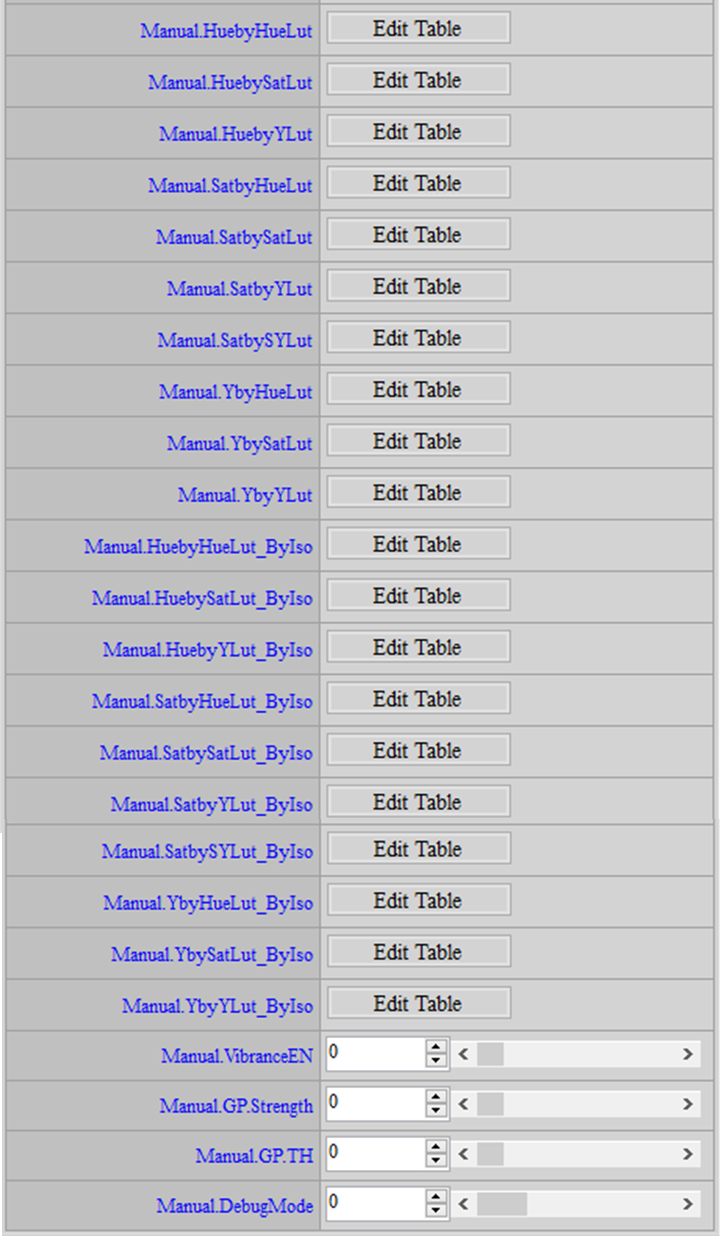
You may use HSV adjustment to further fine-tune certain colors after having applied color correction matrix (CCM). For Souffle, the RGB color model adopted in the HSV API is HSY (hue, saturation, brightness) color space, which divides the entire color domain into 36 segments, with skin colors being divided into smaller parts, thus allowing users to fine-tune details in skin colors. You may adjust different hues, saturation, and brightness in relation to each other according to the needs arising from various scenarios. When HSV is set to auto mode, make sure how Index is switched. Parameters ending with _ByIso is switched according to gain; parameters with no specific suffix is switched according to color temperature — in this case, the HSV API shares the same nodes of color temperature with CCM and is controlled by it.
The 36 segments divided by hue is shown as follows:

Adjustment Interface
Parameter Description
HueByHueLut: Adjust hue in certain regions as desired by dividing the 360° hue circle into 36 segments and controlling the rotation angle of each hue segment. Parameter range: -127 ~ 127. 0 means no adjustment. Parameter is switched according to color temperature.
HueBySatLut: Divide saturation into 9 equal segments, which is represented from low to high as horizontally from left to right, and control the rotation angle of hue for each segment of saturation. By doing so, you may adjust hue in certain regions as desired. Parameter range: 0 ~ 255 (128 = 1x). Parameter is switched according to color temperature.
HueByYLut: Divide brightness into 9 equal segments, which is represented from low to high as horizontally from left to right, and control the rotation angle of hue for each segment of brightness. By doing so, you may adjust hue in certain regions as desired. Parameter range: 0 ~ 255 (128 = 1x). Parameter is switched according to color temperature.
SatByHueLut: Adjust saturation in certain regions as desired by dividing the 360° hue circle into 36 segments and controlling the saturation of each hue segment. Parameter range: 0 ~ 255 (128 = 1x). Parameter is switched according to color temperature.
SatBySatLut: Adjust saturation in certain regions as desired by controlling the increase/decrease of saturation for each equal saturation segment. The horizontal axis from left to right represents saturation from low to high. Parameter range: -511 ~ 511. 0 means no adjustment. Parameter is switched according to color temperature.
SatByYLut: Divide brightness into 9 equal segments, which is represented from low to high as horizontally from left to right, and control the increase/decrease of saturation for each equal segment of brightness. By doing so, you may adjust saturation in certain regions as desired. Parameter range: 0 ~ 255 (128 = 1x). Parameter is switched according to color temperature.
SatBySYLut: Divide the product of brightness and saturation (S×Y) into 9 equal segments, which is represented from small to large as horizontally from left to right, and control the increase/decrease of saturation for each product segment. By doing so, you may adjust saturation in certain regions as desired. Parameter range: -511 ~ 511. 0 means no adjustment. Parameter is switched according to color temperature.
YByHueLut: Adjust brightness in certain regions as desired by dividing the 360° hue circle into 36 segments and controlling the brightness of each hue segment. Parameter range: -511 ~ 511. 0 means no adjustment. Parameter is switched according to color temperature.
YBySatLut: Adjust brightness in certain regions as desired by dividing saturation into 9 equal segments and controlling the increase/decrease of brightness for each saturation segment. The horizontal axis from left to right represents saturation from low to high. Parameter range: 0 ~ 255 (128 = 1x). Parameter is switched according to color temperature.
YByYLut: Divide brightness into 9 equal segments, which is represented from low to high as horizontally from left to right, and control the increase/decrease of saturation for each brightness segment. By doing so, you may adjust brightness in certain regions as desired. Parameter range: 0 ~ 255 (128 = 1x). Parameter is switched according to color temperature.
VibranceEn: Enable natural saturation. If this function is enabled, all the control over saturation in this module will become ineffective. Instead, the default curve of saturation adjustment in the firmware will take place. The default curve in the firmware helps maintain the saturation of skin colors with only slight changes when saturation is increased.
GrayProtectStrength: The strength of color protection for grey objects. Parameter range: 0 ~ 63. You may take advantage of this parameter for objects in grey to ensure that its hue, saturation, and brightness would remain unchanged.
GrayProtectTh: The threshold value to define grey objects. Parameter range: 0 ~ 1023. The greater the value, the more easily an object will be defined as grey. You may take advantage of this parameter to ensure that hue, saturation, and brightness would remain unchanged.
DebugMode: Debug mode. Parameter range: 0 ~ 4, which are, respectively, the value of hue, saturation, brightness, and the product of brightness and saturation (S×Y) of a specific region in the picture. These values will be shown on the screen.
Note: Both of the adjustments to H and Y are based on Hue adjustment before being used to adjust ByS and ByY. In other words, if HbyH adjustment is 0, HbyS and HbyY will become ineffective; if YbyH adjustment is 0, YbyS and YbyY will become ineffective.
Adjustment Flow
HSV Adjustment allows you to fine-tune the hue (H), saturation (S), and brightness (Y) of the image after CCM calibration has been performed.
- To fine-tune hue (H): You may fine-tune hue according to the specific hue (HueByHueLut), saturation (HueBySatLut), and brightness (HueByYLut) of an area in the picture. If the index where the area is located is unknown, use DebugMode to query.
- To fine-tune saturation (S): You may fine-tune saturation according to the specific hue (SatByHueLut), saturation (SatBySatLut), brightness (SatByYLut), as well as the product of saturation and brightness (SatBySYLut). If the index where the area is located is unknown, use DebugMode to query.
-
To fine-tune brightness (Y): You may fine-tune brightness according to the specific hue (YByHueLut), saturation (YBySatLut), and brightness (YByYLut) of an area in the picture. If the index where the area is located is unknown, use DebugMode to query.
-
Before using Debug mode, we recommend that you set HSV to Manual Mode.
To query the hue of a specific region, you may set Debug mode to 1, and set Manual.HueByHueLut_ByIso following the table below.

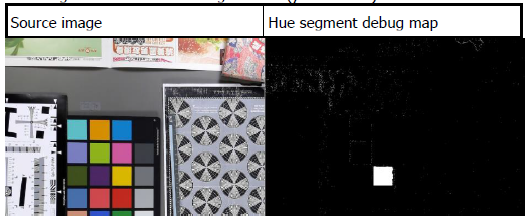
To query the saturation of a specific region, you may set Debug mode to 2, and set Manual.HueBySatLut_ByIso following the table below.
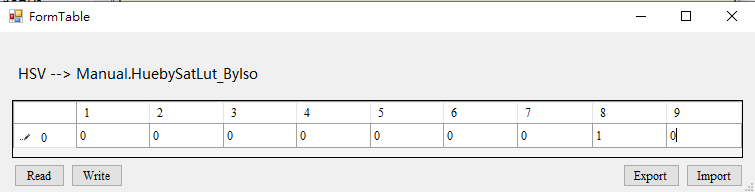

To query the brightness (Y) of a specific region, you may set Debug mode to 3, and set Manual.HueByYLut_ByIso following the table below.
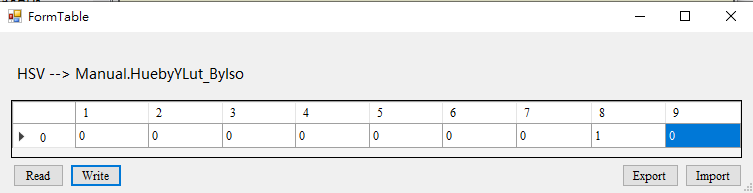
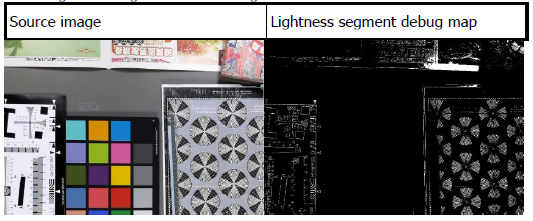
To query the product of saturation and brightness (S×Y) of a specific region, you may set Debug mode to 4, and set Manual.SatBySYLut_ByIso following the table below.
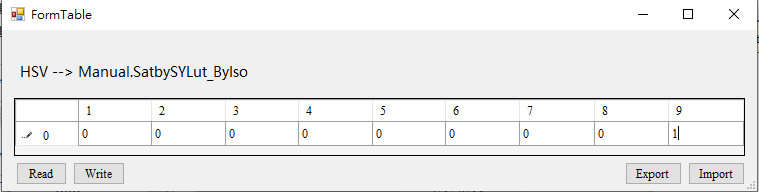

The SatBySYLut parameter (using the product of saturation and brightness) is often applied in areas of high brightness and high saturation. This parameter lowers the saturation to retrieve details in high brightness area, as the following figure shows:
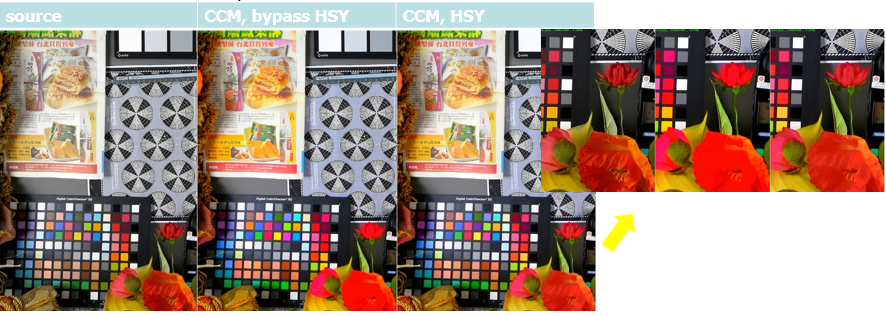
The function of grey-color protection allows you to maintain the saturation of grey-color area in case you want to increase general saturation of the whole image. To define the color of grey, you may use GrayProtectTh parameter, which will be enabled when the result of MAX(R, G, B) – MIN(R, G, B) is smaller than the threshold value defined by the parameter. In conjunction with GrayProtectStrength parameter, which can be set to 63 (the maximum value), the HSY values of the grey area will not be affected even if they pass through the HSY API.
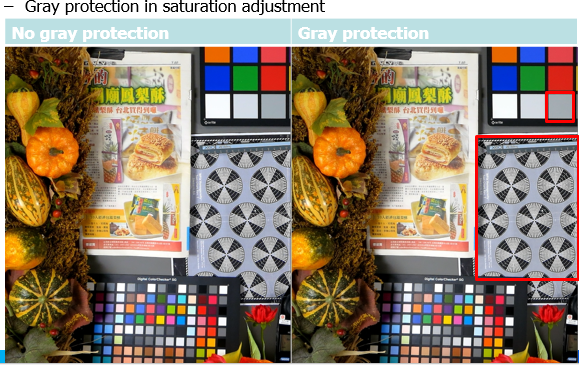
VibranceEn allows you to adjust general saturation without making skin-color too saturated. If this parameter is enabled, all the control over saturation in this API will become ineffective. Instead, the default setting in the firmware will take place. The following figure shows the effect when VibranceEn is enabled.
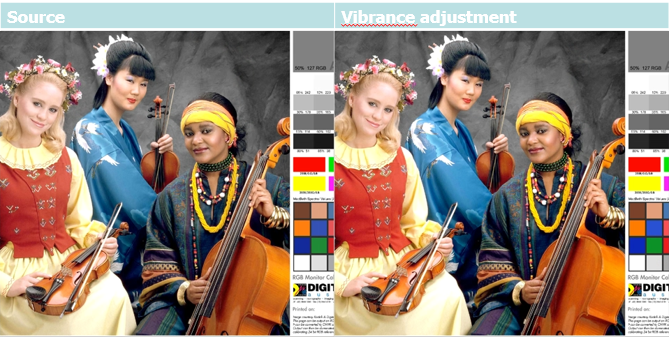
HUE Adjustment
The angle of the overall HUE can be adjusted.
Adjustment Interface
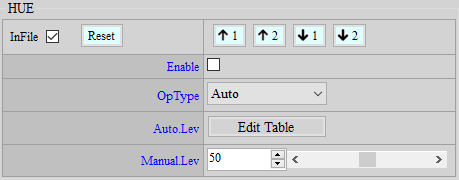
Parameter Description
Lev: Adjust the angle of the overall HUE: +1 indicates +2 degrees clockwise, while -1 indicates -2 degrees clockwise. Value range: 0 ~ 100. (50 means no adjustment)
DataRange Adjustment
Adjust the corresponding RGB to YUV transformation matrix according to the video output format. If Colortrans and ColortransEX are not enabled, the default setting will be BT601_limit.
Adjustment Interface
Select “Colortrans” from the menu on the left-hand side, and you will find Colortrans and ColortransEX Interface in the main screen on your right.
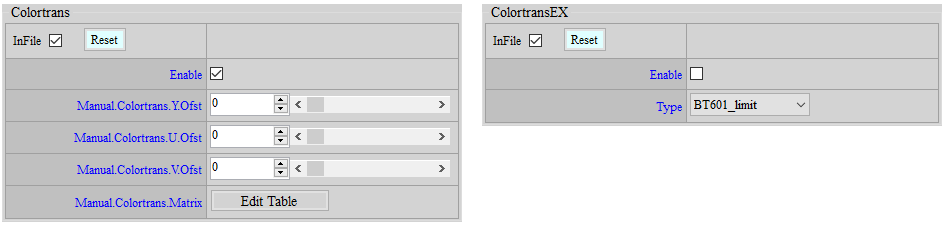
Parameter Description
< Colortrans >
Enable: Enable the function to customize color transformation matrix.
Colortrans.Y.Ofst: Adjust the offset of Y in 10-bit domain. Parameter range: 0 ~ 2047. Negative number is expressed by 2's complement, so the range is equal to ±1023.
Colortrans.U.Ofst: Adjust the offset of U in 10-bit domain. Parameter range: 0 ~ 2047. Negative number is expressed by 2's complement, so the range is equal to ±1023.
Colortrans.V.Ofst: Adjust the offset of V in 10-bit domain. Parameter range: 0 ~ 2047. Negative number is expressed by 2's complement, so the range is equal to ±1023.
Colortrans.Matrix: Adjust RGB-YUV matrix. Parameter range: 0 ~ 1023. 1x is 256, and negative number is expressed by 2's complement, so the range is equal to ±1.996.
For YUV_OFST Matrix[9], negative number is represented by 2’s complement. For UV_OFST, the value obtained after matrix multiplication has already been addeded by 128 by default.
The following equations serve as an example of transforming YUV to 16 ~ 235 data range.
Y = (0.257 * R) + (0.504 * G) + (0.098 * B) + 16
Cb = -(0.148 * R) - (0.291 * G) + (0.439 * B) + 128
Cr = (0.439 * R) - (0.368 * G) - (0.071 * B) + 128

Matrix[9] = {66, 129, 25, 986, 950, 112, 112, 930, 1006}
Y_OFST = 64
U_OFST = 0 (128*4 will be added by default, so input 0)
V_OFST = 0 (128*4 will be added by default, so input 0)
< ColortransEX >
Enable: Enable the function to modify color transformation matrix. If ColortransEX is enabled, Colortrans parameters will become ineffective.
Type: There are six sets of color transformation matrices available to choose from, and they are BT601 limit, BT601 full, BT709 limit, BT709 full, BT2020 limit, and BT2020 full.
Saturation Adjustment
UV adjustment based on brightness (Y) and saturation (UV) includes “Adjust UV by Y” and “Adjust UV by UV”. Such function mainly aims to reserve color adjustment flexibility in YUV domain. Besides, since brightness and saturation are independent of each other, you can maintain a fixed brightness while making partial saturation adjustment. When high exposure values are applied to sensor, you can lower the color noise in dark area, or increase/decrease the saturation according to user preference, to make the picture look brighter or softer.
Adjustment Interface
Select “Saturation” from the menu on the left-hand side, and Saturation Interface will pop up on the right.
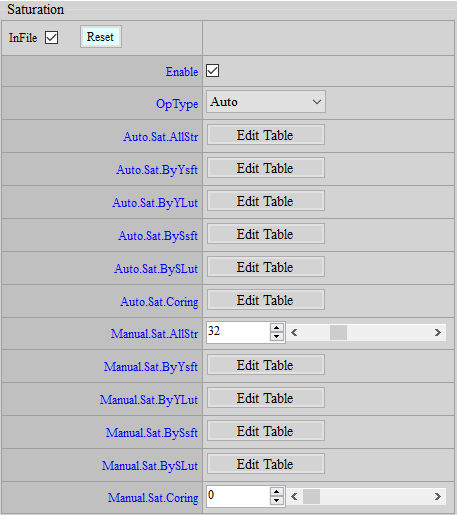
Parameter Description
Sat.AllStr: Variable strength of global saturation. Parameter range: 0 ~ 127 (32 = 1x).
Sat.ByYsft、Sat.BySsft: Adjust the spacing of X-axis of UV by Y/UV with special limitation to be observed, as stated below:
The nodes are a power of 2 and add up, for example: Sat.ByYsft[5] = {3, 3, 5, 7, 7}
Suppose the first node is 0, the second node will be 0+2^3, the third 0+23+23, the fourth 0+23+23+2^5, and so forth;
Then the spacing of nodes on X-axis will be {0, 8, 16, 48, 176, 255}, where the last node is greater than 255.
The limitation is that, the sum of the first four X-axis nodes must be less than 255, while the last node should be greater than or equal to 256.
For example, if Sat.ByYsft[5] = {8, 0, 0, 0, 0}, with the first node being 0 and the second 0+2^8=256. This would go against the limitation above.
Sat.ByYLut, Sat.BySYLut: Determines the values of node freely.
Sat.Coring: Performs coring on UV; using Sat.BySLut is more recommended.
Special application: If HDR function is enabled and causes oversaturation in high brightness part, you may suppress UV of high brightness or high saturation by using Sat.ByYLut or Sat.BySLut, so that the picture would look more natural under HDR effects.

Sat.ByYsft[5] & Sat.ByYLut[6] |

Sat.BySsft[5] & Sat.BySLut[6] |
DENOISE & EDGE ENHANCEMENNT
Default parameters in iqfile will be loaded to the interface when platform is connected to API tool. However, whether each IP is enabled or disabled is not displayed on the interface. If you want to adjust the image quality of a new sensor from scratch, we suggest that you go to Enable Control interface first to bypass all functions except Sharpness API and those that have been previously adjusted (OB, ALSC, Gamma, and Color). This way, you will have a general understanding of the sensor before any denoise adjustment, such as the maximum resolution supported and whether crosstalk or false color exists. If the picture is very unstable, you may apply NR3D. After that, enable the functions according to your need for further adjustment so as to avoid other functions unnecessarily affecting the overall image quality. Theoretically, Sharpness API should also be bypassed, but we still recommend that you keep Sharpness API enabled for the convenience of observation and hold onto default values (you might set OverShootGain or UnderShootGain smaller at higher gains) to keep the picture stable.
Adjusting high gains with Sharpness API enabled but denoise disabled will lead to much noise in the picture that it becomes difficult to examine the effect of adjustment. We suggest that you set Y.TF.STR to stronger strength to stabilize picture for the convenience of adjusting other functions before NR3D. The adjustment should be done following the sequence of ISO index. To prevent parameter interpolation from affecting your judgement, we suggest setting AE to Manual SV mode and assigning specific gain value to each node. Only after finishing one should you move on to the next. Before adjusting image quality, be sure you clean the lens and keep it focused, and also make sure that the IR cut of RGB sensor is properly caped.
It should be noted that noise is relatively more severe in high gains. When WB Gain is applied, the noise in R and B channels may even be amplified, giving rise to purple color in the dark area of the picture. To deal with such issue, we recommend OBC by performing additional subtraction in R and B channels. You may also increase the strength of 2DNR (including DPC and NRDeSpike) to suppress noise and prevent them from being amplified.
Crosstalk & False Color Adjustment
Before moving forward to denoise adjustment, check if there is any fixed pattern, cross talk or false color. Correct it when any of such phenomena exists. For one thing, these functions come before denoise in the pipeline; for another, special phenomenon can only be resolved effectively with specific function. Any attempt to remove these phenomena by denoise might impair the image quality.
Crosstalk (Green Equal)
Crosstalk is primarily an issue of lens and sensor compatibility. When light enters the micro lens on the sensor at large angles, the signal supposed to be received by certain pixel might be mistakenly received by neighboring pixels, giving rise to greater Gr-Gb difference. This issue tends to occur at the corner of a picture or when the light enters at a certain angle.
Phenomenon
A maze/labyrinth pattern appears on screen.
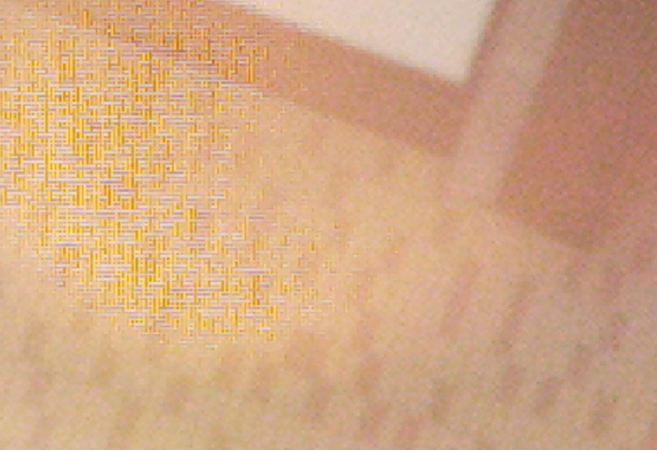
Adjustment Interface
Select “BayerCompensation” from the menu on the left-hand side, and Crosstalk Interface will pop up on the main screen to the right.
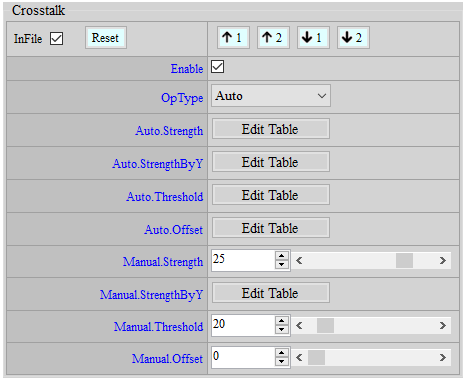
Parameter Description
Strength: Crosstalk strength. Parameter range: 0 ~ 31. The greater the strength, the stronger the effect.
StrengthByY: Adjust crosstalk strength value by Y. The closer to the right end of the horizontal axis, the brighter. Parameter range: 0 ~ 127. The greater the strength, the stronger the effect. “64” means no change.
Threshold: The value of crosstalk threshold ratio. Parameter range: 0 ~ 255. The greater the value, the wider range of action.
Offset: The value of crosstalk threshold offset. Parameter range: 0 ~ 4095. The greater the value, the wider range of action.
Adjustment Flow
- Set Offset to 0 and Threshold to 128, increase Strength from 0 and observe the region where crosstalk needs to be removed and the region where the details should be maintained. Stop when both crosstalk and details are acceptable.
- Use Threshold if further fine-tuning is required.
- If crosstalk is still obvious in dark region, increase Offset.
False Color
False color arises in cases where direction is not considered or misjudged during demosaic process. This phenomenon is likely to occur in high-frequency regions or at the edge of a picture.
Phenomenon
False color occurs in high-frequency regions or at the edge of a picture.
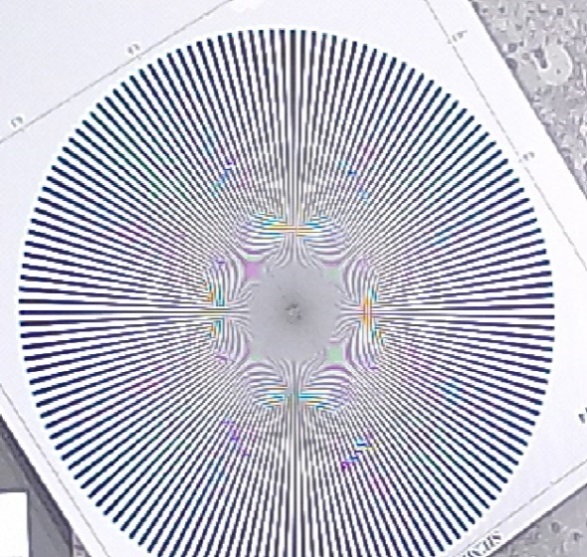
Adjustment Interface
Select “BayerCompensation” from the menu on the left-hand side, and AntiFalseColor Interface will pop up on the main screen to the right.
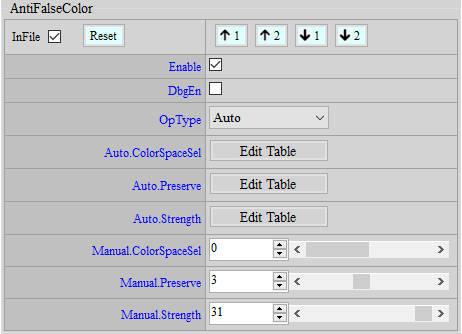
Parameter Description
DbgEn: Debug mode. Parameter range: 0 ~ 1. The brighter the image, the stronger the false color suppression. This debug mode will come into conflict with that of Demosaic, and the choice between the two will be determined by the last call made by API.
ColorSpaceSel: PhenomenonFalse color suppression mode. Parameter range: 0 ~ 1. “0” means to balance in RGB domain and align with the value of G channel, while input “1” to balance in YUV domain. Lightness will not be affected.
Preserve: The strength of edge protection. Parameter range: 0 ~ 7. The greater the value, the less likely edge region will be judged as moire region, and the weaker the false color suppression.
Strength: The global strength of false color suppression. Parameter range: 0 ~ 31. The greater the value, the more likely saturation in moire region will be reduced, and the greater false color suppression.
Adjustment Flow
- Set Strength to the maximum and use debug mode to observe whether moire region meets the expectation. After that, adjust Preserve, and then lower Strength.
- Switch ColorSpaceSel and observe the effects of different false color suppresion modes.
Note:
- FalseColor will be of some help to remove thinner purple edges. If purple edges remain a serious issue after FalseColor is set to the maximum strength, you can use HSV to reduce the saturation of purple hue. During the adjustment, watch out if the saturation of normal purple object is too low.
- Adjustment to false color is highly related to the existence of crosstalk, because strong crosstalk leads to serious false color issue, which in turn prevents false color suppression function from removing it; thus, we suggest that crosstalk tuning to be completed before the anti-false color process.
- As the write page of BayerCompensation interface calls Demosaic after False Color, the debug mode will be switched to that of Demosaic. When the debug mode of False Color is preferred, call False Color in BayerCompensation interface again.
PFC (Purple Fringing Compensation)
Phenomenon
Purple fringe mainly results from the phenomenon of chromatic dispersion and usually appears in the form of purple margin along dark edges adjacent to bright areas.
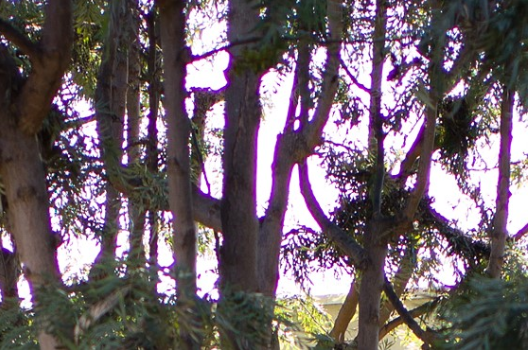
Adjustment Interface
Select “PFC” from the menu on the left-hand side, and PFC Adjustment Interface will pop up on the main screen to the right.
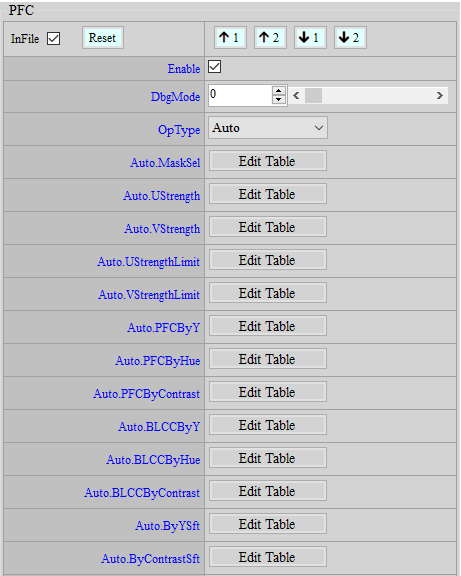

Parameter Description
DbgEn: Show the effective range of PFC/BLCC. Parameter range: 0 ~ 8. Each value represents:
| value | output |
|---|---|
| 0 | Debug off |
| 1 | PFC ByHue strength |
| 2 | PFC ByY strength |
| 3 | PFC ByContrast strength |
| 4 | BLCC ByHue strength |
| 5 | BLCC ByY strength |
| 6 | BLCC ByContrast strength |
| 7 | PFC final strength |
| 8 | PFC/BLCC final strength |
MaskSel: Select the size of mask to judge contrast area. Parameter range: 0 ~ 2. Mask 0 covers smaller size, while Mask 2 covers greater size.
UStrength: PFC/BLCC strength against U channel. The greater the value, the stronger the strength. Parameter range: 0 ~ 63.
VStrength: PFC/BLCC strength against V channel. The greater the value, the stronger the strength. Parameter range: 0 ~ 63.
UStrengthLimit: The PFC/BLCC strength limit against U channel. Parameter range: 0 ~ 63.
VStrengthLimit: The PFC/BLCC strength limit against V channel. Parameter range: 0 ~ 63.
PFCByY: Since purple fringe normally occurs at a darker spot surrounded by high-brightness areas, we can assign different PFC strengths against different brightnesses. The closer to the right end of the horizontal axis, the stronger the brightness. The greater the value, the stronger the strength. Parameter range: 0 ~ 4095.
PFCByHue: Assign different PFC strengths by hue. Parameter range: 0 ~ 255. The greater the value, the stronger the strength of PFC.
PFCByContrast: Assign different PFC strengths by contrast. The closer to the right end of the horizontal axis, the stronger the contrast. The greater the value, the stronger the strength of PFC. Parameter range: 0 ~ 551.
BLCCByY: Since Backlit Color often occurs at darker spot surrounded by high-brightness areas, we can assign different BLCC strengths against different brightnesses. The closer to the right end of the horizontal axis, the stronger the brightness. The greater the value, the stronger the strength. Parameter range: 0 ~ 4095.
BLCCByHue: Perform different BLCC processing according to hue. Parameter range: 0 ~ 255. The greater the value, the stronger the strength of BLCC.
BLCCByContrast: Perform different BLCC processing according to contrast. The closer to the right end of the horizontal axis, the stronger the contrast. The greater the value, the stronger the strength of BLCC. Parameter range: 0 ~ 551.
ByYSft: The horizontal nodes of PFCByY/BLCCByY, accumulated by the power of 2. Parameter range: 1 ~ 15.
ByContrastSft: The horizontal nodes of PFCByContrast/BLCCByContrast, accumulated by the power of 2. Parameter range: 1 ~ 11.
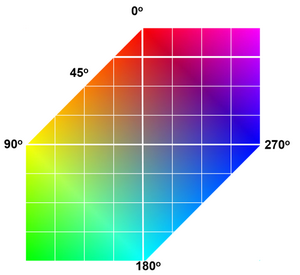

Adjustment Flow
-
Observe the width of purple fringe based on lens performance, and then determine the size of MaskSel. If purple fringe is wide, use a larger mask for compensation.
-
Observe the distribution of color, area of brightness, extent of contrast, in locations where purple fringe is found, and then adjust PFCByHue, PFCByY, as well as PFCByContrast accordingly.
-
Observe the distribution of color, area of brightness, extent of contrast, in locations where back light color is found, and then adjust BLCCByHue, BLCCByY, as well as BLCCByContrast accordingly.
-
Adjust the final PFC strength. If there is any particular color requirement, you can make separate adjustments to UStrength and VStrength.
DEMOSAIC
Phenomenon
Reduce the misjudgement of direction and prevent artifacts from being generated when picture resolution is increased.
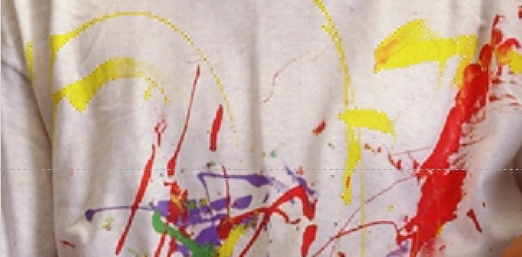
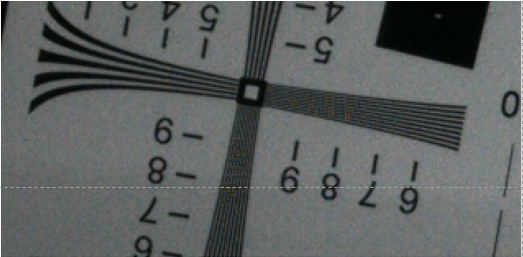
Adjustment Interface
Select “BayerCompensation” from the menu on the left-hand side, and Demosaic Interface will pop up on the main screen to the right.
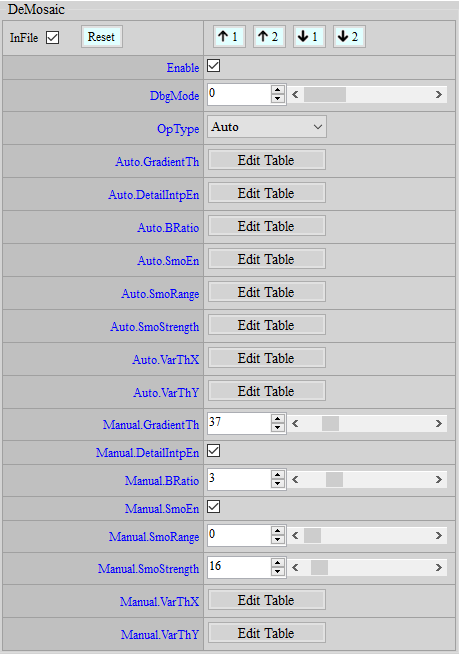
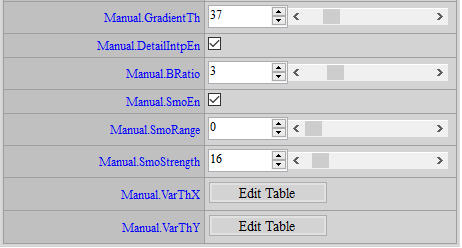
Parameter Description
DbgMode: Debug mode. Parameter range: 0 ~ 2. “1” means direction judgement of image, by which red/blue/green/black area respectively corresponds to vertical/horizontal/detail/non-directional area. “2” represents “non-smooth” image and is only effective when SmoEn is enabled. The brighter the image, the less likely it will be smoothed, and vice versa. This debug mode will come into conflict with that of FalseColor, and the choice between the two will be determined by the last call made by API.

GradientTh: Threshold value for directional area judgement. The greater the value, the less area will be judged as directional, which may blur details and create zipper artifacts. Too small a value will lead to the decrease of details. Parameter range: 0 ~ 63.
bDetailIntpEn: Enable detail interpolation. Parameter range: 0 ~ 1.
u8BRatio: The larger the value, the more weaker edge can be continuous, but the more likely high frequency will be wrongly interpolated. Parameter range: 0 ~ 15.
SmoEn: Smooth enable. Parameter range: 0 ~ 1.
SmoRange: Smooth range. The greater the value, the more area will be smoothed. Parameter range: 0 ~ 7.
SmoStrength: Smooth strength. The greater the value, the stronger the strength. Parameter range: 0 ~255.
u8VarThX[8]: The brightness node of u8VarThY, accumulated by the power of 2. Parameter range: 0 ~ 7. You may change the adjustable range according to different brightness intervals.
u8VarThY[8]: The threshold value to determine non-directional area (IsoTh). Parameter range: 0 ~ 255. The greater the value, the more areas will be judged as non-directional area, which may lead to blurred details and zigzag artifacts.
Adjustment Flow
-
Disable the function of Smooth by setting SmoEn to 0.
-
Set DbgMode to 1 and observe whether directional judgement meets expectation, and then fine-tune u8VarThY and GradientTh to differentiate non-directional/directional/detail areas.
-
Enable Smooth again, if necessary, to smooth areas with wrong differential values caused by Demosaic. You may also set DbgMode to 2 and observe whether the smoothed area and the smooth strength meet your expectation.
Note:
-
We suggest retaining default values. If adjustment is necessary, smaller range of adjustment would be preferrable unless you are certain about the setting being able to be applied to all kinds of scenes.
-
Do not use Smooth as a noise reduction (NR) function. You should not fine-tune this module unless other functions are of no avail or unadjustable.
DynamicDP & NRDespike Adjustment
As described in the preceding section, peak noise is basically regarded as a special noise, and hence needs to be removed or weakened by a specific function. It is recommended that peak noise be handled before normal noise so as to avoid impairing the image quality in the case that other denoise functions are arbitrarily applied to dealing with peak noise. Two functions — DynamicDP and NRSpikeNR — are available for coping with peak noise, and they can be applied simultaneously.
DynamicDP (Dynamic Defective Pixel Correction)
Defective Pixel Correction (DPC) handles peak noise by replacing the problematic pixel, and hence the effect is more noticeable.
Due to the limitation of sensor manufacturing technology, a multi-megapixel sensor can never achieve perfectness, nor can all its pixels remain intact, and this is especially the case with low-cost sensors, where a defective rate ranging from 100 to 1,000 ppm is common.
When defective pixel exists in a sensor, its size will be enlarged through image interpolation (such as DeMosaic) and filtering processes. Moreover, the color intensity and saturation in the defective area will also be significantly increased due to color calibration and crosstalk compensation. Hence, calibration of defective pixel is necessary before moving forward to interpolation and other processes.
Adjustment Interface
Select “BayerCompensation” from the menu on the left-hand side, and DynamicDP Interface will pop up on the main screen to the right.
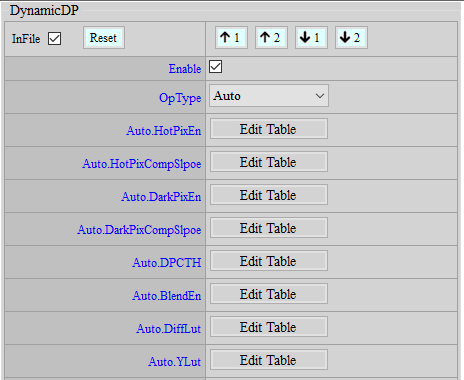
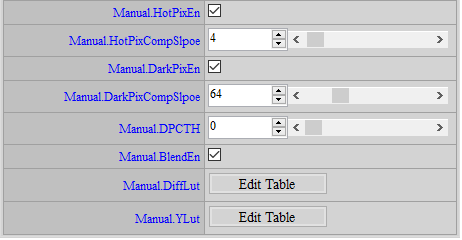
Parameter Description
HotPixEn: Enable hot defective pixel removal.
HotPixCompSlope: Threshold value for determining if a pixel is a hot defective pixel. Parameter range: 0 ~ 255. The greater the value, the more unlikely a pixel will to be judged as a hot defective pixel, and vice versa.
DarkPixEn: Enable dark defective pixel removal.
DarkPixCompSlope: Threshold value for determining if a pixel is a dark defective pixel. Parameter range: 0 ~ 255. The greater the value, the more unlikely a pixel will be judged as a dark defective pixel, and vice versa.
DPCTH: Threshold value of defective pixel and neighboring pixels in the same channel. Parameter range: 0 ~ 255. The greater the value, the more unlikely neighboring pixels will be treated as a defective pixel, and vice versa.
BlendEn: Enable blending.
DiffLut: Blending based on the difference between the DPC result and the original pixel value. Parameter range: 0 ~ 1024. The greater the value, the more likely a pixel will be replaced.
YLut: Blending based on brightness. Parameter range: 0 ~ 1024. The greater the value, the more likely a pixel will be replaced.
Adjustment Flow
- Determine to enable HotPix or DarkPix.
- DPCTH determines the difference of pixels in the same channel. Only when DPCTH and PixCompSlope are both established will defective pixel compensation be performed.
- Increase PixCompSlope gradually until peak noise and details reach an acceptable balance.
- Enable BlendEn, tune DiffLut and YLut according to the desired blending balance to regain more details.
DynamicDP Cluster
While DynamicDP detects defective pixels by the difference between the present pixel and its neighboring pixels, DynamicDP cluster takes into account the possibility of the neighboring pixels being defective, too. It will exclude some of the brightest or darkest neighboring pixels and then enter DynamicDP module for processing.
Adjustment Interface
Select “BayerCompensation” from the menu on the left-hand side, and DynamicDP_Cluster Interface will pop up on the main screen to the right.
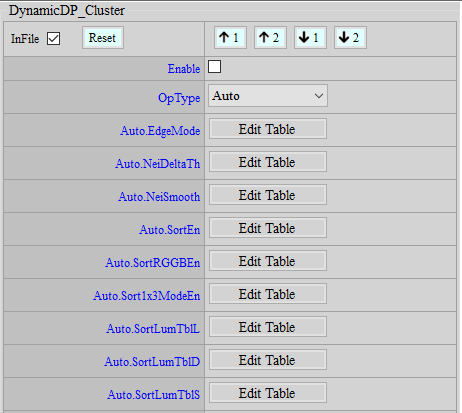

Parameter Description
EdgeMode: Edge mode enable. It removes 0 ~ 1 brightest or darkest pixel in the neighboring pixels.
NeiDeltaTh: Threshold value of difference between 8 neighboring pixels and the average value of these 8 pixels. The number (count) of difference larger than this value will be accumulated.
NeiSmooth: Accumulative threshold. If the count is smaller than the threshold, the brightest (or the darkest) pixel will be replaced.
SortEn: Sort mode enable. Sort the neighboring pixels in order to screen out the brightest (darkest) pixel that meets the following conditions — the difference between the brightest (darkest) pixel and the second brightest (darkest) pixel is large enough, and the difference between the second brightest (darkest) pixel and the third brightest (darkest) pixel is small enough. It means that only one pixel around is very bright (dark), and the other pixels are of similar brightness (darkness), and so we can replace that one bright (dark) pixel. The maximum number of compensations is removing 0 ~ 2 brightest pixel and 0 ~ 1 darkest pixel.
SortRGGBEn: Enables the sort mode of each channel. You may use it to designate specific channel for performing/not performing defective pixel replacement.
Sort1x3ModeEn: Enables 1x3 mode. If the two pixels around the center pixel happen to be the brightest and the second brightest pixels, and the difference between the second brightest pixel and the third brightest pixel is greater than SortLumaTblL, the two brightest pixels will be replaced by the third brightest pixel.
SortLumaTblL: Threshold values of the two brightest pixels, which can be tuned by luminance. Value greater than this threshold will trigger replacement. Setting larger threshold value will require the brightest pixel to be much brighter than the second brightest pixel to be replaced by the second brightest pixel, suggesting stricter judgement condition.
SortLumaTblD: Threshold values of the two darkest pixels, which can be tuned by luminance. Value greater than this threshold will trigger replacement. Setting larger threshold value will require the darkest pixel to be much darker than the second darkest pixel to be replaced by the second darkest pixel, suggesting stricter judgement condition.
SortLumaTblS: Threshold values of the second and third brightest (darkest) pixels, which can be tuned by luminance. Value smaller than this threshold will trigger replacement. Setting larger threshold value will require the second and third brightest (darkest) pixels to be more similar to replace the brightest (darkest) pixel, suggesting stricter judgement condition.
Adjustment Flow
-
If there are defective pixels unable to be compensated by DynamicDP, try to enable EdgeMode or SortEn. The stronger the strength, the more defects would be compensated. However, more details will be damaged.
-
DynamicDP_Cluster setting is suggested to be eased so as to detect the majority of defective pixels, and perform blending by the defect level
NRDeSpike
NRDeSpike handles peak noise by drawing the pixel of concern close to the mean/median of the neighboring pixel. This function, therefore, is only capable of weakening the peak noise rather than eliminating it completely.
Adjustment Interface
Select “BayerDenoise” from the menu on the left-hand side, and NRDeSpike Interface will pop up on the main screen to the right.
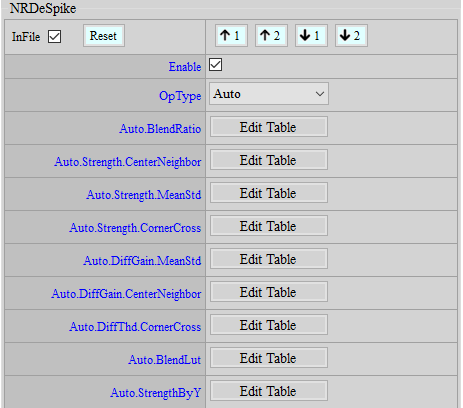

Parameter Description
NRDeSpike employs the following three methods simultaneously to determine the strength of depeak. The weakest one will be taken as the final strength.
< CenterNeighbor >
Strength: The strength of CenterNeighbor method. Parameter range: 0 ~ 5. The greater the value, the stronger the strength.
DiffGain: The threshold of CenterNeighbor method. Value larger than this threshold will set depeak strength to the maximum. Parameter range: 0 ~ 255. The smaller the value, the more likely the strongest depeak strength will be applied.
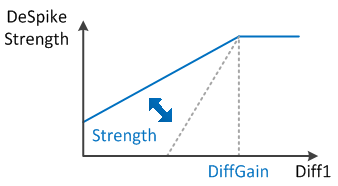
< CornerCross >
Strength: The strength of CornerCross method. Parameter range: 0 ~ 5. The greater the value, the stronger the strength.
DiffThd: The threshold of CornerCross method. Value smaller than this threshold will set depeak strength to the maximum. Parameter range: 0 ~ 255. The greater the value, the more likely the strongest depeak strength will be applied.

< MeanStd >
Strength: The strength of MeanStd method. Parameter range: 0 ~ 5. The greater the value, the stronger the strength.
DiffGain: The gain value in the determining conditions of MeanStd method. Parameter range: 0 ~ 31. The greater the value, the easier the strongest depeak strength will be applied to the pixel.
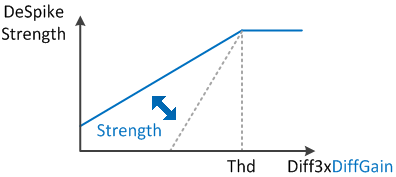
BlendRatio: Global strength setting, parameter range: 0 ~ 15. The greater the value, the less obvious the peak.
BlendLut: Select median/mean blending ratio. Parameter range: 0 ~ 2047. The horizontal axis represents the extent of difference between the center pixels and the neighboring pixels. The closer to the right end, the greater the difference. The greater the value, the closer the blending ratio leans toward the median setting; the smaller the value, the closer to the mean setting.
StrengthByY: Apply strength based on different brightness. Parameter range: 0 ~ 64. 64 means no adjustment. The smaller the value, the weaker the strength.
Adjustment Flow
Since the weakest strength of the three methods will be selected as the final strength, adjusting individual parameter may not lead to expected effects. We suggest following the following steps to achieve the best possible adjustment.
-
Set BlendRatio to 15 for the convenience of observation.
-
Find out the optimal parameters for each method. Set the strength of the other two to the maximum while adjusting one of the three methods.
< Taking CenterNeighbor as an example >
-
Set CornerCross and MeanStd to the maximum.
Strength.CornerCross = 5
DiffThd.CornerCross = 255
Strength.MeanStd = 5
DiffGain.MeanStd = 31
-
Set Strength.CenterNeighbor to 0, and lower DiffGain.CenterNeighbor from 255 gradually until peak noises and details reach an acceptable balance.
-
Write down the adjusted parameters.
-
Referring to Step 2 to adjust the parameters of the rest two methods, and then copy the optimal parameter values to the corresponding fields on the tool interface.
-
Lower BlendRatio gradually until peak noises and details reach an acceptable balance.
-
Since Spike and DPC share same source input, defective pixels can be blended into the result of Spike compensation. In this case, you can adjust BlendLut to lead the spike result toward the median method, in a bid to exclude the defective pixel. If no such problem occurs, you can still apply the mean method to obtain a smoother picture.
Adjustment of NR3D, NRLuma_Adv, and NRChroma
NR3D is a very powerful function. Apart from reducing temporal noise, NR3D also provides information of still and motion areas as the reference of NRLuma_Adv. Hence, we suggest that you start with NR3D first.
NR3D ON
NR3D is primarily used to reduce temporal noise, including Y and color noises. Stronger NR3D can effectively reduce noise, but there’s the side effect of creating ghost images. Therefore, we suggest that you adjust to a point where noise and ghost images reach an acceptable balance.
Adjustment Interface
Select “Denoise_NR3D” from the menu on the left-hand side, and NR3D Interface will pop up.
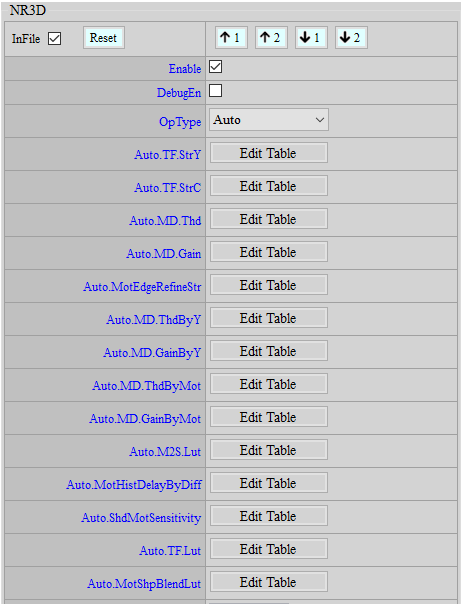

Parameter Description
DbgEn: Debug mode. Parameter range: 0 ~ 1. The closer to black the image color, the more likely the image is judged as motion. You must disable AE before using this debug mode.
< Spatial Domain Denoise, SF Parameters >
To control these parameters, please refer to NRLuma_Adv, NRChroma_Adv, and NRChroma_Pre.
< Temporal Domain Denoise, MD, TF Parameters >
TF.StrY: Control the strength of temporal denoise against Y noise. Parameter range: 0 ~ 127. The greater the value, the stronger the strength of denoise. We suggest that this parameter should not be set greater than 64, otherwise ghost image is likely to occur to the object.
TF.StrC: Control the strength of temporal denoise against color noise. Parameter range: 0 ~ 127. The greater the value, the stronger the strength of denoise. We suggest that this parameter should not be set greater than 16, otherwise object color may drag.
MD.Thd: Motion threshold control. Parameter range: 0 ~ 255. The greater the value, the stronger NR3D. Areas with motion lower than the threshold value will be judged as static areas.
MD.Gain: Motion scale control. Parameter range: 0 ~ 10230. The greater the value, the smaller the motion information, and the stronger NR3D.
MotEdgeRefineStr: Control the strength to prevent the front edge of moving objects from being judged as in motion. Parameter range: 0 ~ 1023. The larger the strength, the less likely the front edge of a moving object to be judged as in motion. Note that ghost images may occur.
MD.ThdByY: Motion threshold value based on brightness. Parameter range: 0 ~ 255. The greater the value, the stronger NR3D.
MD.GainByY: Motion scale based on brightness. Parameter range: 0 ~ 255. The greater the value, the smaller the motion information, and the stronger NR3D. This parameter enhances specific brightness with greater noise or reduces brightness suspected of ghost images.
MD.ThdByMot: Control the threshold value of motion according to motion. The greater the value, the stronger the strength of 3DNR. Parameter range: 0 ~ 63.
MD.GainByMot: Control motion scale according to motion. The greater the value, the smaller the motion information. Parameter range: 0 ~ 48.
M2S.LUT: NR3D strength control for transitional zone from motion to stillness. The horizontal axis represents, from left to right, motion to stillness. Parameter range: 0 ~ 4095. The smaller the value, the weaker the NR3D will become, and the slower it will converge. The curve from motion to stillness should not be too steep; otherwise, the intermediate zone between moving object and static area would look unnatural.
TF.LUT: Determine the strength of temporal denoise mainly based on difference and motion information. If difference and motion are small, the area is very likely to be a static area; otherwise, a motion one. The strength of temporal denoise can be divided to 16 levels from 0 to 15, and this value of TF.LUT controls, from left to right, the level from 14 to 0. In other words, the values in the table will be incremental. Parameter range: 0 ~ 255. Default value: {24, 25, 26, 27, 28, 30, 32, 33, 36, 38, 42, 46, 51, 59, 73}.
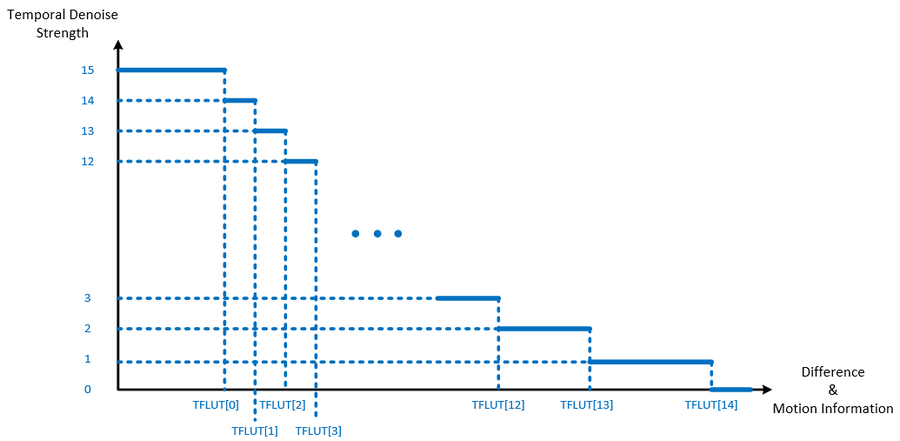
< Denoise by motion Parameters >
MotShpBlendLut: Adjust the weight of sharpness branch to be blended based on motion information. Parameter range: 0 ~ 64. The horizontal axis from left to right represents motion to stillness. The greater the value, the greater weight will be blended. This parameter is used to reduce sharpness in motion area. Note, however, that the actual strength of sharpness in shrapness branch must be controlled by BranchStrength in Sharpness API.
MotHistDelayByDiff: Delay time of motion data. Parameter range: 0 ~ 7. The horizontal axis represents motion data difference between the current frame and the previous frame, while the vertical axis represents the extra delay time of motion data transmission. The greater the value, the longer the delay. Delay of static motion data allows the information of a post-motion area to be maintained longer, and it also enables 2D noise reduction to continue longer with stronger strength – which is often applied to the motion area – before NR3D starts to converge.
ShdMotSensitivity: Adjust the sensitivity of judging motion in moving shadow area. The larger the value, the more sensitive motion detection will be, and the stronger 2DNR with weaker 3DNR. The smaller the value, the less sensitive motion detection will be, and the weaker 2DNR with stronger 3DNR.
Adjustment Flow
-
Adjust the strength of NR3D with respect to still images first to lower the level of dynamic noise in the picture.
- Making adjustment to the strength of NR3D aims to stabilize the picture in general. We suggest that you set TF.Str to 63 and increase MD.Gain to the extent that picture becomes stabilized. If a very high setting of MD.Gain is required to stabilize the picture, you may increase MD.Thd from time to time, but the value should preferably be no greater than 10.
-
Make adjustments based on the change of strength of NR3D in the area after motion ends.
-
Adjust M2S.LUT. The curve of M2S.LUT should not be too steep; otherwise, the borderline of transition from blurry to clear in post-motion area will become visible and unnatural.
-
You can fine-tune the values based on the suggested setting. If fewer ghost images are preferred, you should set the value smaller, so that NR3D in the post-motion area will become weaker and appear unstable; by contrast, if you prefer clearer images of the area after motion ends, and a few ghost images are acceptable, you can set the value larger to mitigate unstability, but grainy noise might occur.
-
Suggested setting: {0, 2048, 2731, 3072, 3277, 3413, 3511, 3584, 3686, 3803, 3910, 3988, 4020, 4048, 4061, 4069}
-
-
Fine-tune for balance between sharpness and noise in motion area.
- Adjust MotShpBlendLut. The direction from left to right represents motion to stillness. Increase the value gradually until both sharpness and noise level reach an acceptable balance. We suggest that you tune this parameter along with BranchStrength and BranchGainByStd of Sharpness API.
-
For certain brightness with serious issue of ghost image, fine-tune MD.GainByY against the area of corresponding brightness by lowering the value slowly to the extent that both ghost images and noise reach an acceptable balance.
-
With higher gain, adjusting MotShpBlendLut alone is not enough to reduce noise. In such cases, you can modify TF.LUT to slow down the downward curve and to thereby increase the strength of NR3D in motion area. Note, however, that the ghost image may become worse.
NR3D OFF
Certain ICs do not feature DRAM for cost-saving reason, and NR3D will be unavailable. Several recommended denoise adjustments in the absence of NR3D are set out below.
Adjustment Interface
Please refer to NR3D ON Adjustment Interface.
Parameter Description
Please refer to NR3D ON Parameter Description.
Adjustment Flow
Make sure that Iqfile is NR3D-off. NRLevel in the system should be set to 0. DeSpike adjustment shares the same flow with NR3D-on. If further needs arise, you may adjust the remaining denoise parameters following the same flow with NR3D-on. If considerably unstable noise occurs and is difficult to deal with, we suggest that you reduce the strength of Sharpness. You should also make use of the debug map in NRLuma_Adv API by tuning EdgeTHByLuma to differentiate flat areas from details and apparent edge areas. Using stronger SF2 in flat area helps achieve better de-noise performance. Note: Since NR3D is off, the ISP will not provide motion information, and parameters using byMotion mechanism in other APIs would automatically apply Index 1 (the most moving).
NRLuma_Adv
NRLuma_Adv is mainly used to reduce spatial noise. By tuning Edge Area Demarcation Parameters in NRLuma_Adv, you may mark flat and edge areas in the picture, and then adjust the strengths of denoise against the two areas by tuning NR Strength Parameters. Further adjustment and control over both motion and still areas can also be made with Edge Area Demarcation Parameters and NR Strength Parameters in NRLuma_Adv.
Adjustment Interface
Select “Denoise_YNR” from the menu on the left-hand side, and NRLuma_Adv Interface will pop up on the main screen to the right.
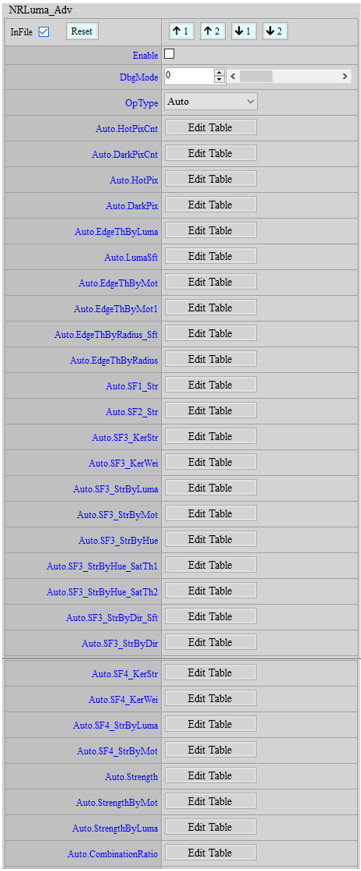

Parameter Description
< Edge Area Demarcation Parameters >
DbgMode: Debug mode. Parameter range: 0 ~ 2. “1” represents the mode of edge judgement: the brighter the image, the more it is identified as edge area; the darker the image, the more it is identified as non-edge area. This parameter only performs Luma processing, which has nothing to do with colors of the image. “2” represents the mode of defect detection, which helps you observe white pixel defect location.
HotPixCnt: The number of hot pixels to be compensated. Parameter range: 0 ~ 7. This parameter determines the number of defective pixels (hot pixels) that needs to be compensated. The larger the value, the more defective pixels (hot pixels) will have to be compensated, and the stronger the NR strength. The recommended value is 1.
DarkPixCnt: The number of dark pixels to be compensated. Parameter range: 0 ~ 7. This parameter determines the number of defective pixels (dark pixels) that needs to be compensated. The larger the value, the more defective pixels (dark pixels) will have to be compensated, and the stronger the NR strength. The recommended value is 1.
HotPix: The threshold values of hot pixel compensation. Parameter range: 0 ~ 255. Four values determine the curve of threshold value, which represents the extent of hot pixels. If the difference between the current pixel and the surrounding pixels is smaller than the first threshold value, the current pixel will not be judged as defective; if, however, the difference exceeds the fourth threshold value, the current pixel will be judged as defective pixel (hot pixel), and stronger NR will be applied. The two threshold values in between serve the basis for determining how much noise reduction will be blended.
DarkPix: The threshold values of dark pixel compensation. Parameter range: 0 ~ 255. Four values determine the curve of threshold value. If the difference between the current pixel and the surrounding pixels is smaller than the first threshold value, the current pixel will not be judged as defective; if, however, the difference exceeds the fourth threshold value, the current pixel will be judged as defective pixel (dark pixel), and stronger NR will be applied. The two threshold values in between serve the basis for determining how much noise reduction will be blended.
EdgeThByLuma: Adjust the threshold value of edge based on brightness. Parameter range: 0 ~ 8191. The horizontal axis represents brightness; the closer to the right end, the brighter. You may make adjustments along with DbgMode and observe whether edge distribution is reasonable.
LumaSft: The node of brightness for EdgeThByLuma. Parameter range: 0 ~ 8. You may change the adjustable range based on different brightness interval.
EdgeThByMot: Adjust L1 Edge threshold based on motion. Parameter range: 0 ~ 255. The horizontal axis represents motion; the closer to the right end, the closer to stillness. Areas smaller than L1 Edge threshold will be demarcated as flat areas. You may make adjustments along with DbgMode and observe whether edge distribution is reasonable.
EdgeThByMot1: Adjust L2 Edge threshold based on motion. Parameter range: 0 ~ 255. The horizontal axis represents motion; the closer to the right end, the closer to stillness. Areas greater than the combination of L1 Edge and L2 Edge thresholds will be demarcated as edge. You may make adjustments along with DbgMode and observe whether edge distribution is reasonable.
EdgeThByRadius_Sft: Adjust the size of scale of distance from EdgeThByRadius to the center point. Parameter range: 0 ~ 7. You may adjust the size of scale according to different scales of distance.
EdgeThByRadius: Adjust the threshold value of edge based on the distance from the center point. Parameter range: 0 ~ 127. The horizontal axis represents the distance from the center point. The more to the right, the farther from the center point.
< NR Strength Parameters >
SF1_Str: The strength of noise reduction in edge areas. Parameter range: 0 ~ 127. You may adjust the strength of NR based on the location of edge areas, as shown in Debug mode.
SF2_Str: The strength of noise reduction in flat or motion areas. Parameter range: 0 ~ 127. You may adjust the strength of NR based on the location of flat or motion areas, as shown in Debug mode.
SF3_KerStr: The shifting value of directional noise reduction parameters based on the difference from the center point. Parameter range: 0 ~ 9. The greater the value, the stronger the NR effects.
SF3_KerWei: The table of blending weight of directional noise reduction parameters. Parameter range: 0 ~ 63. The horizontal axis represents the difference from the center point; the closer to the right end, the greater the difference. The vertical axis represents weight. Under normal circumstances, the smaller the difference, the greater weight should be set.
SF3_StrByLuma: Adjust the strength of directional noise reduction parameters based on brightness. Parameter range: 0 ~ 127. The horizontal axis represents brightness; the closer to the right end, the brighter.
SF3_StrByMot: Directional noise reduction parameters blended with the result of mean filter based on motion. Parameter range: 0 ~ 127. The horizontal axis represents motion; the closer to the right end, the closer to stillness is suggested. The vertical axis represents the ratio of blending with the result of mean filter. Setting the value too big is not recommended because mean filter is very strong.
SF3_StrByHue: Adjust the strength of directional noise reduction parameters based on hue. Parameter range: 0 ~ 127. The horizontal axis represents hue (the same as HSV).
SF3_StrByHue_SatTh1: Adjust the strength of directional noise reduction parameters based on saturation. Parameter range: 0 ~ 127. If saturation is smaller than SF3_StrByHue_SatTh1, SF3_StrByHue will become ineffective, which means the adjustment to strength is not subject to the hue with low saturation. If saturation is larger than SF3_StrByHue_SatTh2, the strength will be adjusted in complete accordance with SF3_StrByHue. The transitional zone shows linear change.
SF3_StrByHue_SatTh2: Adjust the strength of directional noise reduction parameters based on saturation. Parameter range: 0 ~ 127. If saturation is smaller than SF3_StrByHue_SatTh1, StrengthByHue will become ineffective, which means the adjustment to strength is not subject to the hue with low saturation. If saturation is larger than SF3_StrByHue_SatTh2, the strength will be adjusted in complete accordance with SF3_StrByHue. The transitional zone shows linear change.
SF3_StrByDir_Sft: Adjust the range of scale of SF3_StrByDir edge state. Parameter range: 0 ~ 7.
SF3_StrByDir: Adjust the strength of directional noise reduction parameters based on edge state. Parameter range: 0 ~ 127.
SF4_KerStr: The shifting value of non-directional noise reduction parameter based on the difference from the center point. Parameter range: 0 ~ 9. The greater the value, the stronger the noise reduction effects.
SF4_KerWei: The table of blending weight of non-directional noise reduction parameter. Parameter range: 0 ~ 63. The horizontal axis represents the difference from the center point; the closer to the right end, the greater the difference. The vertical axis represents weight. Under normal circumstances, the smaller the difference, the greater weight should be set.
SF4_StrByLuma: Adjust the strength of non-directional noise reduction parameters based on brightness. Parameter range: 0 ~ 127. The horizontal axis represents brightness; the closer to the right end, the brighter.
SF4_StrByMot: Non-directional noise reduction parameter blended with the result of mean filter based on motion. Parameter range: 0 ~ 127. The horizontal axis represents motion; the closer to the right end, the closer to stillness is suggested. The vertical axis represents the ratio of blending with the result of mean filter. Setting the value too big is not recommended because mean filter is very strong.
Strength: The general strength. Parameter range: 0 ~ 256. Strength1 represents the strength in edge areas, while Strength2 represents the strength in smooth areas and areas in motion. The greater the value, the stronger the strength. The final strength is based on Strength, with the control by StrengthByMot and StrengthByLuma, so we suggest that Strength should not be set to the maximum, otherwise StrengthByMot and StrengthByLuma will become ineffective.
StrengthByMot: Adjust the strength based on motion. Parameter range: 0 ~ 64. The horizontal axis represents motion; the closer to the right end, the closer to stillness is suggested.
StrengthByLuma: Adjust the strength based on brightness. Parameter range: 0 ~ 64. The horizontal axis represents brightness; the closer to the right end, the brighter is suggested.
CombinationRatio: Determine the blending ratio of non-directional and directional noise reduction parameters in weak-edge area (grey in DbgMode). The larger the value, the more directional noise reduction parameters will be blended in. Parameter range: 0 ~ 255.
Adjustment Flow
- Set DbgMode to 1, adjust the EdgeTh-related parameters to differentiate edge and non-edge areas.
- Set Strength (Strength1 and Strength2) to the maximum, and turn SF4 parameters to the minimum.
- Adjust SF1_str and SF2_str, and see if the strength meets expectation.
- Adjust SF3 by y/mot. If the strength fails to meet the expectation, make further adjustment to SF3_Kerstr and SF3_KerWei.
- Enable SF4 if noises or directional textures that are unable to be eliminated still exist.
- Adjust SF4 by mot. If the strength fails to meet the expectation, make further adjustment to SF3_Kerstr and SF3_KerWei.
- To meet special needs, you may make further adjustment to SF3_StrByHue and SF3_StrByRadius.
- Set DbgMode to 2 and observe the location of bad pixels so as to set defect detection parameters (including HotPixCnt, DarkPixCnt, HotPix, DarkPix).
- Adjust the general strength. You may adjust the blending according to brightness and motion.
- Enable and disable NRLuma_Adv to observe the difference. Make further adjustments to Sharpness or other NR parameters if necessary.
NRChroma_Adv
NRChroma_Adv aims to suppress the color noise on screen.
Adjustment Interface
Select “Denoise_CNR” from the menu on the left-hand side, and NRChroma_Adv Interface will pop up on the main screen to the right.
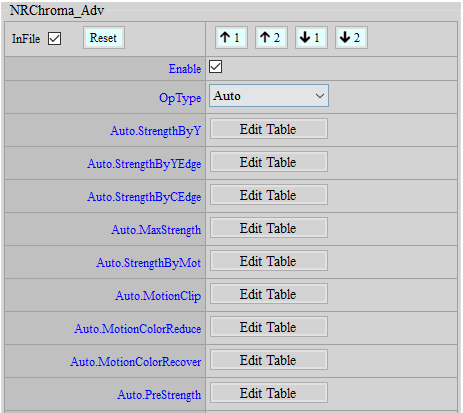
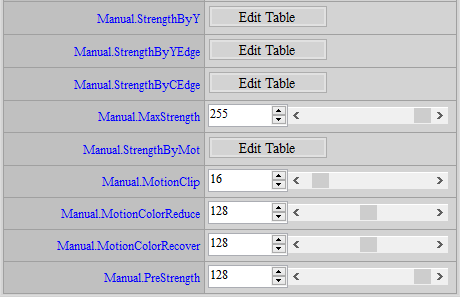
Parameter Description
StrengthByY: Assign different levels of NR strength to different brightnesses. The closer to the right end of the horizontal axis, the stronger the brightness. The greater the value, the stronger the strength. Parameter range: 0 ~ 255.
StrengthByYEdge: Use Luma to detect the degree of edge and adjust the level of NR strength according to different edges. The closer to the right end of the horizontal axis, the bigger the edge. The greater the value, the stronger the strength. Parameter range: 0 ~ 63.
StrengthByCEdge: Use Chroma to detect the degree of edge and adjust the level of NR strength according to different edges. The closer to the right end of the horizontal axis, the bigger the edge. The greater the value, the stronger the strength. Parameter range: 0 ~ 255.
MaxStrength: Control the level of NR strength in areas of small Y/C difference. The greater the value, the stronger the strength. Parameter range: 0 ~ 255.
StrengthByMot: Control the level of NR strength by motion. The horizontal axis represents the extent of motion. The closer to the right end of the axis, the closer to stillness. The greater the value, the stronger the strength. Parameter range: 0 ~ 63.
MotionClip: Assign greater level of NR strength to motion areas. The greater the value, the stronger the strength. Parameter range: 0 ~ 255.
MotionColorReduce: Reduce the saturation of motion areas. The greater the value, the greater level of saturation is reduced. Parameter range: 0 ~ 255.
MotionColorRecover: Recover the gain of saturation reduced by MotionColorReduce against motion areas. The greater the value, the greater level of saturation is recovered. Parameter range: 0 ~ 255.
PreStrength: Perform simple Chroma noise reduction. The greater the value, the stronger the strength. Parameter range: 0 ~ 128.
Adjustment Flow
- Set MotionClip to 0 first.
- Observe static area and make corresponding adjustments to MaxStrength and StrengthByMot until NR achieves an acceptable range of color noise.
- Observe motion area and make corresponding adjustment to MotionClip to enhance the NR strength on motion area based on the strength level set in Step 1. If the level of adjustment to MotionClip is not strong enough, return to Step 1 for further enhancement of strength.
- Should the need arise, you may adjust MotionColorReduce to suppress the level of saturation against motion areas. Such adjustment allows NRChroma_Adv to remove color noise more easily. If a decrease of saturation in motion area is undesired, adjust MotionColorRecover to regain the saturation in motion area.
NRChroma_Pre
NRChroma_Pre aims to suppress the color noise on screen.
Adjustment Interface
Select “Denoise_CNR” from the menu on the left-hand side, and NRChroma_Pre Interface will pop up on the main screen to the right.
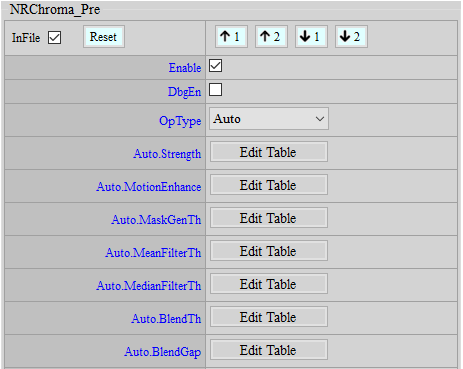
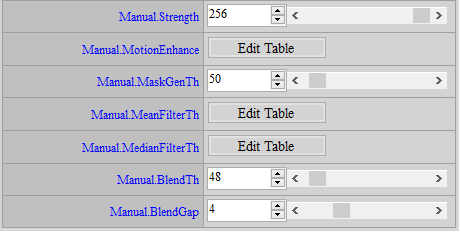
Parameter Description
DbgEn: Debug mode. Parameter range: 0 ~ 1. Before using this mode, you must set Strength to the maximum value, which is 256. The smaller an image’s U/V channel value is, the more it means to use the result of mean filter. The larger an image’s U/V channel value is, the more it means to use the result of median filter.
Strength: Global strength. Parameter range: 0 ~ 256. The greater the value, the stronger the NR effect.
MotionEnhance: Extent of motion area enhancement. Parameter range: 0 ~ 127. The first grid represents the intensity of Y channel enhancement, and the second grid represents the intensity of U/V channel enhancement. The greater the value, the stronger the NR effect in motion area.
MaskGenTh: Threshold value of U/V channel. This parameter is used to generate mask and perform noise reduction within it. Parameter range: 0 ~ 1023. The greater the value, the larger the mask, and the stronger the NR effect.
MeanFilterTh: Threshold value of Y/U/V channel. This parameter is used to control the strength of mean filter. Parameter value: 0 ~ 1023. The first grid represents the threshold value of Y channel, and the second grid represents the threshold value of U/V channel. Only when difference in the mask is smaller than the threshold value will it be incorporated in the process of mean filter. The greater the value, the stronger NR effect.
MedianFilterTh: Threshold value of Y/U/V channel. This parameter is used to control the strength of median filter. Parameter value: 0 ~ 1023. The first grid represents the threshold value of Y channel, and the second grid represents the threshold value of U/V channel. Only when difference in the mask is smaller than the threshold value will it be incorporated in the process of median filter. The greater the value, the stronger the NR effect.
BlendTh: Threshold value of blending. Parameter range: 0 ~ 1023. If the maximum U/V channel difference in the mask is smaller than BlendTh, the result of mean filter will be used. The greater the value, the more it would lean toward the mean filter result.
BlendGap: Blending gap. Parameter range: 0 ~ 15. If the maximum U/V channel difference in the mask is greater than BlendTh+2^BlendGap, the result of median filter will be used. The greater the value, the more it would lean toward mean filter result.
Adjustment Flow
- Set Strength to the maximum.
- Set BlendTh to 1023 and observe the effects of mean filter. Make further adjustment to MeanFilterTh and MaskGenTh should the need arise.
- Set BlendTh and BlendGap to 0 and observe the effects of median filter. Make further adjustment to MedianFilterTh and MaskGenTh.
- Adjust BlendTh and BlendGap to assign proper ranges to mean filter and median filter. You may enable debug mode for the convenience of observation.
- Observe the color noise in motion areas and fine-tune MotionEnhance accordingly.
- Adjust Strength to alleviate color bleeding issue.
Sharpness Adjustment
Adjust the strength of sharpness for various elements, such as different brightness, black or white edges, and motion/stillness. Two kinds of Sharpness API, namely, Sharpness and SharpnessEX, are supported by SOUFFLE.
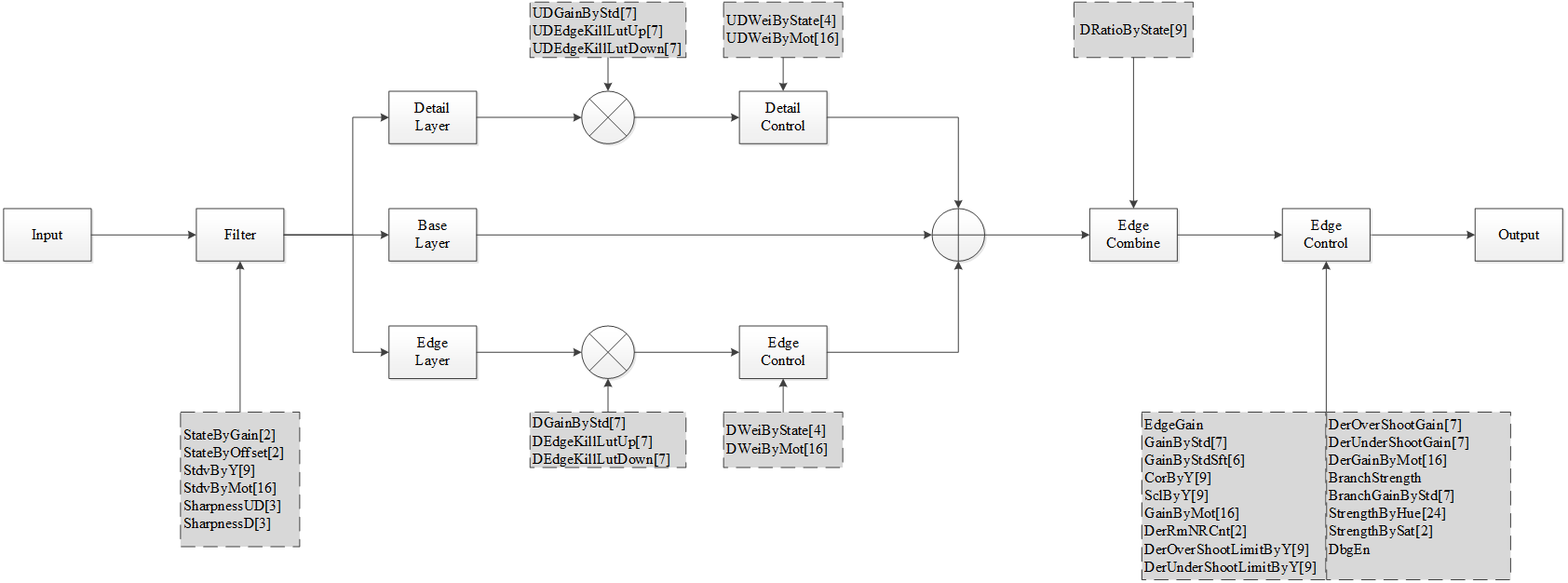
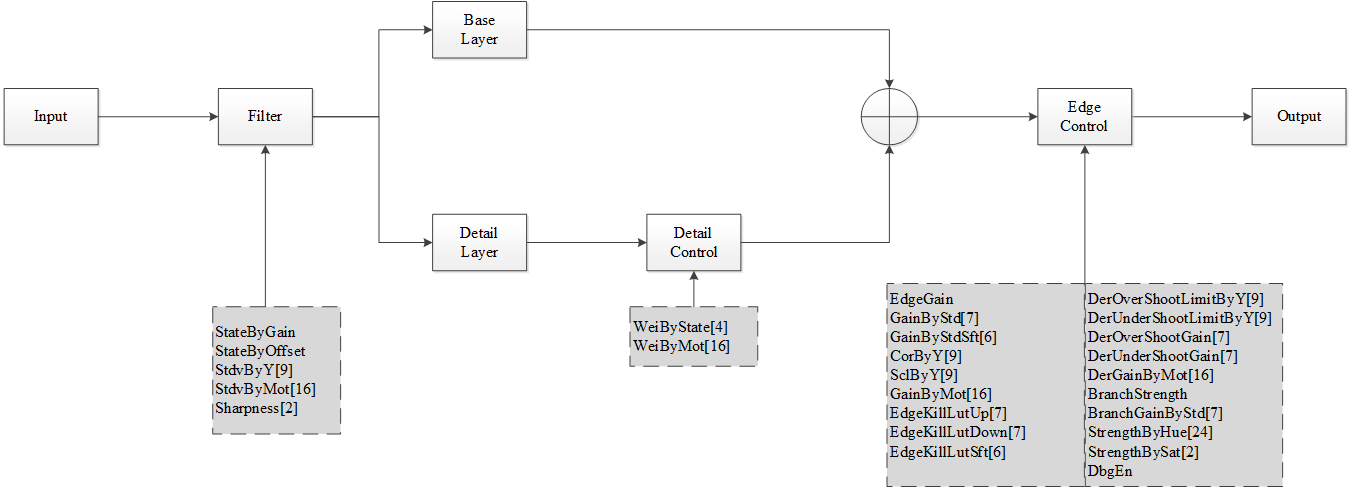
Sharpness
Adjustment Interface
Select “Sharpness” from the menu on the left, and Sharpness & SharpnessEx Interface will pop up on the right.
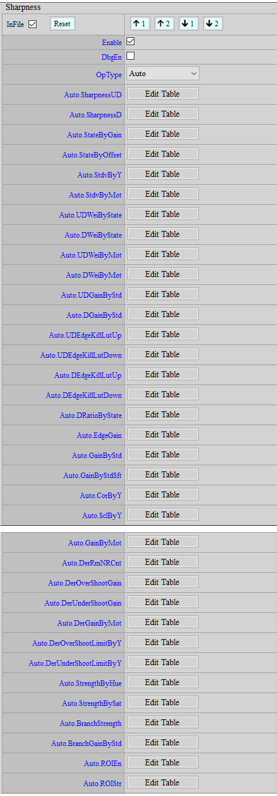
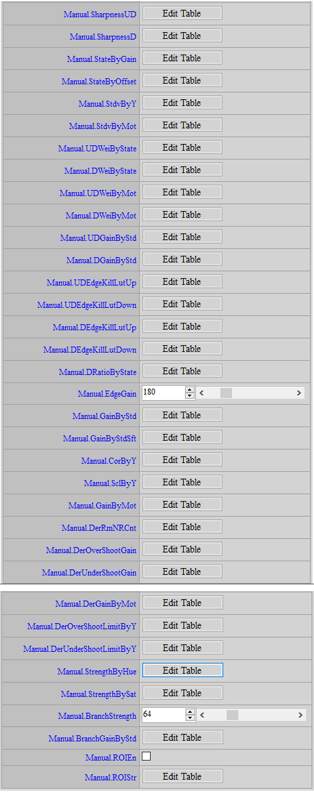
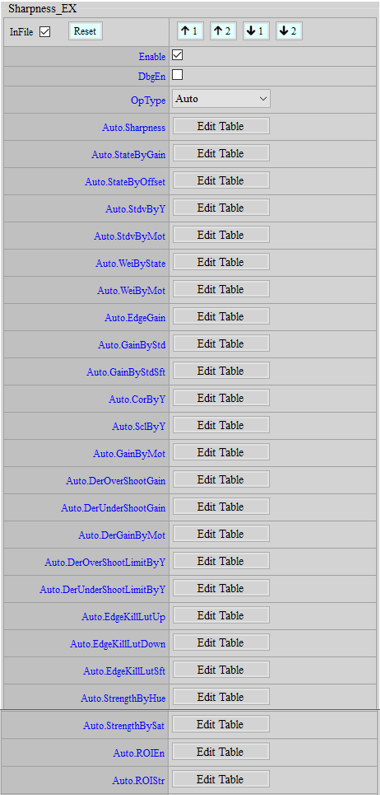

Parameter Description
< Sharpness >
DbgEn: Debug mode. Parameter range: 0 ~ 1. Grey indicates that no edge is applied, while white/black represents white/black edges.
SharpnessUD: Strength of non-directional edge, which is used to enhance the sharpness of fine texture and detail such as hair and meadow. Parameter range: 0 ~ 127. The horizontal axis, from left to right, represents high, medium, medium-low frequencies, while the vertical axis represents the gain of non-directional edge strength. The greater the value, the stronger the edge.
SharpnessD: Strength of directional edge, which is used to enhance the sharpness of the edge of image. Excessive enhancement will result in jaggedness. Parameter range : 0 ~ 127. The horizontal axis, from left to right, represents high, medium, medium-low frequencies, while the vertical axis represents the gain of directional edge strength. The greater the value, the stronger the edge.
[Explanation] Edge state : Edge state refers to the score of every pixel calculated by the algorithm to represent the edge state, which is used to determine simple edge and complex area. The smaller the score, the more easily a pixel will be determined as simple edge. By modifying StateByGain and StateByOffset, you may adjust the Edge State calculated by the algorithm, as the score serves slightly different purposes after adjustment. Both StateByGain and StateByOffset parameters contain score-adjusting mechanisms, which are Filter0 and Filter1.
Filter0 is used to determine directional and non-directional edge. The greater StateByGain, the closer to the left of DratioByState; the greater StateByOffset, the closer to the right of DratioByState.
Filter1 is used to determine simple edge and complex area. It serves as the basis of blending Static[0] Motion[0] and Static[1] Motion[1] in D/UDWeibyState. The greater StateByGain, the more Static[1] Motion [1] will be blended; the greater StateByOffset, the more Static[0] Motion [0] will be blended.
StateByGain: Adjust filter based on gain, by which the algorithm calculates the score of edge state. The smaller the gain, the more complex/smooth areas will be preserved. Parameter range: 0 ~ 31.
StateByOffset: Adjust filter based on offset, by which the algorithm calculates the score of edge state. The greater the offset, the more complex/smooth areas will be preserved. Parameter range: 0 ~ 255.
StdvByY: Adjust the gain of standard deviation based on brightness (Y). Parameter range: 0 ~ 255. The horizontal axis represents brightness, and the closer to the right end, the brighter. The vertical axis represents the gain of standard deviation (64 = 1x) to be adjusted. The greater the value, the larger the standard deviation.
StdvByMot: Adjust the gain of standard deviation based on motion. Parameter range: 0 ~ 63. The horizontal axis represents motion, and the closer to the right end, the closer to stillness. The vertical axis represents the gain of standard deviation (16 = 1x) to be adjusted. The greater the value, the larger the standard deviation.
UDWeiByState: Adjust the blending ratio of medium-low, medium, and high frequency for non-directional edges based on state. Parameter range: 0 ~ 256. The horizontal axis represents, from left to right, still texture details (Static[0]), still edges (Static[1]), motion texture details (Motion[0]), motion edges (Motion[1]). The vertical axis represents weighting values of the blending ratio: when weighting value is 0, more medium-low edges will be taken into the blending ratio; when the weighting value is 256, more high frequency edges will be taken into the ratio.
DWeiByState: Adjust the blending ratio of medium-low, medium, and high frequency for directional edges based on state. Parameter range: 0 ~ 256. The horizontal axis represents, from left to right, still texture details (Static[0]), still edges (Static[1]), motion texture details (Motion[0]), motion edges (Motion[1]). The vertical axis represents weighting values of the blending ratio: when weighting value is 0, more medium-low edges will be taken into the blending ratio; when the weighting value is 256, more high frequency edges will be taken into the ratio.
UDWeiByMot: Adjust non-directional frequency band based on motion. Parameter range: 0 ~ 256. The horizontal axis represents, from left to right, motion to stillness; the closer to the right end, the closer to stillness. The vertical axis represents the weighting adjustment of frequency band. The greater the value, the closer to still edge frequency band.
DWeiByMot: Adjust directional frequency band based on motion. Parameter range: 0 ~ 256. The horizontal axis represents, from left to right, motion to stillness; the closer to the right end, the closer to stillness. The vertical axis represents the weighting adjustment of frequency band. The greater the value, the closer to still edge frequency band.
UDGainByStd: Adjust non-directional gain based on standard deviation. Parameter range: 0 ~ 255. The horizontal axis represents the standard deviation processed by StdvByY and StdvByMot, and the closer to the right end, the larger the deviation. The vertical axis represents edge gain (64 = 1x). The greater the value, the stronger the edge.
DGainByStd: Adjust directional gain based on standard deviation. Parameter range: 0 ~ 255. The horizontal axis represents the standard deviation processed by StdvByY and StdvByMot, and the closer to the right end, the larger the deviation. The vertical axis represents edge gain (64 = 1x). The greater the value, the stronger the edge.
UDEdgeKillLutUp: Adjust the strength of non-directional white edge based on edge strength. Parameter range: 0 ~ 1023. The horizontal axis represents input edge, while the vertical edge represents output edge. The greater the value, the stronger the edge.
UDEdgeKillLutDown: Adjust the strength of non-directional black edge based on edge strength. Parameter range: 0 ~ 1023. The horizontal axis represents input edge, while the vertical edge represents output edge. The greater the value, the stronger the edge.
DEdgeKillLutUp: Adjust the strength of directional white edge based on edge strength. Parameter range: 0 ~ 1023. The horizontal axis represents input edge, while the vertical edge represents output edge. The greater the value, the stronger the edge.
DEdgeKillLutDown: Adjust the strength of directional black edge based on edge strength. Parameter range: 0 ~ 1023. The horizontal axis represents input edge, while the vertical edge represents output edge. The greater the value, the stronger the edge.
DRatioByState: Set table for the blending ratio of non-directional and directional edges for different Edge States. Parameter range: 0 ~ 256. The horizontal axis represents Edge State. The closer to the left, the closer to simple edge is suggested; the closer to the right, the closer to the complex/smooth area is suggested. The vertical axis represents the blending ratio of non-directional and directional edge. The greater the value, the more directional edge will be blended.
EdgeGain: Adjust the overall edge gain (128 = 1x). Parameter range: 0 ~ 1023.
GainByStd: Adjust the overall gain based on standard deviation. Parameter range: 0 ~ 255. The horizontal axis represents the standard deviation processed by StdvByY and StdvByMot. The closer to the right end, the greater standard deviation is suggested. The vertical axis represents the edge gain (64 = 1x). The greater the value, the stronger the edge. As the standard deviation in smooth area is usually smaller, you may lower the edge for areas with smaller standard deviation to make them even smoother. You may also use it to reduce the edge of motion by lowering the first few blocks of StdvByMot, thereby enabling GainByStd to query these blocks. There are seven nodes in total, and you may adjust GainByStdSft to change the nodes on the horizontal axis if necessary.
GainByStdSft: The nodes of GainByStd on the horizontal axis. Parameter range: 0 ~ 15. There are seven breakpoints. The X-axis coordinates are, from left to right: 0, 2^GainByStdSft[0], 2^GainByStdSft[0] + 2^GainByStdSft[1], 2^GainByStdSft[0] + 2^GainByStdSft[1] + 2^GainByStdSft[2], ... The Y-axis ordinates are, from bottom to top: GainByStd[0], GainByStd[1], GainByStd[2] ... If adjustment is desired, we recommend that you draw the original curve with Excel first. After that, adjust GainByStdSft and cut the interval into smaller segments for fine tuning, and find the corresponding GainByStd. Only after making sure that the effect remains the same should you make adjustment to GainByStd.
CorByY: Adjust coring based on brightness (Y). Parameter range: 0 ~ 255. The horizontal axis represents brightness. The closer to the right end, the greater brightness is suggested. The vertical axis represents the value of coring. The greater the value, the weaker the edge.
SclByY: Adjust the gain of edge based on brightness (Y). Parameter range: 0 ~ 255. The horizontal axis represents brightness. The closer to the right end, the greater brightness is suggested. The vertical axis represents the gain of edge (64 = 1x). The greater the value, the stronger the edge.
GainByMot: Adjust the final edge gain based on motion, which is represented by the horizontal axis. The closer to the right end, the closer to stillness is suggested. The vertical axis represents the gain of edge (128 = 1x). The greater the value, the stronger the edge. Parameter range: 0 ~ 255.
< Dering >
SOUFFLE features a new series of parameters called ”Dering”. When edge enhancement is applied to a pixel, this function may be enabled to impose limitations upon Edge output by taking surrounding pixels into consideration. When Dering is enabled, the increase/decrease of Edge will be limited with reference to the Nth brightest/darkest surrounding pixel, and the amount of increase/decrease may be set according to different brightness. As the following figure demonstrates, CurrentY represents the brightness value of current pixel, edge represents the value after edge enhancement, UpBound (DerOver/UnderShootLimitByY) represents the upper/lower boundary after imposing limitations, and the final result can be imposed with further limitation by GainByMot based on motion or still areas. The out edge in red indicates the final output.
The order of adjustment is: DerOver/UnderShootLimitByY → DerOver/UnderShootGain → DerGainByMot.
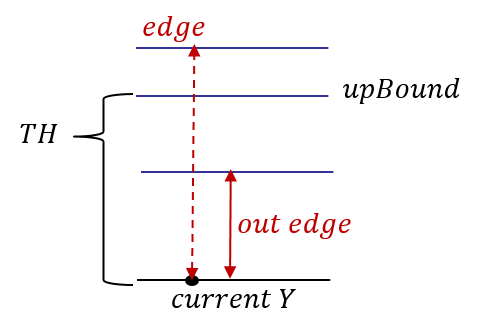
DerRmNRCnt: Eliminate the pixel which is the Nth darkest (DerRmNRCnt[0]) point in the surrounding pixels, or eliminate the pixel which is the Nth brightest (DerRmNRCnt[1]) point in the surrounding pixels, to be the reference of brightness for edge enhancement. Parameter range: 0 ~ 6.
DerOverShootGain: Adjust the strength of white edge. Parameter range: 0 ~ 255. The horizontal axis represents the extent of edge: direction from left to right represents smoothness to edge. The vertical axis represents the gain of edge. The larger the value, the greater strength will be applied to white edges.
DerUnderShootGain: Adjust the strength of black edge. Parameter range: 0 ~ 255. The horizontal axis represents the extent of edge: direction from left to right represents smoothness to edge. The vertical axis represents the gain of edge. The larger the value, the greater strength will be applied to black edges.
DerGainByMot: Adjust the strength of edge based on motion. Parameter range: 0 ~ 255. The horizontal axis represents motion. The closer to the right end, the closer to stillness is suggested. The vertical axis represents the strength of edge (64 = 1x). The larger the value, the greater strength the edge.
DerOverShootLimitByY: Adjust the strength of white edge based on brightness. Parameter range: 0 ~ 1023. The horizontal axis represents brightness. The closer to the right end, the brighter is suggested. The vertical axis represents the strength of edge. The larger the value, the greater strength will be reserved for white edges.
DerUnderShootLimitByY: Adjust the strength of black edge based on brightness. Parameter range: 0 ~ 1023. The horizontal axis represents brightness. The closer to the right end, the brighter is suggested. The vertical axis represents the strength of edge. The larger the value, the greater strength will be reserved for black edges.
StrengthByHue: Adjust the strength of edge based on hue. Parameter range: 0 ~ 255. The horizontal axis represents hue (the same as in HSV), while the vertical axis represents the edge gain (64 = 1x). The greater the value, the stronger the edge. The actual effects will be affected by StrengthBySat.
StrengthBySat: Adjust the edge strength based on saturation. Parameter range: 0 ~ 127. The horizontal axis represents saturation. If saturation is smaller than StrengthBySat[0], StrengthByHue will become ineffective, which means adjustment to the edge strength will not be affected by the hue of low saturation. If saturation is greater than StrengthBySat[1], the strength will be adjusted solely by StrengthByHue. Transition zone shows linear change.
BranchStrength: The strength of output sharpness, which is used for MotShpBlendLut in NR3D. Parameter range: 0 ~ 255. The edge strength: 64 = 1x. The greater the value, the stronger the edge.
BranchGainByStd: Adjust the gain based on standard deviation. Parameter range: 0 ~ 255. The horizontal axis represents the standard deviation that has been processed by StdvByY and StdvByMot. The closer to the right end, the greater deviation is suggested. The vertical axis represents edge gain (128 = 1x). The greater the value, the stronger the edge.
ROIEn: Enable ROI (region of interest) mode. Parameter range: 0 ~ 1.
ROIStr: The strength of sharpness for 8 ROI (region of interest). Parameter range: 0 ~ 255.
< Sharpness_EX >
DbgEn: Debug mode. Parameter range: 0 ~ 1. Grey indicates that no edge is applied, while white/black represents white/black edges.
Sharpness: Strength of non-directional edge, which is used to enhance the sharpness of fine texture and detail such as hair and meadow. Parameter range: 0 ~ 127. The horizontal axis represents high to medium frequency from left to right, while the vertical axis represents the gain of non-directional edge. The greater the value, the stronger the edge.
StateByGain: Adjust edge value obtained by filter based on gain. The smaller the gain, the more complex/smooth areas will be preserved. Parameter range: 0 ~ 31. The horizontal axis represents the edge value obtained by the filter. The smaller the value, the more likely an area will be judged as complex/smooth; the greater the value, the more likely an area will be judged as simple edge.
StateByOffset: Adjust edge value obtained by filter based on offset. The greater the offset, the more complex/smooth areas will be preserved. Parameter range: 0 ~ 255. The horizontal axis represents the edge value obtained by the filter. The greater the value, the more likely an area will be judged as complex/smooth; the smaller the value, the more likely an area will be judged as simple edge.
StdvByY: Adjust the gain of standard deviation based on brightness (Y). Parameter range: 0 ~ 255. The horizontal axis represents brightness, and the closer to the right end, the brighter. The vertical axis represents the gain of standard deviation (64 = 1x) to be adjusted. The greater the value, the larger the standard deviation.
StdvByMot: Adjust the gain of standard deviation based on motion. Parameter range: 0 ~ 63. The horizontal axis represents motion, and the closer to the right end, the closer to stillness. The vertical axis represents the gain of standard deviation (16 = 1x) to be adjusted. The greater the value, the larger the standard deviation.
WeiByState: Adjust the blending ratio of medium/high frequency for non-directional edges based on state. Parameter range: 0 ~ 128. The horizontal axis represents, from left to right, still texture details (Static[0]), still edges (Static[1]), motion texture details (Motion[0]), motion edges (Motion[1]). The vertical axis represents the weighting values of blending ratio: when the weighting value is 0, more medium edges will be taken into the ratio; when the weighting value is 128, more high frequency edges will be taken into the ratio.
WeiByMot: Adjust non-directional weighting based on motion. Parameter range: 0 ~ 256. The horizontal axis represents, from left to right, motion to stillness, and the closer to the right end, the closer to stillness. The vertical axis represents non-directional weighting. The greater the value, the closer to still state.
EdgeGain: Adjust the overall edge gain. Parameter range: 0 ~ 1023. Edge gain: (128 = 1x). The greater the value, the stronger the edge.
GainByStd: Adjust the overall gain based on standard deviation. Parameter range: 0 ~ 255. The horizontal axis represents the standard deviation processed by StdvByY and StdvByMot. The closer to the right end, the greater standard deviation is suggested. The vertical axis represents the edge gain (64 = 1x). The greater the value, the stronger the edge. As the standard deviation in smooth area is usually smaller, you may lower the edge for areas with smaller standard deviation to make them even smoother. You may also use it to reduce the edge of motion by lowering the first few blocks of StdvByMot, thereby enabling GainByStd to query these blocks. There are seven nodes in total, and you may adjust GainByStdSft to change the nodes on the horizontal axis if necessary.
GainByStdSft: The node of GainByStd on the horizontal axis. Parameter range: 0 ~ 15. There are seven breakpoints. The X-axis coordinates are, from left to right: 0, 2^GainByStdSft[0], 2^GainByStdSft[0] + 2^GainByStdSft[1], 2^GainByStdSft[0] + 2^GainByStdSft[1] + 2^GainByStdSft[2], ... The Y-axis ordinates are, from bottom to top: GainByStd[0], GainByStd[1], GainByStd[2] ... If adjustment is desired, we recommend that you draw the original curve with Excel first. After that, adjust GainByStdSft and cut the interval into smaller segments for fine tuning, and find the corresponding GainByStd. Only after making sure that the effect remains the same should you make adjustment to GainByStd.
CorByY: Adjust coring based on brightness (Y). Parameter range: 0 ~ 255. The horizontal axis represents brightness. The closer to the right end, the greater brightness is suggested. The vertical axis represents the value of coring. The greater the value, the weaker the edge.
SclByY: Adjust the gain of edge based on brightness (Y). Parameter range: 0 ~ 255. The horizontal axis represents brightness. The closer to the right end, the greater brightness is suggested. The vertical axis represents the gain of edge (64 = 1x). The greater the value, the stronger the edge.
GainByMot: Adjust the final edge gain based on motion, which is represented by the horizontal axis. The closer to the right end, the closer to stillness is suggested. The vertical axis represents the gain of edge (128 = 1x). The greater the value, the stronger the edge. Parameter range: 0 ~ 255.
DerOverShootGain: Adjust the strength of white edge. Parameter range: 0 ~ 255. The horizontal axis represents the extent of edge: direction from left to right represents smoothness to edge. The vertical axis represents the gain of edge. The larger the value, the greater strength will be applied to white edges.
DerUnderShootGain: Adjust the strength of black edge. Parameter range: 0 ~ 255. The horizontal axis represents the extent of edge: direction from left to right represents smoothness to edge. The vertical axis represents the gain of edge. The larger the value, the greater strength will be applied to black edges.
DerGainByMot: Adjust the strength of edge based on motion, which is represented by the horizontal axis. Parameter range: 0 ~ 255. The closer to the right end, the closer to stillness is suggested. The vertical axis represents the strength of edge (64 = 1x). The greater the value, the stronger the edge.
DerOverShootLimitByY: Adjust the strength of white edge based on brightness (Y), which is represented by the horizontal axis. Parameter range: 0 ~ 1023. The closer to the right end, the brighter is suggested. The vertical axis represents the strength of edge. The larger the value, the greater strength will be reserved for white edges.
DerUnderShootLimitByY: Adjust the strength of black edge based on brightness (Y), which is represented by the horizontal axis. Parameter range: 0 ~ 1023. The closer to the right end, the brighter is suggested. The vertical axis represents the strength of edge. The larger the value, the greater strength will be reserved for black edges.
EdgeKillLutUp: Adjust the strength of white edge based on edge strength. Parameter range: 0 ~ 1023. The horizontal axis represents input edge, while the vertical edge represents output edge. The greater the value, the stronger the edge.
EdgeKillLutDown: Adjust the strength of black edge based on edge strength. Parameter range: 0 ~ 1023. The horizontal axis represents input edge, while the vertical edge represents output edge. The greater the value, the stronger the edge.
EdgeKillLutSft: The nodes of EdgeKillLutUp/Down on the horizontal axis. Parameter range: 0 ~ 15.
StrengthByHue: Adjust the strength of edge based on hue. Parameter range: 0 ~ 255. The horizontal axis represents hue (the same as in HSV), while the vertical axis represents the edge gain (64 = 1x). The greater the value, the stronger the strength of edge. The actual effects will be affected by StrengthBySat.
StrengthBySat: Adjust the edge strength based on saturation. Parameter range: 0 ~ 127. If saturation is smaller than StrengthBySat[0], StrengthByHue will become ineffective, which means adjustment to the edge strength will not be affected by the hue of low saturation. If saturation is greater than StrengthBySat[1], the strength will be adjusted solely by StrengthByHue. Transition zone shows linear change.
ROIEn: Enable ROI (region of interest) mode. Parameter range: 0 ~ 1.
ROIStr: The strength of Sharpness EX for 8 ROI (region of interest). Parameter range: 0 ~ 255.
Adjustment Flow
-
Observe the general strength of edge, and then make preliminary adjustments to EdgeGain, OverShootGain, and UnderShootGain to a moderate level.
-
Make respective adjustments to edges in high and medium frequencies by DEdgeKillLutUp, DEdgeKillLutDown, UDEdgeKillLutUp, and UDEdgeKillLutDown.
-
If spike point appears in smooth area, you may limit the strength of edge by using DerOverShootLimitByY and DerUnderShootLimitByY based on the brightness of the region where spike point appears. We suggest that you set the same brightness for the same grid of DerOverShootLimitByY and DerUnderShootLimitByY. You may also apply DerRmNRCnt to eliminate singular bright/dark pixel. By excluding the Nth brighteset/darkest reference point, the Dering effects will be enhanced, thus preventing noise in smooth area from being strengthened by Sharpness.
-
When post-motion noise occurs, you may lower DerGainByMot from motion to stillness, thereby enhancing the Dering effects.
-
A new EE (Edge Enhance) branch is added to SOUFFLE. You may tune the image output to EE branch by adjusting BranchStrength and BranchGainByStd. The ratio of blending EE branch from motion to stillness is determined by MotShpBlendLut in NR3D.
-
Sharpness_Ex is another complete set of API for edge enhancement, with less parameters than Sharpness API. Sharpness_Ex is used to enhance certain areas, such as larger edges, after Sharpness adjustments have been carried out.
WDR
Wide Dynamic Range (WDR) aims to expand the range of dynamic area, thereby allowing both bright and dark details to be distinct in the same image.
WDR significantly increases the brightness and enhances details in dark areas. During its tuning process, however, the ranges of brightness and contrast may be affected, and excessive WDR strength may also generate noise. In addition, WDR compresses high dynamic range — as the dynamic range of HDR-generated images is generally vast — so that scenes of high dynamic range can also be properly displayed on a low dynamic range monitor.
WDR
The WDR API enhances local dynamic range of an image by applying block-based local histogram equalization. The interface consists of a major route — Global Tone — and a sideway — Curve1. You may control the strength of WDR by tuning Strength and WDRStrByY parameters.
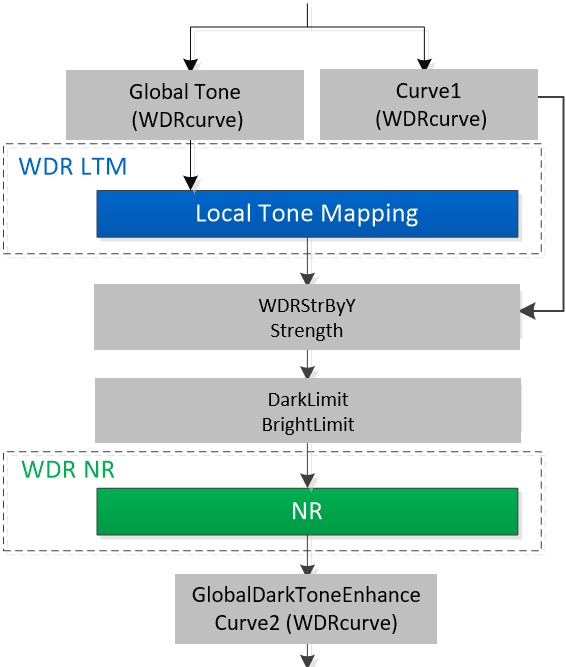
Adjustment Interface
Select “WDR” from the menu on the left-hand side, and WDR Interface will pop up.
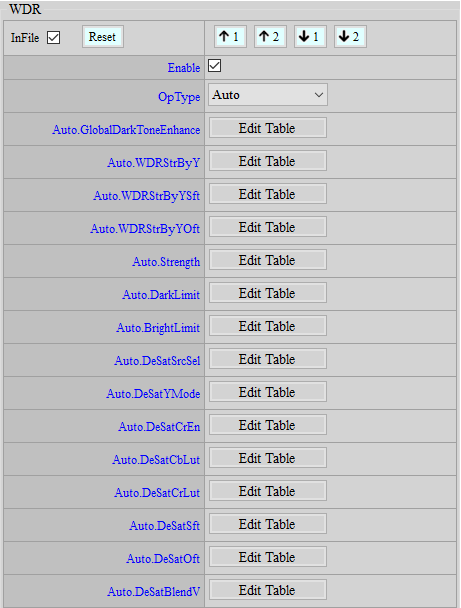
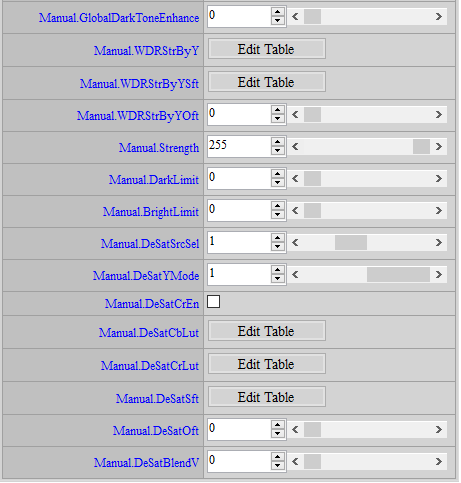
Parameter Description
GlobalDarkToneEnhance: Control post global tone mapping. There are 16 curves to choose from, as the following figure shows. Parameter range: 0 ~ 15. The greater the number, the brighter the dark areas.
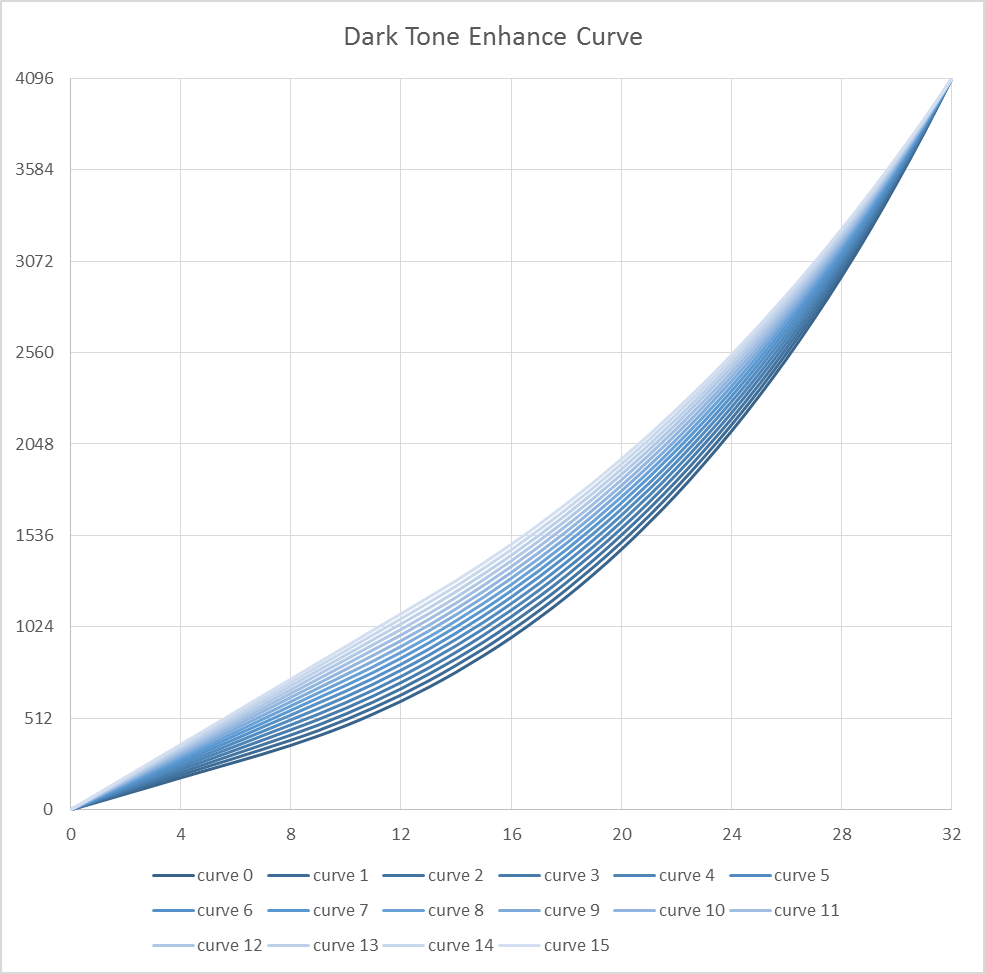
WDRStrByY: Control the strength of WDR blending based on brightness (Y). Parameter range: 0 ~ 4095. The horizontal axis represents different brightness intervals: the closer to the right end, the brighter. The vertical axis represents the strength of WDR blending. The greater the value, the more GlobalTone results will be blended, the greater the effect of WDR, and the less WDR Curve1 results will be blended.
WDRStrByYSft: The nodes of WDRStrByY on the horizontal axis. Parameter range: 1 ~ 15.
WDRStrByYOft: The offset of WDRStrByY. Parameter range: 0 ~ 4095.
Strength: The global strength of WDR blending. Parameter range: 0 ~ 255. The greater the value, the more GlobalTone results will be blended, the greater the effect of WDR, and the less WDR Curve1 results will be blended.
DarkLimit: Limit the strength of WDR in dark area. Parameter range: 0 ~ 255. The greater the value, the weaker the WDR will be in dark area.
BrightLimit: Limit the strength of WDR in bright area. Parameter range: 0 ~ 255. The greater the value, the weaker the WDR will be in bright area.
DeSatSrcSel: Select the source of brightness for desaturation. Parameter range: 0 ~ 2. 0 represents the brightness processed by Curve1; 1 represents the brightness processed by global tone; and 2 represents the brightness not yet processed by WDR. The recommended value is 1.
DeSatYMode: Select the mode of brightness for desaturation. Parameter range: 0 ~ 1. 0 represents YCbCr mode, while 1 represents RGB mode.
DeSatCrEn: Enable independent setting of desaturation in Cr color space. Parameter range: 0 ~ 1. 0 represents the same setting shared by Cr and Cb (and DeSatCrLut will become ineffective), while 1 represents independent setting of desaturation in Cr color space.
DeSatCbLut: Adjust the intensity of desaturation in Cb color space based on brightness. Parameter range: 0 ~ 255. The horizontal axis represents brightness: the closer to the right end, the brighter the image. The vertical axis represents color gain (128 = 1x): the smaller the value, the stronger desaturation, and the greyer the image.
DeSatCrLut: Adjust the intensity of desaturation in Cr color space based on brightness. Parameter range: 0 ~ 255. The horizontal axis represents brightness: the closer to the right end, the brighter the image. The vertial axis represents color gain (128 = 1x): the smaller the value, the stronger desaturation, and the greyer the image.
DeSatSft: The nodes of DeSatCbLut/DeSatCrLut on the horizontal axis. Parameter range: 1 ~ 15.
DeSatOft: The offset of DeSatCbLut/DeSatCrLut. Parameter range: 0 ~ 4095.
DeSatBlendV: The strength of blending Y (brightness) of desaturation with V (brightness) of HSV. This parameter is only effective when DeSatSrcSel is set to 3. Parameter range: 0 ~ 255.
Adjustment Flow
-
We suggest that you enable WDR first and see if the default effects are satisfactory enough. Selecting BoxNum in WDR_LTM according to different scene requirements should be prioritized.
To focus on contrast between indoor and outdoor, you may increase Coarse.BoxNum, Coarse.ToneMapStr, and LevelStrength. We recommend setting Coarse.BoxNum to 4, Coarse.ToneMapStr and LevelStrength to 255.
To focus on fine details, by contrast, you may increase Fine_BoxNum and Fine.ToneMapStr. For the compatibility of all scenes, however, we recommend setting Fine.BoxNum to 3 and Fine.ToneMapStr to 128.
-
If intensity is too strong/weak, you may simply adjust WDR Strength and WDR_LTM LocalStrength. Normally, the strength should not be too strong, especially in the scene of low brightness, where you should reduce WDR intensity and use RGBgamma or Ygamma to increase the brightness and to reduce the noise generated during the process.
-
If brightening dark areas is of primary concern, you can adjust DarkToneEnhance.
-
Make further adjustment to WDRStrByY for the strength of WDR against different brightness. It is advised to lower the strength on the left of the horizontal axis for the dark area so as to prevent noise from being generated and to avoid losing contrast. Normally, contrast is ensured by reducing WDR in both dark and bright areas. Note: modules such as gamma and defog parameters all affect contrast.
-
For certain special scenes where you may not want to brighten dark or bright areas, try adjusting DarkLimit or BrightLimit parameter. Note, however, that only the effective value (ranging from 245 to 255) has better and more significant effects. Fine-tune these parameters carefully.
-
In cases where WDR intensity is so strong that leads to color shift in high-gain areas, you may adjust desaturation.
-
In cases where WDR intensity is so strong that noise occurs, you may adjust WDR_NR. Setting WDR_NR too strong is not recommended because NR affects details.
WDR_LTM
Abbreviated as LTM, Local Tone Mapping aims to adjust the enhancement effect of local contrast. The LTM parameters consist of two groups: Coarse and Fine. The Coarse parameters take a wider region as reference for analysis, while the Fine parameters take a smaller size of region as reference. The effects are demonstrated in the following figure; from left to right, with the same ISP setting: LTM disabled, Coarse ToneMapStr enabled, Fine ToneMapStr enabled.
When LTM is disabled, as the picture on the left shows, the output result was brightened by GlobalTone only, and the image shows poorer contrast. The picture in the middle shows greater contrast in wider range, as Coarse parameters refer to larger area. Finally, the picture on the right shows not only better contrast but also superior detail enhancement, as Fine parameters take smaller area for reference. The ultimate result of LTM combines the effects of both Coarse and Fine. Adjustment in a moderate manner is essential, because LTM is not always the stronger the better. While Fine ToneMapStr enhances contrast and details, it also increases noise, the reason being that local tone enhancement always works in reference to the content within the box range. Strong LTM in severe backlight scenatios, for instance, may darken human face or create halo.
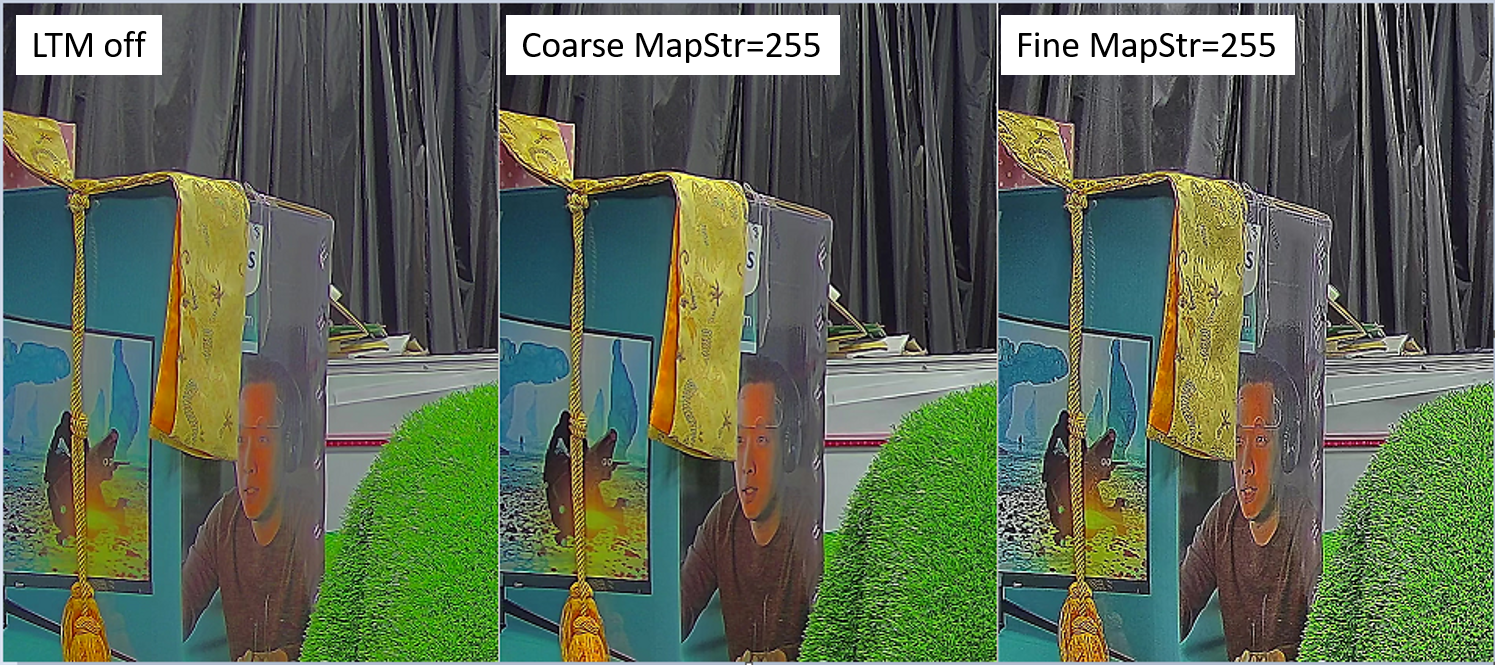
Adjustment Interface
Select “WDR” from the menu on the left-hand side, and WDR_LTM Interface will pop up.
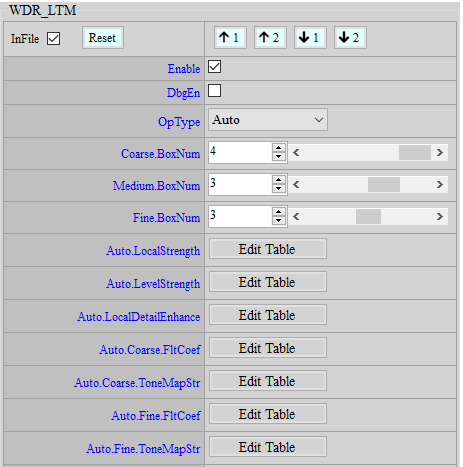
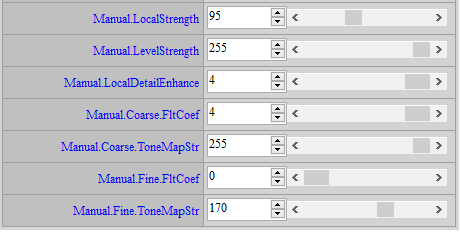
Parameter Description
DbgEn: Debug mode, showing the effective area and strength of LTM. Parameter range: 0 ~ 1.
Coarse.BoxNum: Four box combinations are available. Adjustment to box size can be made according to the size of item of focus in the scene. The larger Box Num, the smaller the box size, which is more ideal for focusing on small objects in the picture. Note: it cannot be modified by ISO. The box size corresponding to Coarse > the box size corresponding to Medium > the box size corresponding to Fine. We suggest setting Coarse.BoxNum to 4.
Medium.BoxNum: Four box combinations are available. Adjustment to box size can be made according to the size of item of focus in the scene. The larger Box Num, the smaller the box size, which is more ideal for focusing on small objects in the picture. Note: it cannot be modified by ISO. The box size corresponding to Coarse > the box size corresponding to Medium > the box size corresponding to Fine. We suggest setting Medium.BoxNum to 4.
Fine.BoxNum: Five box combinations are available. Adjustment to box size can be made according to the size of item of focus in the scene. The larger Box Num, the smaller the box size, which is more ideal for focusing on small objects in the picture. Note: it cannot be modified by ISO. The box size corresponding to Coarse > the box size corresponding to Medium > the box size corresponding to Fine. We suggest setting Fine.BoxNum to 3.
LocalStrength: Control the strength of local tone mapping kernel. Parameter range: 0 ~ 255. The greater the value, the stronger the strength.
LevelStrength: Control the strength of level. Parameter range: 0 ~ 255. The greater the value, the stronger enhancement upon the contrast between bright and dark areas.
LocalDetailEnhance: Local detail enhancement. Parameter range: 0 ~ 4. The larger the value, the stronger the strength.
Coarse.FltCoef: Five filter sizes are available. The greater the value, the more apparent the effect of local contrast enhancement, but halo is more likely to appear on the edge of object.
Coarse.ToneMapStr: Control the strength of coarse local tone mapping. Parameter range: 1 ~ 255. The greater the value, the more apparent the effect of local contrast enhancement, but halo is more likely to appear on the edge of object.
Fine.FltCoef: Five filter sizes are available. The greater the value, the more apparent the effect of local contrast enhancement, but the more likely halo appears on the margin of object.
Fine.ToneMapStr: Control the strength of fine local tone mapping. Parameter range: 1 ~ 255. The greater the value, the more apparent the effect of local contrast enhancement, but halo is more likely to appear on the edge of object.
Adjustment Flow
Please refer to WDR Adjustment Flow.
WDR_NR
This function aims to perform noise reduction against areas where noises are enhanced.
Adjustment Interface
Select “WDR” from the menu on the left-hand side, and WDR_NR Interface will pop up on the main screen to the right.
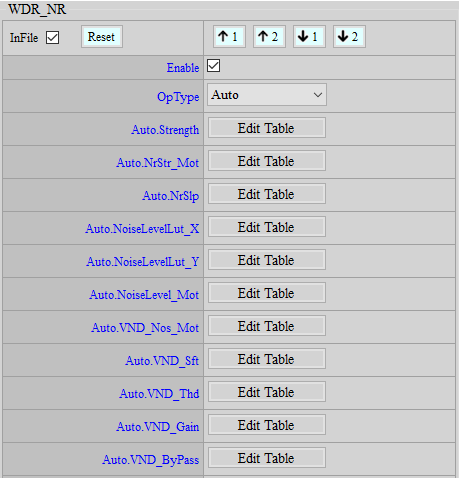
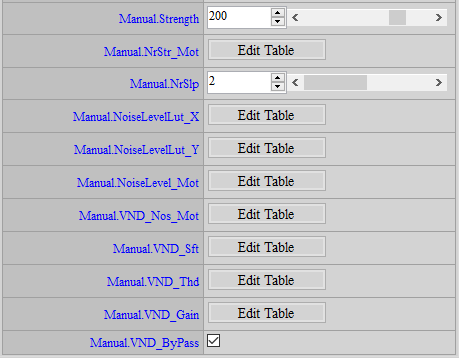
Parameter Description
Strength: Control the strength of WDR noise reduction. Parameter range: 0 ~ 255.
NrStr_Mot: Adjust the strength of WDR noise reduction based on motion. The horizontal axis represents motion: from left to right indicates motion to stillness. Parameter range: 0 ~ 255.
NrSlp: Define the strength of noise reduction. 3 represents stronger NR intensity; while 2 represents weaker NR intensity. Parameter range: 2 ~ 3.
NoiseLevelLut_X: The node of NoiseLevelLut_Y on the horizontal axis. Parameter range: 0 ~ 255.
NoiseLevelLut_Y: Control the strength of noise reduction based on brightness. Values smaller than this threshold will be judged as noise. The larger the value, the stronger the noise reduction. Parameter range: 0 ~ 65535. The horizontal axis represents darkness to brightness from left to right.
NoiseLevel_Mot: Adjust the gain of noise reduction threshold based on the extent of motion. The horizontal axis represents motion: from left to right indicates motion to stillness. Parameter range: 0 ~ 255. 16 = 1x.
VND_Nos_Mot: Adjust the gain of VND_Thd based on the extent of motion. Parameter range: 0 ~ 255. 16 = 1x.
VND_Sft: The horizontal node of VND_Thd and VND_Gain, accumulated by the power of 2. Parameter range: 1 ~ 11.
VND_Thd: Control the threshold value of VND noise reduction based on brightness. Value larger than this threshold will be determined as noise. The smaller the value, the stronger the noise reduction. Parameter range: 0 ~ 4095. The horizontal axis represents brightness; the closer to the right end, the brighter is suggested.
VND_Gain: Control the gain of VND noise reduction based on brightness. The larger the gain, the stronger the noise reduction. Parameter range: 0 ~ 4095. The horizontal axis represents brightness; the closer to the right end, the brighter is suggested.
VND_ByPass: Enable/Bypass VND function. Set 1 to bypass VND; set 0 to enable VND.
Adjustment Flow
Please refer to WDR Adjustment Flow.
WDRCurve
Advanced WDR parameters.
Adjustment Interface
Select “WDRCurve” from the menu on the left-hand side, and WDRCurveFull Interface will pop up pop up on the main screen to the right.
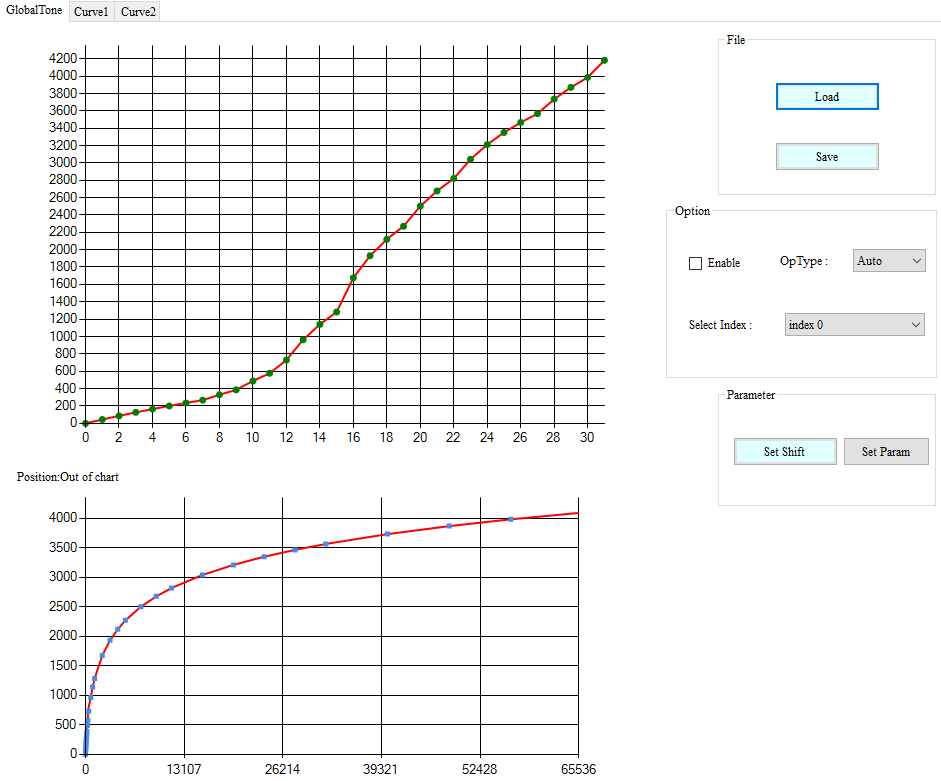
Parameter Description
There are three different curves — Global Tone, Curve1, and Curve2 — available for adjustment. You may adjust non-isometric brightness intervals by GlobalToneSft for Global Tone according to your need. Brightness intervals for Curve1 and Curve2 are isometric.
GlobalToneSft: Click ”Set Shift” in Global Tone tab to adjust the node on the horizontal axis for Global tone. Parameter range: 3 ~ 15. There are 31 nodes. The coordinates on X-axis are, from left to right: 0, 2^GlobalToneSft[0], 2GlobalToneSft[0]+2GlobalToneSft[1], 2GlobalToneSft[0]+2GlobalToneSft[1]+2^GlobalToneSft[2], ... and so on. The ordinates on Y-axis are, from bottom to top: GlobalToneLut[0], GlobalToneLut[1], GlobalToneLut[2], ... and so on. The last node on the Y-axis features a special design: if the last node on X-axis is smaller than 65535, the last node on Y-axis will be GlobalToneLut[31]; however, if the last node on the X-axis is larger than 65535, the last node on Y-axis will be GlobalToneLut[30]+GlobalToneLut[31]. Such design aims to allow global tone to be able to apply to all motion intervals, that is, to solve the issue that the last node may not fall on (x, y) = (65535, 4095). If the last node on the X-axis exceeds 65535, the ordinate on the Y-axis should also exceeds 4095 so that the line from the previous node to this node can pass (x, y) = (65535, 4095). When adjustment is needed, we suggest that you draw the original curve with excel and adjust GlobalToneSft for finer tuning of smaller segments. Only after finding out the corresponding GlobalToneLut and making sure that the effect remains the same should you make adjustment to GlobalToneLut.
GlobalToneLut: The nodes of global tone on the vertical axis. Parameter range: 0 ~ 4095. The last node features a special design.
Curve1: The curve of front-end brightness adjustment. Parameter range: 0 ~ 4095. The horizontal axis represents the input brightness, while the vertical axis represents the output brightness. The greater the value, the image not yet processed by histogram equalization will become brighter. The output will be blended with the result of histogram equalization based on the ratio of Strength to WDRStrByY, and the remaining ratio will be blended with the result of Curve1.
Curve2: The curve of back-end brightness adjustment. Parameter range: 0 ~ 4095. The horizontal axis represents the input brightness, while the vertical axis represents the output brightness. The greater the value, the brighter the final image. This parameter shares the same function with DarkToneEnhance.
Adjustment Flow
Adjust Global tone, Curve1, and Curve2. If dark areas still look dim, you may brighten them up by Curve2.
Defog
Defog function aims to achieve better and starker contrast.
Adjustment Interface
Select “WDR” from the menu on the left-hand side, and Defog Interface will pop up.
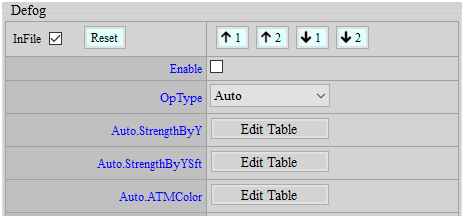
Parameter Description
StrengthByY: Adjust the strength of DEFOG based on brightness. Parameter range: 0 ~ 4095.
StrengthByYSft: The node of StrengthByY on the horizontal axis, accumulated by the power of 2. Parameter range: 1 ~ 11.
ATMColor: The color of fog for defog. The value is in RGB, 12-bit. Parameter range: 0 ~ 4095.
Adjustment Flow
Adjust Strength to achieve a better contrast of image. We suggest that you should prioritize WDR as a defog function.
Convert WDR Curve
Adjust WDR Curve based on dynamic contrast ratio.
WDRAlignHDRtoLDR
N/A.
Adjustment Interface
Select “WDR” from the menu on the left-hand side, and WDRAlignHDRtoLDR Interface will pop up.
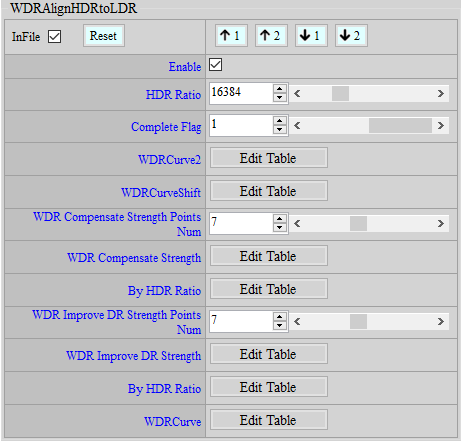
Parameter Description
bEnable: Enable WDR Curve AlignHDRtoLDR API.
HDR Ratio: HDR Ratio value. Parameter range: 1024 ~ 65535 (1x = 1024).
Complete Flag: Show the flag of WDRAlignHDRtoLDR conversion status (read only). Parameter range: 0 ~ 1.
WDRCurve2[33]: Adjust the brightness adjustment curve of WDR back-end. Parameter range: 0 ~ 4095.
WDRCurveShift[31]: The nodes of WDR Curve on the horizontal axis. Parameter range: 3 ~ 15.
WDR Compensate Strength Points Num: Set the number of nodes for WDR Compensate Strength.
WDR Compensate Strength: Set the intensity of WDR Compensate Strength. The greater the value, the brighter the overall picture will be; the smaller the value, the darker the overall picture. Parameter range: 1 ~ 255 (Default value is 1x = 128).
WDR Compensate Strength By HDR Ratio: Set the exposure ratio of HDR long and short exposure. (1024 = 1x)
WDR Improve DR Strength Points Num: Set the number of nodes for WDR Improve DR Strength.
WDR Improve DR Strength: Set the intensity of WDR Improve DR Strength. The greater the value, the better the dynamic range of bright area; the smaller the value, the weaker the dynamic range of bright area. Parameter range: 0 ~ 100.
WDR Improve DR Strength By HDR Ratio: Set the exposure ratio of HDR long and short exposure. (1024 = 1x)
WDRCurve[32]: Generate WDR Curve for output. Parameter range: 0 ~ 4095.
Adjustment Flow
N/A.
WDRAlignLDRtoHDR
N/A.
Adjustment Interface
Select “WDR” from the menu on the left-hand side, and WDRAlignLDRtoHDR Interface will pop up.
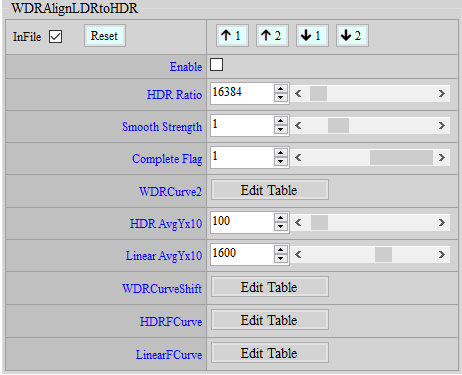
Parameter Description
bEnable: Enable WDR Curve AlignLDRtoHDR API.
HDR Ratio: HDR Ratio value. Parameter range: 1024 ~ 65535 (1x = 1024).
Smooth Strength: Use this parameter to fine-tune the strength of improvement. Parameter range: 0 ~ 5. (We suggest that you fill in str = 3.)
Complete Flag: Show the flag of WDRAlignLDRtoHDR conversion status (read only). Parameter range: 0 ~ 1.
WDRCurve2[33]: Adjust the brightness adjustment curve of WDR back-end. Parameter range: 0 ~ 4095.
HDR / Linear AvgYx10: Fill in the target brightness for HDR / LDR. Parameter range: 1 ~ 2550.
WDRCurveShift[31]: The nodes of WDR Curve on the horizontal axis. Parameter range: 3 ~ 15.
HDRFCurve[32]: Fill in WDR Curve for HDR usage. Parameter range: 0 ~ 4095.
LinearFCurve[32]: Generate WDR Curve for output. Parameter range: 0 ~ 4095.
Adjustment Flow
N/A.
DUMMY
Dummy API is a default interface, through which new functions will be added, as a way to prevent interfaces from being increased each time when a new function is added and to avoid the original interface structure being affected. All default values are “-1”, meaning that this function is bypassed. If Dummy API is enabled to save bin files, make sure you check the “InFile” box so that parameters can be properly saved.
Dummy
The interface supports adjustment by ISO.
Adjustment Interface
Select “Dummy” from the menu on the left-hand side, and Dummy Interface will pop up on the main screen to the right.
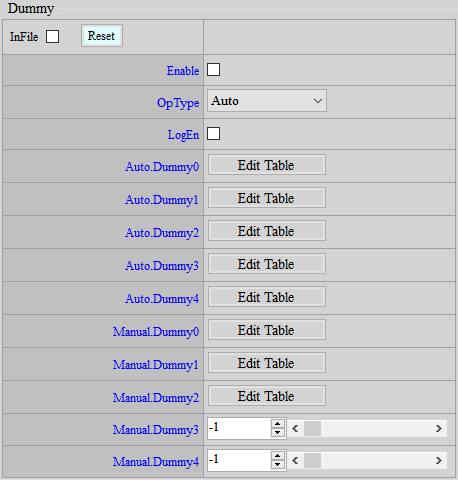
Parameter Description
Dummy0: Default value is -1. Parameter range: -1 ~ 255.
Dummy1: Default value is -1. Parameter range: -1 ~ 255.
Dummy2: The default value of Dummy2[0] is -1, which disables 3DNR enhancement in still areas. Setting this parameter to 64 and above will enable the function. The greater the value, the better improvement will be applied to interference in still areas, but objects in pure color may become transparent. We suggest that you enable this function when gain is high, gradually increase the value from 64 along with using 3DNR debug mode, and stop adjustment when interference is reduced. Dummy2[1-3] are used to fine-tune the coarse coef in WDR LTM. Dummy2[1 / 2 / 3] are used to fine-tune the control of low/medium/high level coefficients. 16 = 1x. The larger the value, the greater the strength. Note that the larger Dummy2[1] is, the more likely dark area will become lifelessly black, and the larger Dummy2[3] is, the more likely bright area will become lifelessly white. The default value is -1. Parameter range: -1 ~ 255.
Dummy3: Currently not functional. Default value is “-1”. Parameter range: -1 ~ 255.
Dummy4: Currently not functional. Default value is “-1”. Parameter range: -1 ~ 255.
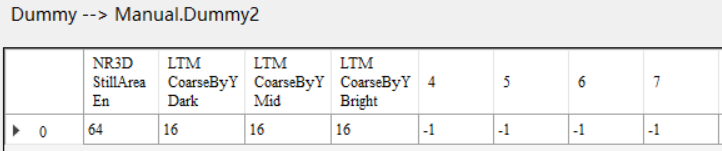
Adjustment Flow
Currently not available.
Dummy_EX
The Dummy_EX interface does support adjustment by ISO.
Adjustment Interface
Select “Dummy” from the menu on the left-hand side, and Dummy_EX Interface will pop up on the main screen to the right.
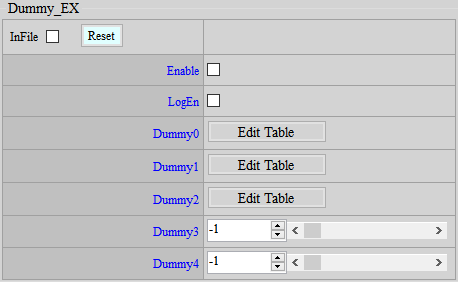
Parameter Description
Dummy0: Dummy0[2] is used to set arbitrary mixing ratio for HDR mode. Set it to 0 for full short exposure output, 256 for full long exposure output, and 128 for long and short exposure 1:1 output. Note: this function ignores the settings of HDR blending (Yth, MotAdj1 / 2 /3, MoLuBlend) and forces the output to be mixed with a fixed ratio of long and short exposures. Dummy0[3] is used to force 3DNR re-convergence. Setting it to a value other than -1 once will cause 3DNR to re-converge. Dummy0[4 / 5 / 6] is used to redistribute the low, medium, and high frequency filters of Sharpness. Dummy0[4 / 5 / 6] set the high/mid/mid-low frequency filters, respectively, for the bottom layer. When Dummy0[4 / 5 / 6] is set to -1, filters will not be redistributed; when Dummy0[4 / 5 / 6] is set to 0 / 1 / 2, high/mid/mid-low frequency filters will be given, respectively. Default value is -1. Parameter range: -1 ~ 255.
Dummy1: Dummy1[0] is used to turn off WDR brightness compensation. Note: this function is for special purposes only and should not be enabled unless necessary. Dummy1[1] is used to select Sharpness Debug Map functions: -1 / 1 / 2 / 3 refer to the original DebugMap/StdMap/EdgeStateMap and D/UD Map, respectively. Dummy1[2] is used to select SharpnessEX Debug Map function: -1 / 1 / 2 refer to the original DebugMap/StdMap/EdgeStateMap, respectively. Default value is -1. Parameter range: -1 ~ 255.
Dummy2: Currently not functional. Default value is “-1”. Parameter range: -1 ~ 255.
Dummy3: Adjust the position of OBC subtraction. If this parameter is set to 2, the OBC position will be moved backward, which helps Bayer NR and 3DNR to determine motion and still area. Note: this function cannot be switched on/off according to gain, and you will have to re-adjust the values of 3DNR MdTh and GainbyY after the function is enabled. Default value is -1. Parameter range: -1 ~ 255.
Dummy4: Currently not functional. Default value is “-1”. Parameter range: -1 ~ 255.
Adjustment Flow
Currently not available.
TEMPERATURE SETTING
When chip temperature changes, corresponding adjustment can be made to IQ to achieve better visual effects.
Temperature
Set up temperature nodes and corresponding IQ settings.
Adjustment Interface
Select “Temperature” from the menu on the left-hand side, and Temperature Interface will pop up on the main screen to the right.
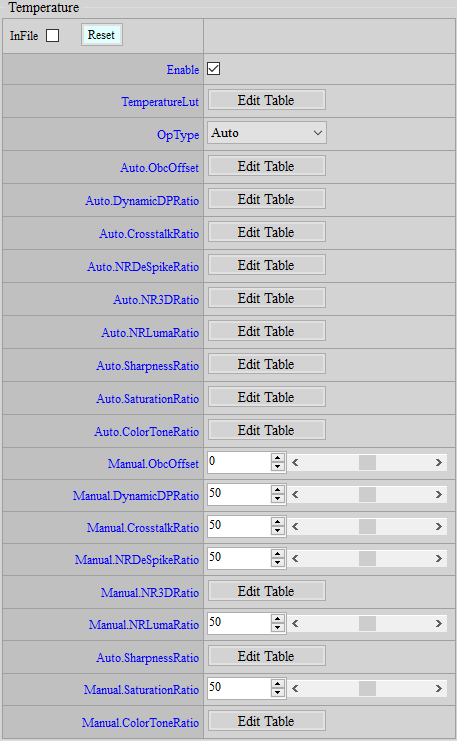
Parameter Description
TemperatureLut: Set Temperature nodes. Up to 16 nodes are supported. Parameter range: 0 ~ 255.
ObcOffset: Optical black compensation (OBC) offset, which will be overlayed to the original OBC. The greater the value, the greater the OBC effect. Default value is 0.
DynamicDPRatio: Ratio of the change of DynamicDP strength, which acts on DPCTH. The greater the value, the stronger the NR efffect. Default value is 50.
CrosstalkRatio: Ratio of the change of Crosstalk strength, by which the Strength parameter will be multiplied. The greater the value, the stronger the NR efffect. Default value is 50.
NRDeSpikeRatio: Ratio of the change of NRDeSpike strength, by which the BlendRatio parameter will be multiplied. The greater the value, the stronger the NR efffect. Default value is 50.
NR3DRatio: Ratio of the change of NR3D strength, by which MD.Thd and MD.Gain will be multiplied following this sequence. The greater the value, the stronger the NR efffect. Default value is 50.
NRLumaRatio: Ratio of the change of NRLuma_Adv strength, by which the Strength parameter will be multiplied. The greater the value, the stronger the NR efffect. Default value is 50.
SharpnessRatio: Ratio of the change of Sharpness, by which OverShootGain and UnderShootGain will be multiplied following this sequence. The greater the value, the sharper the image. Default value is 50.
SaturationRatio: Ratio of the change of Saturation, by which the AllStar parameter will be multiplied. The greater the value, the more saturated the image. Default value is 50.
ColorToneRatio: Ratio of the change of ColorTone strength, which corresponds to R/G/B following this sequence and acts on CCM. The greater the value, the more saturated the image. Default value is 50.
Temperature Info
Obtain current chip temperature.
Adjustment Interface
Select “Temperature” from the menu on the left-hand side, and TemperatureInfo Interface will pop up on the main screen to the right.
Parameter Description
Temperature: Obtain current chip temperature, read only.
DAY NIGHT MODE DETECTION
Detection of the environmental brightness usually relies on the application of ALS (Ambient Light Sensor), which provides information as reference for the determination of Day mode or Night mode. This “Day/Night Detection” function aims to facilitate the Day/Night mode selection without using the ALS. By setting customized determining conditions, you can switch between Day mode and Night mode according to the information provided by this API.
DayNightDetection
The Day/Night Detection API allows user to set respective conditions for the determination of switching from Day mode to Night mode or vice versa, and the detection result will be shown in the DayNightInfo API, which is set out in the next section.
Adjustment Interface
Select “Day/Night Mode” from the menu on the left-hand side to find the DayNightDetection interface.
Parameter Description
Enable: Switch of the detection function. Information in DayNightInfo Interface is effective only when Enable is checked.
D2N_BvThd: The threshold value of brightness for determining whether Day mode should be switched to Night mode. If the current brightness value (accessible as “BV” in AEInfo) falls below this threshold, D2N in DayNightInfo Interface will show “1” (TRUE). Value range: -1048576 ~ 1048576.
N2D_VsbLtScoreThd: The threshold of “Score” for determining whether Night mode should be switched to Day mode. The Score is calculated by the ratio of visible light to IR light, and a larger value suggests the dominance of visible light in this environment. If the current score (accessible as “N2D_VsbLtScore” in DayNightInfo Interface) is larger than this threshold, N2D in DayNightInfo Interface will show “1” (TRUE). Value range: 0 ~ 2000.
DayNightInfo
This API shows detection result. Please note that this API shows the result only and you should still take actions accordingly, such as loading Day/Night API bin file or controlling IR LED, when necessary.
Adjustment Interface
Select Day/Night Mode from the menu on the left-hand side to find DayNightInfo Interface.
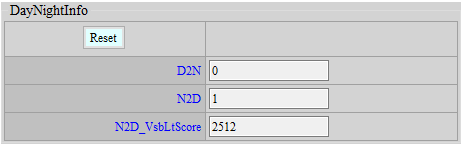
Parameter Description
D2N: Flag that determines whether Day mode should be switched to Night mode. Value “1” means that the current environmental brightness has met the condition of switching to Night mode. Note: The flag is only meaningful when the current mode is Day mode.
N2D: Flag that determines whether Night mode should be switched to Day mode. Value “1” means that the current environmental brightness has met the condition of switching to Day mode. Note: The flag is only meaningful when the current mode is Night mode.
N2D_VsbLtScore: The score is calculated by the ratio of visible light to IR light, and higher score means visible light is more dominant in the environment. In cases where switching to Day mode is considered desirable, users can read this score to set “N2D_VsbLtScoreThd” in DayNightDetection Interface.
NIGHT MODE SETTING
When ambient brightness is low to a certain level, IR light will usually be turned on, and the IR-Cut filter in the lens will be enabled to increase the amount of incoming light. This is in fact a special case, for which certain AE, AWB and IQ settings should be modified accordingly. Due to the use of IR light, Night mode can even apply a very low gain. As such, it is not advised to have Day mode and Night mode share the same bin file and differentiate the two simply by ISO index value. Instead, we suggest that two separate bin files be maintained for Day mode and Night mode, respectively. When mode change is determined necessary by the system, you can then load the corresponding bin file. In the following section, we will provide a detailed description of the settings suggested for noise level reduction in Night mode.
ColorToGray
Enabling IR-Cut filter will cause color to get abnormal, so it is a usual practice to turn the screen from color to gray scale.
Adjustment Interface
Select “ColorToGray” from the menu on the left-hand side, and ColorToGray Interface will pop up on the main screen to the right.
Parameter Description
Enable: Switch to enable the function of color to gray scale conversion, which shares the same effect with setting Saturation to 0.
RGBIR SENSOR TUNING
RGBIR senor is a special type of sensor which, as compared to normal RGB Bayer sensor, features additional IR pixel for sensing infrared light. In terms of its structure, RGBIR senor does not feature IR Cut but uses Dual Band filter instead for IR removal, which is done by software at the backend. Our goal in this chapter, therefore, is to provide tips on how to set the IR removal ratio so that the image will share the same color as achieved by common sensors with IR Cut.
RGBIR Ratio Adjustment
Adjustment Interface
Select “RGBIR” from the menu on the left-hand side, and RGBIR Interface will pop up.
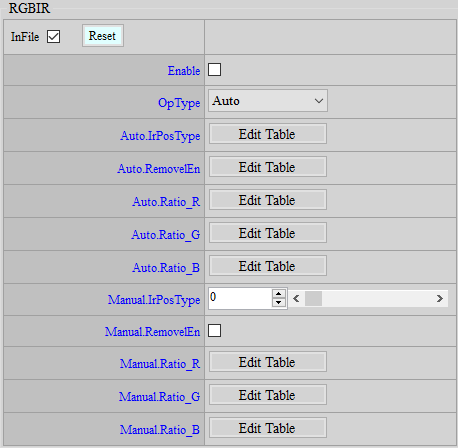
Parameter Description
IrPosType: Change the order of sequence of R, G, B and IR pixels on the sensor. Parameter range: 0 ~ 7.
RemovelEn: Enable the function of IR removal by software.
Ratio_R: Ratio of IR removal (from dark to bright) in R channel. Parameter range: 0 ~ 4095.
Ratio_G: Ratio of IR removal (from dark to bright) in G channel. Parameter range: 0 ~ 4095.
Ratio_B: Ratio of IR removal (from dark to bright) in B channel. Parameter range: 0 ~ 4095.
Adjustment Flow
-
The RGBIR ratio is associated with OB. Before making any adjustment, calibrate OB first.
-
Set the last value of Ratio_R, Ratio_G, and Ratio_B to 64, and fill out all the remaining blanks with 4095. Observe the image now. If there is any color deviation, move on to the next step. (It is suggested that you take a picture of the 24-color Color Checker to see whether any color shift occurs at the lower grayscale region and whether the color at the upper region is accurate.)
-
Keep the last value of the Ratio table as 64 throughout the adjustment process. This prevents brightness from unexpectedly declining in the overexposure region and avoids the occurrence of control parameters for abnormal colors, which fall outside the range of adjustment in normal sensitive region.
-
Keep the values of Ratio_R and Ratio_B unchanged but lower the value of Ratio_G to 2000 (all cells in the table from left to right should be set to 2000, with the exception of the last cell, which should remain 64). In this case, the image will appear greenish.
-
Increase the value of Ratio_G gradually until grayscale region in the image no longer appears greenish.
-
Set the value of Ratio_B to 2000. The image will appear bluish now. Then, as in the case of Ratio_G, increase the value of Ratio_B gradually until grayscale region in the image no longer appears bluish.
-
Similar to Ratio_G and Ratio_B, lower the value of Ratio_R first and then gradually increase the value to make color and gray scale as accurate as possible.
-
If any particular color or any brightness is suspected of color deviation, adjust the ratio of associated brightness, noting that the table from left to right corresponds to brightness from dark to bright.
YUV Path IQ Description
By selecting YUV as the input data format, only part of the API will be available for application. Please refer to “Software Development Guide” for further details.
AE INTRODUCTION
By using the statistical value collected by it, AE aims to calculate the appropriate values of aperture, sensor gain, ISP digital gain and shutter time, so that the statistical value will get closer to the target brightness, by which the global brightness of image can be controlled in an ideal status. As the position of statistical value collected by AE is situated before Gamma, we suggest that you set the target brightness to about 470 (the unit of AE brightness is 8-bit*10 in the range of 0 to 2550).
AE Adjustment
Adjustment Interface
Select “AE” from the menu on the left-hand side, and AE Adjustment Interface will pop up on the main screen to the right.
Parameter Description
< AEState >
AE state control option. Selecting Normal will put AE in normal operation, and selecting Pause will suspend AE operation in the state where it stands at the time of pause. Operation resumes only when the state is switched back to Normal.
< AETarget >
Target Points Num: The number of nodes set by AE target. Different AE targets are provided for setting according to different ambient brightness values (BV).
Target Offset: The AE target of each node.
Target BV: The BV value corresponding to each node.
< AEConverge >
ConvThdIn: Inner convergence interval. When AE is in the process of convergence, the screen will be converged until it reaches the range of target +– inner convergence interval is reached.
ConvThdOut: Outer convergence interval, which serves as the threshold for enabling AE to resume convergence from steady state (the current brightness falls outside the range of target +– outer convergence interval).
ConvSpeedX: The X-axis of the convergence speed table, which corresponds to the current brightness (Cur Y). The leftmost position represents the darkest brightness, and the rightmost the brightest. The two bottom squares in the center automatically align to the current AE target position, so there is no need to modify them. Default value is 470. The head and tail squares are respectively set to 0 and 2000 by default.
ConvSpeedY: The Y-axis of the convergence speed table. After corresponding to the X-axis, Cur Y will find out the convergence speed (ratio) [0 ~ 1024] of the corresponding Y-axis. If the value is set too small, AE response will be slow and even fail to converge; if the value is set too large, brightness will change very swiftly but appear flickering on the screen when video is played.
< AEConvergeSpeedEx >
When AEConvergeSpeedEx is enabled, AEConverge will become ineffective.
Enable: Enable AEConvergeSpeedEx.
ConvSpeedX: The X axis of the convergence speed table, which corresponds to the current brightness of Cur Y. The horizontal direction from left to right represents darkness to brightness.
ConvSpeedY: The Y axis of the convergence speed table. After corresponding to the X axis, Cur Y will find out the convergence speed (ratio) [0~1024] of the corresponding Y axis. If the value is set too small, AE response will appear very slow or even fail to converge; if the value is set too large, brightness will change very swiftly, but the video will show flickering in brightness.
< EVComp >
EVComp: The numerator for the function of +– ev brightness compensation. If the value is positive, AE target will be increased, otherwise the target will be decreased.
Grad: The denominator for the function of +– ev brightness compensation.
< AEWinWeight >
Weighting PAGEle ID: The ID of light weighting table. Three types of weighting table are supported by default: Average, Center, and Spot.
WindowWeighting: Light weighting table. The effective range is located in the 16*16 of the upper left corner.
< AELumaWeight >
This function aims to adjust the weight of luminance (Luma) in certain regions of the picture and apply the weight to AE so as to enhance the adapatibility of target brightness of the picture.
Enable: Enable the function of Weight by luminance.
Luma Wgt Points Num: The number of nodes for the Luma weight table. Parameter range: 1 ~ 16.
Luma Wgt: Set the weight of Luma according to AE statistical value minus M x N. M x N = 16 x 16. Parameter range: 0 ~ 256. 1x = 256.
Wgt By Luma(x10): Set the nodes of Luma value (x10). Parameter range: 0 ~ 2550.
SatCnt Points Num: Set the number of nodes for the weight table of Luma saturation. Parameter range: 1 ~ 16.
SatCnt Wgt: Set the weight of Saturate Count according to the number of Luma brightness, of which the AE statistical value, having been deducted by M x N, is greater than the number of SatCnt Threshold. M x N = 16 x 16. Parameter range: 0 ~ 256. 1x = 256.
Wgt By SatCnt: Set the nodes for Saturate Count number. Parameter range: 0 ~ 256.
SatCnt Threshold: Set the threshold value of Saturate count. The larger the number is adjusted to, the less weight will be given to the bright area. Parameter range: 0 ~ 2550.
Recommended Flow:
When this function is disabled, AE statistic blocks of different Luma will apply the same weighting to the calculation of overal picture. When enabled, you may modify Luma Wgt or Wgt By Luma(x10) to create different Luma weight tables for application based on various scenes (as defined by SatCnt Threshold / Wgt By SatCnt / SatCnt Wgt).
-
Define Luma Weight Table (LumaWgtTable) as the following figure demonstrates. The horizontal axis represents Wgt By Luma(x10), while the vertical axis represents Luma Wgt.
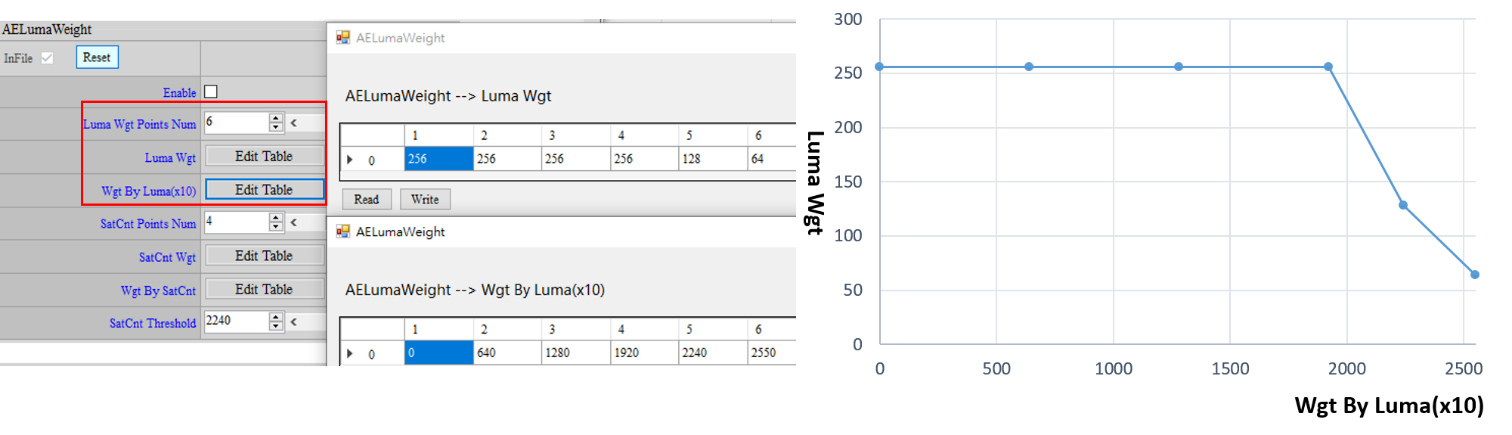
-
Define Saturate Count Weight Table as the following figure demonstrates. The horizontal axis represents Wgt By SatCnt, while the vertical axis represents SatCnt Wgt.
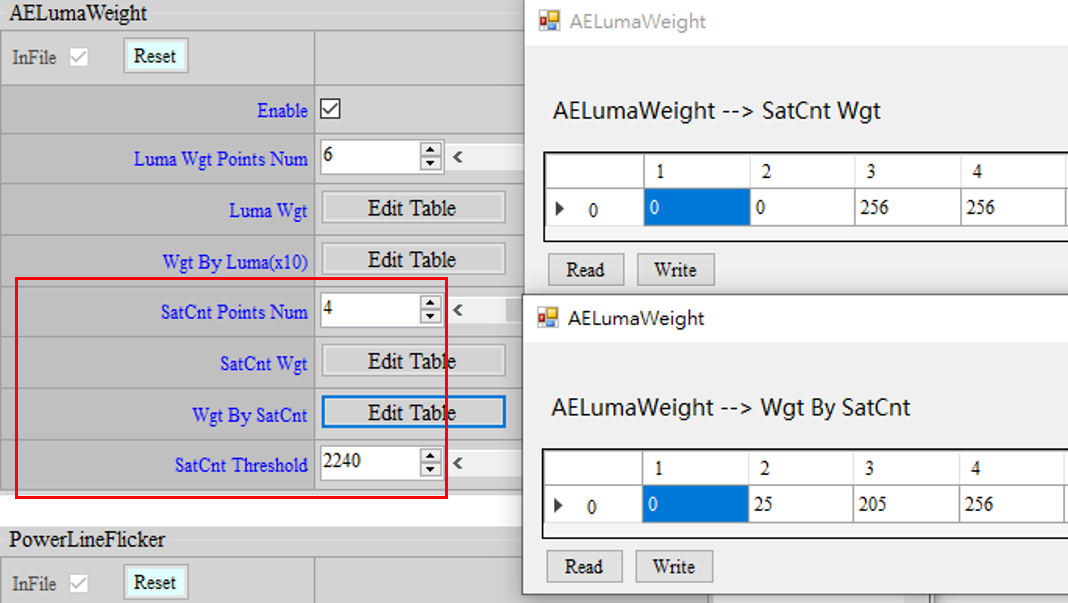
-
Set Sat Cnt Threhold to determine which area, where the brightness is above this threshold, should be added with SatCnt count. As the Saturation count table above shows, AE will apply LumaWgtTable if SatCnt in the current scene exceeds 205; by contrast, LumaWgtTab le will not be enabled if SatCnt is smaller than 25.
< FlickerEx >
Enable: Enable/Disable anti-flicker.
OpType: Set the mode of operation for anti-flicker detection. Auto mode and manual mode are available for selection. When OpType is set to Auto, Flicker mode will be switched automatically. We suggest that you select Auto mode.
AmpSensitivity: Adjust the sensitivity of anti-flicker detection (The greater the value, the higher the sensitivity). Parameter range: 1 ~ 100. Suggested setting is 70.
ScoreThd: The threshold value to determine whether auto switch of FlickerType will be triggered in Auto mode. If Score is smaller than this threshold, ValidTimes will be added by 1. If Score is larger than this threshold, ValidTimes will be reset to 0. Parameter range: 1 ~ 100. Suggested setting is 50.
RefreshCycles: Adjust the refresh rate of anti-flicker detection score calculation. This parameter indicates the number of cycles needed for updating score once. A cycle usually takes 4 to 7 frames. Parameter range: 1 ~ 10. The greater the value, the more reliable the score will be, but the time spent is longer. Suggested setting is 3.
ValidTimesThd: When ValidTimes reaches ValidTimesThd in auto mode, the algorithm will automatically switch to another Flicker mode. Parameter range: 1 ~ 10. The greater the value, the less likely it will be misjudged, but the time spent is longer. Suggested setting is 2.
Flicker: Set anti-flicker detection mode: “0 = 60Hz” and “1 = 50Hz”.
< PowerLine Flicker >
Enable: Enable/Disable the function of PowerLine Flicker.
Ratio: Adjust the ratio of PowerLine compensation. Parameter range: 0 ~ 1024 (128 = 1x).
< ExposureStrategyEx >
Exposure strategy API, which can be designed by users for anti-overexposure or under-exposure strategies, by which AE will dynamically adjust SceneTarget.
Enable: Enable exposure strategy. If this API is enabled, ExposureStrategy will become ineffective.
Mode: The mode of exposure strategy. Count Mode and Target Mode are available for selection.
Count Mode mainly relies on BT(DT)_ThdY and BT(DT)_Percentx10, by which user may designate the permillage of the statistical value above (or below) a certain level of brightness to the total statistical value.
Target Mode mainly relies on BT(DT)_Percentx10 and BT(DT)_Targetx10, by which user may designate the approximate target brightness for the average brightness of statistical value up to (or down to) a certain permillage.
Priority: Priority setting of exposure strategy, including Dark Tone Priority (under-exposure prevention) / Bright Tone Priority (over-exposure prevention).


BT_NodeNum: The number of nodes related to Bright Tone parameters.
BT_NodeBV: The setting of BV corresponding to each node of Bright Tone.
BT_ThdY: The setting of brightness threshold for Bright Tone. Data range: 0 ~ 255; effective only in Count Mode.
BT_Percentx10: The setting of Bright Tone permillage. Data range: 0 ~ 1000; effective both in Count Mode and Target Mode.
BT_TargetYx10: The setting of average target brightness of Bright Tone. Data range: 0 ~ 2550; effective only in Target Mode.
BT_MaxOffsetDown: The range of downward offset of AE target. Data range: 0 ~ 2550. Setting it to 0 means disabling offset target and soly relies on Target Offset setting.
DT_NodeNum: The number of nodes related to Dark Tone parameters.
DT_NodeBV: The setting of BV corresponding to each node of Dark Tone.
DT_ThdY: The setting of brightness threshold for Dark Tone. Data range: 0 ~ 255; effective only in Count Mode.
DT_Percentx10: The setting of Dark Tone permillage. Data range: 0 ~ 1000; effective both in Count Mode and Target Mode.
DT_TargetYx10: The setting of average target brightness of Dark Tone. Data range: 0 ~ 2550; effective only in Target Mode.
DT_MaxOffsetUp: The range of upward offset of AE target. Data range: 0 ~ 2550. Setting it to 0 means disabling offset target and soly relies on Target Offset setting.

< ExposureStrategyExAdv >
HDR Strength Weight 1: Adjust the weighting value to determine Dark Tone Priority or Bright Tone Priority. Parameter value: 0 ~ 1024.
The smaller the value than 512, the greater priority will be given to Bright Tone;
The greater the value than 512, the greater priority will be given to Darker Tone.
HDR Strength Weight 2: Adjust the weighting value of AE Target. Parameter value: 0 ~ 1024.
If the value is equal to 0, the weighting of AE Target will become ineffective, and the screen brightness will be based on the result of Weight 1;
If the value is larger than 0, the weighting of AE Target will become greater, and the screen brightness will come closer to AE Target.
< AdaptiveGamma >
This function needs to be working with StrategyEx so that dynamic adjustment can be made by Gamma based on SceneTarget in order to achieve the effect of dynamic range enhancement.
Enable: Switch of this function. If this function is disabled, common Gamma will be used.
BTGamma: If GMBlendRatio is lower than 512, BTGamma and normal Gamma will be blended according to GMBlendRatio.
DTGamma: If GMBlendRatio is higher than 512, BTGamma and normal Gamma will be blended according to GMBlendRatio.
< DebugLev >
AE Debug Level: Output setting of AE Debug log.
0: disable
1: Exposure
2: Algo parameters
4: Algo statistics
32: API debug
64: Exposure-2
AEParam Adjustment
Adjustment Interface
Select “AE” from the menu on the left-hand side, and AEParam Adjustment Interface will pop up on the main screen to the right.
Parameter Description
< ExposureMode >
Exposure Mode: AE status control option. Auto for fully automatic exposure, AV_Mode for apperture-first exposure, SV_Mode for gain-first exposure, TV_Mode for shutter-first exposure, and M_Mode for fully manual exposure.
< ExposureTableMode >
OpType: Mode selection for AE exposure schedule. When Auto is selected, exposure schedule will be automatically generated; when Manual is selected, exposure schedule should be filled in manually. This parameter is applicable to AEPlainTbl and AEPlainShortTbl.
< AEPlainTbl >
NumOfExpoTblEntry: The number of row in the table of exposure schedule.
ExpoTblEntry: The table of the exposure schedule. From left to right there are aperture (FN×10), shutter time (in unit of μs), total gain and sensor gain, while the vertical axis from top to bottom represents brightness to darkness. Only one value of the adjacent two rows can be changed each time, and shutter/gain should comply with the sensor’s capability. Parameter entry will fail and message will be printed out when these restrictions are contravened.
< ManualExposure >
FNx10: Aperture (F number) × 10 (ex: F1.8 = 18).
SensorGain: Sensor gain (1024 = 1x).
ISPGain: ISP digital gain (1024 = 1x).
US: Shutter time, in unit of μs.
< AEPlainShortTbl> – HDR (2Frame) mode only
NumOfExpoTblEntr: The number of row in the table of short exposure schedule.
ExpoTblEntry: The table of the exposure schedule. From left to right there are aperture (FN×10), shutter time (in unit of μs), total gain and sensor gain, while the vertical axis from top to bottom represents brightness to darkness. This table shares the same restrictions with ExpoTblEntry, and the values in the same row of long and short exposure schedule tables should be different in HDR Ratio.
< ManualShortExposure> – HDR (2Frame) mode only
FNx10: Aperture (F number) × 10 (ex: F1.8 = 18).
SensorGain: Sensor gain (1024 = 1x).
ISPGain: ISP digital gain (1024 = 1x).
US: Shutter time, in unit of μs.
< ExposureLimit >
MinShutter: Minimum shutter time.
MaxShutter: Maximum shutter time.
MinFNx10: Minimum value of aperture; The greater the value, the smaller the aperture.
MaxFNx10: Maximum value of aperture.
MinSensorGain: Minimum sensor gain.
MinISPGain: Minimum ISP digital gain.
MaxSensorgain: Maximum sensor gain.
MaxISPGain: Maximum ISP digital gain.
AEDynamicRatio Adjustment
Adjustment Interface
Select “AE” from the menu on the left-hand side, and AEDynamicRatio Adjustment Interface will pop up on the main screen to the right.
Parameter Description
< HDR ML Dynamic Ratio >
OpType: The working mode of HDR Dynamic Ratio. There are Auto and Manual modes available. When Auto mode is set, HDR ratio will be automatically calculated based on the dynamic range of current scene. When Manual mode is set, HDR ratio will be queried based on ExpoRatio LUT.
AE HDR Points Num: Set the number of nodes for HDR long and short exposure ratio change.
HDR Ratio: Set the exposure ratio of HDR long and short exposure (1024 = 1x).
By Total Gain: The total gain of HDR exposure ratio (Default value: 1024, 2048, 4096, 8192 ...).
AE HDR Offset Points Num: Set the number of nodes for HDR long and short exposure ratio change.
HDR Ratio Offset: Set the upper/lower limit for HDR exposure ratio change based on HDR Ratio, in a bid to avoid flickering caused by drastic change. This parameter should be fine-tuned for each sensor. The greater the value, the faster HDR ratio will change; the smaller the value, the slower HDR ratio will change.
By HDR Ratio: Set the exposure ratio of HDR long and short exposure (1024 = 1x).
ExpoRatio Sensitive: Set the sensitivity of HDR ratio. The smaller the value, the smaller the value of dynamic range. Parameter range: 1 ~ 99.
ExpoRatio Tolerance: Adjust the convergence condition of HDR ratio. The smaller the value, the easier HDR ratio will converge. Parameter range: 1 ~ 100.
Expo Ratio Points Num: Set the number of nodes for HDR ratio change.
Expo Ratio Min: Set the minimum value of HDR ratio. (1024 = 1x).
Expo Ratio Max: Set the maximum value of HDR ratio. (1024 = 1x).
Expo Ratio By BV: Set the minimum/maximum value of HDR ratio based on BV value.
OpTypeShortExpTab: The working mode for the maximum value of short exposure. Auto and Manual modes available. When Auto mode is set, the maximum value of sensor driver’s short exposure will be obtained. When Manual mode is set, the maximum value of short exposure can be set manually.
Short Shutter Max: Set the maximum value of short exposure.
FDAE Adjustment
Adjustment Interface
Select “AE” from the menu on the left-hand side, and FDAE Adjustment Interface will pop up on the main screen to the right.
Parameter Description
< FDAE >
Enable: Enable/Disable FDAE.
FaceTarget: The target brightness of human face.
FaceTolerance: The convergence interval of human face.
Speed: The convergence speed of human face (currently not effective).
FaceChangePcnt: The percentage of change in human face brightness that causes FDAE to jump out of convergence interval.
EnvChangePcnt: The percentage of change in environment that causes FDAE to jump out of convergence interval.
Upper: Adjust the upper limit of change in human face brightness.
Lower: Adjust the lower limit of change in human face brightness.
FDAE_EX_OLD Adjustment
Adjustment Interface
Select “AE” from the menu on the left-hand side, and FDAE_EX_OLD Adjustment Interface will pop up on the main screen to the right.
Parameter Description
< FDAE_EX_OLD >
DetectEnvChangeRatio: The detected changing ratio of environment that causes FDAE to jump out of convergence interval.
DetectOverExposureDiff: Define the overexposure value of human face brightness.
DetectBlackDiff: Define the underexposure value of human face brightness.
ConvSpeedX: The X-axis of convergence speed table for human face brightness, which corresponds to the brightness of current human face. The axis from left to right corresponds the brightness from dark to bright. The bottom two grids in the middle will automatically correspond to the position of the target brightness of current human face, so they do not need to be modified. The default numbers for the first and last two cells are 10 and 1000 by default.
ConvSpeedY: The Y-axis of convergence speed table for human face brightness. You can find the convergence speed (ratio) [0 ~ 1024] in the corresponding Y-axis after mapping the current face brightness to the X-axis. If the number set is too small, the response speed of face brightness will be slow and even unable to converge. If it is set too high, the brightness will change rapidly, but brightness may flicker in video.
UnStableArea: Set unstable area for human face frame. Area outside this defined frame represents unstable area, while area inside this defined frame represents stable area. The parameters indicate StartX, StartY, EndX, and EndY in order.
StableXTh_UnStableArea: The threshold to determine X-direction to be stable when human face frame is located in unstable area. The greater the value, the more easily the X-direction to be determined as stable.
StableYTh_UnStableArea: The threshold to determine Y-direction to be stable when human face frame is located in unstable area. The greater the value, the more easily the Y-direction to be determined as stable.
StableXTh: The threshold to determine X-direction to be stable when human face frame is located in stable area. The greater the value, the more easily the X-direction to be determined as stable.
StableYTh: The threshold to determine Y-direction to be stable when human face frame is located in stable area. The greater the value, the more easily the Y-direction to be determined as stable.
StableAreaTh: The threshold to determine whether human face frame is stable. The greater the value, the more easily the face frame to be determined as stable.
StableCntTh: Set the threshold of consecutive count of stableness. Only when this threshold is met will the algorithm start to adjust human face brightness.
FaceToNoFaceSpeed: The speed that changes from AETarget with human face to AETarget without human face. The greater the value, the faster the changing speed.
CompensationArea: Set the compensation area for the target brightness of human face. If the value is greater than this threshold, compensation will be needed.
CompensationRatio: Set the compensation size for the target brightness of human face. The greater the value, the more compensation will be needed.
ExcludeFaceRatio: The threshold value for human face to be determined. The greater the value, the more easily a human face will be detected.
FDAE_EX Adjustment
Adjustment Interface
Select “AE” from the menu on the left-hand side, and FDAE_EX Adjustment Interface will pop up on the main screen to the right.
Parameter Description
< FDAE_EX >
Enable : Enable / Disable FDAE_Ex.
bEnDbgMsg : Enable / Disable FDAE_Ex debug message.
bIgnoreAFStable : Enable / Disable to ignore the state of AF stable.
FDCalCycleNum : Set the number of face detection frames to execute FDAE_Ex cyclically.
FDStableCountThr : Set the number of consecutive face detections to execute FDAE_Ex.
FDUnstableCountThr : Set the number of consecutive detections of no faces to execute Non-FDAE_Ex.
FDFastTriggerCountThr : Set the fast trigger FDAE_Ex mechanism.
u16FDLumaNodeNum : Set the node number of face luminance.
u32FDLumaTarget[MI_ISP_AE_LUT_16] : Set the target value of face luminance. MI_ISP_AE_LUT_16 = 16.
u32FDLumaTolerance[MI_ISP_AE_LUT_16] : Set the convergence range of face luminance. MI_ISP_AE_LUT_16 = 16.
FDSceneTargetMin[MI_ISP_AE_LUT_16] : Set the maximum value of face target luminance. MI_ISP_AE_LUT_16 = 16.
FDSceneTargetMax[MI_ISP_AE_LUT_16] : Set the face luminance based on BV value. MI_ISP_AE_LUT_16 = 16.
u32FDLumaNodeBV[MI_ISP_AE_LUT_16] : Set the face luminance based on BV value. MI_ISP_AE_LUT_16 = 16.
FDConvRatioNum : Set the node number of face convergence speed.
FDConvRatioX[MI_ISP_AE_LUT_16] : Set the weighted luminance of face convergence speed. Parameter range: 1 ~ 2550. MI_ISP_AE_LUT_16 = 16.
FDConvRatioY[MI_ISP_AE_LUT_16] : Set the value of face convergence speed. Parameter range: 1 ~ 1024 (1x = 1024). MI_ISP_AE_LUT_16 = 16.
AEInfo
Adjustment Interface
Select “AEInfo” from the menu on the left-hand side, the current AE information will be displayed. Click “ReadPage” for live update.
Parameter Description
< AEInfo > – read only
IsStable: Whether the present AE is in stable state.
isReachBoundary: Whether the present AE has reached the minimum/maximum boundary on the exposure table.
FNumber: The present aperture value for AE long exposure.
SensorGain: The present value of sensor gain for AE long exposure.
ISPGain: The present value of ISP digital gain for AE long exposure.
Shutter: The present value of shutter time for AE long exposure.
Fnumber_S: The present aperture value for AE short exposure (this parameter is effective only in HDR- 2frame mode).
SensorGain_S: The present value of sensor gain for AE short exposure (this parameter is effective only in HDR- 2frame mode).
ISPGain_S: The present value of ISP digital gain for AE short exposure (this parameter is effective only in HDR- 2frame mode).
Shutter_S: The present value of shutter time for AE short exposure (this parameter is effective only in HDR- 2frame mode).
WeightedYx10: The average brightness of statistical value after the weighting of weight table and collected by AE at present.
AverageYx10: The statistical data of histogram in the total of 128 bins as collected by AE at present.
Histogram: The statistical data of histogram in the total of 128 bins as collected by AE at present.
LVx10: The light value (LV) obtained by AE based on APEX formula calculations at present.
BV: The brightness value (BV) obtained by AE based on APEX formula calculations at present.
SceneTargetx10: The target value of brightness queried by AE based on BV list at present.
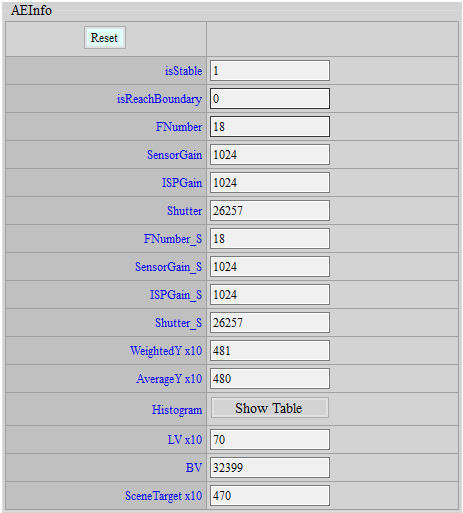
< FlickerInfo > – read only
IsEffective: Get information about the current state of anti-flicker detection (1: effective; 0: ineffective).
FlickerType: Get information about the current mode of anti-flicker detection (0 = 60Hz; 1 = 50Hz).
Score: Get the score of the effective mode of current anti-flicker frequency detection.
If the score is high, it is determined as the current anti-flicker frequency mode.
If the score is low, it is determined as another anti-flicker frequency mode.
< AEStrategyExInfo > – read only
The blending ratio of Adaptive Gamma and common Gamma (Gamma Setting on the Gamma Page). Data range: 0 ~ 1024. The ratio is calculated from the final SceneTarget and TargetOffset values as well as the maximum BT_MaxOffsetDown and DT_MaxOffsetUp values. If the ratio is lower than 512, BTGamma will be blended with common Gamma; If ratio is larger than 512, DTGamma will be blended with common Gamma. Common Gamma will be used when Ratio equals to 512.

UpperLimitTargetYx10: The current upper limit of floating for AE target.
LowerLimitTargetYx10: The current lower limit of floating for AE target.
BTCntPcentx10: The permillage of the current number of statistical values above BT_ThdY to the total number of statistical values.
DTCntPcentx10: The permillage of the current number of statistical values below DT_ThdY to the total number of statistical values.
BTYx10: The average brightness of current top BT_Percentx10 per-mille bright statistics.
DTYx10: The average brightness of current bottom DT_Percentx10 per-mille bright statistics.
< PowerLine Flicker Info > – read only
Direction: Determine the current shutter status as turning from dark to bright or from bright to dark. Parameter range: -1 ~ 1. Direction = 1 means that this function is enabled, Direction = -1 or 0 means that this function is not enabled.
IsEffective: Show whether this function has come into effect. Parameter range: 0 ~ 1. 0 means that PowerLine function is not effective, while 1 means that PowerLine function is effective.
PreShutter: Record the time of last exposure.
< HDR DynamicRatioInfo > – read only
ML - Exposure Ratio: The current value of Exposure Ratio.
ML - IsChange: Whether the current value of Exposure Ratio has finished changing. "0" indicates that the value has finished changing and become stable, while "1" indicates the value is still changing.
< AE VerInfo > - read only
ReleaseDate: Print out the release date of AE FW update.
ReportID: Print out the report ID of AE FW. Default: 0.
Major: Print out the major version number of AE FW.
Minor: Print out the minor version number of AE FW.
TestVer: Print out the test version number of AE FW. Default: 0.
AWB INTRODUCTION
Color shift often occurs in gray scale under different light sources because R, G, B pixels share different photographic characteristics. The main purpose of AWB function is to automatically generate R and B gains for compensation, so that the R, G and B values are as similar to one another as possible in the gray scale region.
AWB Adjustment
The AWB statistics are obtained by dividing the screen into 128x90 equal blocks, with each block containing R/G/B value. The default horizontal axis is subsampled to reduce the computation, and hence the statistical values actually being computed are 64×90. If you want to check the statistics of a certain scene, open the AWB Analyzer plugin, and click “Update” for the current statistics. The horizontal axis represents (R/G)×100, and the vertical axis (B/G)×100. Therefore, each block would generate a set of coordinates by the calculation of its own R, G, and B values, and the drop point on the chart is shown in green dots, as illustrated in Figure below.
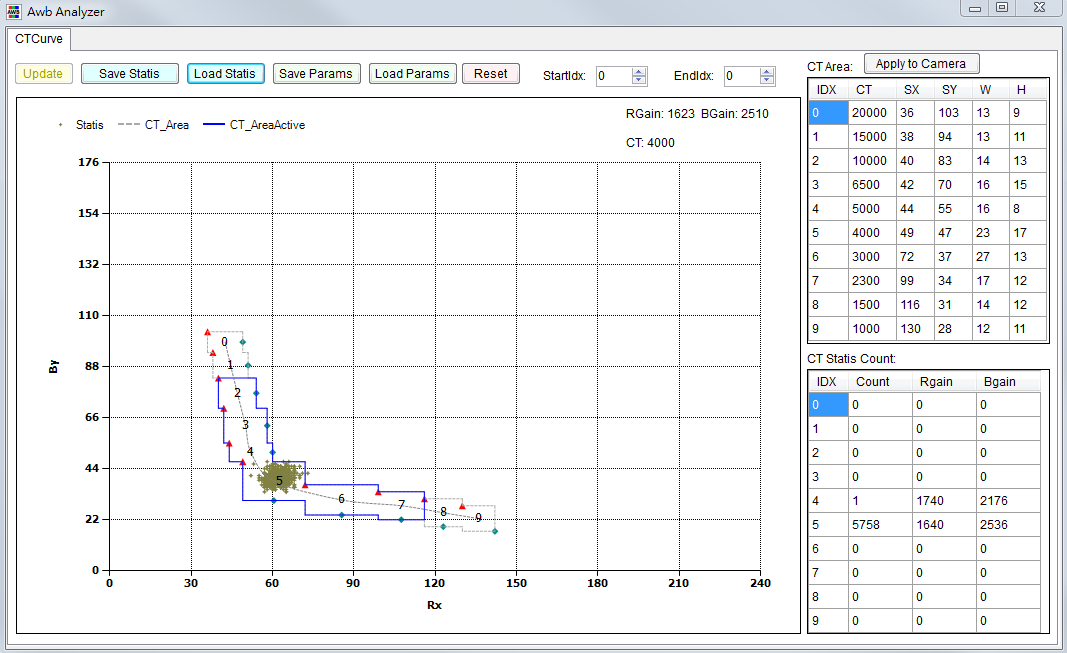
Adjustment Interface
Select “AWB” from the menu on the left-hand side, and AWB Interface will pop up.
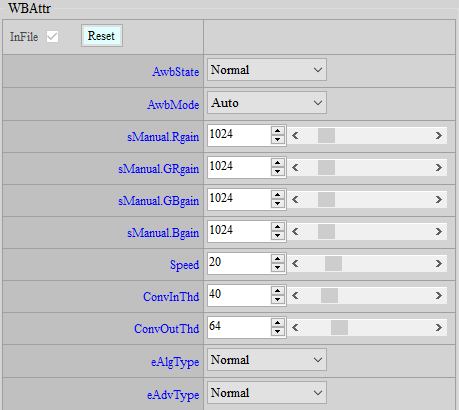
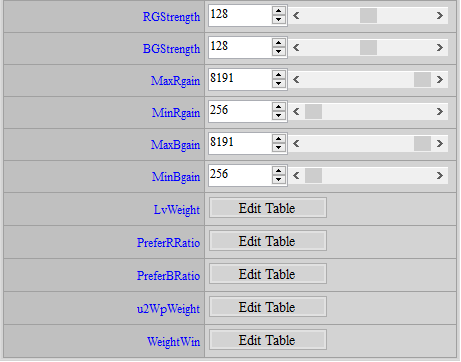

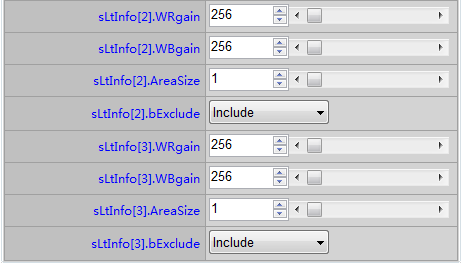
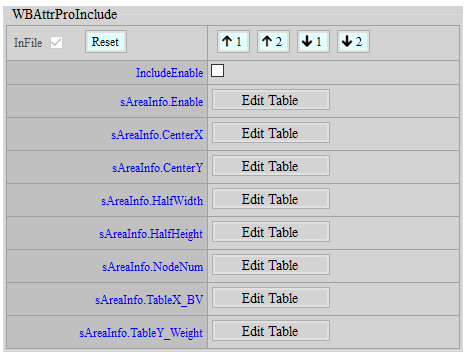
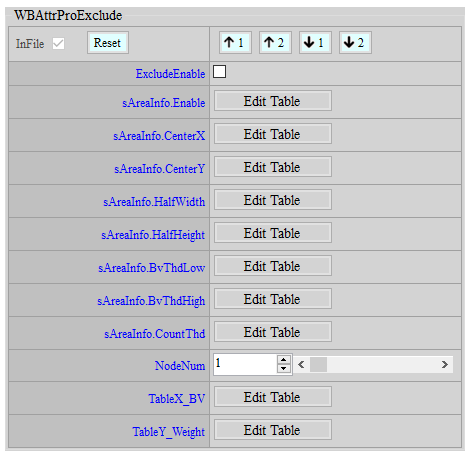
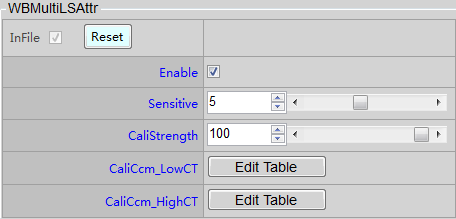
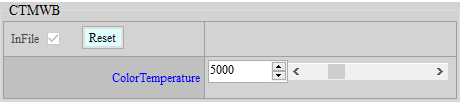
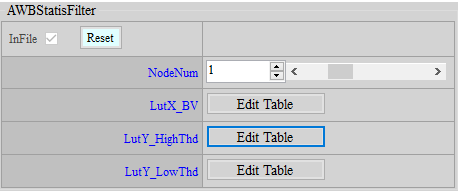
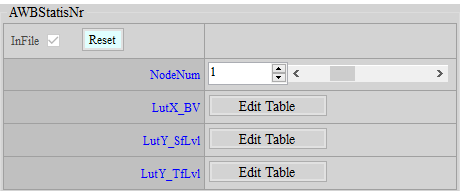


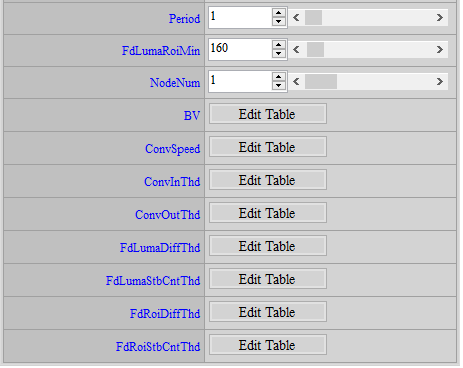
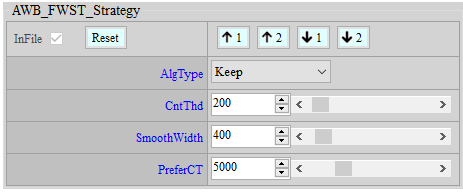
Parameter Description
< WBAttr >
Parameters to be modified
AwbState: AWB state control option. Selecting Normal will put AWB in normal operation, and selecting Pause will suspend AWB operation in the state where it stands at the time of pause. Operation resumes only when the state is switched back to Normal.
AwbMode: WB state control option. Auto means AWB, and Manual means MWB.
sManual.R/GR/GB/Bgain: When AwbMode is set to Manual, these four gain values will be applied directly. Parameter range: 0 ~ 8191, 1024 means 1x.
Speed: AWB convergence speed control. Parameter range: 1 ~ 100. The greater the value, the faster the convergence speed. Default value is 20.
ConvInThd: Convergence interval size control. Parameter range: 0 ~ 255. The greater the value, the easier the convergence. Larger values tend to have a larger gap with the target, while smaller values can cause AWB to be unstable. Recommended default value is 32.
ConvOutThd: The debounce threshold to allow WB recalculation. Parameter range: 0 ~ 255. The value should not be set too large, otherwise WB calculation might fail when light source changes, thereby causing color deviation. Recommended default value is 64.
eAlgType: AWB algorithm type selection. There are 4 types to choose from:
GrayWorld: Calculate WB gain by counting all AWB statistics.
Normal: Calculate WB gain by counting the AWB statistics that are located in the two or three CT blocks with the highest count.
Balance: Calculate WB gain by counting all the AWB satatistics located at effective CT blocks.
Focus: WB gain calculation will focus on single color temperature.
eAdvType: Advance mode selection, there are three modes.
Normal: Normal mode, Advance and PRo mode is disabled.
Advance: The switch of WBAttrEx. WBAttrEx will work if eAdvType is set to Advance.
Pro: The switch of WBAttrProInclude and WBAttrProExclude. WBAttrProInclude and WBAttrProExclude will work if eAdvType is set to Pro.
RG/BG Strength: The global gain of R and B, which will be used to multiply the final R/B gain obtained by calculation. Parameter range: 0 ~ 255 (128 = 1x).
MaxRgain/MaxBgain: R and B gain limit in high color temperature. Parameter range: 0 ~ 8191.
MinRgain/MinBgain: R and B gain limit in low color temperature. Parameter range: 0 ~ 8191.
LvWeight: Assign weight to color temperature under each ambient brightness. The higher the weight, the greater proportion of the color temperature will occupy when calculating R/B gain. Parameter range: 1 ~ 255.
PreferR/Bratio: R/B ratio under each ambient brightness. This ratio will be multiplied in the target R/B gain. Parameter range: 1 ~ 255.
u2WpWeight: The weight to be judged as a reference white pixel. The higher the weight, the easier a pixel will be chosen as a reference white pixel. Parameter range: 1 ~ 400. Default value is 100.
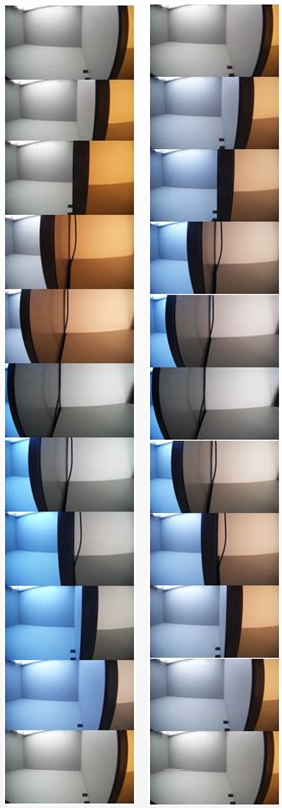
WeightWin: Divide the image into 9x9 windows and assign weight to each window separately. The higher the weight, the grayer the region will be made by white balance. Parameter range: 0 ~ 16. The weight is relative and not absolute in nature; that is, setting 1 or 16 to all windows at the same time basically has the same effect. If the lens has been fixed and you know exactly which area of the picture needs to be applied with white balance, this function can be used to make such adjustments.
< WBAttrEx >
WBAttrEx parameters work only when eAdvType is set to Advance. These parameters are mainly used to allow users to define special areas and decide whether to include or exclude statistics falling within those special areas. There are 4 groups of settings available.
ExtraLtEnable: Enable/Disable special color temperature area. Must be set to “Enable” to have the special color temperature area come into effect.
sLtInfo.WR/Bgain: R/B gain represented by the center coordinates of special color temperature area. Parameter range: 0 ~ 8191. For conversion, use AWB Analyzer to analyze the drop point of the statistical values, and then move the index to the center of the area of your selection to check the coordinates. Suppose the coordinate Rx = 40 and By = 60, you should divide the coordinate by 100 (0.4, 0.6), and then get their reciprocals (1/0.4, 1/0.6). Finally, multiply the coordinate by gain base 1024 (WRgain = 2560, WBgain = 1706) to complete the conversion of center coordinates in special color temperature area.
sLtInfo.AreaSize: The size of special area. Parameter range: 1 ~ 32. When the parameter is set to 32, it means that the area extends from the center to top, bottom, left and right by 16.
sLtInfo.bExclude: The mode of special area. Selecting “Include” will enable statistical values within the special area to be included as reference statistics, while “Exclude” means statistical values within special area will be ignored.
< WBAttrProInclude >
This API works only when eAdvType is set to Pro. Users can define at most 8 Inlcude-blocks in which statistics will be included. Each Include-block has its WeightByBv table to controll the weight of the effect.
IncludeEnable: The switch of this API. The API will work if IncludeEnable is enabled.
sAreaInfo.Enable: The switch of each Include-block. The Include-block will work if its corresponding sAreaInfo.Enable is enabled.
sAreaInfo.CenterX/CentenY: The center point coordinates of each Include-block. Parameter range: 1 ~ 254. You may use AWBAnalyzerCombo plugin to look up the coordinates you want to set.
sAreaInfo.HalfWidth/ HalfHeight: The half-width and half-height of of each Include-block. Parameter range: 1 ~ 50. Setting half-width(half-height) parameter to 10 indicates the width(height) of this Include-block will be extended by 10 from the center point in both directions.
sAreaInfo.NodeNum: The number of nodes used by WeightByBv table of corresponding Include-block. Parameter range: 1 ~ 16.
sAreaInfo.TableX_BV: The BV value of each node of corresponding Include-block. Parameter range: -81920 ~ 245760.
sAreaInfo.TableY_Weight: The Weight of each node of corresponding Include-block. Parameter range: 0 ~ 255.
Note: If more than one effective Include-blocks are effective (WeightByBv is not 0) under current BV, only the block with most statistics counts will work.
< WBAttrProExclude >
This API works only when only when eAdvType is set to Pro. Users can define at most 8 exclud-blocks in which statistics will be excluded. All Exclude-blocks share one WeightByBv table to controll the weight of the effect.
ExcludeEnable: The switch of this API. The API will work if ExcludeEnable is enabled.
sAreaInfo.Enable: The switch of each Exclude-block. The Exclude-block will work if its corresponding sAreaInfo.Enable is enabled.
sAreaInfo.CenterX/CentenY: The center point coordinates of each Exclude-block. Parameter range: 1 ~ 254. You may use AWBAnalyzerCombo plugin to look up the coordinates you want to set.
sAreaInfo.HalfWidth/HalfHeight: The half-width and half-height of of each Exclude-block. Parameter range: 1 ~ 50. Setting half-width(half-height) parameter to 10 indicates the width(height) of this Exclude-block will be extended by 10 from the center point in both directions.
sAreaInfo.BvThdLow/BvThdHigh: The effective BV range of each Exclude-block is defined by ThdLow and BvThdHigh. Parameter range: -81920 ~ 245760.
sAreaInfo.CountThd: When the Exclude-block is non-effective, if current BV is in the effecive BV range continuously N times, and N >= CountThd, this Exclude-block will become effective; When the Exclude-block is effective, if current BV is out of the effecive BV range continuously N times, and N >= CountThd, this Exclude-block will become non-effective. Parameter range: 0 ~ 100.
NodeNum: The number of nodes used by WeightByBv table which is shared by all Exclude-blocks. Parameter range: 1 ~ 16.
TableX_BV: The BV value of each node of WeightByBv table which is shared by all Exclude-blocks. Parameter range: -81920 ~ 245760.
TableY_Weight: The weight of each node of WeightByBv table which is shared by all Exclude-blocks. Parameter range: 0 ~ 255.
The following example shows how to set the weight of WBAttrProExclud effect by using BV effective range of each Exclude-block and WeightByBv table. Making the effecitve BV range of WeightByBv table and exclude-blocks the same is recommended, i.e. as the below figure shows, TableX_BV[0]=BvThdLow[0],TableX_BV[3]=BvThdHigh[0].
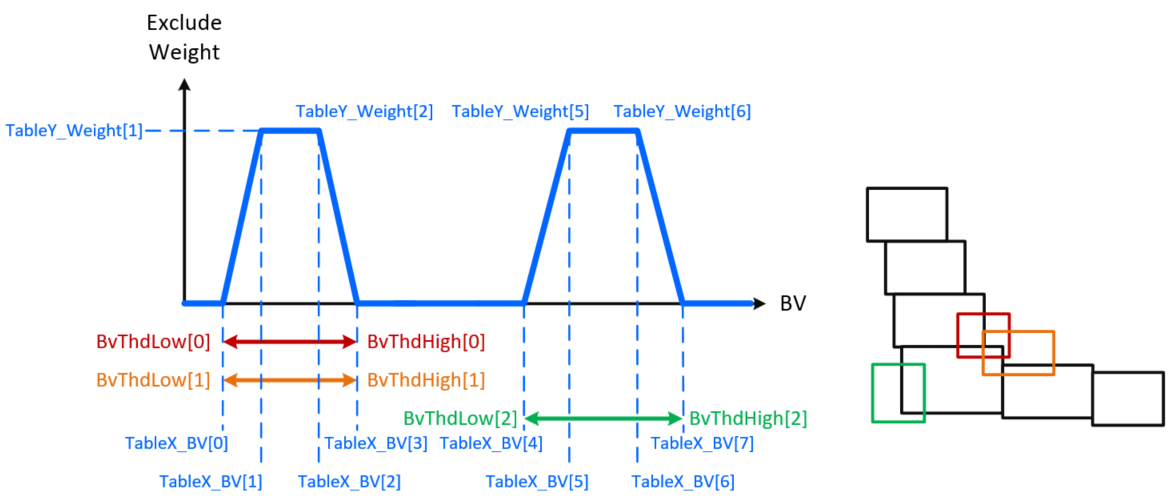
< WBMultiLSAttr >
This function works only when “Focus” is selected for eAlgType. When eAlgType is “Focus”, the R and B gains of AWB will be based on the reference white pixel, wherever possible. In a mixed lighting scenario where significant color shift often occurs at the end far away from the reference white pixel, you may enable this function to alleviate the color shift, but then the color phase of other colors might change. The following diagram illustrates a comparison of the WBMultiLSAttr on/off effect.
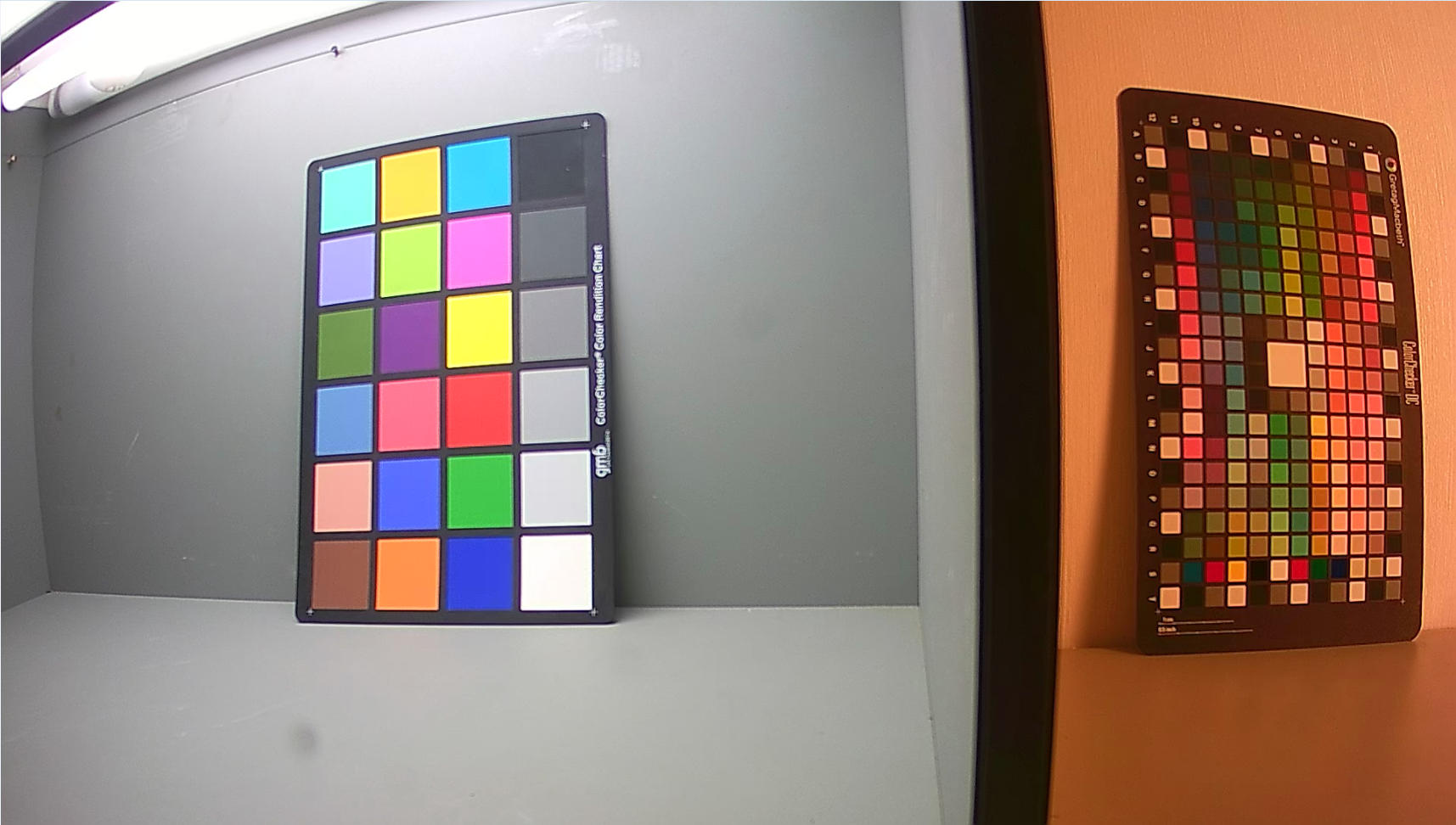
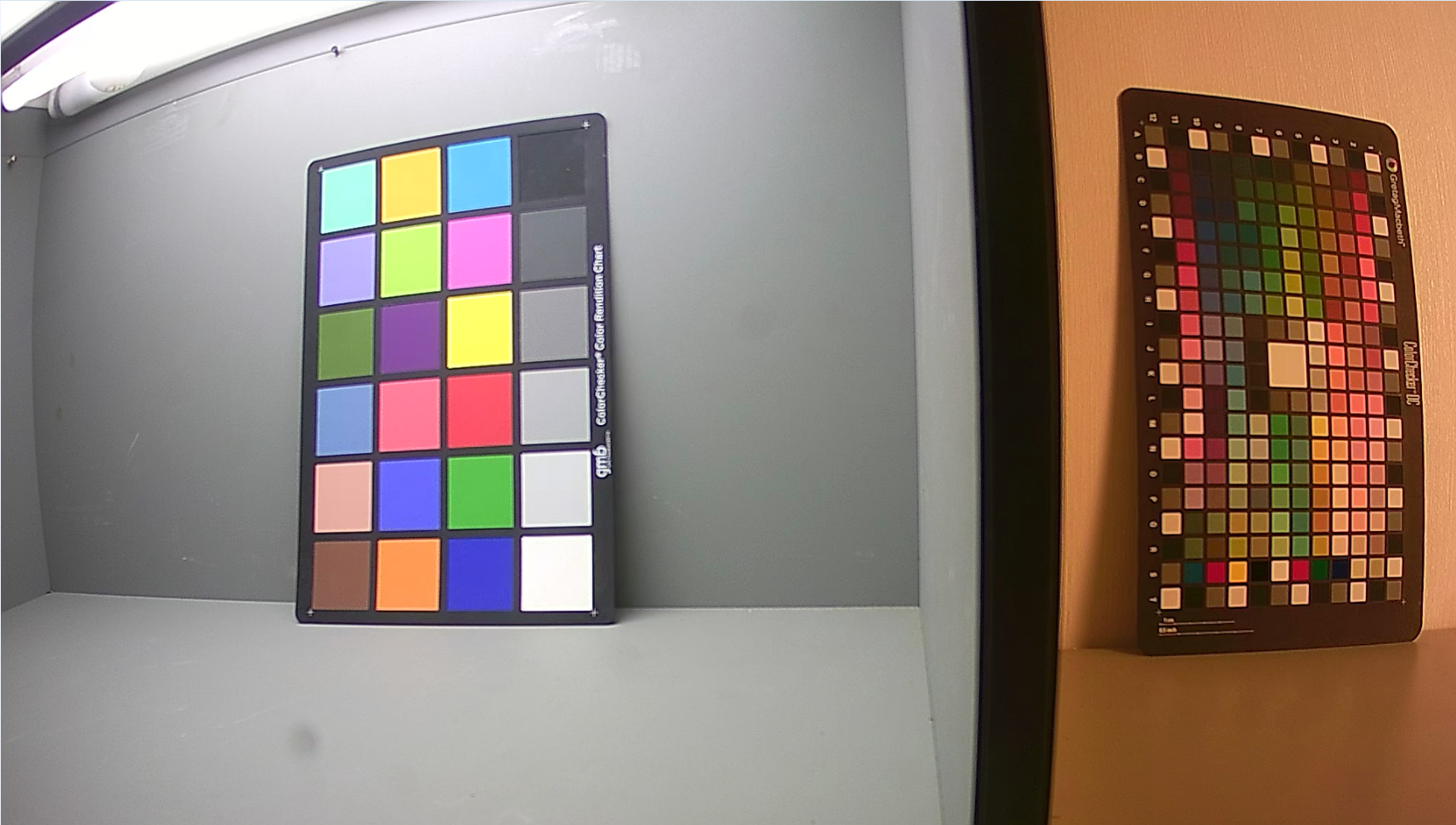
Enable: Enable/Disable calibration of color shift in mixed lighting scenarios. When enabled, color shift can be mitigated, but the area having been balanced by AWB will show minor color shift.
Sensitive: Sensitivity of mixed-lighting judgement. Parameter range: 1 ~ 10. The greater the value, the easier a scene will be judged as a mixed-lighting scenario.
CaliStrength: Control the strength of color shift calibration in mixed lighting scenario. Parameter range: 0 ~ 100, and 100 means 1x, i.e. the original strength of CaliCcm.
CaliCcm_LowCT: In mixed lighting scenario, where high color temperature is chosen to be balanced by AWB, this CCM will be selected to reduce serious color shift occurring at low color temperature area. For now, only the first and third rows are available for adjustment. Nothing will happen if you adjust the second row. If the two light sources, to which CCM is applied, happen to fall on StartInd and EndInd respectively, the strength actually applied will be determined based on the ratio of distance between the two light sources and the distance between StartInd and EndInd.
CaliCcm_HighCT: In mixed lighting scenario, where low color temperature is chosen to be balanced by AWB, this CCM will be selected to reduce serious color shift occurring at high color temperature area. For now, only the first and third rows are available for adjustment. Nothing will happen if you adjust the second row. If the two light sources, to which CCM is applied, happen to fall on StartInd and EndInd respectively, the strength actually applied will be determined based on the ratio of distance between the two light sources and the distance between StartInd and EndInd.
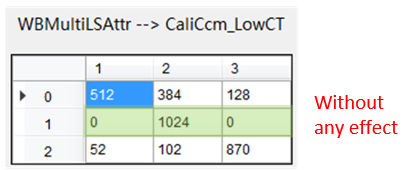
Taking CaliCcm_LowCT as an example, our suggestion for CaliCcm adjustment is as follows:
-
Turn on the light box to D65 (or use a light source closer to StartIdx, if any), and allow AWB to balance the color temperature.
-
Switch AWB to PAUSE.
-
Change the light box to F (or use another light source closer to EndIdx, if any) and adjust CaliCcm_LowCT. When making adjustment, be sure to go back to the first light source, which had been balanced, from time to time, to see if normal colors present any excessive color shift. Stop when both light sources reach an acceptable balance.
< CTMWB >
CTMWB comes into effect only when Manual is selected for AwbMode in WBAttr. User might apply corresponding WB gain by setting color temperatures.
ColorTemperature: Designate a specific color temperature. Parameter range: 1000 ~ 20000.
< AWBStabilizer >
When the environment is stable but AWB is continuously triggered, causing constant flickering of screen color, it is recommended that you enable this function to stabilize AWB changes.
Enable: Enable AWB Stabilizer.
GlbGainThd: The threshold value of global change in WB gain. When AWB is converged, it can only be re-triggered when two conditions are met: the original requirement, which is set out in the description of ConvOutThd parameter; and that the global change in WB gain exceeds this threshold value. Parameter Range: 0 ~ 512. We recommend that you set this threshold to the same value of, or slightly smaller than, ConvOutThd. Default value is 64.
CountThd: The threshold value of continuous count that determines AWB to be re-triggered. If the value is 2, AWB will be re-triggered only if the two conditions are met three times in a row, otherwise AWB will stay stable. Parameter range: 0 ~ 100. Setting the value too large is not recommended because higher value would delay the response time for AWB to be re-triggered. Default value is 2.
ForceTriGainThd: A threshold value of gain used for mandatorily triggering AWB. This parameter aims to prevent the response time of AWB from being delayed by CountThd in the situation where environmental color temperature or light source drastically changes. If the change of gain meets the re-triggering condition, and the amount of change is greater than this threshold, CountThd will be ignored and AWB will be directly triggered. Parameter range: 0 ~ 8191. Default value is 150.
< AWBSpecialCase >
This function allows users to define ”case” by three conditions and to determine the corresponding AWB responses when different conditions are fulfilled. The ultimate purpose is to enhance the precision of AWB in specific scenes. A total of four cases can be defined, and their effects can be accumulated.
CaseNum: The number of case to be defined. One set of case setting aims to deal with one particular scene. Parameter range: 0 ~ 4. Setting this parameter to 0 means that this function is disabled.
***The Group1 parameters are used to define the first condition, for which multiple zones can be defined. The algorithm will calculate the ratio of the number of AWB statistics that fall into all these zones to the total number of statistics. After that, the algorithm will query the table and calculate the fulfillment rate of Group1 condition. ***
Group1.ZoneNum: The number of zone to be defined. The algorithm will analyze the percentage of AWB statistics that fall into all the zones to the total number of statistics. Parameter range: 0 ~ 8. By setting it to 0, the condition will be fulfilled unconditionally.
Group1.CenterX: To determine the x coordinate on R/G-B/G plane for the center of each zone. Parameter range: 0 ~ 1023.
Group1.CenterY: To determine the y coordinate on R/G-B/G plane for the center of each zone. Parameter range: 0 ~ 1023.
Group1.Radius: To determine the radius of each zone. Parameter range: 0 ~ 20.
Group1.CntLut.NodeNum: To determine the number of nodes to be used by CntLut. Parameter range: 0 ~ 4.
Group1.CntLut.X: To determine the value of x for CntLut node. This value represents the percentage of AWB statistics that fall into the zones to the total number of statistics. The algorithm will analyze the percentage of statistics in Group1, query this table, and get Group1.CntRatio, which represents the fulfillment rate of Group1 condition. Parameter range: 0 ~ 100.
Group1.CntLut.Y: To determine the value of y for CntLut node. This value represents the ratio. The algorithm will analyze the percentage of statistics in Group1, query this table, and get Group1.CntRatio, which represents the fulfillment rate of Group1 condition. Parameter range: 0 ~ 100.
***The Group2 parameters share the same application with those of Group1, and you may refer to the description above when setting Group2 parameters. Based on the setting of Group2 parameters, the algorithm will calculate the Group2.CntRatio, which represents the fulfillment rate of Group2 condition. ***
BvLut provides another dimension of environmental brightness to define specific scenes, such as using it to set up a condition to differentiate between outdoor daylight and indoor scene. The algorithm will query the table based on the BV value to calculate BvRatio, which represents the ultimate fulfillment rate of brightness condition.
BvLut.NodeNum: The number of BvLut node. Parameter range: 0 ~ 4. By setting it to 0, the condition will be fulfilled unconditionally.
BvLut.X: To determine the x coordinate of BvLut node, which represents BV. Parameter range: -81920 ~ 245760.
BvLut.Y: To determine the y coordinate of BvLut node, which represents the fulfillment rate. Parameter range: 0 ~ 1024.
The fulfillment rate of three conditions for each case will be eventually integrated into one value, which is CaseRatio, the fulfillment rate of a case.
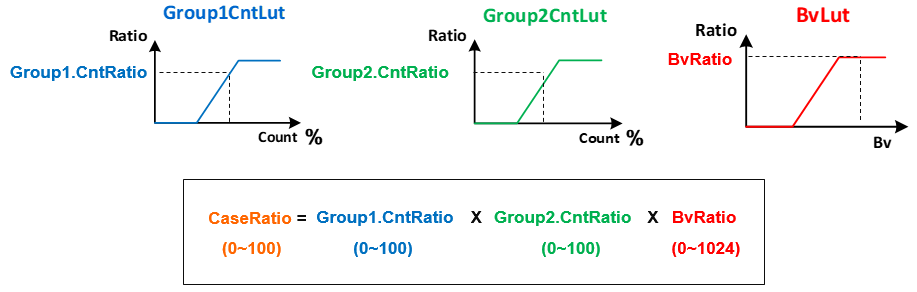
This API comes with three modes for selection, which allows the user to select the actions when the condition of a case is met. The strength of the actions is determined by CaseRatio.
Mode: Select the mode of behavior when the condition of case is met. Parameter range: 0 ~ 2.
0: WeightCtrl mode
1: PreferCT mode
2: PreferGain mode
Weight: Effective when Mode is set to 0. The color temperature range will apply this setting of weight based on CaseRatio. Parameter range: 0 ~ 1024.
Blending

PreferCT: Effective when Mode is set to 1. The original Target WB gain will be blended with the WB gain corresponding to PreferCT based on CaseRatio and become the new Target WB gain. Parameter range: 0 ~ 20000.
PreferR/Bgain: Effective when Mode is set to 2. The original Target WB gain will be blended with PreferR/Bgain based on CaseRatio and become the new Target WB gain. Parameter range: 0 ~ 8191.
< AWBStatisFilter >
This function aims to exclude statistics that are too dark or overly bright according to the range of effective statistic brightness in BV setting, in order to prevent AWB from being affected by noise or over-exposed area.
NodeNum: Set the number of nodes for lookup table. Parameter range: 0 ~ 4. When the value is set to 0, the default range of effective brightness (4 ~ 224) will be applied.
LutX_BV: Set the X coordinate of nodes in lookup table. This is the value of brightness (BV). Parameter range: -81920 ~ 245760.
LutY_HighThd: Set the Y coordinate of nodes in lookup table. This is the upper limit of brightness. When any value in the RGB of statistics exceeds this cap, the statistics will be ignored. Parameter range: 0 ~ 255.
LutY_LowThd: Set the Y coordinate of node in another lookup table. This is the lower limit of brightness. When any value in the RGB of statistics falls below this lower limit, the statistics will be ignored. Parameter range: 0 ~ 255. Note: LowThd should be smaller than HighThd.
< AWBStatisNr >
This function filters out certain statistics based on the range of effective brightness in BV setting for the purpose of preventing AWB from being affected by noise.
NodeNum: Set the number of nodes for lookup table. Parameter range: 0 ~ 4. By setting it to 0, the default filter strength — SfLvl = 0, TfLvl = 0 — will be applied.
LutX_BV: Set X-axis coordinates for the nodes of lookup table, which are effectively BV. Parameter range: -81920 ~ 245760.
LutY_SfLvl: Set the strength of filter in spatial domain for the nodes of lookup table. Parameter range: 0 ~ 4.
LutY_TfLvl: Set the strength of filter in temporal domain for the nodes of lookup table. Parameter range: 0 ~ 63.
< FDAWB >
This function allows the white balance algorithm to use the information of human face detection to enhance the accuracy and stability of white balance and skin tone. Before using this function, make sure that the function of human face detection is supported. Otherwise, this API will be invalid.
Enable: Enable FDAWB algorithm. When FDAWB is enabled, we recommended that you use this algorithm alongside AWB Blance AlgType in order to enhance stability.
Mode: Select FDAWB algorithm mode. Currently, two algorithms are provided. 1. Refer To Skin: This mode will focus on the most likely range of white points to perform white balance based on the analysis results of human face information. 2. Assign Skin Color: This mode will forcibly move the falling points of statistical value of human face (before white balance) to the position of falling point of skin color set by user (after white balance).
SkinAreaNum: The number of skin tone areas of different color temperatures set by user. Value range 0 ~ 8. Please note that no matter which mode is selected, this setting of SkinArea must be filled in, otherwise FDAWB will not be able to analyze facial information.
SkinAreaCntInThd: The stable threshold value of human face information. This threshold represents the required consecutive number of times for human face information to be valid when a human face appears, so that FDAWB determines the information to be valid and then start taking action. Value range: 0 ~ 255. The larger the value, the more stable FDAWB will be, but larger threshold will delay the start of FDAWB action. The appropriate size should be set according to user needs.
SkinAreaCntOutThd: The stable threshold value of human face information. This threshold represents the required consecutive number of times for human face information to be invalid when a human face disappears, so that FDAWB determines the information to be invalid and then stop taking action. Value range: 0 ~ 65535. The larger the value, the more stable FDAWB will be, but larger threshold will cause FDAWB to stop action later. The appropriate size should be set according to user needs.
SkinAreaCT: This value corresponds to the color temperature of each customized skin tone area. This color temperature only serves for user to mark which color temperature environment a certain skin color index corresponds to, and has no actual effect. There are no setting rules, either. It doesn’t have to be from small to large or from large to small. Parameter range: 0 ~ 20000.
SkinAreaCenterX/Y: This value corresponds to the center coordinates of each customized skin color areas (R/G-B/G plane). Value range: 0 ~ 255.
SkinAreaRadius: This value corresponds to the radius of each customized skin color areas. Value range: 0 ~ 255.
SkipAreaRadius: This value corresponds to the radius of the area that excludes skin color based on the analysis of falling points of human face. Value range: 0 ~ 255.
SkinUnStbCntThd: The threshold value that prevents Skin index from changing back and forth between different values. When switching from the current Skin index to another index, the switch will only be made if the Skin index detected several times in a row is not equal to the current index. Otherwise, the current index will be maintained. Value range: 0 ~ 255. The larger the value, the greater the stability. However, when the ambient color temperature changes, it will take a longer delay to respond.
RefGrayNum: The number of corresponding grayscale areas to be used by each skin color index. Value range: 0 ~ 10. Note that this grayscale area is only effective when "Refer To Skin" mode is selected.
RefGrayCenterX/Y: Set the center coordinates of each grayscale area. Fill in the coordinates of the corresponding group number according to GrayNum. Value range: 0 ~ 255.
RefGrayRadius: Set the radius of each grayscale area. Grayscale areas can overlap, so you may create a non-circular area by setting multiple areas. Value range: 0 ~ 255.
AsnSkinX/Y: Set the target coordinates of human face information. Value range: 0 ~ 255. When "Assign Skin Color" mode is selected, the falling points of human face will be forced to move to this target coordinate. We recommended that you check whether the skin color of color checker patch 2 has applied the correct WB gain at different color temperatures in order to help calibrate this coordinate, and then make fine adjustments according to the actual situation. When selecting "Refer To Skin" mode, if FwstWbFromSkin is checked, "Assign Skin Color" will be used instead for white balance, because insufficient statistics will cause white balance unable to be calculated.
AsnSkinStbLvl: Stability control of Assign Skin Color mode. Value range: 0 ~ 15. The smaller the value, the closer the average coordinates of human face will get to AsnSkinX/Y, but FDAWB may become more unstable, and it will be more difficult for white point to be whitened; the larger the value, the farther the average coordinates of human face will get to AsnSkinX/Y, but FDAWB will become more stable, and it will be more certain that white spots can be whitened. We recommend you set the value around 8 ~ 10.
FwstWbFromSkin: Whether to use "Assign Skin Color" mode to calculate white balance when statistics is not enough. This mechanism should be applied alongside the setting of FWST Strategy API. Please refer to the description of this API below. We recommend that you enable this function regardless of the algorithm being used.
Period: The period for analyzing face information. Value range: 1 ~ 20. If AWB is done every 3 pictures, setting Period to 1 means that face information will be analyzed every 3 pictures, and setting Period to 2 means that face information will be analyzed every 6 pictures.
FdRoiMin: The minimum effective area of face. The resolution is 128x90 based on statistical values. A face area smaller than this value will be determined as no face. Value range: 0 ~ 11520.
NodeNum: The number of nodes to be set for different parameters according to BV. Value range: 1 ~ 4.
BV: The BV value corresponding to each node. Value range: -1048576 ~ 1048576.
ConvSpeed: The setting of convergence speed when FDAWB is operating. Different BVs can have different settings. Value range: 0 ~ 100, default is 5.
ConvInThd: The setting of convergence interval when FDAWB is operating. Different BVs can have different settings. Value range: 0 ~ 255.
ConvOutThd: Threshold control for recalculating white balance from the convergence state when FDAWB is operating. Different BVs can have different settings. Value range: 0 ~ 255.
FdLumaDiffThd: The threshold value of the difference between the current and previous face brightness. This parameter is used to determine whether face brightness is stable. Different BVs can have different settings. Value range: 0 ~ 255. Difference smaller than this value indicates that the face brightness is stable, and the number of consecutive Luma stable times will be accumulated.
FdLumaStbCntThd: The threshold value of the number of consecutive stable times of face Luma. When the number of consecutive stable times exceeds this value, the FDAWB information will be updated. Different BVs can have different settings. Value range: 0 ~ 255.
FdRoiDiffThd: The threshold value of the change in ROI coordinates between the current and previous face brightness. This parameter is used to determine whether the face is moving. Different BVs can have different settings. Value range: 0 ~ 255. If the difference is less than this value, it means that face position is stable, and the number of consecutive ROI stable times will be accumulated.
FdRoiStbCntThd: The threshold value for the number of consecutive stable times of the face ROI. When the number of consecutive stabilization times exceeds this value, the FDAWB information will be updated. Different BVs can have different settings. Value range: 0 ~ 255.
< FWST Strategy >
AlgType: Select algorithm type to be used when statistic value is not sufficient. There are Keep, MixPreferGain, and MixGrayWorld to be chosen from.
CntThd: The threshold value for the minimum number of statistic value to be effective. If the number of statistic value is smaller than this value, AWB will be unable to calculate. At this point, the WB gain to be used will differ based AlgType selection. Parameter value: 0 ~ 5000.
- Keep: Maintain the WB gain as acquired when there was enough statistic value last time.
- MixPreferGain: Use the WB gain as calculated based on color temperature set by PreferCT.
- MixGrayWorld: Use the WB gain as calculated based on GrayWorld algorithm.
SmoothWidth: If MixPreferGain or MixGrayWorld algorithm is selected, or if FwstWbFromSkin in FDAWB is enabled and effective, and if the statistic values fall between CntThd and CntThd + SmoothWidth, different WB gain will be selected based on AlgoType choice to be blended with the target WB gain calculated by AWB. The blending is shown in the figure below. Note: if FwstWbFromSkin is enabled and effective, it will be of top priority. Value range: 0 ~ 5000.
u32PreferCT: It will be used when MixPreferGain is selected for eAlgType. User can determine the WB gain of which color temperature should be used when the statistical value is insufficient. Value range: 0 ~ 20000.
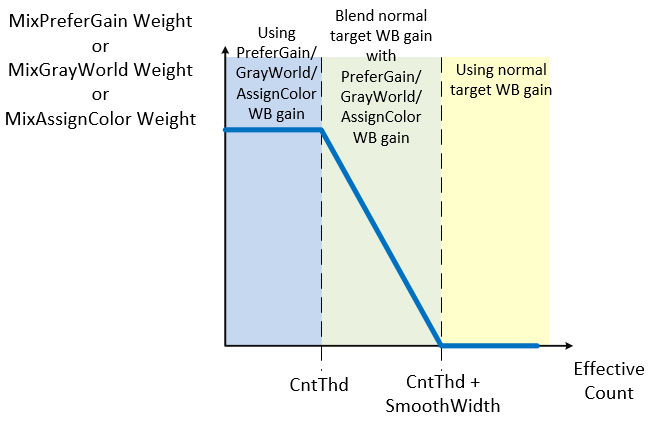
< AWB VerInfo > – read only
ReleaseDate: Print out the release date of AWB FW update.
ReportID: Print out the report ID of AWB FW. Default: 0.
Major: Print out the major version number of AWB FW.
Minor: Print out the minor version number of AWB FW.
TestVer: Print out the test version number of AWB FW. Default: 0.
< DebugLev >
AWB Debug Level: Set AWBDebug log output
1: Show simple algo paramaters
2: Always show detail algo parameters
3: Show detail algo parameters
7: User Parameters
AWBInfo
This interface shows the current AWB information. Click “ReadPage” for live update.
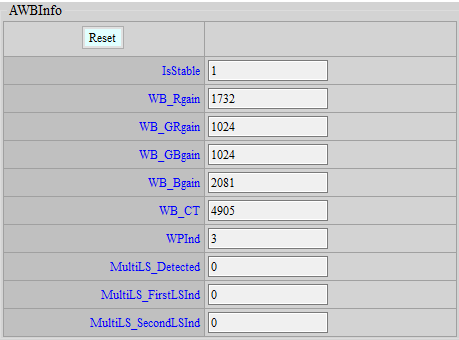
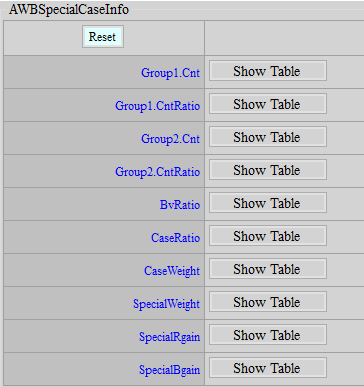

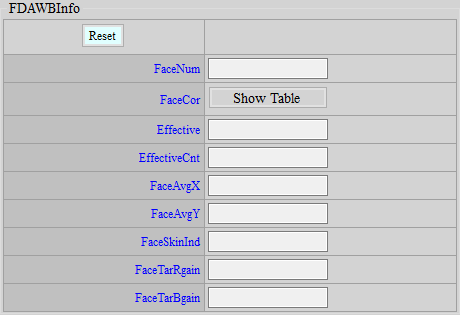
IsStable: Information about whether AWB is converged.
WB_Rgain: The current R channel gain used by white balance.
WB_Grgain: The current Gr channel gain used by white balance.
WB_Gbgain: The current Gb channel gain used by white balance.
WB_Bgain: The current B channel gain used by white balance.
WB_CT:The current color temperature value.
The following parameters take effects only when “Focus” is selected for eAlgType:
WPInd: The current index of reference white pixel.
MultiLS_Detected: Show whether mixed lighting scenario is detected.
MultiLS_FirstLSInd: Show the result of the largest light source index in the mixed lighting scenario × 2. The actual index of the light source must be divided by 2. For instance, if the index shows 8, the actual index of the light source would be 4; if the index shows 9, the actual index would be 4.5. The decimal number 0.5 suggests that the light source falls in the range between 4 and 5 in color temperature area.
MultiLS_SecondLSInd: Show the result of the second largest light source index in the mixed lighting scenario × 2. The actual index of the light source must be divided by 2. For instance, if the index shows 8, the actual index of the light source would be 4; if the index shows 9, the actual index would be 4.5. The decimal number 0.5 suggests that the light source falls in the range between 4 and 5 in color temperature area.
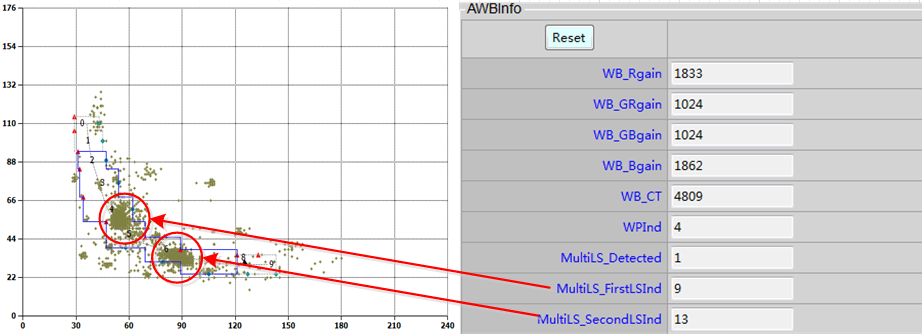
< AWBSpecialCaseInfo >
This API informs user of each item of statistical information in SpecialCase API.
Group1.Cnt: Show the total number of drop points of Group1 statistics in each case.
Group1.CntRatio: Show the ratio of the total number of drop points of Group1 statistics in each case after querying Group1.CntLut. Parameter range: 0 ~ 100.
Group2.Cnt: Show the total number of drop points of Group2 statistics in each case.
Group2.CntRatio: Show the ratio of the total number of drop points of Group2 statistics in each case after querying Group2.CntLut. Parameter range: 0 ~ 100.
BvRatio: Show the ratio of BV in each case after querying BvLut. Parameter range: 0 ~ 1024.
CaseRatio: Show the ratio of each case after Group1.CntRatio, Group2.CntRatio and BvRatio are integrated into one. Parameter range: 0 ~ 100.
CaseWeight: Show CaseWeight as obtained through CaseRatio in each case. In cases when Mode 0 is not selected, CaseWeight will be 100, which means ineffective.
SpecialWeight: Incorporate four sets of CaseWeight into one SpecialWeight.
SpecialR/Bgain: Show the R/B gain to be blended with Target WB gain in each case.
< AWBAttrProInfo >
This API informs user of the related information about WBAttrProInclude and WBAttrProExclude.
Include.Cnt: The number of statistics located in each Include-block.
Exclude.Cnt: The number of statistics located in each CT-block, not including the excluded statistics.
Exclude.AllCnt: The number of statistics located in each CT-block, including the excluded statistics.
Include.Rgain/Bgain: The RBgain calculated from the Include-block which has the most counts.
Exclude.Rgain/Bgain: The RBgain calculated from the statistics which are not excluded.
Exclude.AllRgain/AllBgain: The RBgain calculated from all statistics.
Include.First_LSInd: The index of Include-block with most counts.
Include.BvRatio: The weight gotten from WBAttrProInclude under current BV.
Exclude.BvRatio: The weight gotten from WBAttrProExclude under current BV.
< FDAWBInfo >
This API allows user to read the current FDAWB information.
FaceNum: The number of faces obtained by human face detection. This function currently supports only one human face only. If this value is 0, it means that face detection is not supported or the function is supported but no face is detected.
FaceCor: The coordinates of human face on the 128x90 statistical values of AWB. The four values are — in this order — the X coordinate of the starting point of the face frame, the Y coordinate of the starting point, the X coordinate of the end point, and the Y coordinate of the end point.
Effective: Indicates whether FDAWB is currently effective.
EffectiveCnt: Shows how many times in a row that human face information is effective. The maximum number is SkinAreaCntThd+1.
FaceAvgX/Y: Coordinates of the falling points of human face (R/G-B/G plane) as analyzed based on human face information.
FaceSkinInd: User-defined skin color index as analyzed based on human face information.
FaceTarR/Bgain: The target WB gain obtained based on human face information and AssignSkinX/Y.
AF INTRODUCTION
AF aims to make the picture focused is in an ideal state by processing the statistical data received by the sensor. Please refer to AE_AWB_AF_interface document for a detailed user guide.
AF Adjustment
Adjustment Interface
Select “AF” from the menu on the left-hand side, and AF Interface will pop up on the right.
Parameter Description
< AF_HWWIN >
Mode: ROI (Region of Interest) mode control option. By selecting Normal mode, the screen will be divided into 16 ROI blocks. The window size and its position can be set according to user preference. If Matrix mode is selected, the screen will be divided into 16 × N ROI blocks. The window size and position are relatively more limited.
VerticalBlockNumber: Effective only in Matrix mode. This parameter enables the window to be divided into 16 × N ROI blocks (N = VerticalBlockNumber).
Win: The coordinates of 16 ROI blocks, which follow the sequence of x_start, y_start, x_end, y_end. Note: the width and height of a window can be set to the same value in Normal mode, but the height of a window in Matrix mode cannot be set to the same value.
< AF_HWFILTERATTR >
IIR1: Coefficient of IIR high filter.
IIR1_Clip: Input/output limit to the coefficient of IIR high filter.
IIR2: Coefficient of IIR low filter coefficient.
IIR2_Clip: Input/output limit to the coefficient of IIR low filter.
IIR1_E1_En: Switch of 2-tap serial IIR high filter.
IIR1_E1: Coefficient of 2-tap serial IIR high filter.
IIR1_E2_En: Switch of 4-tap serial IIR high filter.
IIR1_E2: Coefficient of 4-tap serial IIR high filter.
IIR2_E1_En: Switch of 2-tap serial IIR low filter.
IIR2_E1: Coefficient of 2-tap serial IIR low filter.
IIR2_E2_En: Switch of 4-tap serial IIR low filter.
IIR2_E2: Coefficient of 4-tap serial IIR low filter.
< AF_HWFILTERSQ >
SobelYSatEn: Enable the threshold of Y for Sobel filter.
SobelYSatSrc: Select the source of Y for Sobel filter.
SobelYThd: Y threshold of Sobelfilter. The threshold takes effect only when SobelYSatEn is true. Pixels with brightness lower than this threshold will be included in the Sobel filter calculation.
IIRSquareAccEn: Enable the enhanced Sobel filter control.
SobelSquareAccEn: Enable the enhanced Sobel filter control.
IIR1Thd: The threshold value of IIR high filter output. The output will be deducted by this value before output.
IIR2Thd: The threshold value of IIR low filter output. The output will be deducted by this value before output.
SobelHThd: The threshold value of Sobel H filter output. The output will be deducted by this value before output.
SobelVThd: The threshold value of Sobel V filter output. The output will be deducted by this value before output.
AFTbl1X: Nodes on the horizontal axis in the non-linear mapping of IIR/Sobel filter in high frequency, accumulated by the power of two.
AFTbl1Y: Nodes on the vertical axis in the non-linear mapping of IIR/Sobel filter in high frequency.
AFTbl2X: Nodes on the horizontal axis in the non-linear mapping of IIR/Sobel filter in low frequency, accumulated by the power of two.
AFTbl2Y: Nodes on the vertical axis in the non-linear mapping of IIR/Sobel filter in low frequency.
< AF_ATTR >
State: AF state control option. Selecting Normal will put AF in normal operation, and selecting Pause will suspend AF operation in the state where it stands at the time of pause. Operation resumes only when the state is switched back to Normal.
Mode: Mode control. If set to Manual, you can set the motor position directly. If set to Auto, auto focus will be conducted based on various algorithms.
ManualMotorPos: Effective only when Mode is set to Manual, which allows you to set motor position.
Algo: Effective only when Mode is set to Auto. Two algorithms are currently available.
-
OneShot: Scan all spots in one shot and stay at the spot of the maximum statistical value.
-
Continuous: Detect environmental changes dynamically and refocus if any change is detected.
< AF_MOTOR >
MinMotorPos: The minimum position that motor can move.
MaxMotorPos: The maximum position that motor can move.
MinMotorStep: The minimum step that motor can move within one frame.
MaxMotorStep: The maximum step that motor can move within one frame.
< AF_ACC_WEIGHT >
WinNumX: The total number of window in the direction of X.
WinNumY: The total number of window in the direction of Y.
EqualWinWgtEn: Switch of assigning equal weight to statistics value.
WinWgt: Weight table of statistical value, which only takes effect when EqualWinWgtEn is false.
IIRHBlendEn: Enable IIRH blending. The blending is conducted with the following three values in this order.
IIRHWgt_FirstBlendIIRL: IIRH will be first blended with IIRL; this value represents the proportion of IIRH.
IIRHWgt_SecondBlendSBLV: IIRH will then be blended with SobelV, this value represents the proportion of IIRH.
IIRHWgt_ThirdBlendSBLH: IIRH will finally be blended with SobelH, this value represents the proportion of IIRH.
< AF_ONESHOT > effective only when Algo (Auto Focus algorithm) is set to OneShot
AccSel: Type of statistical value.
MotorStep: Motor step within each frame.
< AF_CONTINUOUS_SCENE_CHANGE > effective only when Algo is set to Continuous
PreAcc Series: To determine whether refocusing is necessary when AF is at work. The determination is made by examining the difference in statistical value between the current frame and the previous frame.
PreAccSel: Select the type of AF statistics.
PreAeAccDiffThOft: The threshold value of the proportion of difference in AE statistics (Luma).
PreAeAccDiffThSlp: The extra slope of the threshold value of the proportion of difference in AE statistics (Luma). The threshold can be increased according to motor step.
PreAeAccCntThOft: The threshold value of the proportion of the total number of windows in accordance with AE statistics (Luma).
PreAeAccCntThSlp: The extra slope of the threshold value of the proportion of the total number of windows in accordance with AE statistics (Luma). The threshold can be increased by motor step.
PreAfAccDiffThOft: The threshold value of the proportion of difference in AF statistics (PreAccSel).
PreAfAccDiffThSlp: The extra slope of the threshold value of the proportion of difference in AF statistics (PreAccSel). The threshold can be increased according to motor step.
PreAfAccCntThOft: The threshold value of the proportion of the total number of windows in accordance with AF statistics (PreAccSel).
PreAfAccCntThSlp: The extra slope of the threshold value of the proportion of the total number of windows in accordance with AF statistics (PreAccSel). The threshold can be increased by motor step.
FocusAcc Series: To determine whether refocusing is necessary when AF has stopped. The determination is made by examining the difference in statistical value between the current frame and the last frame when AF was at work.
FocusAccSel: Select the type of AF statistics.
FocusAeAccDiffTh: The threshold value of the proportion of difference in AE statistics (Luma).
FocusAeAccCntTh: The threshold value of the proportion of the total number of windows in accordance with AE statistics (Luma).
FocusAfAccDiffTh: The threshold value of the proportion of difference in AF statistics (FocusAccSel).
FocusAfAccCntTh: The threshold value of the proportion of the total number of windows in accordance with AF statistics (FocusAccSel).
StableCntTh: The Threshold value of continuous stable frame count. If the value is greater than this threshold, the environment will be judged as stable and the motor will start moving to perform auto focus.
< AF_CONTINUOUS_SCENE_CHANGE > Calculation Principle
AF can be triggered by determining the following two conditions:
-
Determine whether refocusing is necessary when AF is at work.
Pre AE Acc: Examine the difference in AE statistical value between the current frame and the previous frame. Range: 0 ~ 99%.
Pre AF Acc: Examine the difference in AF statistical value between the current frame and the previous frame. Range: 0 ~ 99%.
Refocus will be triggered if difference is found in either AE or AF statistical values. Additionally, the PreAcc series come with extra Slp parameters for the purpose of making dynamic adjustment based on the size of motor step. The calculation formula for Th: Oft + motor step * Slp; the range of the total sum of Th: 0 ~ 99%.
-
Determine whether refocusing is necessary when AF has stopped.
Focus AE Acc: Examine the difference in AE statistical value between the current frame and the last frame when AF was at work. Range: 0 ~ 99%.
Focus AF Acc: Examine the difference in AF statistical value between the current frame and the last frame when AF was at work. Range: 0 ~ 99%.
Refocus will be triggered if difference is found in either AE or AF statistical values.
AF will be triggered when both of the following two thresholds are reached.
-
Diff Th: The percentage of difference in statistical value. AF is triggered when the value is larger than this threshold. Range: 0 ~ 99%.
-
Cnt Th: The percentage of the number of different windows. AF is triggered when the value is larger than this threshold. Range: 0 ~ 99%. The default number of windows on the screen is 16.
If, for instance, the difference in the statistical value of 5 windows exceeds 30%, you may set the following conditions:
- Diff Th = 25 and Cnt Th = 30 (equivalent to 4.8 windows); and AF will be triggered.
- Diff Th = 25 and Cnt Th = 35 (equivalent to 5.6 windows); and AF will not be triggered.
Generally speaking, the lower value Th is set to, the more likely AF will be triggered. For the purpose of adjustment, you may enable AF debug level and set it to 16 or 128 and observe the change of statistics.
Adjustment method:
log1(AF DebgLevel 4096): Trigger a %d b %d c %d d %d e %d f %d g %d h %d i %d
log2(AF DebgLevel 4096): a %d b %d c %d,%d,%d,%d d %d e %04llu f %04llu g %d j %04llu k %04llu l %04llu n %d
a. If a in log1 shows 1, it means that AF was triggered by the FocusAeAccDiffTh/FocusAeAccCntTh parameters.
b. If b in log1 shows 1, it means that AF was triggered by the FocusAfAccDiffTh/FocusAfAccCntTh parameters.
c. If g in log2 consistently shows 2 while e in log1 shows 1, it means that parameters of the PreAe series were set too low so that AF cannot be considered stable.
d. If g in log2 consistently shows 2 while f in log1 shows 1, it means that parameters of the PreAf series were set too low so that AF cannot be considered stable.
e. If g in log2 shows 4 and then jumps to 2 while e in log1 shows 1, it means that parameters of the PreAe series were set too low, and the scene was judged containing moving object.
f. If g in log2 shows 4 and then jumps to 2 while f in log1 shows 1, it means that parameters of the PreAf series were set too low, and the scene was judged containing moving object.
< AF_CONTINUOUS_SEARCH_START > effective only when Algo is set to Continuous
SearchMotorStep: Motor step within each frame.
SearchMotorDirByPosTh: Determine the moving direction according to the motor’s current position. If greater than this value, the motor will move toward smaller position, and vice versa.
SearchAccSel: Type of statistical value.
< AF_CONTINUOUS_SEARCH > effective only when Algo is set to Continuous
MinMaxAccRatioPeakThOft: The threshold value of the proportion of difference between the minimum and the maximum statistical values, used to determine the peak.
MinMaxAccRatioPeakThSlp: The slope of the threshold value of the proportion of difference between the minimum and the maximum statistical values. The threshold value can be decreased based on the total path travelled.
AccDecCntPeakTh: The threshold value of the number of consecutive declines in statistical values, used to determine the peak.
NowFakeMaxAccRatioPeakTh: The threshold value of the proportion of decline in statistical values, used to determine the peak.
AccDecCntWrongDirTh: The threshold value of the number of consecutive declines in statistical values, used to determine if the direction is wrong.
NowFakeMaxAccRatioWrongDirTh: Threshold value of the number of consecutive declines in statistical values, used to determine if the direction is wrong.
-
Ps1. The peak is determined by the following condition:
if((MinMaxAccRatioPeakThOft, MinMaxAccRatioPeakThSlp) && (AccDecCntPeakTh || NowFakeMaxAccRatioPeakTh))
-
Wrong direction is determined by the following condition:
if(AccDecCntWrongDirTh || NowFakeMaxAccRatioWrongDirTh)
< AF_ADJUST > effective only when Algo is set to Continuous
AFTable: Write down the focus distance of VCM (voice coil motor)
1 → 100cm
2 → 80cm
3 → 60cm
4 → 40cm
5 → 20cm
Adjustment Steps:
-
Find a chart that could fill up the whole focus frame when being placed 100cm away from the camera.
-
Algo: Continuous → OneShot;
AFOneShot: Set MotorStep to 10 (The smaller the value, the more details can be found).
-
Set DebugLevel to 1, see where the Peak is found, and fill it in the chart (the farther the position, the smaller number of VCM position).
The number to be filled in should be converted beforehand with the following formula:
(MaxMotorPos – the measured value) / (MaxMotorPos - MinMotorPos)
SearchMotorStep_ADJ: Adjust the speed of AFContinuous_SearchStart:MotorStep according to AFTable (Suggestion: adjustment should be made based on distance from far to close, speed from slow to fast).

FocusAfAccCntTh_ADJ: Adjust AFContinuous_SceneChange:FocusAfAccCntTh according to AFTable (Suggestion: adjustment should be made based on distance from far to close, and the conditions should be gradually loosened).

CheckMotionCnt: The number of frames between each checking of the conditions that trigger AF.
Motion-related parameters are used to check whether the image is still. Only when the image is still will the conditions that trigger AF be checked.
MotionAeAccDiffTh: The threshold value of the proportion of difference in AE statistics (Luma).
MotionAeAccCntTh: The threshold value of the proportion of the total number of windows in accordance with AE statistics (Luma).
MotionAfAccDiffTh: The threshold value of the proportion of difference in AF statistics (PreAccSel).
MotionAfAccCntTh: The threshold value of the proportion of the total number of windows in accordance with AF statistics (PreAccSel).
TriggerWinWgt: The weighting table of the conditions that trigger AF.
UnStableCntTh: The number of unstable frames that will pass unchecked.
AEStableCntTh: The number of frame with stable AE to be checked consecutively before AF is triggered.
AfAccDelay: Delay the statistics to become effective.
Adjustment method:
log1(AF DebgLevel 4096):a %d b %d c %d,%d,%d,%d d %d e %04llu f %04llu g %d j %04llu k %04llu l %04llu n %d
a. If the picture is blurry, and AF has not been triggered as it should be, while the value of g in log1 is stuck at 6. You can adjust MotionAeAccDiffTh/MotionAeAccCntTh/MotionAfAccDiffTh/MotionAfAccCntTh to see if this works.
< AF_ADJUST_II > effective only when Algo is set to Continuous
VariationTh: The threshold value for flat area determination. The greater the value, the more likely an area will be determined as flat.
FocusAfAccCntTh_ByGain: Adjust FocusAfAccCntTh based on Total Gain. The larger the value, the more conditions to be included.
FocusAfAccDiffTh_ByGain: Adjust FocusAfAccDiffTh based on Total Gain. The larger the value, the more conditions to be included.
DetectFlatTh: The threshold value for flat area detection. The greater the value, the more likely flat area will be detected.
FlatStep: The moving step in flat area.
AddStep: To increase the distance once by the dynamical change of step.
DecStep: To decrease the distance once by the dynamical change of step.
LocalMotionAfTh: The threshold value for AF statistics to detect motion when FDAF is not enabled. The smaller the value, the more likely motion will be detected.
LocalMotionAeTh: The threshold value for AE statistics to detect motion when FDAF is not enabled. The smaller the value, the more likely motion will be detected.
LocalBlurDetectAfTh: The threshold value for AF statistics to determine whether AF should be triggered. The smaller the value, the more likely AF will be triggered. (This parameter will not be effective when FDAF is enabled and human face is detected.)
LocalBlurDetectAeTh: The threshold value for AE statistics to determine whether AF should be triggered. The smaller the value, the more likely AF will be triggered. (This parameter will not be effective when FDAF is enabled and human face is detected.)
AvoidAccJumpTh: The threshold value to prevent statistics from fluctuating and interfering with the search of focal point. The larger the value, the greater the effect.
AvoidFlatTh: The threshold value to prevent the miscalculation of flat area. The smaller the value, the greater the effect.
Adjustment method:
log1(AF DebgLevel 4096):Trigger a %d b %d c %d d %d e %d f %d g %d h %d i %d
log2(AF DebgLevel 4096):a %d b %d c %d,%d,%d,%d d %d e %04llu f %04llu g %d j %04llu k %04llu l %04llu n %d
a. If the value of c in log1 shows 1, it means that AF was triggered by the LocalBlurDetectAfTh parameter.
b. If the value of d in log1 shows 1, it means that AF was triggered by the LocalBlurDetectAeTh parameter.
c. If the value of g in log2 shows 4 and then jumps to 2, and the value of g in log1 shows 1, it means that LocalMotionAfTh was set too small, and the scene was judged containing moving object.
d. If the value of g in log2 shows 4 and then jumps to 2, and the value of h in log1 shows 1, it means that LocalMotionAeTh was set too small, and the scene was judged containing moving object.
< AF_ADJUST_III > effective only when Algo is set to Continuous
FDAccSel: When FDAF is enabled and human face is recognized, select the type of statistics for the search of focus.
NoFDAccSel: When FDAF is not enabled, or enabled but human face is not recognized, select the type of statistics for the search of focus.
SearchLowLuxAccSel: Select the type of statistics for the search of focus in low luminance.
BlendLowLuxFilterTh: Select the statistical value that determines from how much SensorGain to start blending with low luminance.
PretectTh_Low: Set a protective range, in which AF will not be triggered by LocalBlurDetectAfTh.
PretectTh_High: Set a protective range, in which AF will not be triggered by LocalBlurDetectAfThUp.
StableAWBTh: The threshold value to determine whether environment is stable based on AWB statistical value. The larger the value, the easier environment will be judged as stable.
CompensationRatio: When FDAF is enabled, this parameter can be used to compensate the difference in statistical values of human faces located in center of the screen and sides of the screen.
SearchParamScaleUp: Scale up the condition to determine focus in low luminance.
LocalBlurDetectAfThUp: The AF statistical value to determine whether Af should be triggered. The smaller the value is, the easier AF will be triggered (When FDAF is enabled and human faces are detected, this item will not be taken as reference).
LocalStableAfTh: The threshold value to determine whether environment is stable based on AF statistical value. The larger the value, the easier environment will be judged as stable.
LocalStableAeTh: The threshold value to determine whether environment is stable based on AE statistical value. The larger the value, the easier environment will be judged as stable.
FaceToNoFaceCntTh: When FDAF is enabled, the number of times that can be ignored from face to no-face state, the larger the number, the more it will be ignored.
Adjustment Method:
log1(AF DebgLevel 4096):Trigger a %d b %d c %d d %d e %d f %d g %d h %d i %d
log2(AF DebgLevel 4096):a %d b %d c %d,%d,%d,%d d %d e %04llu f %04llu g %d j %04llu k %04llu l %04llu n %d
a. If the value of g in log2 shows 4 and then jumps to 2 while the value of i in log1 shows 1, it means that StableAWBTh was set too low, and object motion is detected.
b. If the picture is blurry, and AF has not been triggered as it should be, while the value of g in log2 is stuck at 6, you can adjust LocalStableAfTh/LocalStableAeTh to see if it works.
< AF_BackUpPosition > effective only when Algo is set to Continuous
Enable: If human faces disappear and then re-appear after FDAF has been enabled and human faces have been detected previously, the VCM will first move to the position where the human face was in focus last time.
Step: Set stepsize for the VCM to move back to the position where human faces were in focus.
< AF_Offset > effective only when Algo is set to Continuous
Enable: Enable an offset of focus after AF was switched on and found the focus.
Offset: Determine the amount of offset.
< FDAF > effective only when Algo is set to Continuous
Enable: The switch to enable FDAF.
LegacyAF: The focal position when human face is not present.
FDStableArea: Set stable range of FD frame.
FDSensitivity: Set FDAF sensitivity based on the size of human face. The larger the value, the greater sensitivity.
FDYSensitivity: Set FDAF sensitivity based on the brightness of human face. The smaller the value, the greater sensitivity.
FDReTriggerSensitivity: Set the sensitivity of re-focusing. The smaller the value, the more likely re-focusing will be triggered.
FDStableCntTh: The time waiting for FD frame to become stable. The larger the value, the longer time.
FDAreaStableTh: The threshold value to determine whether the area of human face frame is stable. The larger the value, the easier the area will be determined as stable.
FDAccStableTh: The threshold value to determine whether the statistics of human face frame has become stable. The larger the value, the easier the statistics will be determined as stable.
FDYStableTh: The threshold value to determine whether the brightness of human face frame has become stable. The larger the value, the easier the brightness will be determined as stable.
FDCoorXInStableTh: The threshold value to determine whether FD frame has become stable in stable range. The larger the value, the easier FD frame will be determined as stable.
FDCoorYInStableTh: The threshold value to determine whether FD frame has become stable in stable range. The larger the value, the easier FD frame will be determined as stable.
FDCoorXOutStableTh: The threshold value to determine whether FD frame has become stable in unstable range. The larger the value, the easier FD frame will be determined as stable.
FDCoorYOutStableTh: The threshold value to determine whether FD frame has become stable in instable range. The larger the value, the easier FD frame will be determined as stable.
PreFDAccStableTh: The threshold value to determine whether re-focusing is needed when AF is working. The larger the value, the more likely re-focusing will be triggered.
PreFDMotionStableTh: The threshold value to determine whether re-focusing is needed when AF is working. The larger the value, the more likely re-focusing will be triggered.
PreFDYStableTh: The threshold value to determine whether re-focusing is needed when AF is working. The smaller the value, the more likely re-focusing will be triggered.
PreFDAreaDetectMotion: The threshold value to determine whether re-focusing is needed when AF is working. The smaller the value, the more likely re-focusing will be triggered.
PreFDCoorDetectMotion: The threshold value to determine whether re-focusing is needed when AF is working. The smaller the value, the more likely re-focusing will be triggered.
< AF_DetectFlatZone > effective only when Algo is set to Continuous
Enable: Enable the detection of flat zone.
FDStableCntTh: The threshold value to determine flat zone during the process of SearchPeak. Areas with statistics smaller than this threshold will be judged as flat zone.
MotorPos: The position to which VCM will move when an area is judged as flat zone.
< AF_StartVCMPos > effective only when Algo is set to Continuous
Mode: Determine the default position of VCM when power is on. 0: MinPos; 1: MaxPos; 2: Customized.
Pos: Determine the customized position of VCM when Mode = Customized.
< AF VerInfo > – read only
ReleaseDate: Print out the release date of AF FW update.
ReportID: Print out the report ID of AF FW. Default: 0.
Major: Print out the major version number of AF FW.
Minor: Print out the minor version number of AF FW.
TestVer: Print out the test version number of AF FW. Default: 0.
< DEBUG_LEV >
Relevant debug log can be printed out by U-art.
| Level | Description |
|---|---|
| 0 | disabled |
| 1 | FPS, current motor position |
| 2 | motor change flag, target motor position, window change flag |
| 4 | current motor position, all window acc value |
| 8 | current motor position, weight sum acc value |
| 16 | current motor position, AF_CONTINUOUS_SCENE_CHANGE acc log |
| 32 | AF_ONESHOT status |
| 64 | AF_CONTINUOUS status |
| 128 | AF_CONTINUOUS_SCENE_CHANGE flag |
| 256 | AF_CONTINUOUS_SEARCH acc min/max/ratio/IncCnt/DecCnt |
| 512 | AF_CONTINUOUS_SEARCH peak flag |
| 1024 | AF_CONTINUOUS_SEARCH no peak (search all range) flag |
| 2048 | AF_CONTINUOUS_SEARCH direction info |
CALIBRATION TOOL 1.0.33.0
The calibration tool supports OBC, ALSC, LSC and AWB production line correction. As additional offline calibration tool is required, please make sure that redistributable packages for Visual Studio 20xx have been successfully installed to the operating environment (Link: x86、x64 ).
Calibration Flow
Grab RAW image under various scenarios, set parameters (by modifying *.ini), generate *.data, and then burn the *.data in.
Grabbing RAW Image
Parameter Description
Set up environmental parameters at calibration\SampleCode\Release\CalibrationInitialParameter.ini
[RAW_INFO]
-
filename: Filename of RAW image.
- RAW data follows the naming rule of “filename” + “_” + “three numbers”
-
foldername: The path to the folder that contains RAW files.
- When foldername is not left empty, all raw files will be searched based on this folder path (without following the naming rules of filename). The number of raw files will be determined according to frame_numbers.
- An error will be reported when the frame_number is greater than the raw files having been found.
-
frame_numbers : Number of RAW images in single calibration, normally 1.
-
frame_start_index: Index of RAW image.
- If filename = “SDC” and frame_start_index = 1, the RAW image in the sample code should be named as SDC_001.
- If three RAW images are required for calibration, filename = “SDC”, frame_start_index = 2, and frame_numbers = 3, then these RAW images should be named as SDC_002, SDC_003, and SDC_004.
-
width: The width of RAW image.
-
height: The height of RAW image.
-
clip_x: The starting X coordinate of the clip image. To avoid disrupting Bayer Pattern, we suggest setting it to an even number.
-
clip_y: The starting Y coordinate of the clip image. To avoid disrupting Bayer Pattern, we suggest setting it to an even number.
-
clip_width: The width of clip image. To avoid disrupting Bayer Pattern, we suggest setting it to an even number.
-
clip_height: The height of clip image. To avoid disrupting Bayer Pattern, we suggest setting it to an even number.
-
dump_clip_image: Enable/disable dump clip image file. 0 means disable, and 1 enable. Default is 0.
-
cfa_type: The order of Bayer pattern, as shown by the color block on the top left corner. [0 = RGGB, 1 = GRBG, 2 = BGGR, 3 = GBRG, 4 = RGBGGIGI(R0), 5 = GBGRIGIG(G0), 6 = BGRGGIGI(B0), 7 = GRGBIGIG(G1), 8 = GIGIRGBG(G2), 9 = IGIGGBGR(I0), 10 = GIGIBGRG(G3), 11 = IGIGGRGB(I1)]
-
source_type: The format of Raw alignment.
- Select 0 for 16 Bits aligned Raw (Move data left or right according to in/out_data_precision).
- Select 4 for 12 Bits closely aligned Raw (in/out_data_precision is ignored, all data are converted from 12 bits to 16 bits).
-
in_data_precision: Precision of input RAW image, default is 16.
-
out_data_precision: Precision of output *.data, default is 16.
-
cali_output_path: Output path; modification is not suggested.
[CALI_INFO]
-
calibration_select: Calibration item: OBC = 1, AWB = 2, LSC = 3, ALSC = 4, NE = 7.
-
load_calibration_data: Load *.data. This parameter must be set to 0 for the first calibration, and 1 at the beginning of subsequent calibration(s), if any, so that data from the previous calibration can be saved. This parameter is often used for OBC, ALSC, LSC and AWB.
-
load_calibration_data: Twinkie = 2, Pretzel = 3, Macaron = 4, Pudding = 5, Ispahan = 6, Ikayaki = 7, Muffin = 8, Maruko = 9, Souffle = 10, Mercury5 = 16, Tiramisu = 17, Mochi = 19.
[CALI_DB]
- cali_dump_data: Switch for Dump .txt file. Input “0” would generate *.data file only, and “1” would create *.txt in addition to *.data file.
- cali_xxx_xxx_path: Path for *.data after calibration; modification is not suggested.
[DECOMP_INFO]
- decomp_enable: Enable the function of decompression of Raw.
- decomp_input_bits: The actual bits of Input Raw after compression. Note: [RAW_INFO] in_data_precision should be set to 16.
Decompression parameters are listed below:
-
decomp_range0_f0: f0r0
-
decomp_range0_f1: f1r0
-
decomp_range0_f2: f2r0
-
decomp_range0: r0
-
decomp_range1_f0: f0r1
-
decomp_range1_f1: f1r1
-
decomp_range1_f2: f2r1
-
decomp_range1: r1
-
decomp_range2_f0: f0r2
-
decomp_range2_f1: f1r2
-
decomp_range2_f2: f2r2
-
decomp_range2: r2
-
decomp_range3_f0: f0r3
-
decomp_range3_f1: f1r3
-
decomp_range3_f2: f2r3
Please refer to the following formulas for decompression:
(pixel - f0r0) ≪ f1r0 + f2r0, if pixel ≤ r0
(pixel - f0r1) ≪ f1r1 + f2r1, if r0 < pixel ≤ r1
(pixel - f0r2) ≪ f1r2 + f2r2, if r1 < pixel ≤ r2
(pixel - f0r3) ≪ f1r3 + f2r3, if r2 < pixel
[OBC] [ALSC] [LSC] [AWB]: As described in the subsequent section.
Generating *.data
Calibration Step:
- Place RAW image used for calibration under “calibration\SampleCode\Release\image”
-
Modify calibration\SampleCode\Release\CalibrationInitialParameter.ini。
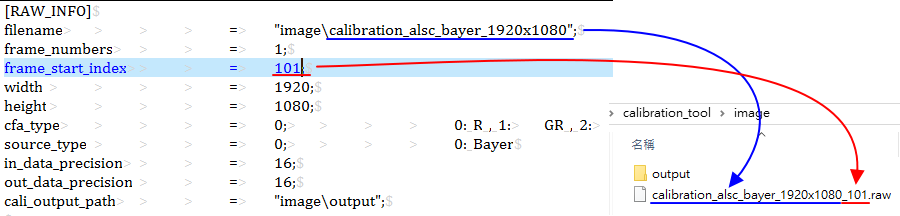
-
Run calibration\SampleCode\Release\CalibrationRelease.exe
The calibration program will check the execution path to make sure the data and image folders have been automatically created under calibration folder.
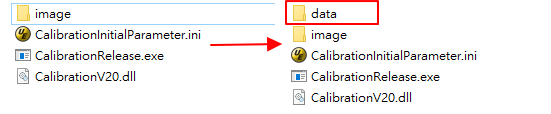
-
If the calibration program succeeds, you can find “*.data” in calibration\SampleCode\Release\data\cfg
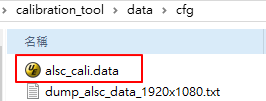
Load *.data
Use MI_ISP_API_CmdLoadCaliData to load calibration data. For further details, please refer to Software Development Guide.
OBC Adjustment
OBC Adjustment aims to calibrate the black level of sensor.
Calibration Environment
Calibration must be done under a darkened environment, with all possible light sources blocked out. While darkening the environment, watch the streaming video closely to see if there is any abnormality on the screen. Proceed to the next step if nothing unusual happens. Stop calibration and report the issue if something abnormal is found; resume after the issue is resolved.
Parameter Description
AutoAssign: Assign OB value to all Gains. Parameter range: 0 ~ 1. It is recommended that you set the value to 1.
Target: The preferred remaining value after calibration in 16-bit. Parameter range: 0 ~ 65535. It is recommended that you set it to 0.
Weight: Divide the picture into 3×3 blocks and set the weight of each block from 0 to 16 during OB calculation. It is recommended that you set the weight of all blocks to 1.
CaliGainIndex: Fill in values according to ISO index. Parameter range: 0 ~ 15.
Calibration Flow
- Set the total gain to the smallest possible gain, darken the environment, and then grab RAW image.
- Set “out_data_precision” to 16 in normal mode or combine mode.
- Generate obc_cali.data or dump_obc_data.txt to view the calibration result, and then load obc_cali.data.
- OB value is in 16-bit and should be filled in the field of blacklevel in the OBC interface of IQ Tool in normal mode or combine mode.
-
Long and short exposure should be calibrated separately in HDR mode.
-
Short exposure calibration: The same as in normal mode; grab RAW image using short exposure setting under a darkened environment, set “out_data_precision” to 16, generate obc_cali.data, and then load obc_cali.data. The OB value should be filled in the field of blacklevel in the OBC interface of IQ Tool.
-
Long exposure calibration: Grab RAW image using long exposure setting under a darkened environment, set “out_data_precision” to 16, generate dump_obc_data.txt, and then manually fill the value in 16-bit to the field of blacklevel_1 in the OBC interface of IQ Tool.
-
Note:
A. Normal mode: Including Linear mode (single frame) and HDR mode (2 frames).
B. Combine mode: The composite image along with including image file compression program after a sensor completes long and short exposure.
Precautions
In case that the OB difference between high gain and low gain is so large that different OB should be set to different ISO index, you should turn to AE manul mode to manually set gain values for respective ISO index. After that, grab RAW image under a darkened environment, generate dump_obc_data.txt, and fill in the values manually to the 16 nodes of Auto Mode in the blacklevel in the OBC interface over the IQ Tool.
ALSC Adjustment
Since different combinations of lens and sensor lead to diverse Y shading and color shading phenomena, you should evaluate whether automatic lens shading correction (ALSC) is required whenever lens or sensor has been changed.
ALSC will generate a 27×17 table for R, G and B each, with different R, G and B gains assigned to different regions in the screen. Hence, ALSC helps improve both Y shading and color shading. Up to three color temperatures are supported, but table interpolation is not.
Calibration Environment
The calibration environment of ALSC requires a homogeneous light source, preferably by using a Macbeth standard light booth along with a diffuser. In the absence of a diffuser, try conduct ALSC against the gray wall inside the light booth to enable the light to calibrate as evenly as possible.
Before adjustment, make sure that both OB and AWB color temperature curve range have been calibrated and correctly applied. Moreover, make sure that IR cut of RGB sensor is properly caped when using RGB sensor.
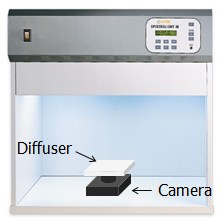
Parameter Description
TargetIndex: Select which table is to be calibrated in the current session. Up to three tables can be calibrated during the same session. Calibration process does not have to follow the sequence from 0 to 2, but you should make sure that environmental color temperatures of 0 to 2 go from low to high.
CCTNumber: Choose the total number of color temperate table set to be corrected. Three sets of color temperature table will be corrected by default. Parameter range: 1 ~ 3.
GridX/Y: The size of shading table, which is set to 27×17 by default.
GridNumMax: The maximum size of shading table, which is a fixed value and set to 27×17=459 by default.
Segment_Delta_Str_Mode: 16 preset modes. The vertical axis represents different modes, while the horizontal axis represents the size of each grid in X/Y direction. On this platform, the spacing of X-axis is 26-grid and that of Y-axis is 16-grid. The greater the value in the preset mode, the smaller the surrounding grids. Parameter range: 0 ~ 15.

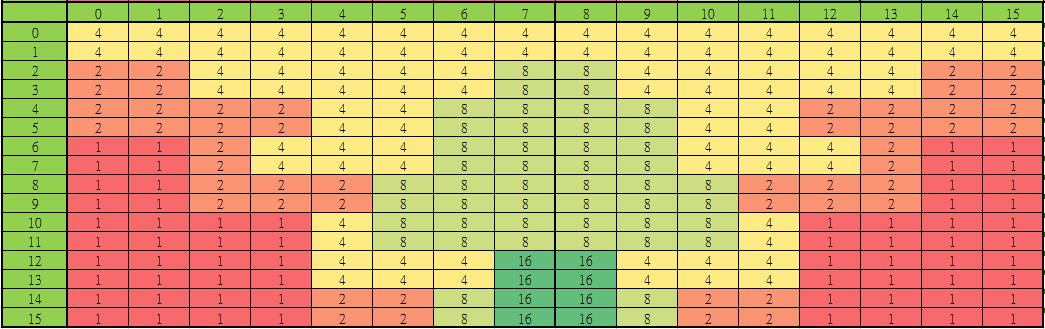
ColorTemperature: Environmental color temperature in the current TargetIndex.
OB_R/G/B_Value: OB value of the current sensor in 16-bit. Parameter range: 0 ~ 65535.
RatioTable_R/G/B‘Num’: The ratio of compensation intensity from the center of the picture to the corners. Parameter range: 0 ~ 255. NOTE: ‘Num’ refers to the position as represented by number: 0 for the center, and 8 for the four corners.
UnitGainResult: Select whether to generate the shading table of 1x gain. 0 means disable, and 1 means enable. Parameter range: 0 ~ 1.
PortraitEnable: Examine the width and height of an image. 0 means disable, and 1 means enable. Parameter range: 0 ~ 1.
Segment_Delta_Adv_Enable: Enable/disable advanced mode. 0 means disable, and 1 means enable. Parameter range: 0 ~ 1. When GridX/Y is of a size other than the default 27×17, you must enter this mode to adjust non-uniform grid settings.
Segment_Delta_LUT_X0~8: The spacing of X-axis. Every 4 bits represent a set of index [index = (block size / 16) – 1], so the actual number of pixels is (index + 1) × 16. The index value is limited to 1, 3, 7 and 15. If no block is used, set it to 0. Up to 72 sets of blocks are supported. In this platform, the spacing is 26-grid.
Segment_Delta_LUT_Y0~8: The spacing of Y-axis. Every 4 bits represent a set of index [index = (block size/16) – 1], so the actual number of pixels is (index + 1) × 16. The index value is limited to 1, 3, 7 and 15. If no block is used, set it to 0. Up to 72 sets of blocks are supported. In this platform, the spacing is 16-grid.
Calibration Flow
-
Determine the number of light sources to be calibrated. Set the AE target to about 1,500 and capture RAW data of each color temperature. Make sure that the RAW data are not overexposed, and then move the RAW data files under the “image” folder in the calibration tool path. Note: AE target data range = 10 ~ 2550.
-
Open CalibrationInitialParameter.ini and fill in the correct data in [RAW INFO] section. (Please refer to Section 16.1.2).
- Select filepath and format of RAW data.
- Set in/out_data_precision to 16.
- Set calibration_select to 4.
- Set load_calibration_data to 0 for the first calibration; set it to 1 for subsequent calibrations.
-
Set parameters of [ALSC] section in CalibrationInitialParameter.ini. (Please refer to Section 16.4.2)
-
Run CalibrationRelease.exe to generate alsc_cali.data.
-
Repeat Steps 2 to 4 to complete ALSC calibration of all color temperature light sources and get the final alsc_cali.data. If cali_dump_data in [CALI_DB] section is set to 1 during the calibration, a dump_alsc_data.txt file will also be created. You can check the values of shading table in this txt file.
-
Use MI_ISP_API_CmdLoadCaliData to apply alsc_cali.data. (Please refer to Software Development Guide for more details.)
Adjustment Interface
Select “Shading” from the menu on the left-hand side, and ALSC and ALSC_CTRL Interface will pop up.
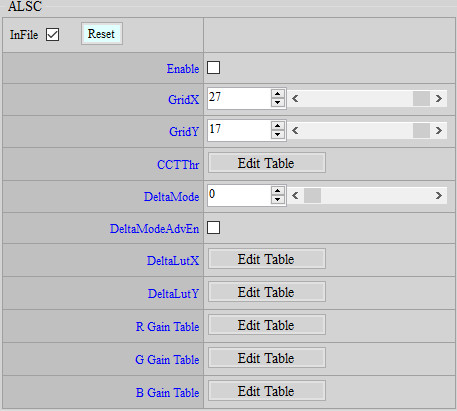
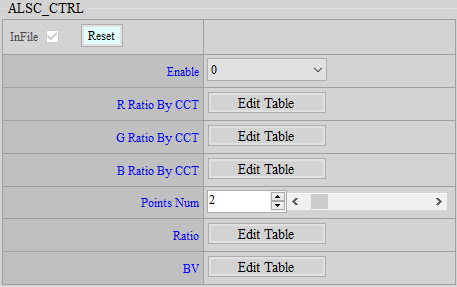
Parameter Description
R Gain Table: ALSC R table. Parameter range: 0 ~ 8191.
G Gain Table: ALSC G table. Parameter range: 0 ~ 8191.
B Gain Table: ALSC B table. Parameter range: 0 ~ 8191.
R Ratio By CCT: Total R ratio of ALSC table (128 = 1x). Parameter range: 0 ~ 128.
G Ratio By CCT: Total G ratio of ALSC table (128 = 1x). Parameter range: 0 ~ 128.
B Ratio By CCT: Total B ratio of ALSC table (128 = 1x). Parameter range: 0 ~ 128.
Points Num: Number of nodes set for Ratio by BV. (Different ratios can be set according to different ambient brightness values [BV]).
Ratio: Ratio at each node.
BV: BV as corresponded by each node.
Adjustment Flow
- Adjust Ratio by BV. Generally, the ratio is to be reduced under low BV situation. This helps alleviate the noise caused by ALSC in the outside area.
- Tune R/G/B Ratio By CCT, which is set to 1x by default, if necessary.
Precautions
-
ALSC R/G/B Gain table can be found in iqfile, alsc_cali.data, and API bin at the same time. These gain tables will use iqfile for the default value. If there is API bin, it will override iqfile. If there is alsc_cali.data, it will overwrite API bin.
-
If you do not want to calibrate each module one by one, and you want to apply the same ALSC, you can simply load alsc_cali.data and read ALSC R/G/B Gain table in IQ Tool. You can save them in API bin, so you don't have to load alsc_cali.data every time.
.data Format and Size
Handle size: 20 bytes
Ctrl size: 52 bytes
Data size: 4 + x bytes,x = (GridX * GridY * 3 * 2 + 2 * GridMax) / 4 rounding to the nearest one and then multiplied by 4. GridMax is the larger one between GridX and GridY.
Total size: 20 + 52 * cctNum + (4 + x) * cctNum bytes,cctNum = the number of sets of color temperate being calibrated (1 ~ 3)
LSC Adjustment
LSC calibration will generate a table of 32 for each of R, G and B, with different R, G and B gains assigned to different screen region, in a bid to help alleviate Y shading. LSC supports up to three color temperatures, but table interpolation is not supported.
Calibration Environment
The calibration environment is the same as that of ALSC.
Parameter Description
TargetIndex: Choose which set of color temperate table is be calibrated in the current session, and calibration of up to 3 sets are supported. The calibration sequence does not have to follow the order from 0 to 2. However, it is necessary to ensure that the environmental color temperatures from 0 to 2 go from low to high.
CCTNumber: Choose the total number of color temperate table set to be corrected, and the default is to correct 3 sets of color temperature table. Parameter range: 1 ~ 3.
TableSize: The size of shading table. Default value is 32. Modification is not suggested.
LSCResult: Dump LSC result image.
SegmentLength: Segment the length of the sampling point.
AutoCenter: Automatic detection of the location of the brightest center point in the input image. Parameter range: 0 ~ 1. It is recommended that you set this parameter to 1. If you set it to 0, use the following InputOrientation and InputCenterX/Y for manual setting.
InputOrientation: Set the direction of the sampling point from the brightest center point of the image to the corner point. 0: upper-left; 1: upper-right; 2: lower-right; 3: lower-left.
InputCenterX/Y: Set the position of the brightest center point in the picture. Parameter range: 0 ~ 4095.
ColorTemperature: Environmental color temperature in the current TargetIndex.
OB_R/G/B_Value: OB value of current sensor in 16-bit. Parameter range: 0 ~ 65535.
RatioTable_R/G/B’Num’: The ratio of compensation intensity from the center of the picture to the corners. Parameter range: 0 ~ 255. NOTE: ‘Num’ refers to the position as represented by number: 0 for the center, and 8 for the four corners.
Ratio_Threshold: This parameter is used to prevent over-compensation of vignetting. The greater the value, the more compensation of vignetting, and vice versa. More compensation of vignetting causes the normal data close to the corner to be over compensated. When the threshold is smaller, the compensation value will be found based on the current maximum index value and then set as the maximum value. The index value after the maximum index value will maintain as the maximum compensation value (without increasing the value); the larger the threshold, the larger the compensation value. Ratio Base: 100. Parameter range: 0 ~ 25600.
DebugLSCInfo: Applicable only in Debug mode. Error messages can be sent to manufacturer for problem analysis. 0 means disable, 1 enable. Parameter range: 0 ~ 1. Suggested setting is 0.
Calibration Flow
- The calibration steps are the same as those of ALSC.
- Generate lsc_cali.data. You can also generate dump_lsc_data.txt or dump_lsc_result.raw to view the calibration result, and then load lsc_cali.data. Skip this step if LSC calibration is not performed.
Adjustment Interface
Select “Shading” from the menu on the left-hand side, and LSC and LSC_CTRL Interface will pop up on the right.

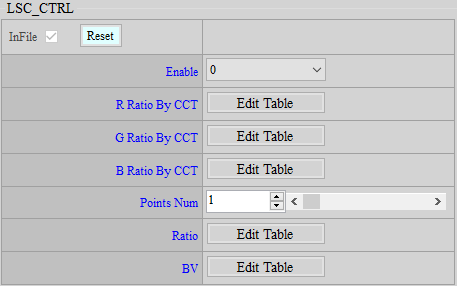
Parameter Description
CenterX: The X coordinate of LSC center point. Parameter range: 0 ~ 4095. This is usually the value of X of the center point or the brightest point of an image.
CenterY: The Y coordinate of LSC center point. Parameter range: 0 ~ 4095. This is usually the value of Y of the center point or the brightest point of an image.
RateX: The zooming rate of difference in the distance of X-axis. The base is 1024. Parameter range: 0 ~ 2047. The difference between X of the current point and X of the LSC center point will be multiplied by this ratio and then used to calculate, by taking Y-axis into accout, the distance from the LSC center point.
RateY: The zooming rate of difference in the distance of Y-axis. The base is 1024. Parameter range: 0 ~ 2047. The difference between Y of the current point and Y of the LSC center point will be multiplied by this ratio and then used to calculate, by taking X-axis into accout, the distance from the LSC center point.
Shift: The amount of shifting distance. Parameter range: 0 ~ 31. The distance to the center point will be shifted by this value, which serves as the index for the query of Gain Table.
R Gain Table: LSC R table. Parameter range: 0 ~ 1023.
G Gain Table: LSC G table. Parameter range: 0 ~ 1023.
B Gain Table: LSC B table. Parameter range: 0 ~ 1023.
R Ratio By CCT: Total R ratio of LSC table (128 = 1x). Parameter range: 0 ~ 128.
G Ratio By CCT: Total G ratio of LSC table (128 = 1x). Parameter range: 0 ~ 128.
B Ratio By CCT: Total B ratio of LSC table (128 = 1x). Parameter range: 0 ~ 128.
Points Num: Number of nodes set for Ratio by BV. (Different ratios can be set according to different ambient brightness values [BV]).
Ratio: Ratio at each node.
BV: BV as corresponded by each node.
Adjustment Flow
- Adjust Ratio by BV. Generally, the ratio is to be reduced under low BV situation. This helps alleviate the noise caused by LSC in the outside area.
- Tune R/G/B Ratio By CCT, which is set to 1x by default, if necessary.
Precautions
- LSC R/G/B Gain tables coexist in iqfile, lsc_cali.data and API bin at the same time. The table values saved in iqfile will be taken as default values, which would be replaced by API bin, and then lsc_cali.data, if any.
- If you do not want to calibrate each module one by one, and you want to apply the same ALSC, you can simply load alsc_cali.data and read ALSC R/G/B Gain table in IQ Tool. You can save them in API bin, so you don't have to load alsc_cali.data every time.
.data Format and Size
Handle size: 20 bytes.
Ctrl size: 60 bytes.
Data size: 8 + x bytes,x = (2 + TableSize * 3 * 2) / 4 rounding to the nearest one and then multiplied by 4.
Total size: 20 + 60 * cctNum + (8 + x) * cctNum bytes,cctNum = the number of of color temperate set to be calibrated (1 ~ 3).
AWB Adjustment
AWB is used for production line calibration for the purpose of providing compensation for the statistical difference in white balance between different camera modules and the golden sample.
Calibration Environment
Place a gray card in the light booth, or use a homogeneous light source as required by the ALSC calibration environment (recommended), and then grab RAW data when the gray card (or the homogeneous light source) fully and evenly occupies the whole picture.
In addition, in the process of shooting raw data, it is necessary to ensure that the exposure of different sensors is the same (Shutter Time, Sensor Gain, Digital Gain are exactly the same).
Parameter Description
HighLowCTMode: Enable high and low color temperature calibration (older calibration method). Set 0 for off (the only supported option by Muffin); Set 1 for on.
CaliState: Select calibration mode. Set 0 to select CALIB_GOLDEN; Set 1 to select CALIB.
BrightnessCaliMode: Enable brightness calibration mode. Set 0 for off; Set 1 for on.
CT: Color temperature. Parameter range: 1000 ~ 10000.
OB_R/GR/GB/B_Value: Set OB value. Parameter range: 0 ~ 65535.
Calibration Flow
-
Analyze the drop points of AWB statistics from multiple camera modules, and pick one camera module — of which the AWB statistics drop point comes closest to the average — as the Golden Sample.
-
Select one or two light sources of single color temperature for calibration.
2.1. The calibration flow using single light source are described below:

-
Use Golden Sample and Unit Sample to capture RAW data, and move them under “image” folder in the path of calibration tool.
-
Open CalibrationInitialParameter.ini and fill in the correct data in [RAW INFO] section. (Please refer to Section 16.1.2)
-
Fill in filepath and format of RAW data of Golden Sample.
-
Set in/out_data_precision to 16.
-
Set calibration_select to 2.
-
Set load_calibration_data to 0.
-
-
Set parameters of [AWB] section in CalibrationInitialParameter.ini. (Please refer to Section 16.6.2)
-
Set CaliState to 0.
-
Set BrightnessCaliMode to 0 or 1, depending on whether brightness should be calibrated.
-
Set CT to the value of color temperature of calibration light source
-
Set OB value. Parameter range: 0 ~ 65535.
-
-
Run CalibrationRelease.exe to create awb_cali.data containing Golden Sample calibration result under \data\cfg. Be sure to keep this data until calibration is brought to finish.
-
Open CalibrationInitialParameter.ini and fill in the correct data in [RAW INFO] section. (Please refer to Section 16.1.2)
-
Fill in filepath and format of RAW data of Unit Sample.
-
Set in/out_data_precision to 16.
-
Set calibration_select to 2.
-
Set load_calibration_data to 1 to save previous calibration data.
-
-
Set parameters of [AWB] section in CalibrationInitialParameter.ini. (Please refer to Section 16.6.2)
-
Set CaliState to 1
-
Set BrightnessCaliMode to 0 or 1 depending on whether brightness should be calibrated.
-
Set CT to the value of color temperature of calibration light source.
-
Set OB value value. Parameter range: 0 ~ 65535.
-
-
Run CalibrationRelease.exe to create the final awb_cali.data under data cfg and the calibration is brought to a close. If cali_dump_data in [CALI_DB] section is set to 1 during the calibration, a dump_awb_data.txt file will also be created. You can check the calibration result in this txt file.
-
To calibrate the next unit sample, you can simply load the awb_cali.data generated during the calibration of previous Unit Sample and run State 1 to replace the previous calibration result.
-
MI_S32 MI_ISP_API_CmdLoadCaliData is required to apply awb_cali.data.
Only E_SS_CALI_ITEM_AWB_EX is available for MUFFIN when performing AWB compensation calibration. (Please refer to Software Development Guide for more details.)
-
.data Format and Size
Handle size: 20 bytes.
Ctrl size: 24 bytes.
Data size: 12 bytes.
Total size: 20 + 24 + 12 bytes.
NE Adjustment
Analyze the noise type of sensor, and set the threshold value for 3DNR motion judgment.
Calibration Environment
It is recommended to take the following Dynamic Range Chart and make sure that all brightness distributions appear in the picture. You may also use lab scene for calibration if you do not have this chart, just make sure that all brightness levels are present.
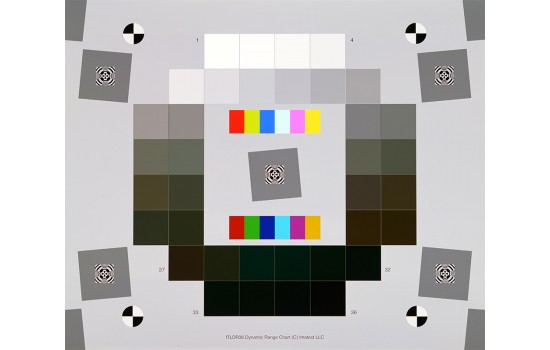
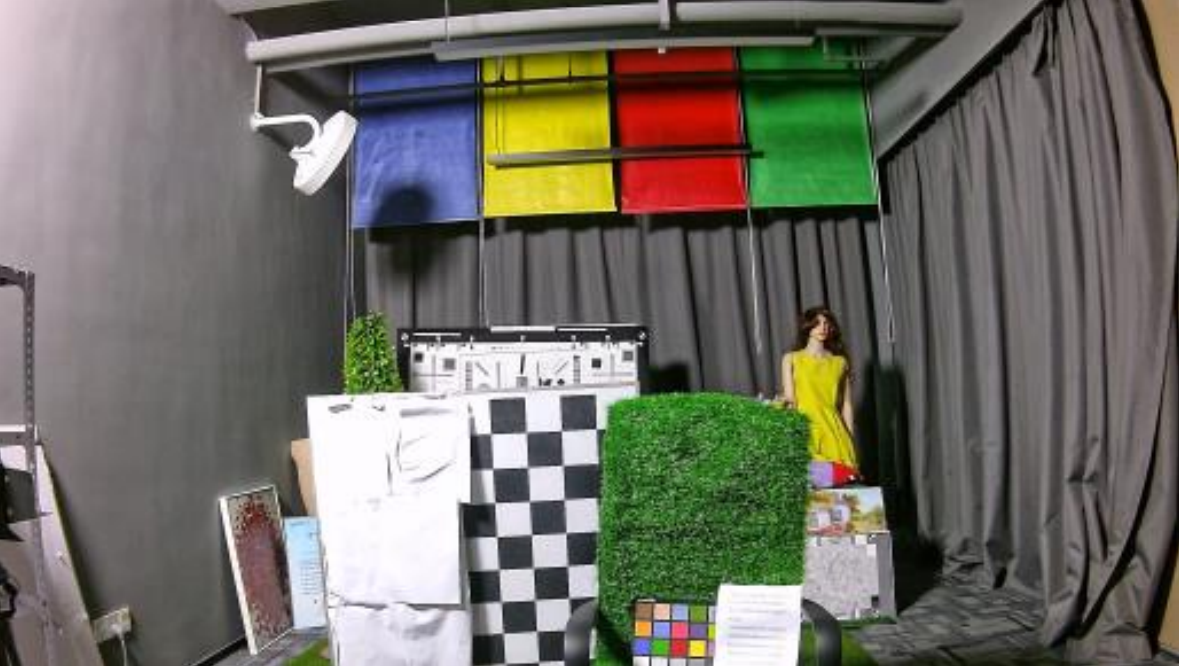
You may also use lab scene correction without this chart, just make sure that all brightness levels are present.
Parameter Description
GainIndex: Fill in the value according to the ISO index. Value range: 0 ~ 15.
Dummy_Mode: Set the corresponding mode according to Dummy_Ex Dummy3. Value range: -1 & 1 ~ 2.
Auto_Assign: Assign NE value to all Gains after GainIndex (including GainIndex). Value range: 0 ~ 1. It is recommended to set 1.
OB_R/GR/GB/B_Value: OB value setting. Value range: 0 ~ 65535.
Calibration Flow
-
Set sensor gain to the ISO value to be corrected.
-
Place the Dynamic Range Chart in front of the D65 light source, adjust the light source brightness or shutter to the brightest patch without over-exposure, and make sure the brightness distribution is even.
- Take 2 Raw photos, and set the Raw data path format in CalibrationInitialParameter.ini.
- Set frame_number to 2.
- Refer to Step 4 ~ Step 6 to generate dump_ne_data_WIDTHxHIGHT_gainXX.txt, as shown in Figure 164. Seg R/G/B Count is the number of brightness reference points for each node interval from dark to bright. When shooting, try to ensure that each node interval has a reference point (When Dummy_Mode is 1, it is normal that there are no reference points in the first few node intervals).
-
Shoot N frames of Raw, and N is recommended to be 50.
-
Open CalibrationInitialParameter.ini and fill in the correct [RAW INFO] (refer to 16.1.2).
- Set Raw data path and format.
- Set in/out_data_precision to 16.
- Set Calibrarion_select to 7.
- Set frame_number to N.
-
Set corresponding [NE] Dummy_Mode according to Dummy_Ex Dummy3, and make sure that OB is set correctly.
-
Run CalibrationRelease.exe to generate ne_cali.data.
- If cali_dump_data in [CALI_DB] is set to 1 during calibration, dump_ne_data_WIDTHxHIGHT_gainXX.txt will be generated at the same time after calibration, in which you can confirm the Count number of each brightness interval when the XXth Gain Index is calibrated.
- It is necessary to apply ne_cali.data through the MI_ISP_API_CmdLoadCaliData API (for details, please refer to Software Development Guide).
-
Repeat the previous steps until all ISO ranges that will be used are calibrated.
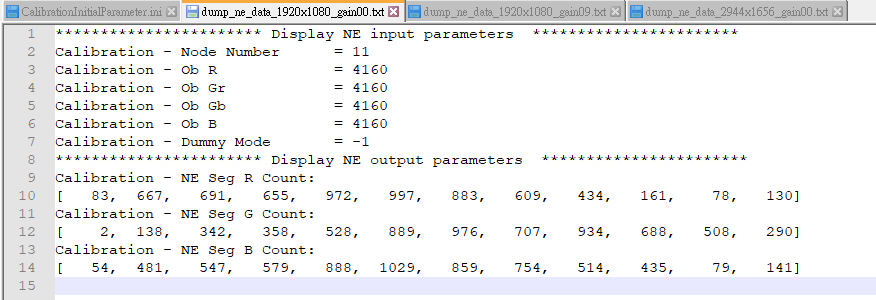
Precautions
When shooting Raw, be careful not to shake the Chart, and be careful not to move any objects or flicker the light source in the picture.
SCENE MODE INTRODUCTION
The scene detection algorithm provides three modes: Back light, Front light, and Mixer light. This algorithm will regularly update the score of each scene mode (score range: 0 - 100) and make scene decisions based on the score. After the current scene mode is determined, IQ, AE, and AWB can be adjusted accordingly to achieve better results.
SceneDecision API
The SceneDecision API controls the parameters of scene decisions.
Adjustment Interface
Select "Scene" from the menu on the left-hand side, and SceneDecision Interface will pop up.
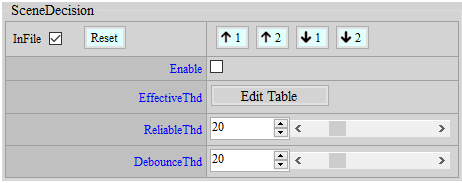
Parameter Description
Enable : Enable scene decision. If set to Disable, scene mode IQ/AE/AWB adjustments will be disabled. Parameter range: 0 ~ 1.
EffectiveThd : If the maximum score of the scene mode is greater than this threshold, the scene mode will become effective. Parameter range: 0 ~ 100.
ReliableThd : The first scene mode will be selected if the difference between the first and second scores is greater than this threshold and the first score is greater than EffectiveThd. Parameter range: 0 ~ 100.
DebounceThd : If scene mode is selected, it will be shut down until its score is below (EffectiveThd - DebounceThd). Parameter range: 0 ~ 100. Note: DebounceThd should be less than effectiveThd.
SceneAdjustIQ API
Use this API to adjust partial IQ parameters of the Back light, Front light, and Mixer light scene modes.
Adjustment Interface
Select "Scene" from the menu on the left-hand side, and SceneAdjustIQ Interface will pop up.
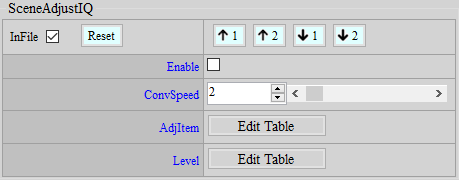
Parameter Description
Enable : Turn on or off the function of scene mode IQ adjustment. If set to Disable, scene mode IQ adjustment will be disabled. Parameter range: 0 ~ 1.
ConvSpeed : Adjust the convergence speed of the IQ adjustment item from the current level to the target level. Parameter range: 0 ~ 100.
AdjItem : The IQ adjustment supports the selection of 9 parameters. The following table shows the parameters corresponding to each index value. Horizontal axis parameters indicates the IQ adjustment options for each item, supporting up to 8 IQ items. Parameter range: 0 ~ 8. Vertical axis parameter indicates scene detection mode. Currently, three scene modes are supported: Back light, Front light, and Mixer light. Up to 16 scene modes are supported.
| Index | Parameter | Description |
|---|---|---|
| 0 | ByPass | Bypass IQ parameters adjustment. |
| 1 | Denoise_Bayer | Adjust the strength of Bayer denoise. |
| 2 | Denoise_Y | Adjust the strength of Luma denoise. |
| 3 | Denoise_C | Adjust the strength of Chroma denoise. |
| 4 | Sharpness | Adjust the strength of Edge enhancement. |
| 5 | Saturation | Adjust the strength of Saturation. |
| 6 | Brightness | Adjust the strength of Brightness. |
| 7 | Contrast | Adjust the strength of Contrast. |
| 8 | Lightness | Adjust the strength of Lightness. |
Level : Set the adjustment level of the corresponding parameter. The level of parameters not selected by AdjItem will be 100 (Level value 100 means no adjustment). Parameter range: 0 ~ 200.
SceneAdjustAE API
Use this API to adjust partial AE parameters of the Back light, Front light, and Mixer light scene modes.
Adjustment Interface
Select "Scene" from the menu on the left-hand side, and SceneAdjustAE Interface will pop up.
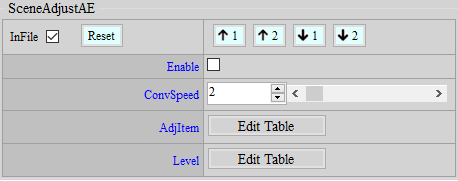
Parameter Description
Enable : Turn on or off the function of scene mode AE adjustment. If set to Disable, scene mode AE adjustment will be disabled. Parameter range: 0 ~ 1.
ConvSpeed : Adjust the convergence speed of the AE adjustment item from the current level to the target level. Parameter range: 0 ~ 100.
AdjItem : The AE adjustment supports the selection of 2 parameters. The following table shows the parameters corresponding to each index value. Horizontal axis parameters indicates the AE adjustment options for each item, supporting up to 8 AE items. Parameter range: 0 ~ 1. Vertical axis parameter indicates scene detection mode. Currently, three scene modes are supported: Back light, Front light, and Mixer light. Up to 16 scene modes are supported.
| Index | Parameter | Description |
|---|---|---|
| 0 | ByPass | Bypass AE parameters adjustment. |
| 1 | Exposure | Adjust the target brightness of auto exposure. |
Level : Set the adjustment level of the corresponding parameter. The level of parameters not selected by AdjItem will be 100 (Level value 100 means no adjustment). Parameter range: 0 ~ 200.
SceneAdjustAWB API
Use this API to adjust partial AWB parameters of the Back light, Front light, and Mixer light scene modes.
Adjustment Interface
Select "Scene" from the menu on the left-hand side, and SceneAdjustAWB Interface will pop up.
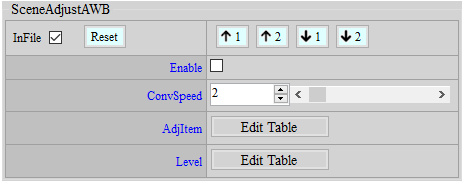
Parameter Description
Enable : Turn on or off the function of scene mode AWB tuning. If set to Disable, scene mode AWB tuning will be disabled. Parameter range: 0 ~ 1.
ConvSpeed : Adjust the convergence speed of the AWB adjustment item from the current level to the target level. Parameter range: 0 ~ 100.
AdjItem : The AWB adjustment supports the selection of 11 parameters. The following table shows the parameters corresponding to each index value. Horizontal axis parameters indicates the AWB adjustment options for each item, supporting up to 8 AWB items. Parameter range: 0 ~ 10. Vertical axis parameter indicates scene detection mode. Currently, three scene modes are supported: Back light, Front light, and Mixer light. Up to 16 scene modes are supported.
| Index | Parameter | Description |
|---|---|---|
| 0 | ByPass | Bypass AWB parameters adjustment. |
| 1 | 20000K Weight | Adjust the weight for the area in the color temperature of 20000K. |
| 2 | 15000K Weight | Adjust the weight for the area in the color temperature of 15000K. |
| 3 | 10000K Weight | Adjust the weight for the area in the color temperature of 10000K. |
| 4 | 6500K Weight | Adjust the weight for the area in the color temperature of 6500K. |
| 5 | 5000K Weight | Adjust the weight for the area in the color temperature of 5000K. |
| 6 | 4000K Weight | Adjust the weight for the area in the color temperature of 4000K. |
| 7 | 3000K Weight | Adjust the weight for the area in the color temperature of 3000K. |
| 8 | 2300K Weight | Adjust the weight for the area in the color temperature of 2300K. |
| 9 | 1500K Weight | Adjust the weight for the area in the color temperature of 1500K. |
| 10 | 1000K Weight | Adjust the weight for the area in the color temperature of 1000K. |
Level : Set the adjustment level of the corresponding parameter. The level of parameters not selected by AdjItem will be 100 (Level value 100 means no adjustment). Parameter range: 0 ~ 200.
SceneInfo API
Use this API to get the information about current scene modes and the parameters of all current IQ/AE/AWB levels.
Adjustment Interface
Select "Scene" from the menu on the left-hand side, and SceneInfo Interface will pop up.
Parameter Description
SceneFlag : Shows the scene mode currently selected. The flag of the selected scene mode will change to 1, read only.
IQ_CurLevel : Shows the current level of all IQ parameters, 100 means no adjustment. Parameter range: 0 ~ 200, read only.
AE_CurLevel : Shows the current level of all AE parameters, 100 means no adjustment. Parameter range: 0 ~ 200, read only.
AWB_CurLevel : Shows the current level of all AWB parameters, 100 means no adjustment. Parameter range: 0 ~ 200, read only.
FD3A INTRODUCTION
When there is Face Detection, demonstrate how to call the API to achieve the effects of FDAWB/FDAE/FDAF.
Sample Code
Declare global variables.
Code
CusAFWin_t *afwin = NULL;

CusAFStats_t *af_info = NULL;

MI_ISP_AE_FDEXInfoType_t *FDAE_EX = NULL;

MI_ISP_AE_FDEXParamType_t *FDAEParam_EX =NULL;

MI_ISP_AF_FDAFType_t *AF_FDAF = NULL;

MI_ISP_AF_StatusType_t *af_Status = NULL;

MI_ISP_AF_FDAFInfoType_t *af_FDAFInfo = NULL;

MI_ISP_AWB_FdInfoType_t *awb_FDAWBInfo =NULL;
Sample Code
Global variables need to be allocated memory when the image is initially streamed.
Code
void FD3AParamInit()

{

    afwin = (CusAFWin_t*)malloc(sizeof(CusAFWin_t));

    af_info = (CusAFStats_t*)malloc(sizeof(CusAFStats_t));

    FDAE_EX = (MI_ISP_AE_FDEXInfoType_t*)malloc(sizeof(MI_ISP_AE_FDEXInfoType_t));

    FDAEParam_EX = (MI_ISP_AE_FDEXParamType_t*)malloc(sizeof(MI_ISP_AE_FDEXParamType_t));

    AF_FDAF = (MI_ISP_AF_FDAFType_t *)malloc(sizeof(MI_ISP_AF_FDAFType_t));

    af_Status = (MI_ISP_AF_StatusType_t*)malloc(sizeof(MI_ISP_AF_StatusType_t));

    af_FDAFInfo = (MI_ISP_AF_FDAFInfoType_t*)malloc(sizeof(MI_ISP_AF_FDAFInfoType_t));

    awb_FDAWBInfo = (MI_ISP_AWB_FdInfoType_t*)malloc(sizeof(MI_ISP_AWB_FdInfoType_t));

}
Sample Code
Global variables need to release the memory when disabling the image.
Code
void FD3AParamDeInit()

{

    free(afwin);

    free(af_info);

    free(FDAE_EX);

    free(FDAEParam_EX);

    free(AF_FDAF);

    free(af_Status);

    free(af_FDAFInfo);

    free(awb_FDAWBInfo);

}
Sample Code
This part needs to be placed where Face Detection will be executed every time it is executed.
Code
MI_U16 u16MinX = 0;
MI_U16 u16MinY = 0;
MI_U16 u16MaxX = 0;
MI_U16 u16MaxY = 0;
MI_U32 u32Area = 0;
MI_S32 Num_bboxes = 0; //Number of faces
Box_t BBoxes[MAX_DET_OBJECT] = {0}; //Face coordinates
memset(BBoxes, 0, sizeof(BBoxes));
get_FD_BBox(&Num_bboxes, BBoxes);

u16MinX = (MI_U16)(BBoxes[0].x); //The X/Y coordinates given to AF need to be normalized to 0~1023
u16MinY = (MI_U16)(BBoxes[0].y);
u16MaxX = (MI_U16)(BBoxes[0].x) + (MI_U16)(BBoxes[0].width);
u16MaxY = (MI_U16)(BBoxes[0].y) + (MI_U16)(BBoxes[0].height);
u32Area = (MI_U16)(BBoxes[0].height) * (MI_U16)(BBoxes[0].width);
MI_ISP_DEV      IspDevId = puvc_para->attr->u32IspDev;
MI_ISP_CHANNEL  IspChnId = puvc_para->attr->u32IspChn;

//fdawb
if(Num_bboxes > 0){
    awb_FDAWBInfo->u16FDNum = 1;
    awb_FDAWBInfo->stFDCor[0].u16MinX = u16MinX * 128 / 1023;
    awb_FDAWBInfo->stFDCor[0].u16MinY = u16MinY * 90 / 1023;
    awb_FDAWBInfo->stFDCor[0].u16MaxX = u16MaxX * 128 / 1023;
    awb_FDAWBInfo->stFDCor[0].u16MaxY = u16MaxY * 90 / 1023;

    MI_ISP_CUS3A_GetAFStats(IspDevId,IspChnId, af_info);
    MI_U32 *luma_1 = (MI_U32*)(&(af_info->stParaAPI[0].luma[0]));
    MI_U32 *luma_2 = (MI_U32*)(&(af_info->stParaAPI[0].luma[4]));
    MI_U32 luma = 0;
    luma = (*luma_1 >> 2) + (*luma_2 << 30);
    luma = luma / ((MI_U32)(u32Area));
    awb_FDAWBInfo->stFDCor[0].u8Brightness = (MI_U8) luma;
    awb_FDAWBInfo->stFDCor[0].u32Area = u32Area;

}
else{
    awb_FDAWBInfo->u16FDNum = 0;
    awb_FDAWBInfo->stFDCor[0].u16MinX = 0;
    awb_FDAWBInfo->stFDCor[0].u16MinY = 0;
    awb_FDAWBInfo->stFDCor[0].u16MaxX = 0;
    awb_FDAWBInfo->stFDCor[0].u16MaxY = 0;
    awb_FDAWBInfo->stFDCor[0].u8Brightness = 0;
    awb_FDAWBInfo->stFDCor[0].u32Area = 0;
}
MI_ISP_AWB_SetFaceDetectInfo(IspDevId,IspChnId, awb_FDAWBInfo);

//fdae
MI_ISP_AF_GetFDAF(IspDevId,IspChnId,AF_FDAF);
MI_ISP_AF_GetStatus(IspDevId,IspChnId,af_Status);
MI_ISP_AF_GetFDAFInfo(IspDevId,IspChnId,af_FDAFInfo);
MI_ISP_CUS3A_GetAFWindow(IspDevId,IspChnId,afwin);
MI_ISP_AE_GetFDExParam(IspDevId,IspChnId,FDAEParam_EX);
MI_ISP_AE_GetFDExInfo(IspDevId,IspChnId,FDAE_EX);
if(FDAEParam_EX->bEnable == TRUE && Num_bboxes > 0)
{
    FDAE_EX->u16FDNum = 1;
    FDAE_EX->stFDCor[0].u16MinX = u16MinX;
    FDAE_EX->stFDCor[0].u16MinY = u16MinY;
    FDAE_EX->stFDCor[0].u16MaxX = u16MaxX;
    FDAE_EX->stFDCor[0].u16MaxY = u16MaxY;
    af_Status->u16FDAE_MinX = u16MinX;
    af_Status->u16FDAE_MinY = u16MinY;
    af_Status->u16FDAE_MaxX = u16MaxX;
    af_Status->u16FDAE_MaxY = u16MaxY;

    afwin->mode = AF_ROI_MODE_NORMAL;
    afwin->u32_vertical_block_number = 1;
    afwin->stParaAPI[0].u32StartX = (MI_U32)u16MinX;
    afwin->stParaAPI[0].u32StartY = (MI_U32)u16MinY;
    afwin->stParaAPI[0].u32EndX = (MI_U32)u16MaxX;
    afwin->stParaAPI[0].u32EndY = (MI_U32)u16MaxY;
    MI_ISP_CUS3A_SetAFWindow(IspDevId, IspChnId, afwin);
    MI_ISP_CUS3A_GetAFStats(IspDevId, IspChnId, af_info);
    MI_U32 *luma_1 = (MI_U32*)(&(af_info->stParaAPI[0].luma[0]));
    MI_U32 *luma_2 = (MI_U32*)(&(af_info->stParaAPI[0].luma[4]));
    MI_U32 luma = 0;
    luma = (*luma_1 >> 2) + (*luma_2 << 30);
    luma = luma / (u32Area);
    FDAE_EX->stFDCor[0].u8Brightness = (MI_U8) luma;
    FDAE_EX->stFDCor[0].u32Area = u32Area;
    if(u32Area <= 1600){
        FDAE_EX->u16FDNum = 0;
    }
}
else
{
    af_Status->u16FDAE_MinX = 0;
    af_Status->u16FDAE_MinY = 0;
    af_Status->u16FDAE_MaxX = 0;
    af_Status->u16FDAE_MaxY = 0;
    FDAE_EX->u16FDNum = 0;
}
MI_ISP_AE_SetFDExInfo(IspDevId,IspChnId, FDAE_EX);
MI_ISP_AF_SetStatus(IspDevId,IspChnId, af_Status);
//fdaf
MI_ISP_AF_GetStatus(IspDevId,IspChnId, af_Status);
if(Num_bboxes > 0 && u32Area > 25000 && AF_FDAF->bEnable == E_SS_AF_TRUE){
    /////////////////////////////////////
    // AF window
    /////////////////////////////////////
    afwin->mode = AF_ROI_MODE_NORMAL;
    afwin->u32_vertical_block_number = 1;
    afwin->stParaAPI[0].u32StartX = (MI_U32)u16MinX;
    afwin->stParaAPI[0].u32StartY = (MI_U32)u16MinY;
    afwin->stParaAPI[0].u32EndX = (MI_U32)u16MaxX;
    afwin->stParaAPI[0].u32EndY = (MI_U32)u16MaxY;
    MI_ISP_CUS3A_SetAFWindow(IspDevId,IspChnId,afwin);
    if(af_FDAFInfo->u16PreMinX == 0 && af_FDAFInfo->u16PreMinY == 0 && af_FDAFInfo->u16PreMaxX == 0 && af_FDAFInfo->u16PreMaxY == 0)
    {
        af_FDAFInfo->u16PreMinX = afwin->stParaAPI[0].u32StartX;
        af_FDAFInfo->u16PreMinY = afwin->stParaAPI[0].u32StartY;
        af_FDAFInfo->u16PreMaxX = afwin->stParaAPI[0].u32EndX;
        af_FDAFInfo->u16PreMaxY = afwin->stParaAPI[0].u32EndY;
    }
    else
    {
        af_FDAFInfo->u16PreMinX = af_FDAFInfo->u16MinX;
        af_FDAFInfo->u16PreMinY = af_FDAFInfo->u16MinY;
        af_FDAFInfo->u16PreMaxX = af_FDAFInfo->u16MaxX;
        af_FDAFInfo->u16PreMaxY = af_FDAFInfo->u16MaxY;
    }
    af_FDAFInfo->u16MinX = afwin->stParaAPI[0].u32StartX;
    af_FDAFInfo->u16MinY = afwin->stParaAPI[0].u32StartY;
    af_FDAFInfo->u16MaxX = afwin->stParaAPI[0].u32EndX;
    af_FDAFInfo->u16MaxY = afwin->stParaAPI[0].u32EndY;
    af_Status->u32PreFaceArea = af_Status->u32FaceArea;
    af_Status->u32FaceArea = u32Area;
    af_Status->u8UpdateFDCoor = 1;
    af_Status->u8UpdateLegacyCoor = 1;
    af_FDAFInfo->u8FaceDetection = 1;

    MI_ISP_AF_SetFDAFInfo(IspDevId,IspChnId, af_FDAFInfo);
    MI_ISP_AF_SetStatus(IspDevId,IspChnId, af_Status);
}
else
{
    af_FDAFInfo->u8FaceDetection = 0;
    MI_ISP_AF_SetFDAFInfo(IspDevId,IspChnId, af_FDAFInfo);
    af_Status->u8UpdateFDCoor = 0;
    af_Status->u8UpdateLegacyCoor = 0;
    MI_ISP_AF_SetStatus(IspDevId,IspChnId, af_Status);
}
A LIST OF DIFFERENCE FROM SOUFFLE
| Module | Function Difference | Difference in Parameters (Removed) | Difference in Parameters (Added) |
|---|---|---|---|
| WDR_NR | Added VNDNosMot | N/A | VNDNosMot |
| WDRCurveFull | global tone/gamma/degamma curve, decreased from 16bit to 12bit | All | All |
| HDR | Not support 3frame HDR | All | All |
| HDR_Ex | Not support 3frame HDR | All | All |
| ThermalIR | ThermalIR module is removed in IFORD | Removed | |
| SDC | SDC module is removed in IFORD | Removed | |
| FPN | FPN module is removed in IFORD | Removed |