LDC User Guide
REVISION HISTORY
| Revision No. | Description |
Date |
|---|---|---|
| 1.0 | 07/13/2022 | |
| 1.1 | 06/19/2022 |
1. OVERVIEW
1.1. Basic Conception
LDC (Lens Distortion Correction) is an image processing technique used to correct lens distortion. Lens distortion is a phenomenon where the image is distorted due to the optical characteristics of the lens. By applying LDC, the image undergoes geometric correction, making it more aligned with human visual expectations.
1.1.1. Field Angle
Used to describe the field of view of a picture, It can be divided into horizontal field Angle αand vertical field Angle β.
For a lens with distortion, the field Angle will have a larger field Angle due to the optical relationship of lens refraction.

Figure 1-1 Without distortion |

Figure 1-2 With distortion |
The movement of the field of view is manifested as the change of the picture content, and the movement of the field of view will not change the size of the field of view, it is a process of rotating around the optical center.

Figure 1-3 Moving the field of view horizontally to the right |

Figure 1-4 Moving the field of view horizontally to the upwards |
1.1.2. Barrel Distortion
The closer to the corner, the more the image extends outward, the more severe the distortion, visually causing the barrel-shaped effect of the middle arch.
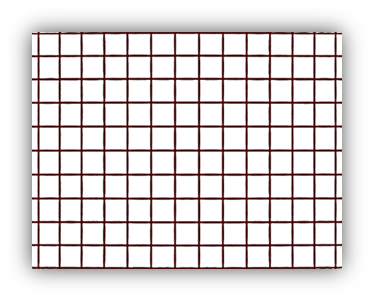
Figure without distortion |
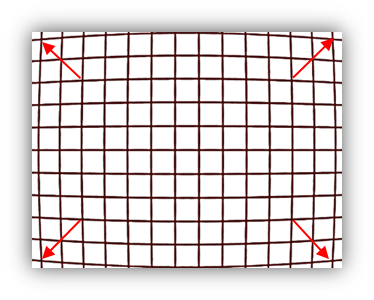
Figure with barrel distortion |
1.1.3. Pincushion Distortion
The closer to the corner, the more the image extends outwards and forwards, the more severe the distortion is, visually causing the effect of a depression in the middle.
|
Figure without distortion |
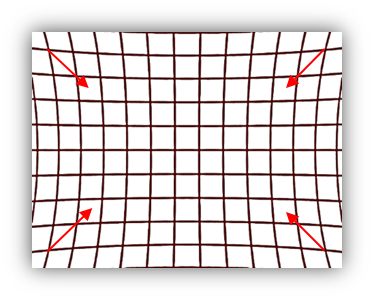
Figure with pincushion distortion |
1.1.4. Len
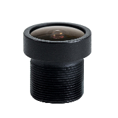
The lens is an important optical device of the camera, its light transmittance, focal length, field of view, distortion, etc. will directly affect the overall effect of the image. Table 1-1 describes some of its characteristics and recommended correction modes for the LDC function.
| lens type | sample | description |
|---|---|---|
| distortion-free lens |

|
Distortion is negligible, no distortion correction required. |
| Wide-angle lens |
|
With a certain degree of distortion, it has a wider field of view. Because the field of view is not large enough, 360°/180° panorama correction cannot obtain a good field of view effect. It is recommended to use Normal correction to eliminate distortion. |
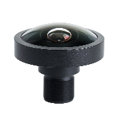
| Fisheye lens |
|
The field of view is extremely large and can cover the entire field of view plane, but the degree of distortion is relatively large. You can use the 180°/360° panorama correction mode to process the picture to get more views, or use the multi-region Normal correction mode for processing. |
1.1.5. Invalid Image Area
The invalid area refers to the area beyond the pixel range of the original image when LDC combs to generate the output image, for example, the field of view is moved out of the field of view of the original image by simulating the movement of the field of view. Invalid areas will be filled with black color.
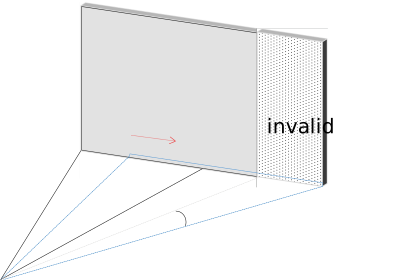
Figure for Invalid Image Area |
1.1.6. Drawing Region
Output image We can regard it as an output screen, on which we can draw the image processed by the LDC module in the specified region according to actual needs. Intersection, tangency, and separation between the drawing areas are all available.The width and height alignment limits of the region are consistent with the screen. For example, the width alignment of the screen requires 16 pixels, and the width of the region also requires 16 pixels of alignment.
| Relationships between regions | Effect |
|---|---|
| Intersect | The region with a large serial number (drawn later) will cover the image of the overlapping area. |
| Separate | Hollow areas will be drawn with the background color |
| Tangent | The images of each region are displayed separately. No hole areas. No overlapping areas. |
Figure 1-6 is used to display the view relationship of the drawing region. The black part is a hollow area, which can be filled with freely configurable background color.

Figure 1-6 The view relationships of drawing region |
2. Development Guide
2.1. Basic parameters
For the LDC function, it is necessary to configure some basic parameters for the normal output of the function, as shown in Table 2-1.
| RegionAttr | Description | Range | |
|---|---|---|---|
| RegionMode | The used LDC function for the current region | ||
| 360 ° panorama correction |
Distortion correction function
Refer to Chapter 2.2 for detailed parameter configuration |
1 | |
| 180° panorama correction | 2 | ||
| Normal correction | 3 | ||
| Mapping table schema (Map2bin) | Refer to Chapter 2.3 for detailed parameter configuration | 4 | |
| bypass mode (No Transformation) | Refer to Chapter 2.5 for detailed parameter configuration | 5 | |
| OutRect |
Select an area in the output image to draw the output image of the current region.
|
||
| X | The abscissa of the upper left corner of the drawing region | [0, out_w] | |
| Y | The vertical coordinate of the upper left corner of the drawing region | [0, out_h] | |
| Width | The width of drawing region | [0, out_w - X] | |
| Height | The height of drawing region | [0, out_h - Y] | |
| RegionNum |
The number of drawing regions
After configuring the value of region number, you need to configure the functions and detailed parameters of each region within this value, and you do not need to configure the region exceeding this value. |
(0, 9] | |
| BgColor |
Background color configuration. color format is RGB888.
|
[0x0, 0xFFFFFF] | |
2.2. Lens Distortion Correction
2.2.1. Mode Description
Lens Distortion Correction mode, the MI LDC module corrects through the lens Calibration information (CalibInfo) and the correction method specified by the user, and performs cropping as required, zooming and outputting to the specified area.
2.2.2. Flowchart

|
2.2.3. Camera Installation
The installation of the camera supports three installation modes: ground installation, ceiling installation, and wall installation. Its characteristics and typical scene examples are shown in Table 2-2:
| Mount mode | Description |
|---|---|
| Desktop mount (DM) | The camera is installed in the scene where the upward viewing angle is expected, such as on the ground, on the table, etc. |
| Ceiling mount (CM) | The camera is installed in the scene where the bird's-eye view is desired, such as on the ceiling or on the roof, etc. |
| Wall mount (WM) | The camera is installed in scenes where a head-up view is desired, such as between buildings or courtyard walls, etc. |
Different installation methods and correction modes are not bound one by one. In actual use, you can choose the matching correction mode to achieve the best view and effect.
2.2.4. Correction mode and parameter description
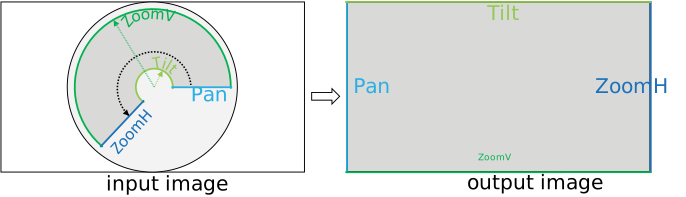
360 °panorama correction:
| Typical Scene | ceiling mount, desktop mount | |
|---|---|---|
| Parameter Description | Pan |
The starting position of the correction area in the circumferential direction relative to the original image;
Affects the left border of the output image. |
| Tilt |
The starting position of the correction area in the radial direction relative to the origin of the original image;
Affects the upper border of the output image. |
|
| ZoomH |
The end position of the correction area in the circumferential direction relative to the original image;
Affects the right border of the output image. |
|
| ZoomV |
The end position of the correction area in the radial direction relative to the original image;
Affects the lower border of the output image. |
|
| Corrective Model |
|
|
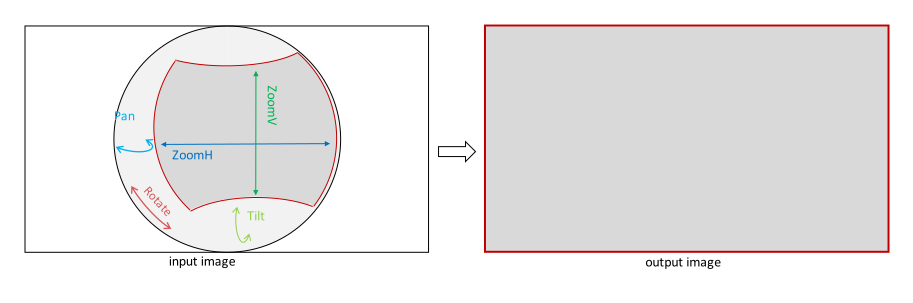
180° panorama correction:
| Typical Scene | wall mount | |
|---|---|---|
| Parameter Description | Pan | The field of view is rotated left and right, which is used to simulate a camera rotation left and right. |
| Tilt | The field of view is rotated up and down, which is used to simulate a camera rotation up and down. | |
| ZoomH |
The size of the horizontal field of view;
Affects the horizontal field of view of the output image. |
|
| ZoomV |
The size of the vertical field of view;
Affects the vertical field of view of the output image. |
|
| Rotate | Simulate a camera rotation. | |
| Corrective Model |
|
|
Normal Correction:
| Typical Scene | Wall mount, Ceiling mount, Desktop mount | |
|---|---|---|
| Parameter Description | Pan | The field of view rotated left and right, which is used to simulate a camera rotation left and right. |
| Tilt | The field of view rotated up and down, which is used to simulate a camera rotation up and down. | |
| ZoomH | Adjust the size of the field of view (horizontal & vertical). Affects the overall field of view of the output image. | |
| ZoomV | Invalid parameter, no configuration required. | |
| Rotate | Simulate a camera rotation. | |
| Corrective Model |
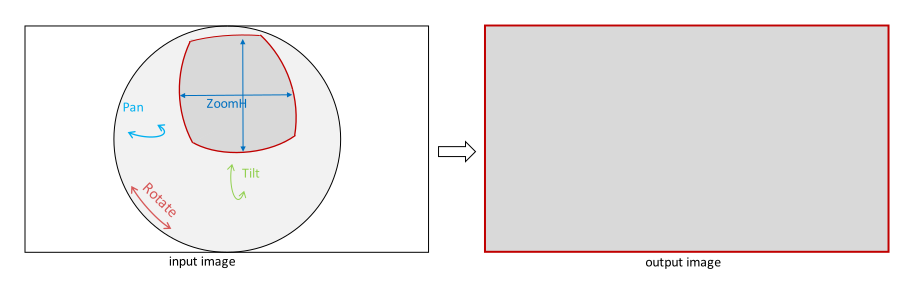
|
|
2.2.5. Application scenarios and parameter configuration instructions
Ceiling Mount, Desktop Mount:
When the camera is installed on the top or the ground, it is recommended to use the 360-degree correction mode or the Normal correction mode.
- The parameter description and range of 360-degree correction mode are shown in Table 2-6.
- The parameter description and range of Normal correction mode are shown in Table 2-7.
| Parameter | Description | Parameter range | |
|---|---|---|---|
| Pan |
The starting position of the correction area in the circumferential direction relative to the original image;
 Unit: angle
|
ZoomH > Pan
ZoomH – Pan <= 360 |
|
| Tilt |
The starting position of the correction area in the radial direction relative to the center point of the original image;
 Unit: pixel
|
[InRadius,OutRadius] | |
| ZoomH |
The end position of the correction area relative to the original image in the circumferential direction;
For an area spanning 0° (360°), for example, extending 270° to 45°, use (Pan=270°,ZoomH=360°+45°=405°) is enough.
Unit: angle
|
ZoomH > Pan
ZoomH – Pan <= 360 |
|
| ZoomV |
The end position of the correction area in the radial direction relative to the center point of the original image;
Unit: pixel
|
[InRadius,OutRadius] | |
| InRadius |
The radius from the border to the center point in the maximum valid area in the original image.
If set to 0, it will take effect as 1;
If it exceeds FisheyeRadius, it is equal to FisheyeRadius
Unit: pixel |
(0,FisheyeRadius] | |
| OutRadius |
In the original image, the radius from the outer boundary of the maximum effective area to the center point.
If set to 0, it will take effect as 1; If it exceeds FisheyeRadius, it is equal to FisheyeRadius Unit: pixel |
(0,FisheyeRadius] | |
| MountMode | must be Ceiling mount or Desktop mount. | 0,1 | |
| 0 | Desktop mount | ||
| 1 | Ceiling mount | ||
| Parameter | Description | Parameter Range | |
|---|---|---|---|
| Pan |
Simulate the left and right rotation of the camera, which affects the field of view position of the output image.
Equal to boundary value if out of bounds. Unit: angle |
[-90,90] | |
| = 0 | no rotation | ||
| < 0 | turn left | ||
| > 0 | turn right | ||
| Tilt |
Simulate the up and down rotation of the camera to affect the field of view position of the output image.
Equal to boundary value if out of bounds. Unit: angle |
[-90,90] | |
| = 0 | no rotation | ||
| < 0 | turn down | ||
| > 0 | turn up | ||
| ZoomH |
Adjust the size (scale) of the field of view (horizontal & vertical).
Affects the overall field of view of the output image. Equal to boundary value if out of bounds. |
[0,500] | |
| = 100 | no adjustment | ||
| > 100 | Narrows the field of view and sees less images, but at the expense of image quality. | ||
| < 100 | The field of view is widened to see more images, but it will bring invalid areas. | ||
| ZoomV | invalid parameter | ||
| Rotate |
Simulate the rotation of the camera.
Unit: angle |
[0,360] | |
| = 0 | no rotation | ||
| > 0 | Rotate counterclockwise, 360 is a circle. | ||
| MountMode | The configuration can be Ceiling mount, Desktop mount, or Wall mount. | 0、1、2 | |
| 0 | Desktop Mount | ||
| 1 | Ceiling Mount | ||
| 2 | Wall Mount | ||
Wall Mount:
When the camera is wall-mounted, it is recommended to use 180-degree correction mode or Normal correction mode.
- The parameter description and range of 180-degree correction mode are shown in Table 2-8.
- The parameter description and range of Normal correction mode are shown in Table 2-7.
| Parameter | Description | Parameter range | |
|---|---|---|---|
| Pan |
Simulate the left and right rotation of the camera, which affects the field of view position of the output image.
Equal to boundary value if out of bounds. Unit: angle |
[-90,90] | |
| = 0 | no rotation | ||
| < 0 | turn left | ||
| > 0 | turn right | ||
| Tilt |
Simulate the up and down rotation of the camera, which affects the field of view position of the output image.
Equal to boundary value if out of bounds. Unit: angle |
[-90,90] | |
| = 0 | no rotation | ||
| < 0 | turn down | ||
| > 0 | turn up | ||
| ZoomH |
Adjust the size of the horizontal field of view.
Equal to boundary value if out of bounds. |
[0,500] | |
| = 100 | no adjustment | ||
| > 100 | Narrows the field of view and sees less images, but at the expense of image quality. | ||
| < 100 | The field of view is widened to see more images, but it will bring invalid areas. | ||
| ZoomV |
Adjust the size of the vertical field of view.
Equal to boundary value if out of bounds. |
[0,500] | |
| = 100 | no adjustment | ||
| > 100 | Narrows the field of view and sees less images, but at the expense of image quality. | ||
| < 100 | The field of view is widened to see more images, but it will bring invalid areas. | ||
| Rotate |
Simulate the rotation of the camera.
Unit: angle |
[0,360] | |
| = 0 | no rotation | ||
| > 0 | Rotate counterclockwise, 360 is a circle. | ||
| MountMode | must be wall mount. | 2 | |
| 2 | wall mount | ||
The configuration of the parameters in the above respective modes has different effects in the corresponding modes. The following is the description of the common parameters, which have the same effect on each correction mode.
| Parameter | Description | Parameter range | |
|---|---|---|---|
| OutRotate |
Rotate the output graph around the center
Unit: angle |
[0,360] | |
| = 0 | no rotation | ||
| > 0 | Rotate counterclockwise, 360 is a circle. | ||
| DistortionRatio |
Reduce the strength of distortion correction to improve the field of view.
|
[-100,100] | |
| = 0 | No adjustment of correction strength | ||
| > 0 |
Correction strength for reducing barrel distortion.
The larger the absolute value is, the stronger the attenuation effect will be, resulting in larger image distortion and larger viewing angle. Too large to form pincushion distortion. |
||
| < 0 |
Correction strength for reducing pincushion distortion.
The larger the absolute value is, the stronger the attenuation effect will be, resulting in larger image distortion and larger viewing angle. Too large to cause barrel distortion. |
||
| FocalRatio |
Change the virtual focal length.
By changing this parameter, the distance between the image and the projection surface can be adjusted to achieve the effect of pushing/pulling the image without losing the field of view. If set to 0, it will take effect as 10000. |
(0,50000] | |
| = 10000 | no adjustment | ||
| > 10000 | The larger the value, the smoother the picture and the smaller the curvature. | ||
| < 10000 | The smaller the value, the more curved the screen and the greater the curvature. | ||
| CropMode |
Invalid region detection and cropping are performed on the output image to eliminate invalid regions.
If the output image is all invalid areas, an error will be reported if the value is not 0, so you can configure other parameters first, and then configure this parameter according to the need after confirming that the output image meets expectations. |
0,1,2 | |
| 0 | Do not perform invalid area detection, output according to the original output image. | ||
| 1 |
Use the largest effective area of the screen, and stretch to form the same aspect ratio as the original output image.
This method can obtain the largest effective area but the picture may be distorted. |
||
| 2 |
Keep the aspect ratio of the original output image, frame the maximum effective area, and then enlarge it to the size of the output image.
This method can ensure that the picture will not be deformed but may lose the field of view. |
||
| CalibInfo | Len Infomation | ||
| CalibPolyBin |
Lens distortion information data.
Generated by the LDC Tool on the PC side, set when setting the LDC channel properties, the data must match the actual lens used. Otherwise, the effect of distortion correction will be affected. |
||
|
CenterXOffset
CenterYOffset |
The offset between the CMOS center point and the lens center point can be used to eliminate the deviation caused by the assembly of the lens center point and the CMOS center point.
Unit: pixel 

|
Configuration beyond the image range will result in invalid area output. | |
| 0 | no offset | ||
| > 0 | The center of the screen is located to the right/below of the image center | ||
| < 0 | The center point of the screen is on the left/upper side of the image center point | ||
| FishEyeRadius |
Lens radius, used to describe the radius of the entire effective frame in the image
|
Matching with lens distortion information | |
2.2.6. Example of 360-degree panorama correction effect
| Parameter setting | Correction effect | ||
|---|---|---|---|
| srcWidth | 1600 |
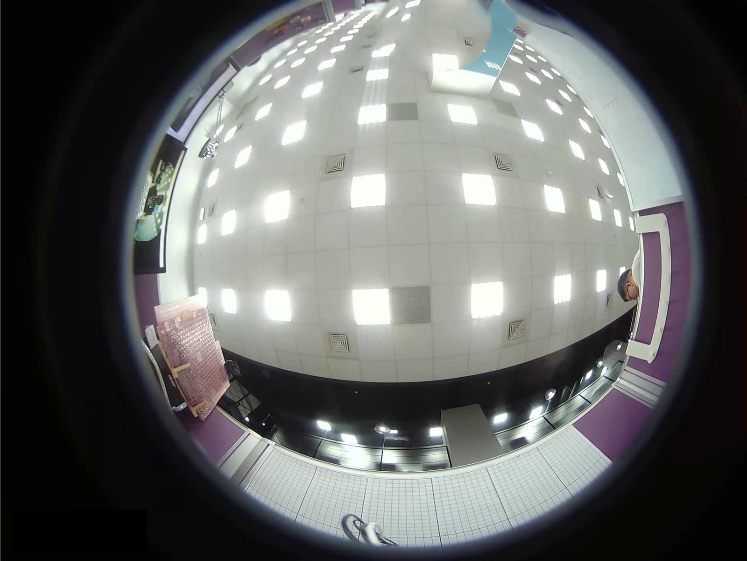
Fisheye Input Image 1600x1200 The center point of the effective picture relative to the image is closer to the upper right, resulting in the lack of some content above it |
|
| srcHeight | 1200 | ||
| MountMode | 0 | ||
| CenterXOffset | 75 | ||
| CenterYOffset | -34 | ||
| FishEyeRadius | 620 | ||
| InRadius | 0 | ||
| OutRadiusght | 600 | ||
| FocalRatio | 10000 | ||
| CropMode | 0 | ||
| Parameter sequence 1 | |||
| Pan | 0 |
Expand the entire original image from the inside to the outside to form the effect of a panoramic expanded image.
The blurred line at the lower boundary corresponds to the edge area of the fisheye lens, and the missing part above the original image is displayed as a black invalid area in the output image. |
|
| ZoomH | 360 | ||
| Tilt | 0 | ||
| ZoomV | 600 | ||

|
|||

360 °panorama corrected output image 3768x600 |
|||
| Parameter sequence 2 | |||
| Pan | 0 |
Relative to parameter sequence 1:
Reduce ZoomV (far away from the outer boundary of the fisheye), and remove the blurred part of the edge. Increase the tilt (away from the center of the fisheye) to remove the more stretched part of the upper boundary. |
|
| ZoomH | 360 | ||
| Tilt | 100 | ||
| ZoomV | 520 | ||

|
|||

360 °panorama corrected output image 3768x420 |
|||
| Parameter sequence 3 | |||
| Pan | 90 |
Only correct for footage between 90 and 270 degrees
Comparing with the parameter sequence 2, it can be seen that 1/4 of the picture on the left and right sides has been removed, and the upper and lower boundaries remain unchanged. |
|
| ZoomH | 270 | ||
| Tilt | 100 | ||
| ZoomV | 520 | ||

|
|||
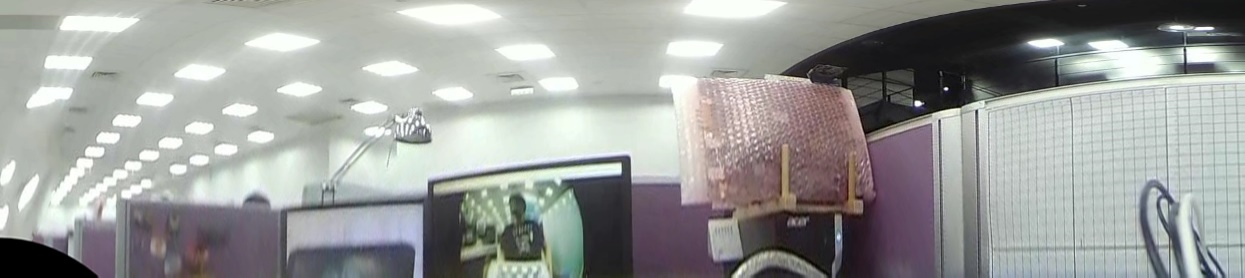
360 °panorama corrected output image 1884x420 |
|||
| Parameter sequence 4 | |||
| Pan | 315 |
Expand the frame between 315° and 405°, which is equivalent to -45° to 45°.
(Pan)->(ZoomH) == (Pan-360°) ->(ZoomH-360°) |
|
| ZoomH | 405 | ||
| Tilt | 100 | ||
| ZoomV | 600 | ||

|
|||
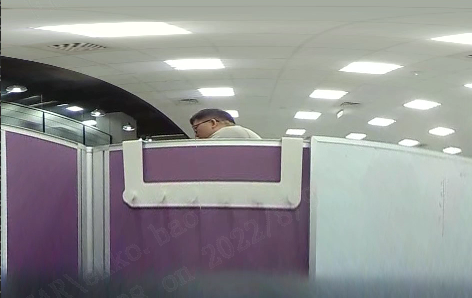
360 °panorama corrected output image 942x600 |
|||
2.2.7. Example of 180-degree panorama correction effect
| Parameter setting | Correction effect | ||
|---|---|---|---|
| srcWidth | 1600 |
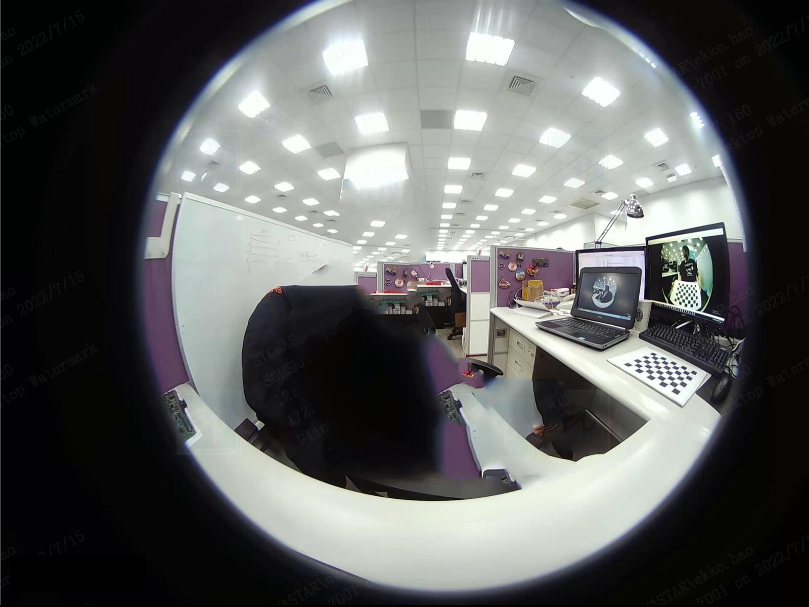
Fisheye Input Image 1600x1200 The effective picture is relatively up and right relative to the center point of the image, resulting in the loss of part of the content above it. |
|
| srcHeight | 1200 | ||
| MountMode | 2 | ||
| CenterXOffset | 75 | ||
| CenterYOffset | -34 | ||
| FocalRatio | 10000 | ||
| CropMode | 0 | ||
| Parameter sequence 1 | |||
| Pan | 0 | No up and down rotation, no scaling of field of view. The renderings are as follows. | |
| Tilt | 0 | ||
| ZoomH | 100 | ||
| ZoomV | 100 | ||
| FishEyeRadius | 620 | ||

|
|||

1600x1200 |
|||
| Parameter sequence 2 | |||
| Pan | 0 | Compared with the parameter sequence 1, the value of FishEyeRadius is reduced, and the blurred border image is removed to improve the effect. | |
| Tilt | 0 | ||
| ZoomH | 100 | ||
| ZoomV | 100 | ||
| FishEyeRadius | 580 | ||

|
|||
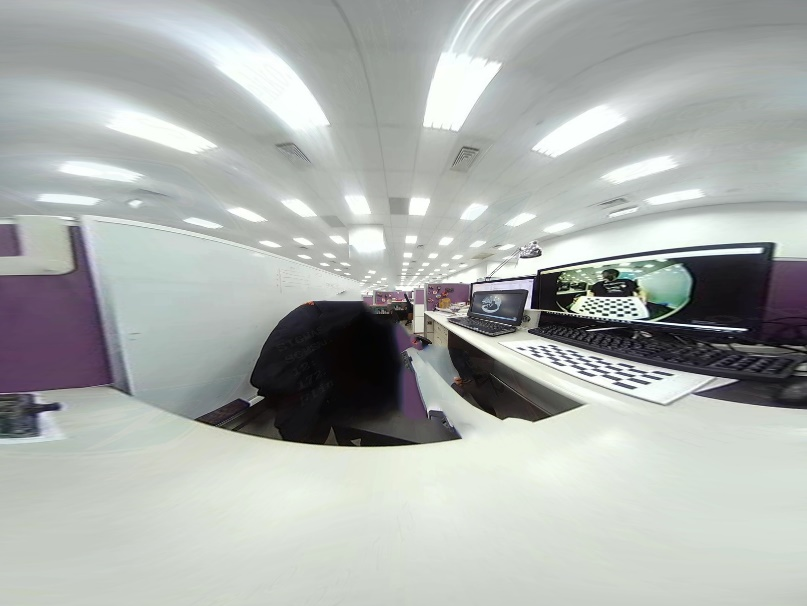
1600x1200 |
|||
| Parameter sequence 3 | |||
| Pan | 0 | Compared with the parameter sequence 2, the horizontal and vertical field of view are changed, the places with large edge stretching are removed, and the values of the two are adjusted according to the image effect. | |
| Tilt | 0 | ||
| ZoomH | 120 | ||
| ZoomV | 200 | ||
| FishEyeRadius | 580 | ||

|
|||
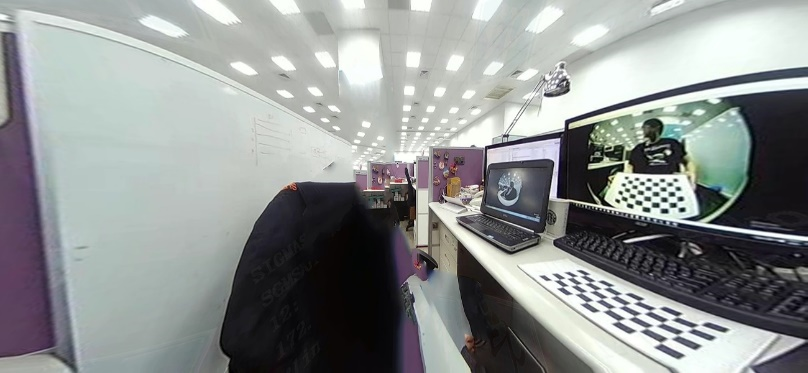
1300x600 |
|||
| Parameter sequence 4 | |||
| Pan | 0 | Compared with parameter sequence 1, change the tilt to adjust the position of the camera angle of view. Turn down 50°, form a top-down perspective. | |
| Tilt | -50 | ||
| ZoomH | 100 | ||
| ZoomV | 100 | ||
| FishEyeRadius | 620 | ||

|
|||
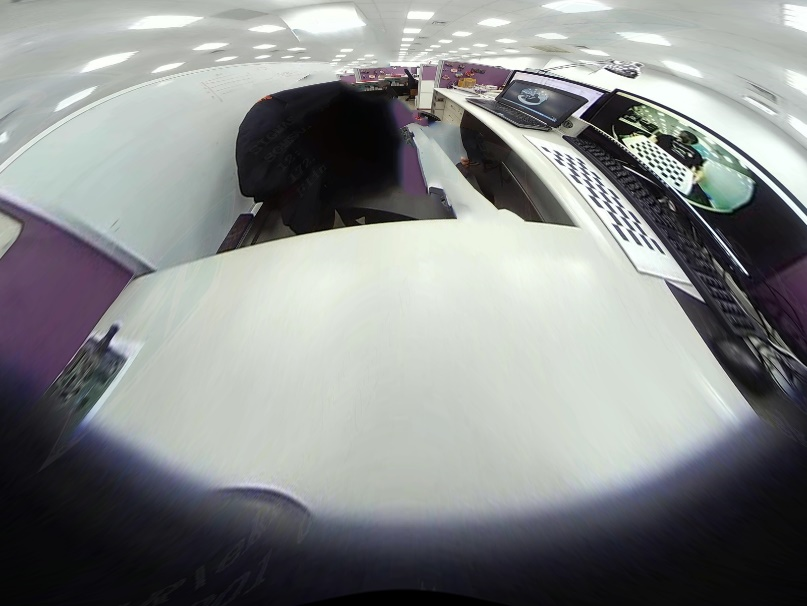
1600x1200 |
|||
| Parameter sequence 5 | |||
| Pan | -50 | Compared with the parameter sequence 4, adjust the Pan parameter again, so that the camera rotates 50° to the left and rotates 50° to the down. | |
| Tilt | -50 | ||
| ZoomH | 100 | ||
| ZoomV | 100 | ||
| FishEyeRadius | 620 | ||

|
|||
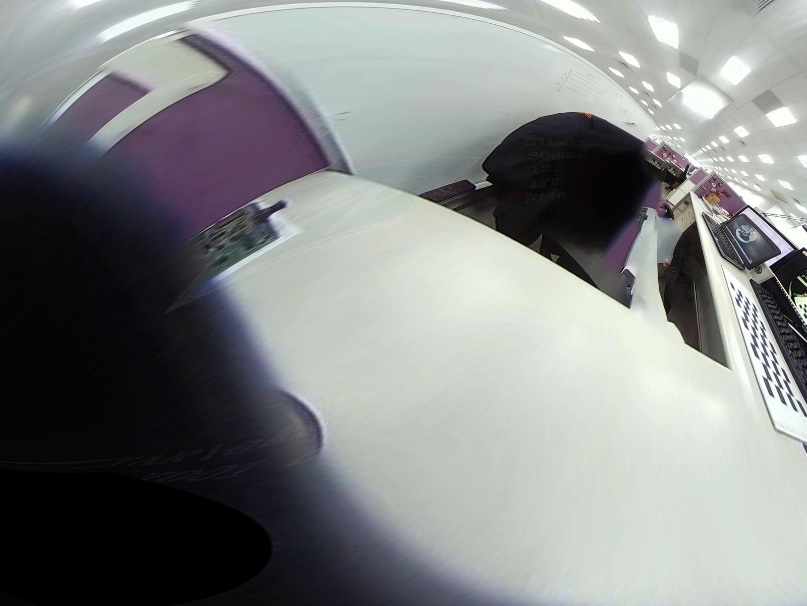
1600x1200 |
|||
2.2.8. Example of Normal correction effect
| Parameter | |||
|---|---|---|---|
| srcWidth | 1600 |
Fisheye input image with resolution 1600x1200 The center point of the effective picture relative to the image is closer to the upper right, resulting in the lack of some content above it. |
|
| srcHeight | 1200 | ||
| MountMode | 2 | ||
| CenterXOffset | 75 | ||
| CenterYOffset | -34 | ||
| Rotate | 0 | ||
| CropMode | 0 | ||
| Parameter sequence 1 | |||
| Pan | 0 | No up and down rotation, no zooming of field of view. | |
| Tilt | 0 | ||
| ZoomH | 100 | ||

|
|||

1600x1200 |
|||
| Parameter sequence 2 | |||
| Pan | 0 | Compared with parameter sequence 1, change the value of tilt to make the camera rotate downward by 50°. | |
| Tilt | -50 | ||
| ZoomH | 100 | ||

|
|||

1600x1200 |
|||
| Parameter sequence 3 | |||
| Pan | -50 |
Compared with parameter sequence 2, the Pan value is changed.
Make the camera turn left 50°, and turn down 50°. |
|
| Tilt | -50 | ||
| ZoomH | 100 | ||

|
|||

1300x600 |
|||
| Parameter sequence 4 | Compared to parameter sequence 1, the value of ZoomH is changed. | ||
| Pan | 0 | ||
| Tilt | 0 | ||
| ZoomH | 200 |

|
|
| ZoomH | 100 |

|
|
| ZoomH | 50 |

The black arc area above is an invalid area, because some content exceeds the valid area of the original image. |
|
| Parameter sequence 5 | |||
| Pan | 0 | Modify the value of Rotate to simulate camera rotation. In wall mounted scenes, the correction image must be positive and has no effect when both Pan and Tilt are 0. | |
| Tilt | 32 | ||
| MountMode | 2 | ||
| Rotate | 0 |

|
|
| Rotate | 90 |

|
|
| Rotate | 270 |

|
|
| Parameter sequence 6 | |||
| Pan | 0 | Compared to parameter sequence 5, change the camera to ground mounted. | |
| Tilt | 32 | ||
| MountMode | 0 | ||
| Rotate | 0 |

|
|
| Rotate | 90 |

|
|
| Rotate | 270 |

|
|
2.2.9. Examples of other parameter effects

Input Image |
||
|
CropMode = 0
Output the original image after correction |

Output Image |
|
|
CropMode = 1
Frame the maximum effective area and scale it adaptively to the size of the output image |

Crop Effect |

Output Image |
|
CropMode = 2
Frame the effective area according to the ratio of the output image, and then zoom in proportionally to the size of the output image |

Crop Effect |

Output Image |
| FocalRatio = 2000 |

|
| FocalRatio = 10000 |

|
| FocalRatio = 20000 |

|
| OutRotate = 0 |

|
| OutRotate = 45 |

|
| DistortionRatio = -10 |

|
| DistortionRatio = 0 |

|
| DistortionRatio = 10 |

|
2.3. Displacement Map Mode
2.3.1. Description
Displacement map Mode (also called MAP2BIN), A special mode provided for the convenience of users to directly use LDC hardware to realize customized LDC functions.
When the Region is in this mode, the MI LDC module will receive the input and output image mapping data set by the user, convert it into data that can be processed by the LDC hardware according to the user's map, and hand it over to the hardware to complete the construction of the output image.
Displacement map: Store the pixel coordinate mapping from the output image to the input image, divided into Xmap and Ymap, which record the pixel coordinates of the input image (xin,yin) corresponding to the pixel coordinates of each output image (xout,yout)
2.3.2. Flowchart

|
2.3.3. Parameter Configuration Description
| Parameter | Description | Parameter range |
|---|---|---|
| Grid |
In order to improve processing performance, maps are usually after downsampling. In order to reduce the amount of calculation, not every pixel is included in the map, but the interpolation operation is performed during hardware processing to restore it.
The Grid parameter was introduced at this time to describe the sampling interval (accuracy) For example, a 3840x2160 output image, its original map is 3840x2160, in the case of grid = 16, the map width is reduced to 241x136 |
1,2,4,8,16,32,64 |
|
Xmap
Ymap |
Divided into x-coordinate mapping table and y-coordinate mapping table. Store the horizontal and vertical coordinate values of the corresponding coordinates according to the sampling points
The point P in the output image corresponds to the coordinate point P1 of the original image, and the coordinate relationship stored in the map buff is as follows: 

Due to the downsampling, not every point needs to be calculated, just calculate according to the Grid step; if the pixels at the end cannot divide the Grid, you need to expand or truncate to the actual boundary according to the actual situation. For the difference detail, please refer to Item 1 in Section 2.3.6. |
NA |
|
XmapSize
YmapSize |
The data type of each element in the Map data buff is float type, and the size is 4 bytes.

For example, if a 3840x2160 output image has Grid = 16, the buff size occupied by a single map is 214x136x4=131104(bytes), or algo will throw an error. |
NA |
2.3.4. Example of Map Generation
- Example map of input-output image is 1:1
The resolution of the processed input image is 1920x1080, Grid = 16, it's width = 1080/16 = 67.5, and truncated to 1080. Map width and height will be 121x69, Example as 2-18.
| row/col | 0 | 1 | 2 | … | 118 | 119 | 120 |
|---|---|---|---|---|---|---|---|
| 0 | 0, 0 | 16, 0 | 32, 0 | …,0 | 1888,0 | 1904,0 | 1919,0 |
| 1 | 0,16 | 16,16 | 32, 16 | …,16 | 1888,16 | 1904,16 | 1919,16 |
| 2 | 0,32 | 16,32 | 32,32 | …,32 | 1888,32 | 1904,32 | 1919,32 |
| … | 0,…. | 16,… | 32,… | ...,… | 1888,… | 1904,… | 1919,… |
| … | 0, …. | 16,… | 32,… | ...,… | 1888,… | 1904,… | 1919,… |
| 66 | 0,1056 | 16,1056 | 32,1056 | …,1056 | 1888,1056 | 1904,1056 | 1919,1056 |
| 67 | 0,1072 | 16,1072 | 32,1072 | …,1072 | 1888,1072 | 1904,1072 | 1919,1072 |
| 68 | 0,1079 | 16,1079 | 32,1079 | …,1079 | 1888,1079 | 1904,1079 | 1919,1079 |
2.3.5. Parameter configuration examples and effects
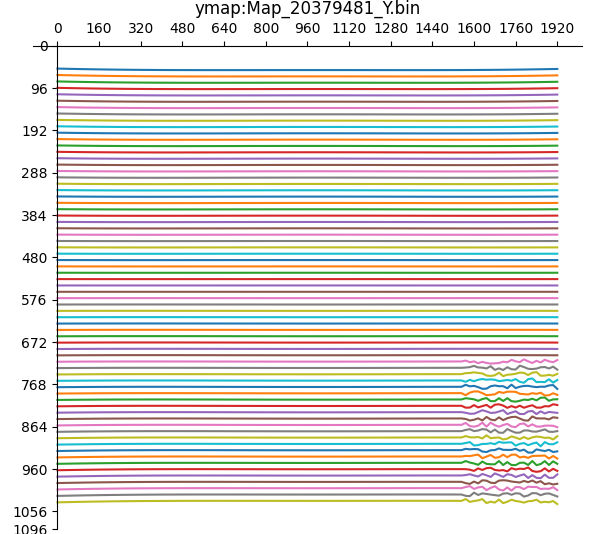
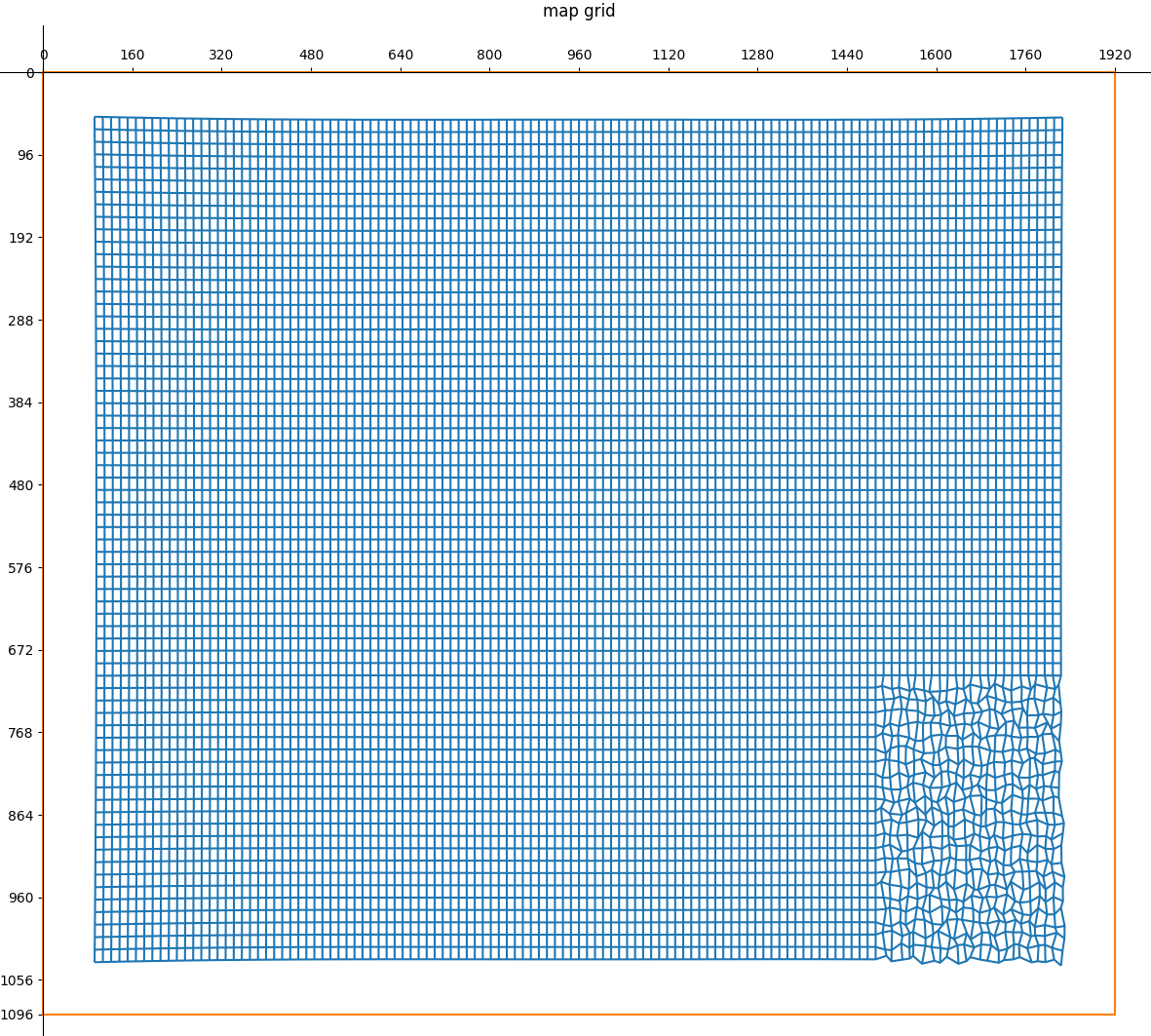
The following is a map with EIS anti-shake and additional fine changes in the lower right corner.
Its required parameters are shown in 2-19:
| Parameter | Description | |
|---|---|---|
| RegionMode | 4 | Mode of MI_LDC current Region |
| srcWidth | 1920 |
input image size
单位:pixel |
| srcHeight | 1080 | |
| dstWidth | 1920 |
Output Image Size
Unit:pixel |
| dstHeight | 1080 | |
| Grid | 16 | Sampling accuracy |
| XmapSize | 33396 |
The memory size required by map
Unit: bytes |
| YmapSize | 33396 | |
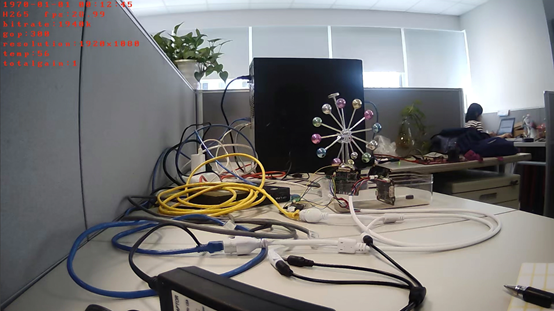
The mapping diagram of its xymap and the comparison of its input and output diagrams used on the board are shown in Table 2-20.

Xmap |
Ymap |
Input and output mesh graph |
|
Input Image |
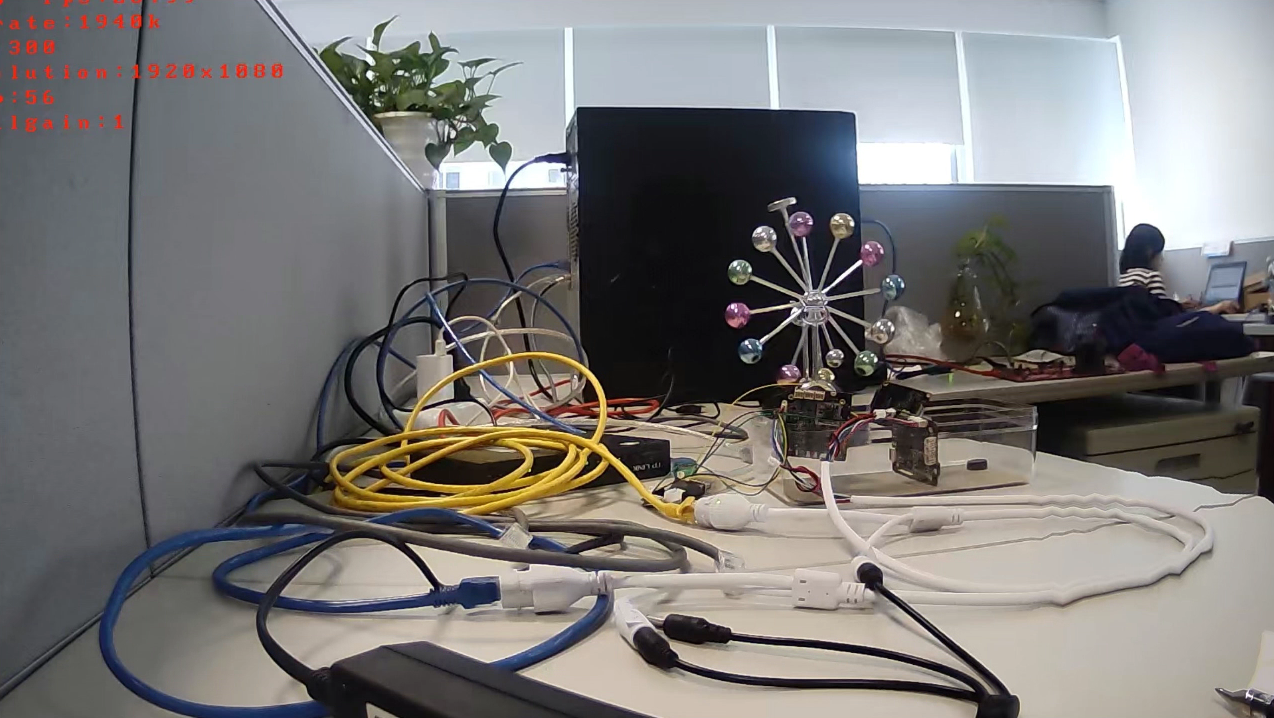
Output Image |

Input and output comparison chart |
|
2.3.6. Map Specifications and Limitations
-
The following situations will occur if the width and height of the image cannot be divisible by Grid. It will result in black borders with map expanded according to the Grid.
SrcImage: 1920x1080 Map range: 1920x1088 Input Image
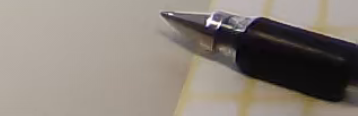
Output Image
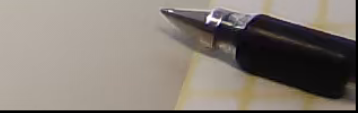
If it is truncated to the boundary, stretching at the boundary will occur, resulting in the problem of missing some pixels.
This situation is a hardware limitation, so it is recommended to use a resolution that can be divisible by Grid as input.SrcImage: 1920x1080 Map range: 1920x1080 Input Image
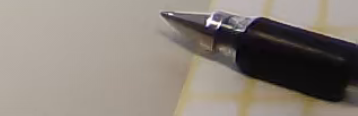
Output Image
-
Limits on map complexity:
Due to hardware limitations, the entire image cannot be processed at one time, so the image needs to be divided into multiple regions for sequential processing. And the limitations of dividing this processing area are as follows:
The maximum y value of each row minus the minimum y value of the previous row cannot exceed 128 pixels. If the change of the map is too large or the grid is too large and the accuracy is too low to be processed, you can reduce the Grid to improve the sampling accuracy and see if it can be processed.
2.4. Projection Mapping Function
2.4.1. Description
The user can use Projection Mapping Function (PMF) completing the plane geometric change of the image by configuring the projection transformation matrix, and generate the corresponding output image.
Common types of plane geometric transformations are: translation, rotation, scaling, perspective. Each transformation can be superimposed on each other, and the process of superposition is matrix point multiplication.
Figure 2-3 Schematic diagram of scene projection transformation

Rigid transformation: translation, rotation
Linear transformation: scaling, shear, rotation
Affine transformation: linear, rigid
Projective transformation: affine, perspective
The output image generation process is to operate the pixel coordinates and the specified 3x3 matrix to obtain the corresponding coordinate points in the input image.
The formula is as follows:


2.4.2 Flowchart

|
2.4.3 Matrix usage instructions
This matrix (m33) describes the mapping relationship from output coordinates to input coordinates. The corresponding relationship between each item and projection transformation is shown in Figure 2-5.
For different projection transformations, the values of the items will affect each other, so it is generally necessary to calculate the transformation matrix through tools. Only simple single transformations can be achieved with manual adjustments.
Figure 2-5 Schematic diagram of item and effect relationship

|
The calculation method of the matrix is as follows:
The calculation of the matrix can be divided into the following types according to the requirements. Note that the matrix template provided here is the mapping from the input image to the output image (xy->uv), and the result directly calculated according to this template needs to find its inverse matrix (uv ->xy) to be used as the value of m33~origin of the API.
1. Translation matrix template: Translate Δy rightward (right is positive) and downward (down is positive), along the origin.

|
2. Rotation matrix template: Rotate θ degrees counterclockwise around the origin (upper left corner of the input image).

|
3. Scaling matrix template: Scale the image horizontally by Scalex times and vertically by Scaley times (which can realize mirror and flip effects).

|
4. Shear matrix template: Skews the image by α degrees along the horizontal axis and β degrees along the vertical axis.

|
5. Perspective matrix template: Perspective matrix needs to obtain the transformation matrix through the four points of the target plane and the coordinates in the current image.
The use of m33_origin matrix (uv->xy) needs to go through two steps: quantization and fixation. The operation is as follows:
- Quantization:
Among them, m_8 is the quantization factor. After calculating the initial M33, each item needs to be divided by m_8 to obtain the quantized M33'.

|
2. Fixation:
For the convenience of use, each m33 needs to be fixed-pointed, and converted into a fixed-point number with a precision of 1/(225) for representation. The fixed-point rules are as follows, and each item can be multiplied by 225.

|
2.4.4 Parameter Description
| Parameter | Description | Parameter range | |
|---|---|---|---|
| as64PMFCoef |
1. Used to store the m33 matrix after quantization + fixed point
2. The elements m_n in m33 are stored in as64PMFCoef according to the subscript 
|
m_0 | [-67108864,67106816] |
| m_1 | [-67108864,67106816] | ||
| m_2 | [-137438963472, 137434759168] | ||
| m_3 | [-67108864,67106816] | ||
| m_4 | [-67108864,67106816] | ||
| m_5 | [-137438963472, 137434759168] | ||
| m_6 | [-32768,32767] | ||
| m_7 | [-32768,32767] | ||
| m_8 | 33554432 | ||
2.4.5 Example of Parameter Configuration
The calculation process from an instance of PMF M33_origin (uv->xy) to API parameters is:

Quantize it and pinpoint it:


The parameter as64PMFCoef finally set in the interface is:

2.4.6 Single transformation example

Input Image with resolution 800x800 |
|
| Translation transformation | |
|---|---|
|
Pan 200pixel right, 100pixel down
Origin m33 (uv->xy): 
as64PMFCoef: 
|

|
| Rotation transform: | |
|
Rotate 10° counterclockwise around the origin.
Origin m33 (uv->xy): 
as64PMFCoef: 
|

|
| Scale transformation | |
|
The horizontal axis is reduced to the original 0.5, and the vertical axis is expanded to the original 1.5
Origin m33 (uv->xy): 
as64PMFCoef: 
|

|
| Shear transformation | |
|
Shear 15° in the horizontal axis direction and 5° in the vertical axis direction
Origin m33 (uv->xy): 
as64PMFCoef: 
|

|
| Perspective transformation | |
|
Restore the skewed checkerboard plane to vertical
The coordinates of the four corners of the image are: (244,139),(770,141),(765,613),(213,605) The four points mapped onto the new output plane are: (244,139),(770,139),(770,599),(244,599) Origin m33 (uv->xy): 
as64PMFCoef: 
|

|
2.4.7 Composite Transformation Calculation Example
A complex effect can be obtained by disassembling and combining multiple transformations. The superposition of a single effect can be obtained by dot multiplication of matrices. The usage can be divided into the following steps:
1. Confirm the target effect, that is, what the final effect is, and break it down into sub-steps. Each sub-step can be accomplished with the basic matrix listed above.
2. Generate the matrices of the sub-steps separately.
3. Carry out the point multiplication operation of the matrix according to the sub-step in reverse order. (Note that the commutative law does not apply to matrix multiplication, and the order cannot be changed at will.)
4. Find the inverse matrix of the output m33 (LDC needs the mapping matrix from the output image to the input image), and change it into m33 of nv->xy.
5. Perform quantization and fixation process according to the scheme of the parameter configuration example above, to get the parameter that can be used by the LDC API.
Note:
1. Regarding the two "perspectives" of matrix operations in images (coordinate system unchanged and image unchanged), we use the perspective based on unchanged coordinate system to understand and split the sub-steps.
2. All operations are based on the coordinate origin (the upper left corner of the image), so if you want to implement any operation that centers on a certain point, you need to use a translation matrix to move the center point of the operation to the origin, and move back when the operation is finished.
Case 1:
Rotate the image center by 45 degrees: you need to use a translation matrix and a rotation matrix. The stacking order of the effects is:
Step0. Move the center point of the image to the origin of the coordinates (the rotation matrix uses the origin as the rotation center).
Step1. Rotate the image 45° counterclockwise.
Step2. Move the center point of the image back to the center point of the coordinate.
The correlation matrix is as follows:

m33_origin_comb (xy->uv)
The matrix calculation process is as follows:
Step2 · Step1 · Step0

m33_origin (xy->uv)
Then calculate the inverse matrix of the calculated matrix, and perform quantization and fixed-point summing to set it to MI API for use:

Calculate m33_origin (xy->uv) to obtain m33_api (uv->xy)

Input and output effects obtained by rotating 45 degrees around the center
Case 2:
Mirror the image: you need to use a scaling matrix and a translation matrix. The stacking order of the effects is:
Step0. Use the scaling matrix to change the image to x=-x, y=y, forming a mirror effect with the Y axis as the symmetrical axis.
Step1. Move the image to the right into the coordinate system.
Its correlation matrix is as follows:

m33_origin_comb (xy->uv)
The process of calculating the matrix to obtain the parameters of the API is as follows:
(Step1 · Step0)^-1 -> Quantization and fixation:

Calculate m33_origin (xy->uv) to obtain m33_api (uv->xy)

Mirror effect of input and output diagram
2.5. LDC Bypass Mode
2.5.1. Description
Working in bypass mode (No Transformation), the current region will not perform distortion correction processing, including lens distortion correction, mapping tables, etc., but supports rotation and adaptive scaling of the output image (when the output and input resolutions are inconsistent,the input is scaled to the output resolution) operate
2.5.2. Flowchart

|
2.5.3. Parameter Description
| Parameter | Description | Range | |
|---|---|---|---|
| OutRotate |
Rotate the output graph around the center
Unit: angle |
[0,360] | |
| = 0 | no Rotation | ||
| > 0 | Rotate counterclockwise, 360 is a circle | ||
2.5.4. Example of parameter effects

Input Image with resolution 1600x1200 |
|
| Adaptive scaling to the output image |

Output Image with resolution 1920x1080 |
| OutRotate = 45 |

Output Image with resolution 1600x1200 |
2.6. LDC DoorBell Mode
2.6.1. Description
Working in doorbell mode, it allows users to dynamically adjust five parameters: Fx (X-direction correction force), Fy (Y-direction correction force), A (X-direction compression), B (Y-direction compression), and Scale (image scaling) to observe the effect of correction output.
2.6.2. Flowchart

|
2.6.3. Parameter Description
| Parameter | Description |
|---|---|
| Fx | Horizontal correction strength, value range: [0, 2000]. The final setting value is Fx*0.001. |
| Fy | Vertical correction strength, value range: [0, 2000]. The final setting value is Fy*0.001. |
| A | Horizontal scaling, value range: [1000, 4000]. The final setting value is A*0.001. |
| B | Vertical scaling, value range: [1000, 4000]. The final setting value is B*0.001. |
| Scale | Output scaling, value range: [200, 20000]. The final setting value is Scale*0.001. |
2.6.4. Example of parameter effects
| Parameter | Input Image | Output Image | |
|---|---|---|---|
| Example 1 |

|

|
|
| Fx | 1000 | ||
| Fy | 1000 | ||
| A | 1000 | ||
| B | 1000 | ||
| Scale | 1850 | ||
| Example 2 |

|
||
| Fx | 1500 | ||
| Fy | 1500 | ||
| A | 1000 | ||
| B | 1000 | ||
| Scale | 1200 | ||
3. Calibration tool
The CV Tool user manual is released together with the SDK and can be found in the Tools directory. Please refer to the user manual inside.