DLA Demo Program Instructions
1. Function Overview
1.1 Program Overview
The DLA series of algorithms is a board-side algorithm library and header files optimized by SGS from open-source models. DLA demo is a demonstration program based on the algorithm library.
1.2 Demo List
| Demo | Description | Directory |
|---|---|---|
| det | Object Detection - Multi-channel real-time object detection and display | demo/dla/det |
| fr | Face Recognition - Face registration and recognition | demo/dla/fr |
| mot | Multi-Object Tracking - Real-time detection and tracking of people/vehicles in video | demo/dla/mot |
| reid | Image Search - Person/Vehicle Re-identification | demo/dla/reid |
| ret | Text-to-Image Search - Text-based image retrieval | demo/dla/ret |
| sgptv | Image-to-Text - Automatically generate text descriptions from images | demo/dla/sgptv |
| sot | Single Object Tracking - Auto-lock and track a single person/vehicle in video | demo/dla/sot |
| vret | Text-to-Video Search - Text-based video retrieval with matched segment location | demo/dla/vret |
1.3 DET Demo - Object Detection
Related Algorithm Documentation: Object Detection Algorithm Documentation
1.3.1. Features
Multi-channel H.264 video real-time object detection and display:
- Multi-channel video playback: Supports up to 16 H.264 video files simultaneously
- VDEC dual-port architecture: Port 0 outputs to DISP for display, Port 1 outputs to detection algorithm
- Real-time object detection: Uses sgs_det_api to detect objects on VDEC output
- Detection box display: Draws detection boxes on framebuffer via SGS_GL library
- Multi-thread architecture: Independent VideoThread (video decoding) and DetThread (object detection) for each video channel
- Auto-layout: Automatically selects optimal display layout based on video count
1.3.2. Pipeline Flow
Video Files (up to 16 H.264 channels)
       │
       ▼
┌──────────────┐
│              │ Port 0 (original resolution)    Port 1 (640x352)
│    VDEC      ├────────────────────┬──────────────────┐
│              │                    │                  │
└──────────────┘                    │                  │
                                    ▼                  ▼
                             ┌──────────────┐   ┌──────────────┐
                             │              │   │              │
                             │    DISP      │   │     DET      │ Detection algo
                             │              │   │              │
                             └──────┬───────┘   └──────┬───────┘
                                    │                  │
                                    ▼                  ▼
                             ┌──────────────┐   ┌──────────────┐
                             │              │   │              │
                             │  Video Display│   │    SGS_GL    │ Draw detection boxes
                             │              │   │              │
                             └──────────────┘   └──────┬───────┘
                                                       │
                                                       ▼
                                                 ┌──────────────┐
                                                 │              │
                                                 │    MI_FB     │
                                                 │              │
                                                 └──────┬───────┘
                                                        │
                                                        ▼
                                                 ┌──────────────┐
                                                 │              │
                                                 │  Box Display │
                                                 │              │
                                                 └──────────────┘
1.3.3. Auto-layout Rules
| Video Count | Auto Layout |
|---|---|
| 1 | 1x1 |
| 2 | 2x1 |
| 3~4 | 2x2 |
| 5~6 | 3x2 |
| 7~9 | 3x3 |
| 10~16 | 4x4 |
1.4 FR Demo - Face Recognition
Related Algorithm Documentation: Face Recognition Algorithm Documentation
1.4.1. Features
Face registration and recognition:
- Face registration: Extract 512-dimension feature vector and 112x112 ARGB crop from face-containing ES stream
- Face recognition: Real-time face detection, alignment, feature extraction, and comparison with registered templates
- Dual SCL output: Channel0 Port 0 (1920x1080, for display) and Channel1 Port 0 (algorithm resolution)
- HDMI display: DISP->HDMI local display
- Framebuffer overlay: MI_FB draws green (matched) or white (unmatched) rectangles based on comparison results
1.4.2. Pipeline Flow
H264/H265 ES --> VDEC (H264/H265 decode)
                 |
                 v
              MI_SCL
        +--------+------------------------------+
        |                                       |
        v                                       v
Channel0 Port0 --> DISP Layer --> HDMI
Channel1 Port0 --> FR Detect --> Align --> Feature --> Compare --> MI_FB --> HDMI OSD
                                      |
                                      '-- Feature / crop files (registration)
1.5 REID Demo - Image Search (ReID)
Related Algorithm Documentation: Re-identification Algorithm Documentation
1.5.1. Features
Object detection and re-identification based on video stream:
- Video decode and display: Read H.264/H.265 ES stream, decode and output to HDMI
- Object detection and save: Detect objects in video frames, save frames and crop images
- Image-based search: Support jpg format input images, online/offline search
- Feature database generation: Associate recognition features with stream original image paths, generate bin files
- Search result display: Show search results on display via PIP (Picture-in-Picture)
1.5.2. Pipeline Flow
Database Pipeline (mode=0)
+-----------+     +-------+     +------+     +-----+
| ES File   | --> | VDEC  | --> | DISP | --> | HDMI|
+-----------+     +-------+     +------+     +-----+
                  |      |
                  |      v
                  |  +----------+     +-----+     +------+
                  |  | SCL DET  | --> | DET | --> | RECT |
                  |  +----------+     +-----+     +------+
                  |                                |
                  |       |------------------------|
                  |       v
                  |     +----------+     +-----+
                  |-->  | SCL REID | --> | REID|
                  |     +----------+     +-----+
                  |         |
                  |         v
                  |     +-----------+      +--------------+
                  |     | VENC CROP |----> | source Files |
                  |     +-----------+      +--------------+
                  |
                  |     +------+      +------------+
                  |-----| VENC |----> | orgin Files |
                        +------+      +------------+
Search Pipeline (mode=1)
+------+     +------------+    +------------+    +--------------+    +--------------+    +------+    +------+    +---------+    +----------+
| IMAGE|---> | JPD SEARCH |--> | SCL SEARCH |--> | REID EXTRACT |--> | REID COMPARE |--->| FILE |--->| JPD  |--->| SCL PIP |--->| DISP PIP |
+------+     +------------+    +------------+    +--------------+    +--------------+    +------+    +------+    +---------+    +----------+
1.6 RET Demo - Text-to-Image Search
Related Algorithm Documentation: Text Retrieval Algorithm Documentation
1.6.1. Features
Person detection and text-based image retrieval based on video stream:
- Video decode and display: Read H.264/H.265 ES stream, decode and output to HDMI
- Object detection and save: Detect persons in video frames, save detected frames
- Text-to-image search: Support text input to search from saved images
- Database generation: Save recognition results as database files
- PIP carousel: Display top 5 matching images via Picture-in-Picture carousel
1.6.2. Pipeline Flow
Database Pipeline
+-----------+     +-------+     +------+     +-----+
| ES File   | --> | VDEC  | --> | DISP | --> | HDMI|
+-----------+     +-------+     +------+     +-----+
                  |      |
                  |      v
                  |  +-------+     +-----+     +------+
                  |  | SCL   | --> | DET | --> | RECT |
                  |  +-------+     +-----+     +------+
                  |                                |
                  |       |------------------------|
                  |       v
                  |     +------+     +-----+
                  |-->  | SCL  | --> | RET |
                  |     +------+     +-----+
                  |                     |
                  |                     v
                  |     +------+      +------------+
                  |-----| VENC |----> | JPEG Files |
                        +------+      +------------+
Search Pipeline
+------+      +------+     +------+    +------+    +-----+    +----------+
| TEXT |--->  | RET  |---> | FILE |--->| JPD  |--->| SCL |--->| DISP PIP |
+------+      +------+     +------+    +------+    +-----+    +----------+
1.7 MOT Demo - Multi-Object Tracking
Related Algorithm Documentation: VLM Algorithm Documentation
1.7.1. Features
Real-time multi-object detection and cross-frame tracking based on video streams:
- Video decode and display: Reads the H.264 stream, decodes it, and outputs it to HDMI for display
- Multi-object detection: Performs object detection on video frames, recognizing pedestrians and cars
- Cross-frame tracking: Automatically performs cross-frame tracking and assigns a persistent
track_idto each detected object; the same object keeps the same id across all frames - Tracking box and label display: Draws colored tracking boxes (colored by
track_id, 5-color cycle: red, green, blue, yellow, white) with anid:<track_id>text label overlaid on the HDMI screen
1.7.2. Pipeline Flow
H264 ES --> VDEC (H264 decode)
              |
              +-- Port 0 (1920x1080) --> DISP Layer --> HDMI
              |
              +-- Port 1 (source resolution)  --> MOT algorithm thread
                                            |
                                            v
                                       ALGO_VLM_Run (run_det + run_mot)
                                            |
                                            v
                                       MI_FB draw tracking boxes --> HDMI OSD
1.8 SOT Demo - Single Object Tracking
Related Algorithm Documentation: VLM Algorithm Documentation
1.8.1. Features
Object detection, automatic target selection, and continuous tracking of a single target based on video streams:
- Video decode and display: Reads the H.264 stream, decodes it, and outputs it to HDMI for display
- Object detection: Performs object detection on video frames and marks trackable targets (person or car) with yellow boxes
- Automatic target selection: Automatically picks the largest target from the detection results as the tracking object, with no manual box-drawing required
- Single-object tracking: Tracks the selected target across frames and highlights it with a green thick box
- Automatic re-selection on loss: After the target leaves the frame or is lost, automatically falls back to detection and re-selects the largest target on the next frame to continue tracking
1.8.2. Pipeline Flow
  H.264 file
      │
      ▼
┌──────────┐    Port 0 (display)        ┌──────────┐      ┌──────────┐
│          ├─────────────────────────►│          │      │          │
│   VDEC   │                          │   DISP   ├─────►│   HDMI   │
│          │                          │          │      │          │
└────┬─────┘                          └──────────┘      └──────────┘
     │
     │ Port 1 (algorithm)
     ▼
┌──────────────┐
│              │
│  algorithm   │
│   thread     │
│              │
│  VLM_Run     │── Detection mode: find all targets, auto-select the largest
│ (det/track)  │── Tracking mode: track a single target across frames
│              │
└──────┬───────┘
       │
       ▼
┌──────────────┐
│              │
│  Framebuffer │── draw tracking/detection bounding boxes
│   overlay    │
│              │
└──────────────┘
1.9 SGPTV Demo - Image-to-Text
Related Algorithm Documentation: VLM Algorithm Documentation
1.9.1. Features
Automatic text description generation from JPEG images in a specified directory:
- Image scan: Scans the specified directory for JPEG images (
.jpg/.jpeg) and processes them sequentially sorted by file name - Image caption generation: Automatically generates a text description of the content of each image
- Serial result output: Prints the generated text descriptions to the serial terminal (no HDMI display path)
- Interactive browsing: Automatically pre-loads and describes the first image; press
nto switch to and describe the next image, pressqto quit
1.9.2. Pipeline Flow
JPEG file -> read -> JPD decode(NV12) -> GetBuf -> ALGO_VLM_Run(SGPTV) -> output text description
                                               |
                                               +-> crop_func -> MI_SCL_StretchBuf
1.10 VRET Demo - Text-to-Video Search
Related Algorithm Documentation: VLM Algorithm Documentation
1.10.1. Features
Retrieval of H.264 videos in a directory based on a text query and locating the matching segment:
- Stream scan: Scans the specified directory for H.264 video streams (
.h264/.264) and treats each one as a retrieval target - Text feature encoding: Encodes the query text into a text feature, encoded only once before scanning
- Video retrieval scoring: Decodes each video sequentially, extracts visual features, computes similarity against the query text, and keeps the highest-scoring segment per stream
- Best-match localization: Selects the highest-scoring stream among all streams and converts its best segment to an actual time segment using the frame rate
- Serial result output: Prints retrieval results to the serial terminal (no HDMI display path); automatically exits after the scan completes
1.10.2. Pipeline Flow
                              Text query ---------------------------------> ALGO_VLM_Run(text) -> text feature
                                       (encoded only once before scanning)

  H.264 directory -> (per file) -> MI_VDEC(H264 -> NV12) -> [per decoded frame] ALGO_VLM_Run(vret)
                                                                |
                                            every 8 frames -> visual feature  (step k)
                                                                |
                                  ALGO_VLM_GetCosSimi(visual feature, text feature) -> score
                                                                |
                                       keep the highest score / corresponding step for this file
                                                                |
                                       time segment = [previous feature frame no./fps , this feature frame no./fps] (measured)
                                                                |
                                       sort all streams -> print best stream + time segment
2. Build Environment
2.1 Build Environment Setup
Set up the arm64 compilation environment in the project root directory:
export PATH=/tools/toolchain/aarch64-unknown-linux-gcc-12.4.0-glibc-2.37-gnu/bin:$PATH
export CROSS_COMPILE=aarch64-unknown-linux-gnu-12.4.0-
export ARCH=arm64
cd project
make linux-comake_mhera.emmc.glibc-12.4.0-arm64-ext4.d3.2048.fccsp16_lpddr4x_defconfig
Note! If the board has 2GB DDR, use defconfig: linux-comake_mhera.emmc.glibc-12.4.0-arm64-ext4.d3.2048.fccsp16_lpddr4x_defconfig If the board has 4GB DDR, use defconfig: linux-comake_mhera.emmc.glibc-12.4.0-arm64-ext4.d3.4096.fccsp16_lpddr4x_defconfig
2.2 Build Commands
# Build entire project
cd project
make clean;make image -j16

# Build all DLA demos
cd sdk/verify/sample_code
make demo/dla

# Build single demo (choose one)
make demo/dla/det
make demo/dla/fr
make demo/dla/mot
make demo/dla/reid
make demo/dla/ret
make demo/dla/sgptv
make demo/dla/sot
make demo/dla/vret

# Clean compilation artifacts
make demo/dla_clean
2.3 Build Artifacts
sgs_demo_dla_detexecutable is located in theout/arm64/appdirectorysgs_demo_dla_frexecutable is located in theout/arm64/appdirectorysgs_demo_dla_motexecutable is located in theout/arm64/appdirectorysgs_demo_dla_reidexecutable is located in theout/arm64/appdirectorysgs_demo_dla_retexecutable is located in theout/arm64/appdirectorysgs_demo_dla_sgptvexecutable is located in theout/arm64/appdirectorysgs_demo_dla_sotexecutable is located in theout/arm64/appdirectorysgs_demo_dla_vretexecutable is located in theout/arm64/appdirectory
3. Runtime Environment
All DLA Demos run on SGS series chip platforms and depend on MI (Module Interface) system drivers and corresponding algorithm libraries.
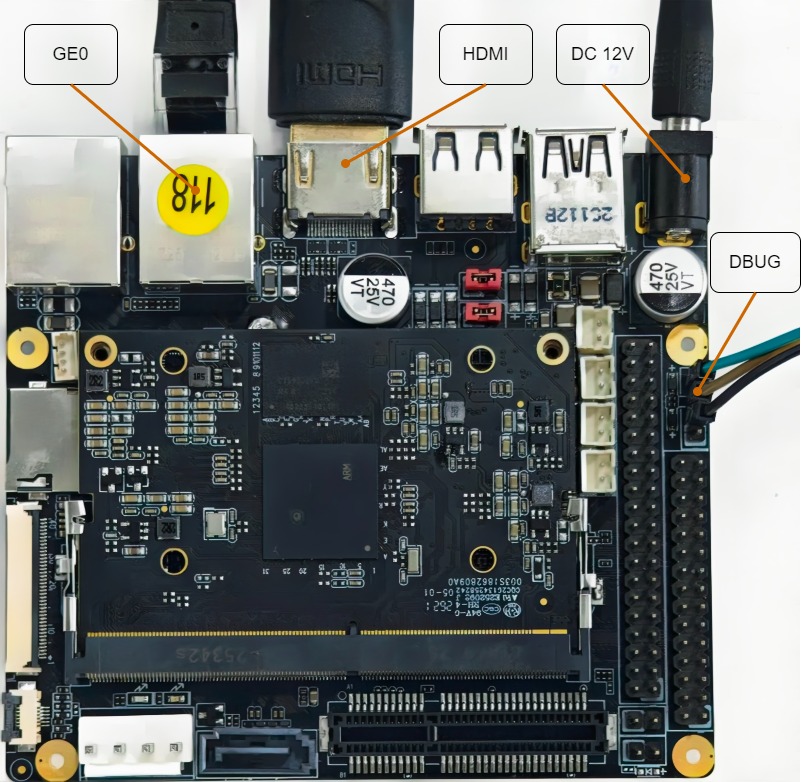
3.1 Hardware Requirements
- Development Board: SGS series development board platform (e.g., Comake Pi D3)
- Display Device: Display supporting HDMI output
- Storage Device:
- DET/FR/MOT/SOT Demo: Can use on-board Flash or NFS mounted directory
- SGPTV/VRET Demo: Can use on-board Flash or NFS mounted directory (only needs to store models and a small number of input files)
- REID/RET Demo: Strongly recommend using SATA hard drive. Since large amounts of images and feature databases need to be stored, on-board memory is insufficient, and NFS network storage is slow, which may cause image storage and database synchronization failures
See the diagram below for the specific connections.
3.2 DET Demo Runtime Environment
Directory Structure Requirements:
DET Demo requires model files and video files in the same directory. Recommended directory structure:
./det/
├── sgs_demo_dla_det        # Executable file
├── spdy36s.img             # Detection model file
├── video1.h264             # Video file 1 (multiple channels supported)
├── video2.h264             # Video file 2
├── video3.h264             # Video file 3
└── video4.h264             # Video file 4
3.3 FR Demo Runtime Environment
Directory Structure Requirements:
FR Demo depends on a specific directory structure to store input streams, model files, and output feature files. Recommended to create the following structure in the running directory:
./fr/
├── sgs_demo_dla_fr        # Executable file
├── input/                 # Input directory
│   ├── face.hevc          # H.265 sample stream
│   ├── face.avc           # H.264 sample stream
│   ├── fr_det_y24s.img    # Detection model
│   ├── fr_feature_as.img  # Feature model
│   └── fr_cos256.img      # Cosine model
└── output/                # Output directory (writable)
    ├── FaceFeatureData    # Feature files generated during registration
    └── FaceCrop.argb8888  # Crop images generated during registration
3.4 REID Demo Runtime Environment
Storage Requirements (Very Important):
- Must mount SATA hard drive: Since REID Demo needs to save a large number of JPEG images and feature databases, network storage (NFS) has high latency, which will cause the feature database to record image paths but the actual images fail to save.
Hard Drive Mounting Steps:
# Mount SATA hard drive to /home (or other directory)
mount -t ext2 /dev/sda /home/

# Create running directory
mkdir -p /home/reid
Directory Structure Requirements:
REID Demo needs to place all files in the hard drive mount directory. Recommended directory structure:
/home/reid/
├── sgs_demo_dla_reid           # Executable file
├── video.h264                  # Input stream file
├── video.h265                  # Input stream file (optional)
├── reid_person_12y.img         # Person re-identification model
├── reid_vehicle_22y.img        # Vehicle re-identification model
├── sdy36s.img                  # Detection model
├── query.jpg                   # Search query image (optional)
└── out/                        # Output directory (writable)
    ├── crop/                   # Crop image directory
    │   ├── 000001_crop.jpg
    │   ├── 000002_crop.jpg
    │   └── ...
    ├── origin/                 # Original frame directory
    │   ├── 000001_org.jpg
    │   ├── 000002_org.jpg
    │   └── ...
    ├── person_bin              # Person feature database
    └── vehicle_bin             # Vehicle feature database
3.5 RET Demo Runtime Environment
Storage Requirements:
- Recommend using SATA hard drive: If the stream is complex and the frame rate is high, storage performance requirements are high. SATA hard drive is recommended. If storage media performance is insufficient, you can reduce the frame rate (
-fparameter) to alleviate it.
Hard Drive Mounting Steps:
Directory Structure Requirements:
RET Demo needs to place all files in the hard drive mount directory. Recommended directory structure:
/home/ret/
├── sgs_demo_dla_ret                # Executable file
├── video.h264                      # Input stream file
├── video.h265                      # Input stream file (optional)
├── ret_zh_img_256as.img            # Chinese image model
├── ret_zh_text77s.img              # Chinese text model
├── cn_vocab.txt                    # Chinese vocabulary
├── ret_en_img_256as.img            # English image model
├── ret_en_text77s.img              # English text model
├── en_vocab.txt                    # English vocabulary
├── sdy36s.img                      # Detection model
└── out/                            # Output directory (writable)
    ├── frame_000001.jpg            # Video frames with detected objects
    ├── frame_000002.jpg
    ├── ...
    ├── image_bin                   # Image feature database
    └── box_bin                     # Bounding box database
Output Directory:
It is recommended to set the output directory (-o parameter) in the hard drive path, e.g., /home/ret/out/.
3.6 MOT Demo Runtime Environment
Directory Structure Requirements:
MOT Demo uses relative paths to load the model, font, and input. Recommended directory structure:
mot/
├── sgs_demo_dla_mot        # Executable file
├── models/
│   └── sdy36s.img          # Detection model
├── resource/
│   └── default.ttf         # TTF font (track_id text label)
└── input/
    └── hqb.h264            # H264 raw stream (16-byte frame header per frame)
3.7 SOT Demo Runtime Environment
Directory Structure Requirements:
SOT Demo requires a detection model, an SOT internal re-detection model, and an SOT tracking model. Recommended directory structure:
sot/
├── sgs_demo_dla_sot            # Executable file
├── models/
│   ├── sdy48s.img              # Detection model / SOT internal re-detection model
│   ├── reid_person_12yxs.img   # SOT person tracking model
│   └── reid_vehicle_22yxs.img  # SOT vehicle tracking model (used when tracking cars)
└── input/
    └── hqb.h264                # H264 test video (pre-packaged format)
3.8 SGPTV Demo Runtime Environment
Directory Structure Requirements:
When testing, create a source folder in the same directory as the executable and put all JPEG images into it. Recommended directory structure:
sgptv/
├── sgs_demo_dla_sgptv          # Executable file
├── source/                     # JPEG input directory
│   ├── image1.jpg
│   ├── image2.jpeg
│   └── ...
├── sgptv_vision.img            # Vision model
├── sgptv_head.img              # Head model
├── sgptv_decoder.img           # Decoder model
├── sgptv_embedding.npy         # Embedding model
└── sgptv_json/                 # Tokenizer JSON config directory
    ├── generation_config.json
    ├── tokenizer_config.json
    └── tokenizer.json
Note! SGPTV Demo has no HDMI display path; it outputs text descriptions via the serial terminal, and requires a serial cable for debugging and a network for file transfer.
3.9 VRET Demo Runtime Environment
Directory Structure Requirements:
When testing, create a source folder in the same directory as the executable and put all streams to be searched into it. Recommended directory structure:
vret/
├── sgs_demo_dla_vret           # Executable file
├── source/                     # H.264 streams directory to be searched
│   ├── clip_a.h264
│   ├── clip_b.h264
│   └── ...
├── vret_vision.img             # Vision model
├── vret_text.img               # Text model
└── vret_json/                  # Tokenizer JSON directory
    ├── preprocessor_config.json
    ├── tokenizer_config.json
    └── tokenizer.json
Note! VRET Demo has no HDMI display path; it automatically exits after scanning all streams, and match results are printed via the serial terminal.
4. Running Instructions
4.1 DET Demo - Object Detection
4.1.1 Running Commands
# Basic usage
./sgs_demo_dla_det [options]

# Command line parameters
-m <model_path>     # Detection model file path (required)
-v <video_list>     # Video file list, comma-separated (required)
-d <threshold>      # Detection confidence threshold (optional, default 0.5)
-r <resolution>     # Display resolution: 0=1920x1080 (default), 1=3840x2160

# Usage examples
# Single channel video detection
./sgs_demo_dla_det -m ./spdy36s.img -v test.h264

# Four-channel video detection
./sgs_demo_dla_det -m ./spdy36s.img -v video1.h264,video2.h264,video3.h264,video4.h264

# Custom detection threshold
./sgs_demo_dla_det -m ./spdy36s.img -v test.h264 -d 0.7

# 4K resolution display
./sgs_demo_dla_det -m ./spdy36s.img -v test.h264 -r 1
4.1.2 Test Cases
| Test Case ID | Test Objective | Operation Steps | Execute Command | Expected Results |
|---|---|---|---|---|
| DET-01 | Single-channel video detection function | 1. Prepare single H.264 video file 2. Execute detection command 3. Verify detection box accuracy |
./sgs_demo_dla_det -m ./spdy36s.img -v test.h264 |
Automatically selects 1x1 layout, accurately detects person objects and draws three yellow detection boxes (face, head, body) |
| DET-02 | Confidence threshold adjustment (low) | 1. Test low threshold setting 2. Verify detection sensitivity 3. Check false positive and false negative rates |
./sgs_demo_dla_det -m ./spdy36s.img -v test.h264 -d 0.1 |
Low threshold detection is more lenient, lower requirements for person objects, easier to detect persons and draw more detection boxes |
| DET-03 | Confidence threshold adjustment (high) | 1. Test high threshold setting 2. Verify detection sensitivity 3. Check false positive and false negative rates |
./sgs_demo_dla_det -m ./spdy36s.img -v test.h264 -d 0.9 |
High threshold detection is more strict, higher requirements for person objects, harder to detect persons and draw fewer detection boxes |
| DET-04 | 4K resolution display | 1. Use 4K monitor 2. Execute 4K resolution command 3. Verify display effect |
./sgs_demo_dla_det -m ./spdy36s.img -v test.h264 -r 1 |
Logs print Display width: 3840; Display height: 2160, display resolution is 3840x2160, video and detection boxes display normally |
| DET-05 | Maximum channel test | 1. Prepare 16 H.264 video files (can reuse same h264 file) 2. Execute detection command 3. Verify system performance |
./sgs_demo_dla_det -m ./spdy36s.img -v video1.h264,...,video16.h264 |
Automatically selects 4x4 layout, all videos play and detect normally, accurately detects persons and draws face, head, body three detection boxes |
4.1.3 Verification Methods
Terminal Output Verification:
Parsed arguments:
  Model path: ./spdy36s.img
  Video count: 4
  Video 1: video1.h264
  Video 2: video2.h264
  Video 3: video3.h264
  Video 4: video4.h264
  Detection threshold: 0.500000
  Display width: 1920
  Display height: 1080

Auto-selected layout 2 for 4 video(s)

Display initialized: screen=1920x1080, layerSize=1920x1080...

Detection algorithm initialized with input 640x352.

Video playback started. Press 'q' to quit.
Display Effect Verification:
- HDMI display device shows video playback screens
- Yellow detection boxes drawn around detected objects (face, head, body)
- Multi-channel videos displayed in grid layout according to auto-layout
Program Exit:
- Type
qand press Enter in terminal to exit - Program will clean all resources and exit normally
4.2 FR Demo - Face Recognition
4.2.1 Running Commands
# General format
./sgs_demo_dla_fr <mode> [image <es_path>] [type <codec_type>] [featuredatanum <num>] [featuredata <file> <...> <file>] [cropdata <file>] [timeout <seconds>]

# Parameter descriptions
<mode>              # 0=registration, 1=recognition
image <es_path>     # VDEC loop-play ES file (default: input/face.hevc)
type <codec_type>   # 1=H264, 2=H265 (default: 2)
featuredatanum <num>    # Number of feature files, range 1~5 (default: 1)
featuredata <file>  # Feature file path (default: output/FaceFeatureData)
cropdata <file>     # 112x112 ARGB crop image (default: output/FaceCrop.argb8888)
timeout <seconds>   # Run time in seconds, -1 means wait for q key (default: -1)

# Usage examples
# Register face template and keep crop image
./sgs_demo_dla_fr 0 image input/face.hevc type 2 featuredata output/face1.feature cropdata output/face1.argb timeout 20

# Recognize using saved template
./sgs_demo_dla_fr 1 image input/face.hevc type 2 featuredata output/face1.feature timeout 60

# Recognize using multiple templates
./sgs_demo_dla_fr 1 image input/face.hevc type 2 featuredatanum 3 featuredata output/face1.feature output/face2.feature output/face3.feature timeout 60
4.2.2 Test Cases
| Test Case ID | Test Scenario | Operation Steps | Execute Command | Expected Results |
|---|---|---|---|---|
| FR-01 | Single face registration | 1. Copy target ES file to device 2. Run registration command with specified output path 3. Check generated feature and crop files |
./sgs_demo_dla_fr 0 image input/face.hevc type 2 featuredata output/face1.feature cropdata output/face1.argb timeout 15 |
Generate face1.feature and face1.argb; serial terminal prints Face detected and write file xx success info; HDMI displays green box |
| FR-02 | H.264 stream face match/non-match recognition | 1. Confirm FR-01 output files exist 2. Run recognition command 3. Observe similarity and overlay box color |
./sgs_demo_dla_fr 1 image input/face.avc type 1 featuredata output/face1.feature timeout 30 |
When matched, terminal prints Match found (similarity: X.XX) with similarity >0.45, screen draws green box; when not matched, terminal prints No match found (max similarity: X.XX) with similarity < 0.45, screen draws white box |
| FR-03 | H.265 stream face match/non-match recognition | 1. Confirm FR-01 output files exist 2. Run recognition command 3. Observe similarity and overlay box color |
./sgs_demo_dla_fr 1 image input/face.hevc type 2 featuredata output/face1.feature timeout 30 |
When matched, terminal prints Match found (similarity: X.XX) with similarity >0.45, screen draws green box; when not matched, terminal prints No match found (max similarity: X.XX) with similarity < 0.45, screen draws white box |
| FR-04 | Multi-face whitelist match/non-match recognition | 1. Use FR-01 case to output multiple face feature files and confirm output files exist 2. Run recognition command 3. Observe similarity and overlay box color |
./sgs_demo_dla_fr 1 image input/face.hevc type 2 featuredatanum 3 featuredata output/face1.feature output/face2.feature output/face3.feature timeout 30 |
When matched, terminal prints Match found (similarity: X.XX) with similarity >0.45, screen draws green box; when not matched, terminal prints No match found (max similarity: X.XX) with similarity < 0.45, screen draws white box |
| FR-05 | Timeout exit | 1. Set shorter timeout to run recognition 2. Wait for program to auto-exit |
./sgs_demo_dla_fr 1 image input/face.hevc type 2 featuredata output/face1.feature timeout 10 |
Auto-exit after about 10 seconds, no manual intervention needed; threads end correctly, serial terminal prints cleanup logs |
4.2.3 Verification Methods
Display Effect Verification:
- HDMI loops ES stream
- Green box indicates successful match
- White box indicates no match
File Output Verification:
- Registration mode produces 50,176-byte ARGB file (112x112)
- Produces feature file composed of 512
MI_S16
Program Exit:
- Manual: Type
qand press Enter in serial terminal - Automatic: Depends on
timeoutsetting, auto-exits when time is reached
4.3 REID Demo - Image Search (ReID)
4.3.1 Running Commands
# Generate person database
./sgs_demo_dla_reid -i <input_stream> -W <width> -H <height> -f <fps> -t <codec_type> -O <output_path> -m 0 -o 0 -P <person_model> -D <det_model>

# Generate vehicle database
./sgs_demo_dla_reid -i <input_stream> -W <width> -H <height> -f <fps> -t <codec_type> -O <output_path> -m 0 -o 1 -V <vehicle_model> -D <det_model>

# Search using existing database for person
./sgs_demo_dla_reid -i <input_stream> -W <width> -H <height> -f <fps> -t <codec_type> -I <input_picture> -w <pic_width> -h <pic_height> -b <feature_bin> -m 1 -o 0 -P <person_model> -T <threshold>

# Search using existing database for vehicle
./sgs_demo_dla_reid -i <input_stream> -W <width> -H <height> -f <fps> -t <codec_type> -I <input_picture> -w <pic_width> -h <pic_height> -b <feature_bin> -m 1 -o 1 -V <vehicle_model> -T <threshold>

# Dynamic image search (person)
./sgs_demo_dla_reid -i <input_stream> -W <width> -H <height> -f <fps> -t <codec_type> -I <input_picture> -w <pic_width> -h <pic_height> -O <output_path> -m 0 -o 0 -P <person_model> -T <threshold> -D <det_model>

# Example
./sgs_demo_dla_reid -i ./hqb.h264 -W 1920 -H 1080 -f 20 -t 0 -O /home/reid/out -m 0 -o 0 -P reid_person_12y.img -D sdy36s.img
4.3.2 Parameter Description
| Parameter | Description |
|---|---|
-i |
Input ES stream file path |
-t |
Codec type: 0=H.264, 1=H.265 |
-W |
Video width (1-3840) |
-H |
Video height (1-2160) |
-f |
Video frame rate (1-30) |
-m |
Run mode: 0=generate new database, 1=use existing database |
-o |
Target type: 0=person, 1=vehicle |
-P |
Person re-identification model file |
-V |
Vehicle re-identification model file |
-O |
Output directory |
-D |
Detection model file |
-I |
Input image file (for search) |
-w |
Input image width |
-h |
Input image height |
-b |
Feature database file |
-T |
REID model threshold (0.0~1.0) |
4.3.3 Test Cases
| Test Case ID | Test Objective | Operation Steps | Execute Command | Expected Results |
|---|---|---|---|---|
| REID-01 | Test person database generation (H.264) | 1. Execute program 2. Wait for stream playback completion 3. Check output directory |
./sgs_demo_dla_reid -i ./hqb.h264 -W 1920 -H 1080 -f 20 -t 0 -O /home/reid/out -m 0 -o 0 -P reid_person_12y.img -D sdy36s.img |
1. HDMI displays video screen 2. /home/reid/out directory generates person.bin3. /home/reid/out/person path generates frame_.jpg original images4. /home/reid/out/person_source path generates source/source.jpg crop images |
| REID-02 | Test vehicle database generation (H.264) | 1. Execute program 2. Wait for stream playback completion 3. Check output directory |
./sgs_demo_dla_reid -i ./hqb.h264 -W 1920 -H 1080 -f 20 -t 0 -O /home/reid/out -m 0 -o 1 -V reid_vehicle_22y.img -D sdy36s.img |
1. HDMI displays video screen 2. /home/reid/out directory generates vehicle.bin3. /home/reid/out/vehicle generates frame_.jpg original images4. /home/reid/out/vehicle_source directory generates source/source.jpg` crop images |
| REID-03 | Test pause/resume function | 1. Execute REID-01 command 2. Input 0 to pause during playback3. Input 0 again to resume4. Input q to exit normally |
Same as REID-01 command | 1. First input 0, video pauses2. Second input 0, video resumes3. After input q, exits normally, database generation successful |
| REID-04 | Test person offline search function (mode=1) | 1. Execute after REID-01 completion 2. Input 1 to execute search |
./sgs_demo_dla_reid -i ./hqb.h264 -W 1920 -H 1080 -f 20 -t 0 -I ./test_person.jpg -w 256 -h 128 -b /home/reid/out/person.bin -m 1 -o 0 -P reid_person_12y.img -T 0.7 |
1. HDMI displays video screen 2. After input 1, main stream pauses playback3. Terminal prints Top 5 search results 4. Top-left PIP displays search results carousel |
| REID-05 | Test vehicle offline search function (mode=1) | 1. Execute after REID-02 completion 2. Input 1 to execute search3. Verify search results |
./sgs_demo_dla_reid -i ./hqb.h264 -W 1920 -H 1080 -f 20 -t 0 -I ./test_vehicle.jpg -w 256 -h 128 -b /home/reid/out/vehicle.bin -m 1 -o 1 -V reid_vehicle_22y.img -T 0.3 |
1. HDMI displays video screen 2. After input 1, executes search3. Terminal prints Top 5 search results 4. Top-left PIP displays search results carousel |
| REID-06 | Test PIP carousel control function | 1. Execute REID-04 command 2. Input 1 to execute search, enter PIP display3. Press n to view next4. Press p to view previous5. Press s to switch auto/manual mode6. Press q to exit PIP display |
Execute after REID-01 completion | 1. After input 1, enters PIP carousel mode (auto play)2. Press s to switch auto play/manual mode3. Press n to switch to next image4. Press p to switch to previous image5. Press q to exit PIP display mode |
| REID-07 | Test person dynamic search function (H.264) | 1. Execute program 2. Program automatically generates database and searches 3. Verify search results |
./sgs_demo_dla_reid -i ./hqb.h264 -W 1920 -H 1080 -f 20 -t 0 -I ./test_person.jpg -w 256 -h 128 -O /home/reid/out -m 0 -o 0 -P reid_person_12y.img -T 0.7 -D sdy36s.img |
1. HDMI displays video screen 2. Program plays and generates database 3. After input 1, stream pauses, displays search results for current played stream4. When more matching images appear, search results update |
4.4 RET Demo - Text-to-Image Search
4.4.1 Running Commands
# Basic usage
./sgs_demo_dla_ret -i <input_file> -o <output_dir> -W <width> -H <height> -f <fps> -I <img_model> -T <txt_model> -V <vocab_file> -D <det_model> -l <language> -t <codec_type>

# Chinese recognition (H.264)
./sgs_demo_dla_ret -i ./hqb.h264 -o /home/ret/out -W 1920 -H 1080 -f 20 -I ./ret_zh_img_256as.img -T ./ret_zh_text77s.img -V ./cn_vocab.txt -D ./sdy36s.img -l 0 -t 0

# English recognition (H.264)
./sgs_demo_dla_ret -i ./hqb.h264 -o /home/ret/out -W 1920 -H 1080 -f 20 -I ./ret_en_img_256as.img -T ./ret_en_text77s.img -V ./en_vocab.txt -D ./sdy36s.img -l 1 -t 0
4.4.2 Parameter Description
| Parameter | Description |
|---|---|
-i |
Input ES stream file path |
-o |
Output directory |
-W |
Video width (1-3840) |
-H |
Video height (1-2160) |
-f |
Video frame rate (1-120) |
-I |
Image model file path |
-T |
Text model file path |
-V |
Vocabulary model file path |
-D |
Detection model file path |
-l |
Language setting: 0=Chinese, 1=English |
-t |
Codec type: 0=H.264, 1=H.265 |
4.4.3 Test Cases
| Test Case ID | Test Objective | Operation Steps | Execute Command | Expected Results |
|---|---|---|---|---|
| RET-01 | Test stream playback and pause/resume function | 1. Execute program 2. Input '0' to pause during playback 3. Input '0' again to resume 4. Count images |
./sgs_demo_dla_ret -i hqb.h264 -o /home/ret/out/ -W 1920 -H 1080 -f 20 -I ret_zh_img_256as.img -T ret_zh_text77s.img -V cn_vocab.txt -D sdy36s.img -t 0 -l 0 |
1. HDMI displays video screen 2. jpg image count continuously increases 3. Video successfully enters loop playback 4. Program prints should-save image count, actual save count should match 5. Video pauses 6. Video resumes playback |
| RET-02 | Test database generation function | 1. Wait for stream first playback completion to auto-repeat 2. Check database files |
Wait for stream complete playback once | 1. Monitor stream starts loop playback 2. Check if application directory generates database files box_bin and image_bin |
| RET-03 | Test Chinese search function | 1. Based on RET-02, input 1 to enter search mode2. Search 穿红衣服的人 |
1. Input 1+Enter to enter search mode2. Input 穿红衣服的人+Enter |
1. Video pauses playback 2. HDMI top-left displays search results, carousels top 5 images matching 穿红衣服的人3. Serial terminal continuously prints top-left playing image names |
| RET-04 | Repeat test search function | 1. Input q to exit current search2. Input 穿黄衣服的人 to search3. Input q to exit, input 骑车的人 |
1. Input q to exit current search2. Input 穿黄衣服的人3. Input q then input 骑车的人 |
1. Exit current search and repeated search functions work normally, no error logs |
| RET-05 | Test exit search | 1. Input q to exit current search2. Continue input q, exit search mode3. Re-input 1 to enter search mode |
Input q twice in search mode |
1. Exit current search, still in search mode 2. Exit search mode, monitor stream resumes playback 3. Re-enter search mode works normally |
| RET-06 | Test exit | 1. Input q to exit after stream starts2. Exit directly after pause 3. Exit after search |
Input q to exit |
These exit cases all generate corresponding database files box_bin and image_bin, program exits normally, no error logs |
| RET-07 | Test English search function | 1. Execute program, wait for stream first playback completion then input 1 to enter search mode2. Search The person wearing red clothes3. Input q to exit |
./sgs_demo_dla_ret -i hqb.h264 -o /home/ret/out/ -W 1920 -H 1080 -f 20 -I ret_en_img_256as.img -T ret_en_text77s.img -V en_vocab.txt -D sdy36s.img -t 0 -l 1 |
1. Monitor top-left displays carousel of top 5 images matching The person wearing red clothes2. Terminal prints image paths 3. Program exits normally, no error prints |
4.5 MOT Demo - Multi-Object Tracking
4.5.1 Running Commands
# General format
./sgs_demo_dla_mot -i <input> -m <det_model> [-t <font>] [-W <width>] [-H <height>] [-f <fps>] [--help]

# Usage example
./sgs_demo_dla_mot -i input/hqb.h264 -t resource/default.ttf -m models/sdy36s.img -W 1920 -H 1080
4.5.2 Parameter Description
| Parameter | Description | Required | Default |
|---|---|---|---|
-i, --input <file> |
H264 input file path | Yes | - |
-m, --det-model <path> |
Detection model file (.img) | Yes | - |
-t, --font <path> |
TTF font for the track_id text label (not provided = no text label) | No | - |
-W, --disp-width <width> |
Source video width (1-4096) | No | 1920 |
-H, --disp-height <height> |
Source video height (1-4096) | No | 1080 |
-f, --frame-rate <fps> |
Stream frame rate (1-120) | No | 30 |
--help |
Show help information | No | - |
Note!
-W/-Hmust match the actual stream resolution, otherwise decoding/display anomalies will occur.
4.5.3 Test Cases
| Test Case ID | Test Objective | Operation Steps | Execute Command | Expected Results |
|---|---|---|---|---|
| MOT-01 | Normal MOT 1080p tracking | 1. Run the program 2. Wait for HDMI display 3. Observe colored tracking boxes and id text labels 4. Wait for the stream to loop at least once |
./sgs_demo_dla_mot -i input/hqb.h264 -t resource/default.ttf -m models/sdy36s.img -W 1920 -H 1080 -f 20 |
1. HDMI displays video 2. Only pedestrians and cars have colored tracking boxes, colored by track_id (5-color cycle) 3. Each box has an id: 4. File auto-loops after playback completes |
| MOT-02 | Pause/resume/exit function | 1. Run the MOT-01 command 2. After stable playback, input p + Enter to pause3. Wait about 5 seconds 4. Input p + Enter again to resume5. Input q + Enter to exit |
Same as the MOT-01 command | 1. First p: stream sending and algorithm processing pause2. Second p: playback resumes normally, track_id stays stable across the pause boundary3. Input q + Enter exits normally with no error prints |
4.6 SOT Demo - Single Object Tracking
4.6.1 Running Commands
# General format
./sgs_demo_dla_sot -i <input> -D <det_model> -s <det4sot_model> -S <sot_model> [-m <0|1>] [-o <0|1>] [-W <width>] [-H <height>] [-T <threshold>] [--help]

# Track a person (example)
./sgs_demo_dla_sot -i hqb.h264 -D ./models/sdy48s.img -s ./models/sdy48s.img -S ./models/reid_person_12yxs.img -m 1 -o 0 -W 1920 -H 1080 -T 0.3

# Track a car (example)
./sgs_demo_dla_sot -i hqb.h264 -D ./models/sdy48s.img -s ./models/sdy48s.img -S ./models/reid_vehicle_22yxs.img -m 1 -o 1 -W 1920 -H 1080 -T 0.3
4.6.2 Parameter Description
| Parameter | Description | Required | Default |
|---|---|---|---|
-i, --input <file> |
Input H.264 file path | Yes | — |
-D, --det-model <path> |
Detection model path | Yes | — |
-s, --det4sot-model <path> |
SOT internal detection model path | Yes | — |
-S, --sot-model <path> |
SOT tracking model path | Yes | — |
-m, --enable-md <0\|1> |
Enable motion detection pre-filter, 0:off 1:on | No | 0 |
-o, --target-class <0\|1> |
Track target class: 0=person / 1=car | No | 0 |
-W, --disp-width <w> |
Display width (1-4096) | No | 1920 |
-H, --disp-height <h> |
Display height (1-4096) | No | 1080 |
-T, --track-threshold <f> |
SOT tracking confidence threshold, range (0, 1.0] | No | 0.3 |
--help |
Show help information | No | — |
Note! About
-Dand-s:-s(det4sot) is the model used for internal re-detection during SOT tracking; usually specifying the same file as the detection model gives the best result.
4.6.3 Test Cases
| Test Case ID | Test Objective | Operation Steps | Execute Command | Expected Results |
|---|---|---|---|---|
| SOT-01 | Track a person | 1. Run the program 2. Observe the auto-selected target and green tracking box 3. Observe target leave/reappear behavior |
./sgs_demo_dla_sot -i hqb.h264 -D sdy48s.img -s sdy48s.img -S reid_person_12yxs.img -m 1 -o 0 -W 1920 -H 1080 -T 0.3 |
Selects the largest person in the current frame as the tracking target (log shows SetSot auto-pick + SOT tracking started), screen displays a green tracking box; after the target leaves the frame the green box disappears and it falls back to detection mode; after the target reappears, tracking resumes automatically |
| SOT-02 | Track a car | 1. Run the program 2. Observe the auto-selected target and green tracking box |
./sgs_demo_dla_sot -i hqb.h264 -D sdy48s.img -s sdy48s.img -S reid_vehicle_22yxs.img -m 1 -o 1 -W 1920 -H 1080 -T 0.3 |
Selects the largest car in the current frame as the tracking target (log shows SetSot auto-pick + SOT tracking started), screen displays a green tracking box; after loss it falls back to detection mode, and resumes tracking after reappearance |
| SOT-03 | Press q to exit | 1. Start the SOT-01 command 2. Press q + Enter to exit |
Same as the SOT-01 command | Displays [INFO]: exit requested, exits normally (return 0) |
4.7 SGPTV Demo - Image-to-Text
4.7.1 Running Commands
# General format
./sgs_demo_dla_sgptv -i <input_dir> [-V <vision_model>] [-H <head_model>] [-D <decoder_model>] [-E <embedding_model>] [-J <json_path>] [-h]

# Usage example
./sgs_demo_dla_sgptv \
    -i source/ \
    -V sgptv_vision.img \
    -H sgptv_head.img \
    -D sgptv_decoder.img \
    -E sgptv_embedding.npy \
    -J sgptv_json/
4.7.2 Parameter Description
| Parameter | Required/Optional | Description |
|---|---|---|
-i, --input |
Required | JPEG input directory path |
-V, --vision-model |
Optional | Vision model path |
-H, --head-model |
Optional | Head model path |
-D, --decoder-model |
Optional | Decoder model path |
-E, --embedding-model |
Optional | Embedding model path |
-J, --json-path |
Optional | SGPTV JSON config directory |
-h, --help |
Optional | Print help |
4.7.3 Test Cases
| Test Case ID | Test Objective | Operation Steps | Execute Command | Expected Results |
|---|---|---|---|---|
| SGPTV-01 | Verify the image-to-text flow | 1. Prepare the JPEG directory and all models/JSON 2. Run the demo |
./sgs_demo_dla_sgptv -i source/ -V sgptv_vision.img -H sgptv_head.img -D sgptv_decoder.img -E sgptv_embedding.npy -J sgptv_json/ |
First image pre-loads successfully, VLM initializes successfully, outputs a [RESULT_RAW] text description, and the description matches the image content |
| SGPTV-02 | Interactive image switching and exit | 1. Based on SGPTV-01, press n at least 3 times2. Verify each description matches the image 3. Press q to exit |
Interactive operation | Each time n is pressed, the next image is decoded and a text description is output, matching the image content; after pressing q, prints Quit. and exits normally |
4.8 VRET Demo - Text-to-Video Search
4.8.1 Running Commands
# General format
./sgs_demo_dla_vret -i <input_dir> -p <prompt> -f <fps> -V <vision_model> -T <text_model> -J <json_path> [-W <width>] [-H <height>] [-s <frame_shift>] [-h]

# Usage example
./sgs_demo_dla_vret -i source/ -p "Departure video at the airport terminal" -f 30 -V vret_vision.img -T vret_text.img -J vret_json/ -W 1920 -H 1080
4.8.2 Parameter Description
| Parameter | Required/Optional | Range/Example | Description |
|---|---|---|---|
-i, --input |
Required | Directory path | Directory of H.264 streams to be searched |
-p, --prompt |
Required | Text string | Text query to search for |
-f, --fps |
Required | 1 - 30 | Stream frame rate, used to convert step to actual time segment |
-V, --vision-model |
Required | File path | vret vision model path |
-T, --text-model |
Required | File path | vret text model path |
-J, --json-path |
Required | Directory path | vret tokenizer json directory |
-W, --width |
Optional | 1 - 4096 (default 1920) | VDEC channel width; set to ≥ the resolution of the largest stream in the directory |
-H, --height |
Optional | 1 - 4096 (default 1080) | VDEC channel height; set to ≥ the resolution of the largest stream in the directory |
-s, --frame-shift |
Optional | 1 - 8 (default 4) | Model cache shift; larger values mean more information per segment but lower accuracy |
-h, --help |
Optional | — | Print help |
4.8.3 Test Cases
| Test Case ID | Test Objective | Operation Steps | Execute Command | Expected Results |
|---|---|---|---|---|
| VRET-01 | Search a specified stream (e.g., traffic scene) | 1. Prepare the source stream directory and models/JSON 2. Run the program 3. Wait for the scan to complete |
./sgs_demo_dla_vret -i source/ -p "Traffic video at the intersection" -f 30 -s 4 -V vret_vision.img -T vret_text.img -J vret_json/ -W 1920 -H 1080 |
Prints the ==================== BEST MATCH ==================== block, containing the best file, score/step and time segment; the stream corresponding to the -p description should be printed as the best file, and the time segment is the segment that best matches the description |
| VRET-02 | Search a specified stream (e.g., airport terminal scene) | 1. Based on VRET-01, change the -p text2. Run the program |
./sgs_demo_dla_vret -i source/ -p "Departure video at the airport terminal" -f 30 -s 4 -V vret_vision.img -T vret_text.img -J vret_json/ -W 1920 -H 1080 |
Prints the ==================== BEST MATCH ==================== block; the best file should be the stream corresponding to the -p description, with the matching time segment |
5. Runtime Results Description
5.1 Normal Running Status
After all DLA Demos start, the following initialization operations will be performed:
- System Initialization: Load MI system drivers, initialize each module
- Model Loading: Load corresponding algorithm model files
- Resource Allocation: Allocate video channels, display layers, memory, and other resources
-
Start Processing: Start video decoding, algorithm inference, and result display
After normal startup, the terminal will display initialization success information and start outputting processing logs.
5.2 Functional Scenario Results
5.2.1 DET Demo Results
Normal Running Status:
- HDMI monitor displays multi-channel video screens
- Automatically selects optimal layout based on video count (1x1, 2x2, 3x3, 4x4, etc.)
- Draws rectangular detection boxes around detected objects
- Terminal outputs detection information
Terminal Output Example:
[INFO] System initialized successfully
[INFO] Detection model loaded: spdy36s.img
[INFO] Video channels: 4
[INFO] Auto layout: 2x2
[INFO] Start detection...
[INFO] Channel 0: detected 3 objects
[INFO] Channel 1: detected 5 objects
Display Effects:
- Videos play normally
- Detection boxes are superimposed on videos in real time
- Multi-channel videos displayed in grid layout
5.2.2 FR Demo Results
Registration Mode (mode=0):
- HDMI monitor displays face video
- Automatically extracts features after face is detected
- Generates 512-dimensional feature vector file
- Saves 112x112 ARGB crop image
Recognition Mode (mode=1):
- HDMI monitor displays real-time face recognition video
- Performs feature comparison after face detection
- Match found: Draws green rectangle
- No match: Draws white rectangle
Terminal Output Example:
[INFO] Face recognition started
[INFO] Registered features loaded: alice.feature
[INFO] Video codec: H.265
[INFO] Face detected at (x,y,w,h): (100,150,80,80)
[INFO] Feature extracted, comparing...
[INFO] Match found! Confidence: 0.92
[INFO] Draw green rectangle at (100,150,80,80)
5.2.3 REID Demo Results
Database Generation Mode (mode=0):
- HDMI monitor displays video decoding screen
- Automatically crops and saves after object detection
- Generates JPEG format crop images
- Generates feature database files (.bin)
- Saves original frame images
File Output Structure:
output/
├── crop/              # Crop image directory
│   ├── 000001_crop.jpg
│   ├── 000002_crop.jpg
│   └── ...
├── origin/            # Original frame directory
│   ├── 000001_org.jpg
│   ├── 000002_org.jpg
│   └── ...
└── feature.bin        # Feature database file
Search Mode (mode=1):
- HDMI monitor displays video decoding screen
- PIP (Picture-in-Picture) displays search results
- Displays most matching images sorted by similarity
- Terminal outputs similarity scores
Terminal Output Example:
[INFO] REID database generation started
[INFO] Target type: Person
[INFO] Detection model loaded
[INFO] REID model loaded
[INFO] Detected object, saving crop...
[INFO] Feature extracted, saving to database...
[INFO] Database saved: feature.bin
[INFO] Total objects: 150

[INFO] REID search started
[INFO] Query image loaded: query.jpg
[INFO] Searching in database...
[INFO] Top 5 matches:
[INFO]   #1: 000123_crop.jpg (similarity: 0.95)
[INFO]   #2: 000045_crop.jpg (similarity: 0.88)
[INFO]   #3: 000089_crop.jpg (similarity: 0.82)
5.2.4 RET Demo Results
Database Generation Mode:
- HDMI monitor displays video decoding screen
- Detects person objects and saves frame images
- Generates text-image feature database
Search Mode:
- HDMI monitor displays video decoding screen
- PIP carousel displays top 5 images matching input text
- Terminal outputs matching results
Terminal Output Example:
[INFO] RET demo started
[INFO] Language: Chinese
[INFO] Image model loaded: ret_zh_img_256as.img
[INFO] Text model loaded: ret_zh_text77s.img
[INFO] Vocabulary loaded: cn_vocab.txt
[INFO] Detection started...
[INFO] Person detected, saving frame...
[INFO] Feature extracted and saved
[INFO] Database generation completed

[INFO] Text search started
[INFO] Query text: 穿红色衣服的人
[INFO] Searching...
[INFO] Top 5 results:
[INFO]   #1: frame_00123.jpg (score: 0.91)
[INFO]   #2: frame_00456.jpg (score: 0.85)
[INFO]   #3: frame_00078.jpg (score: 0.79)
[INFO] Displaying results in PIP mode...
5.2.5 MOT Demo Results
Normal Running Status:
- HDMI monitor displays video
- Only pedestrians (class_id=0) and cars (class_id=2) have colored tracking boxes, colored by
track_id(5-color cycle: red, green, blue, yellow, white) - Each tracking box has an
id:<track_id>text label above it - The same object keeps a consistent color and id across all frames
- Input file auto-loops after playback completes
Terminal Output Example:
vlm_version:vlm#xxxxx
model path is sdy36s.img
[INFO]:_SGS_DEMO_DispThread[...]: disp thread started, file=input/hqb.h264, fps=30
[INFO]:_SGS_DEMO_MotAlgoThread[...]: algo thread started
[INFO]:_SGS_DEMO_AppRun[...]: MOT demo running. Press 'p' to pause/resume, 'q' to quit.
5.2.6 SOT Demo Results
Normal Running Status:
- HDMI monitor displays video
- Detection phase: all detection boxes are yellow, and the largest trackable target (person/car) is automatically selected
- Tracking phase: the tracked target is highlighted with a green thick box
- After the target is lost, the green box disappears and it falls back to detection mode, re-selecting a target on the next frame
Terminal Output Example:
[INFO]: SOT demo running. Auto-selects the largest target and tracks it.
[INFO]:_SGS_DEMO_AutoPickAndSetSot[...]: SetSot auto-pick idx [0] class=0 score=0.85
[INFO]:_SGS_DEMO_AutoPickAndSetSot[...]: SOT tracking started, class=0
5.2.7 SGPTV Demo Results
Normal Running Status:
- Serial terminal outputs a text description (
[RESULT_RAW]) for each image - The first image is automatically pre-loaded and its description is output
- Press
nto switch to the next image and output the corresponding description
Terminal Output Example:
[INFO] VLM (sgptv) initialized
[INFO] Found 15 images in source/
[INFO] Pre-loading first image: source/ILSVRC2012_val_00000001.JPEG
[RESULT_RAW] A dog is standing on the grass.

[2/15] source/ILSVRC2012_val_00000002.JPEG
Press 'n' for next image, 'q' to quit: n
[RESULT_RAW] A group of people walking on a street.
5.2.8 VRET Demo Results
Normal Running Status:
- Scans each H.264 stream in the source directory one by one, printing each stream's best score, step, and time segment
- After all streams are processed, prints the highest-scoring stream and the actual time segment of its best clip
- Automatically exits after scanning completes
Terminal Output Example:
[INFO] Found 3 H.264 streams in source/
[INFO] VLM (vret) initialized
[INFO] Query prompt encoded: "Departure video at the airport terminal"
[INFO] searching: source/clip_a.h264
[INFO] source/clip_a.h264 : best score=0.5231 at step 12  [1.60s ~ 1.87s]
[INFO] searching: source/clip_b.h264
[INFO] source/clip_b.h264 : best score=0.8642 at step 30  [4.00s ~ 4.27s]

==================== BEST MATCH ====================
file:        source/clip_b.h264
score:       0.8642 (at step 30)
time segment: 4.00s ~ 4.27s
===================================================
5.3 Common Issues
5.3.1 Storage Related Issues
REID/RET Demo Storage Failure:
- Phenomenon: Feature database records image paths, but actual images fail to save
- Cause: NFS network storage has high latency, insufficient I/O speed
- Solution: Use SATA hard drive, ensure hard drive is properly mounted
Hard Drive Mount Failure:
# Check hard drive device
ls /dev/sda*

# Format hard drive (if needed)
mkfs.ext2 /dev/sda

# Mount hard drive
mount -t ext2 /dev/sda /home/

# Verify mount
df -h
5.3.2 Display Related Issues
No HDMI Display:
- Check HDMI cable connection
- Confirm monitor input source is set correctly
- Verify MI_DISP and MI_HDMI modules are loaded
- Check display resolution settings
Detection/Recognition Boxes Not Displayed:
- Confirm
/dev/fb0device is accessible - Check if SGS_GL library is correctly linked
- Verify framebuffer permissions
5.3.3 Performance Related Issues
Slow Detection Speed:
- Lower input video resolution
- Reduce number of video channels
- Adjust detection threshold (
-dparameter) - Use higher performance detection model
Multi-Channel Video Out of Sync:
- Check frame rate and resolution of each video file
- Ensure sufficient system resources (CPU, memory)
- Consider reducing number of video channels
5.3.4 Model Related Issues
Model Loading Failure:
- Confirm model file path is correct
- Check model file integrity
- Verify model file permissions
- Confirm model matches chip platform
Low Detection/Recognition Accuracy:
- Adjust detection threshold (
-dparameter) - Check input video quality
- Confirm correct model file is used
- Consider using higher accuracy model
5.3.5 FR Demo Specific Issues
Face Registration Failure:
- Ensure input video contains clear faces
- Check output directory write permissions
- Verify model file integrity
Recognition No Match:
- Confirm feature file used during registration is correct
- Check if feature file is corrupted
- Adjust recognition threshold
- Ensure registration and recognition use the same model
5.3.6 REID Demo Specific Issues
Database Search No Results:
- Confirm database file (.bin) exists
- Check query image format and size
- Adjust similarity threshold (
-Tparameter) - Verify model file is correct
Incomplete Image Saving:
- Use SATA hard drive instead of NFS
- Check hard drive remaining space
- Lower input frame rate (
-fparameter)
5.3.7 RET Demo Specific Issues
Text Search No Results:
- Confirm vocabulary file (vocab.txt) is loaded correctly
- Check input text encoding (UTF-8)
- Verify language setting (
-lparameter) matches vocabulary - Confirm database has been generated
Chinese Search Garbled:
- Ensure terminal uses UTF-8 encoding
- Check vocabulary file encoding format
- Verify input text encoding is correct
5.3.8 MOT Demo Specific Issues
VDEC buffer full (0xa008200f):
- The algorithm thread cannot consume Port 1 fast enough; lower the stream frame rate (
-fparameter)
track_id text label not displayed:
- Confirm a valid TTF font file is specified via
-t, or copy the font file fromdemo/resource/default.ttf
track_id frequently jumping:
- A low detection threshold (default 0.25 in code) keeps detection alive during occlusion but may introduce false positives
stable_bbox=TRUEwithstable_sensitive=0.5helps maintain track_id consistency across brief occlusions
5.3.9 SOT Demo Specific Issues
Target tracking drift or loss too fast:
- Lower the tracking threshold (
-Tparameter) - Increase
lost_times_end_trackin the code - Ensure the target object is large enough (≥
template_min_widthpixels)
ALGO_VLM_Create / ALGO_VLM_Init failure:
- Check that all model files exist at the specified paths and are compatible with the VLM library version
- Confirm the three model parameters
-D,-s,-Sare all specified correctly
FB-drawn bounding boxes not visible:
- Ensure the FB device (
/dev/fb0) is available - Display resolution matches the HDMI output mode (1920x1080@60Hz)
5.3.10 SGPTV Demo Specific Issues
Input directory cannot be opened / no JPEG in directory:
- Confirm the directory specified by
-iexists and contains.jpg/.jpegfiles - The program prints
[ERROR] Cannot open directoryor[ERROR] No JPEG images foundand exits
Text description does not match the image:
- Confirm the four models (vision / head / decoder / embedding) and the JSON config directory are of the same version
- Check model file integrity
5.3.11 VRET Demo Specific Issues
Low recognition accuracy:
- Adjust
frame_step(compile-time constantG_VRET_DEMO_VRET_FRAME_STEP, default 4, requires recompilation after change): smaller values sample more densely and better highlight the same behavior; larger values give each segment a longer time span, which is better for recognizing continuous actions
Decode failure due to inconsistent stream resolutions:
- Set
-W/-Hto the resolution of the largest stream in the directory -W/-Hcannot be smaller than the largest stream (otherwise decoding fails), and do not set overly large values like 4096×4096 (wastes decode buffer memory)