UART Upgrade
UART upgrade is an empty-chip upgrade method. Through the PC tool UartBurn.exe, upgrade firmware is transmitted to the board. After the device enters U-Boot, firmware is flashed via U-Boot commands.
1. Tool Preparation
1.1 Obtain UartBurnTool
The UART upgrade tool is located at:
2. Firmware Acquisition
UART upgrade requires the following firmware files:
- IPL
- TF_A
- IPL_CUST
- U-Boot
2.1 Compile to Generate Firmware
Execute the following command in the project directory to compile and generate firmware:
2.2 Firmware Location
After compilation, the firmware required for UART upgrade is located in the following directories:
| Firmware | Location |
|---|---|
| IPL | project/board/mhera/boot/uart/upgrade |
| IPL_CUST | project/board/mhera/boot/uart/upgrade |
| TF_A | project/board/mhera/boot/uart/upgrade/tf_a/ |
| U-Boot | boot/ |
2.3 Confirm Upgrade Process
Different chips may have different startup processes, which can be confirmed by checking the nor/nand boot log.
For example, the mhera process is: IPL -> TFA -> IPL_CUST -> U-Boot
Please import images in sequence according to the actual startup process.
Note:
- U-Boot firmware must use xz compression format, not sz compression format
3. Switch Boot Mode
Select UART boot mode by changing the jumpers.
4. Upgrade Steps
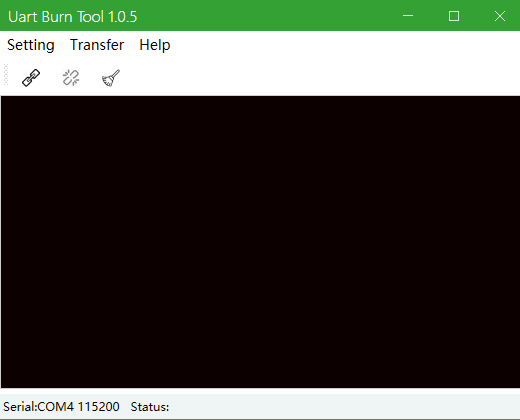
4.1 Open UART Upgrade Tool
Note: UartBurn software will occupy the serial port, please close xshell or Flash Tool connections first.
- Enter the
UartBurnTool/directory - Double-click to run
UartBurn.exe
4.2 Select Serial Port and Connect
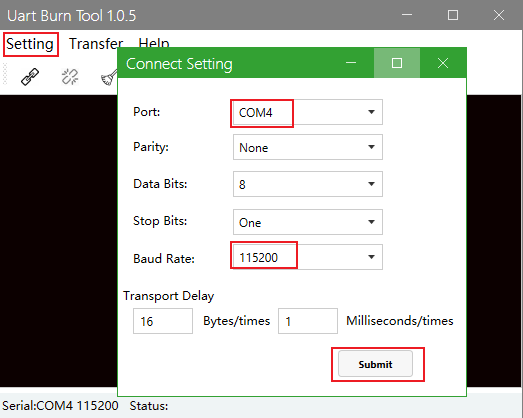
- Select the corresponding COM port
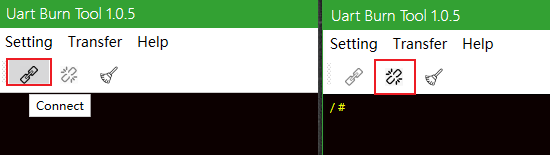
- Click the "Connect" button
4.3 Import Image
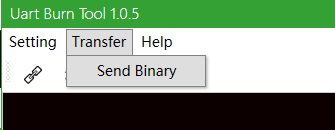
After Connect is successful, click the "Transfer" button to select firmware files for transmission in sequence.
4.4 Enter U-Boot
After U-Boot transmission is complete, the device will automatically enter the U-Boot command line interface.
Entering the U-Boot command line indicates the UART upgrade process was successful. Then use U-Boot commands to flash the firmware to flash.
5. Firmware Flashing
After entering the U-Boot command line, use the following commands for firmware flashing:
5.1 Upgrade via Ethernet
5.2 Upgrade via USB Drive
5.3 Upgrade via SD Card
After the upgrade is complete, the device will automatically reboot. At this point, switch the dial back to the flash boot mode corresponding to the firmware.