USB_Factory_Tool Update
SGS provides USB_Factory_Tool to support USB upgrade image. The specific process is as follows.
1. Generate image
Under the project, you need to make image first, build it, and then use make image-usb-factory to generate it. The usage is as follows:

Note: By default, the IPL/UBOOT configured in config is used, as shown in the following figure. According to the actual scenario of the customer, the IPL/UBOOT in the figure below can be modified(Based on the definition in the actual chip configuration.)

2. Upgrade via USB tools
USB tools are introduced as follows
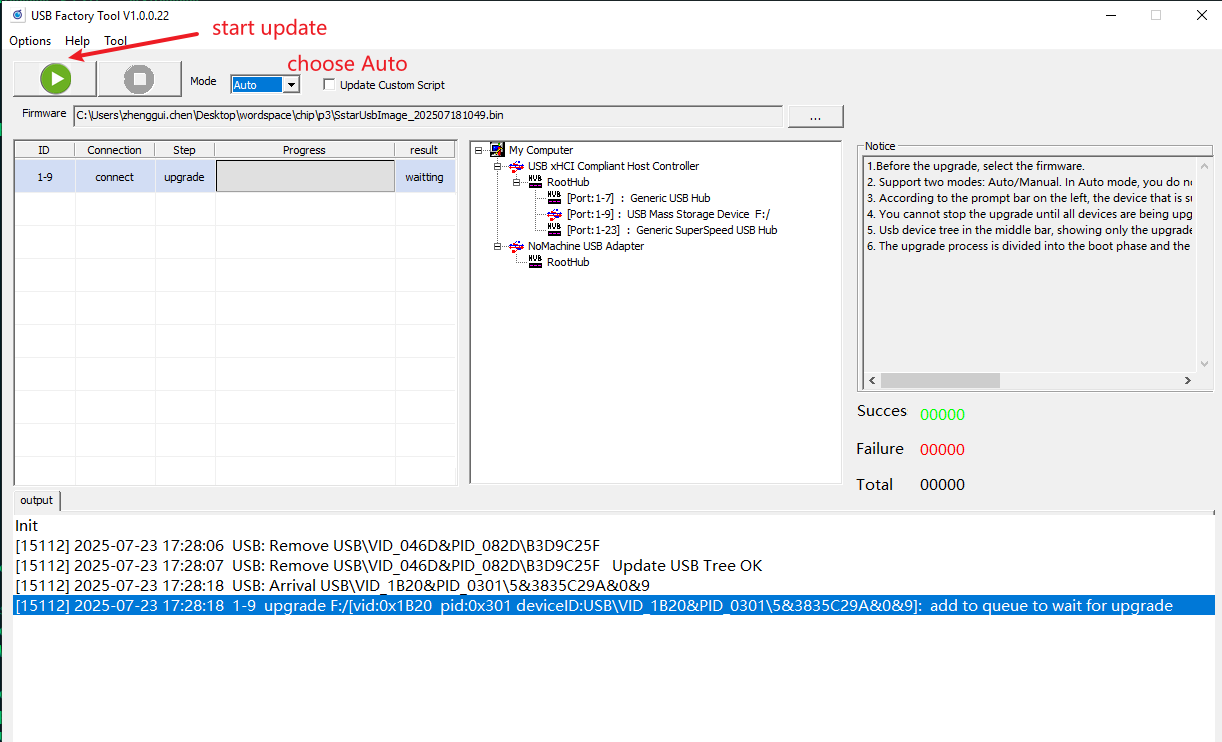
The tool supports two modes: Auto upgrade and manual upgrade.
2.1 auto mode
Generally speaking, auto is used in production lines, which can automatically detect device insertion and automatically upgrade. The steps are as follows
-
Select firmware
-
Click the Start Upgrade button, then you can insert the device and the upgrade will start automatically. The upgrade process is divided into two stages, the preparation stage and the upgrade stage. Only devices that succeed in the upgrade stage are considered to have been successfully upgraded.
2.2 Manual mode
Manual mode is generally used for development. You need to select a device to upgrade, as shown in the figure below. You need to manually select the upgrade device (USB mass storage device), and then click the upgrade button, as shown in the figure below.
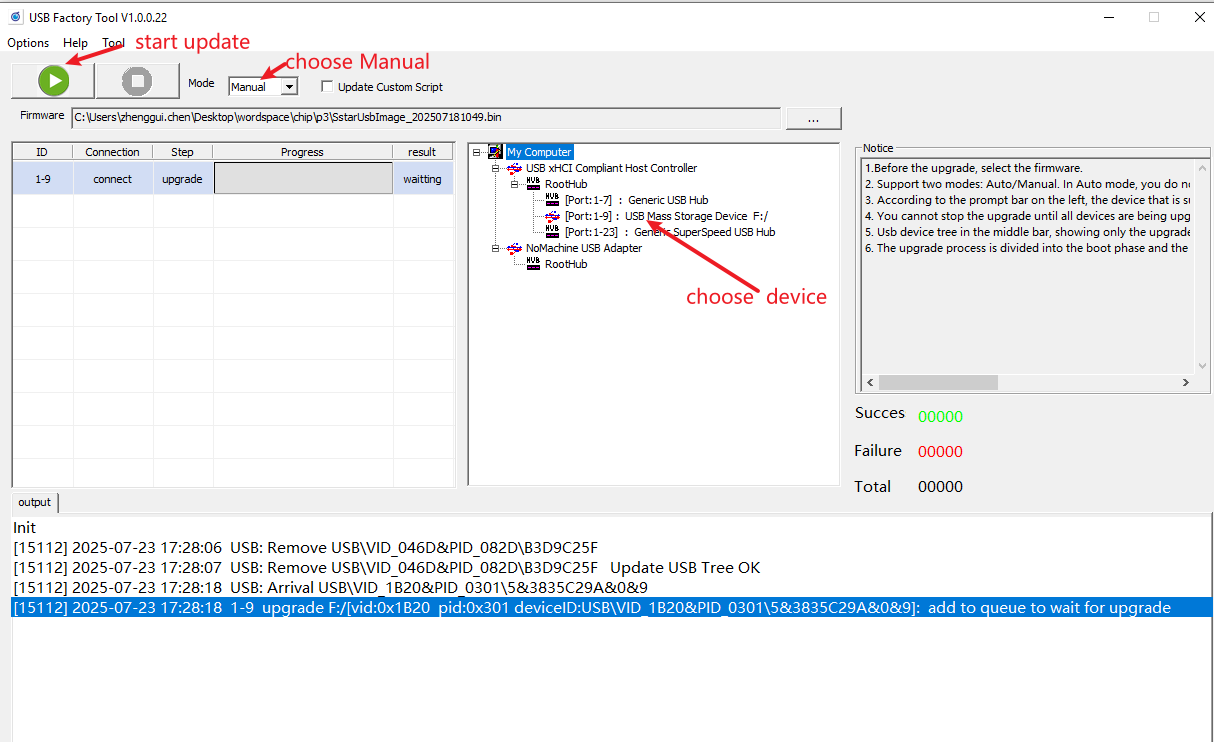
Here are the steps:
-
Select the firmware packaged with the script
-
Click the connected device in the device tree
-
Click the Start Upgrade button