YOLOv8-seg
1 Overview
1.1 Background Introduction
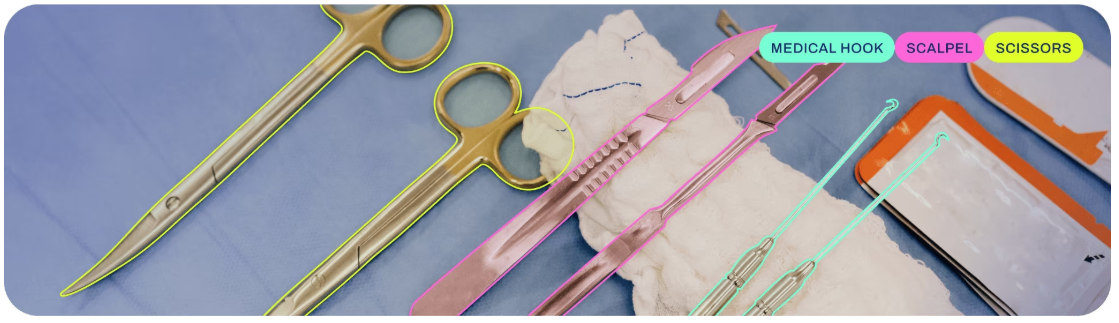
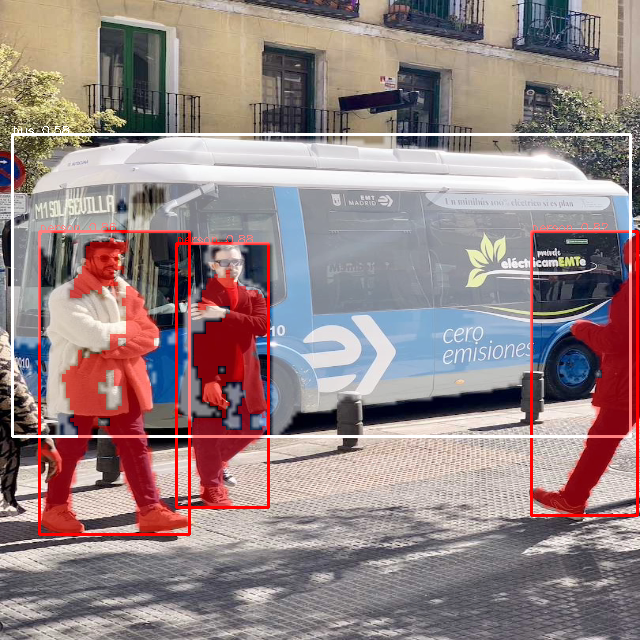
Instance segmentation goes a step further than object detection, as it can not only detect the coordinates of individual objects in an image but also generate segmentation masks for each target, separating them from the other content in the image.
YOLOv8-Seg is an advanced instance segmentation model that adds instance segmentation capability based on YOLOv8, inheriting its efficiency and enabling fast and accurate generation of segmentation masks in real-time tasks. The official YOLOv8-Seg provides several different model sizes: n, s, m, l, x, and the accuracies of these open-source models are as follows:
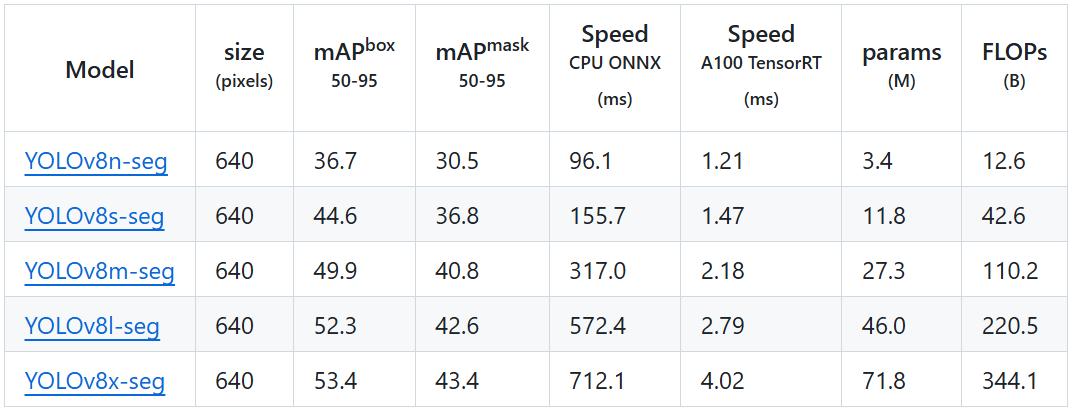
For more details, please refer to the official YOLOv8-Seg documentation:
https://github.com/ultralytics/ultralytics/tree/v8.2.103
The download link for the YOLOv8 open-source models is as follows:
1.2 Usage Instructions
The Linux SDK-alkaid comes with pre-converted offline models and board-side examples by default. The relevant file paths are as follows:
- Board-side example program path
Linux_SDK/sdk/verify/opendla/source/segmentation/yolov8-
Board-side offline model path
Linux_SDK/project/board/${chip}/dla_file/ipu_open_models/pose/yolov8n_seg_640x640.img - Board-side test image path
Linux_SDK/sdk/verify/opendla/source/resource/bus.jpg
-
If the user does not need to convert the model, they can jump directly to section 3.
2 Model Conversion
2.1 ONNX Model Conversion
-
Setting up the Python environment $conda create -n yolov8 python==3.10 $conda activate yolov8 $git clone https://github.com/ultralytics/ultralytics $cd ultralytics $pip install -e . -i https://pypi.tuna.tsinghua.edu.cn/simple Note: The provided Python environment setup is only a reference example; for the specific setup process, please refer to the official source running tutorial:
https://docs.ultralytics.com/quickstart/ -
Model Testing
- Write the model testing script
predict.pyfrom ultralytics import YOLO # Load a pretrained YOLO8n-seg model model = YOLO("yolov8n-seg.pt") model.predict("bus.jpg", save=True, imgsz=640, conf=0.5) - Run the model testing script to ensure the YOLOv8 environment is configured correctly.
$python predict.py
For specific details, please refer to the official YOLOv8 testing documentation
https://docs.ultralytics.com/zh/tasks/segment/#predict - Write the model testing script
-
Model Export
- Write the model conversion script
export.py: import os import sys from ultralytics import YOLO model = YOLO("yolov8n-seg.pt") model.export(format="onnx", imgsz=[640,640], simplify=True, opset=13) - Run the model conversion script to generate the yolov8n-seg.onnx model in the current directory $python export.py
- Write the model conversion script
2.2 Offline Model Conversion
2.2.1 Preprocessing & Postprocessing Instructions
-
Preprocessing
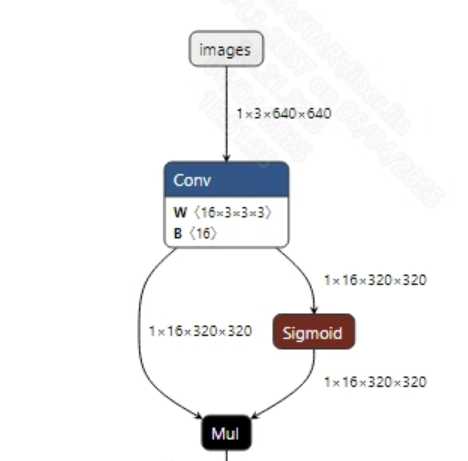
The input information for the successfully converted yolov8n-seg.onnx model is shown in the figure below, requiring the input image size to be (1, 3, 640, 640), and the pixel values must be normalized to the range [0, 1].
-
Postprocessing
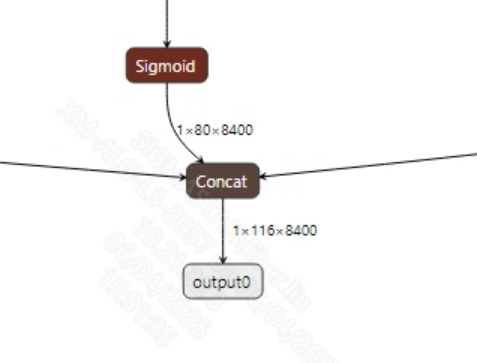
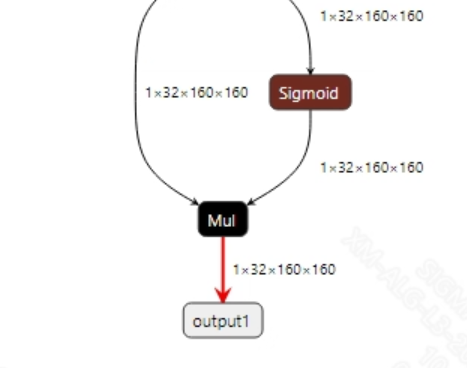
The output information for the successfully converted yolov8n-seg.onnx model is shown in the figure below. Typically, the yolov8-seg model outputs two dimensions: (1, 116, 8400) and (1, 32, 160, 160). Here, 8400 is the number of candidate boxes, and 116 includes 4 bounding box coordinates, 80 class probabilities, and 32 segmentation mask weights; in the second output, 32 indicates there are 32 segmentation mask images, and 160 indicates the size of the mask images. After obtaining the candidate boxes from the model output, all candidate box classes need to be judged, and NMS (Non-Maximum Suppression) must be performed to output the correct bounding boxes. The segmentation mask processing (mask cropping, foreground-background judgment) must also be carried out to output correct results.
2.2.2 Offline Model Conversion Process
Note: 1) OpenDLAModel corresponds to the smodel file extracted from the compressed package image-dev_model_convert.tar. 2) The conversion command must be run in a Docker environment; please load the SGS Docker environment according to the Docker development environment tutorial.
- Copy the ONNX model to the conversion code directory $cp ultralytics/yolov8n-seg.onnx OpenDLAModel/segment/yolov8/onnx
- Conversion command $cd IPU_SDK_Release/docker $bash run_docker.sh # Enter the OpenDLAModel directory in the Docker environment $cd /work/SGS_XXX/OpenDLAModel $bash convert.sh -a segment/yolov8 -c config/segment_yolov8.cfg -p SGS_IPU_Toolchain (absolute path) -s false
- Final generated model locations output/{chip}_/yolov8n_seg_640x640.img output/{chip}_/yolov8n_seg_640x640_fixed.sim output/{chip}_/yolov8n_seg_640x640_float.sim
2.2.3 Key Script Parameter Analysis
-   input_config.ini
        [INPUT_CONFIG]
        inputs = images;                    # ONNX input node names, separated by commas if there are multiple;
        training_input_formats = RGB;       # Input format during model training, usually RGB;
        input_formats = BGRA;               # Board-side input format, can choose BGRA or YUV_NV12 based on the situation;
        quantizations = TRUE;               # Enable input quantization, do not modify;
        mean_red = 0;                       # Mean, related to model preprocessing, configure according to actual conditions;
        mean_green = 0;                     # Mean, related to model preprocessing, configure according to actual conditions;
        mean_blue = 0;                      # Mean, related to model preprocessing, configure according to actual conditions;
        std_value = 255;                    # Variance, related to model preprocessing, configure according to actual conditions;
        [OUTPUT_CONFIG]
        outputs = output0;                  # ONNX output node names, separated by commas if there are multiple;
        dequantizations = FALSE;            # Whether to enable dequantization, fill according to actual needs, recommended to be TRUE. If set to False, output will be int16; if set to True, output will be float32.
-   pose_yolov8.cfg
        [POSE]
        CHIP_LIST=pcupid                    # Platform name, must match the board platform; otherwise, the model cannot run
        Model_LIST=yolov8n_seg              # Input ONNX model name
        INPUT_SIZE_LIST=640x640             # Model input resolution
        INPUT_INI_LIST=input_config.ini     # Configuration file
        CLASS_NUM_LIST=0                    # Just fill in 0
        SAVE_NAME_LIST=yolov8n_seg_640x640.img          # Output model name
        QUANT_DATA_PATH=quant_data          # Path for quantization images
2.3 Model Simulation
- Obtain float/fixed/offline model outputs
$bash convert.sh -a segment/yolov8 -c config/segment_yolov8.cfg -p SGS_IPU_Toolchain (absolute path) -s true
After executing the above command, the output tensor of the
floatmodel will be saved by default in a txt file under the pathsegment/yolov8/log/output. Additionally, thesegment/yolov8/convert.shscript also provides simulation examples forfixedandoffline, allowing users to obtain outputs for thefixedandofflinemodels by uncommenting code blocks during execution. - Model Accuracy Comparison
With the input being the same as the aforementioned models, enter the environment built in section 2.1, and add the following print statement at line 115 in the
ultralytics/ultralytics/nn/modules/head.pyfile: print((torch.cat([x, mc], 1), p)) This will obtain the output tensor of the corresponding node in the PyTorch model, allowing for comparison with the float, fixed, and offline models. It should also be noted that the original model's output format isNCHW, while the output formats of the float/fixed/offline models areNHWC.
3 Board-side Deployment
3.1 Program Compilation
Before compiling the example program, it is necessary to select the appropriate deconfig based on the board (nand/nor/emmc, ddr model, etc.) for the complete SDK compilation. For details, refer to the alkaid SDK sigdoc document "Development Environment Setup." - Compile the board-side YOLOv8-Seg example. $cd sdk/verify/opendla make clean && make source/segmentation/yolov8 -j8 - Final generated executable file location sdk/verify/opendla/out//app/prog_segmentation_yolov8
3.2 Running Files
When running the program, you need to copy the following files to the board: - prog_segmentation_yolov8 - bus.jpg - yolov8n_seg_640x640.img
3.3 Running Instructions
- Usage:
./prog_segmentation_yolov8 -i image -m model [-t threshold](command to run the executable) - Required Input:
- image: path to the image folder/single image
- model: path to the offline model to be tested
-
Optional Input:
- threshold: detection threshold (0.0~1.0, default is 0.5)
-
Typical output:
./prog_segmentation_yolov8 -i ./resource/bus.jpg -m models/yolov8n_seg_640x640.img

inputs: ./resource/bus.jpg
model path: models/yolov8n_seg_640x640.img
threshold: 0.500000
client [652] connected, module:ipu
found 1 images!
[0] processing ./resource/bus.jpg...
fillbuffer processing...
net input width: 640, net input height: 640
model invoke time: 50.412000 ms
post process time: 44.594000 ms
outImagePath: ./output/673608/images/bus.png
------shutdown IPU0------
client [652] disconnected, module:ipu